

Key Takeaways
- Importance of Battery Health: Regularly checking your Samsung Z Fold 3’s battery health is vital for maintaining its performance and prolonging its lifespan.
- Methods to Check Health: Utilize built-in settings or third-party apps like AccuBattery to monitor battery condition, usage, and capacity trends effectively.
- Signs of Battery Issues: Look for rapid discharging, overheating, or swelling as key indicators of potential battery problems that require attention.
- Optimization Tips: Adjust screen brightness, limit background data, and enable battery saver mode to extend battery life and improve overall device performance.
- Maintain Through Care: Protect your device from extreme temperatures, charge smartly, and keep your software updated for optimal battery health.
- Monitor Regularly: Conduct regular checks on battery health using available tools to catch issues early and manage power usage effectively.
Are you worried about your Samsung Z Fold 3’s battery life? You’re not alone. Many users find themselves questioning how long their device will last, especially with heavy usage. Checking your battery health can help you understand if it’s time for a replacement or if you just need to tweak some settings.
Why Battery Health Matters
Understanding battery health is crucial for maintaining your Samsung Z Fold 3’s performance. Battery health directly affects how long your device lasts on a single charge. A declining battery can result in shorter usage times, leading to frustration during your day-to-day tasks.
Maintaining good battery health extends the lifespan of your device. When the battery ages, it may hold less charge. A battery replacement can become necessary if health diminishes significantly. Checking battery health regularly helps you identify potential issues early, allowing you to make informed decisions about usage or replacement.
Optimizing settings based on battery health can enhance performance. For example, if the battery can no longer support certain features, reducing screen brightness or limiting background data can help. Adjusting these settings prolongs battery life and improves overall user experience.
Being proactive about battery health not only prevents unexpected shut-downs but also enhances your device’s reliability. Regularly monitoring battery performance components ensures your Samsung Z Fold 3 remains efficient and effective for your daily needs.
Checking Battery Health on Samsung Z Fold 3
Checking the battery health on your Samsung Z Fold 3 helps ensure optimal performance and longevity. Here are two effective methods to assess your battery’s condition.
Recommended Products
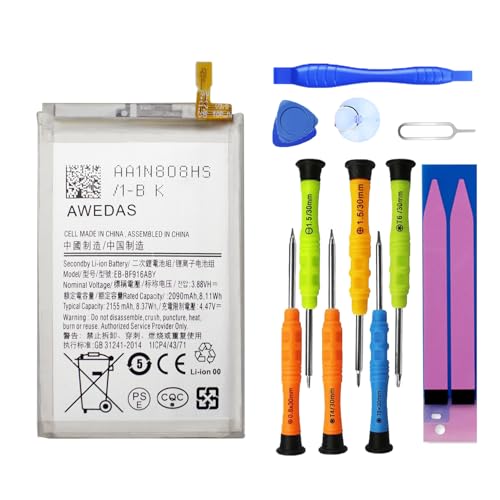
【Wide Compatibility】 Fully Compatible for Z Fold 2 5G SM-F916B SM-F916U SM-F916U1 SM-F916N SM-F9160 SM-F916W and more models.

This battery is compatible with Samsung Galaxy Z Fold 3 5G SM-F926U, please carefully check your phone model before purchase.

Made from the high quality TPU film for easy installation and no residue when removed
Using Built-In Settings
- Open Settings: Navigate to the settings app on your Samsung Z Fold 3.
- Select Battery and Device Care: Tap on “Battery and Device Care.”
- Battery Status: Here, you’ll see battery information including its health percentage. You can track battery usage trends, seeing which apps consume more power.
- Optimize Battery: Use the optimization feature. This beneficial tool improves your battery’s performance by managing background apps and adjusting power usage.
Third-Party Apps
- Install Battery Monitoring Apps: Explore apps like AccuBattery or GSam Battery Monitor from the Galaxy Store or Google Play Store.
- Review Battery Statistics: These apps provide detailed stats about battery usage, capacity, and health over time.
- Set Reminders: Some apps allow you to set alerts for when the battery nears capacity limits or when usage is higher than normal.
- Examine Charging Cycles: Keep an eye on charging cycles. Understanding how often your device charges can provide insight into overall battery health.
By regularly checking your battery health using built-in settings or third-party apps, you can maintain your Samsung Z Fold 3’s efficiency and reliability.
Interpreting Battery Health Information
Understanding battery health is key to ensuring optimal performance of your Samsung Z Fold 3. Use the data provided in the settings or third-party apps to evaluate the battery’s status.
Recommended Products

This battery is Compatible with Samsung Galaxy Z Fold 4 battery, please carefully check your phone model before purchase.

Compatible Phone Model: This battery kit is specifically designed for Samsung Galaxy Z Flip 3 (with model SM-F711 series), please double confirm your phone model before purchasing

This battery is compatible with Samsung Galaxy Z Fold 3 5G SM-F926U, please carefully check your phone model before purchase.
Understanding Battery Capacity
Battery capacity measures how much charge your battery can store, usually indicated in milliampere-hours (mAh). For Samsung Z Fold 3, a capacity around 4,400 mAh is standard. If the maximum capacity displayed in the health report is significantly lower, it indicates cell degradation. For example, if the capacity is reported at 3,500 mAh, consider it a sign that the battery requires attention.
You can monitor your battery’s capacity over time using built-in features or third-party apps. Regular checks help identify significant drops and prompt proactive measures, such as adjusting usage patterns or preparing for a battery replacement.
Identifying Battery Issues
Identifying battery issues involves looking for specific symptoms, such as rapid discharging, overheating, or swelling. If your Samsung Z Fold 3 discharges from 100% to 30% within a few hours during regular use, this suggests a potential problem. Frequent overheating, especially when charging, is another indicator that the battery might be failing.
Utilize the “Battery and Device Care” section in the settings for additional diagnostics. You’ll find options that show battery health along with app usage statistics. If certain apps consume excessive power, you can modify settings or limit their background activity to improve battery life. Adjusting screen brightness and disabling unnecessary features also helps maintain battery efficiency. Regular checks and adjustments allow you to address issues before they become significant problems.
Tips for Maintaining Battery Health
Recommended Products

【65W/45W/20W Fast Phone Charger】Extensive compatibility with 1000+ devices, including iPhone 17/16/15 Pro Max / Pro, Samsung Galaxy S26/S25/S24/S23/S22/S21/S20 Ultra & Plus Series, Google Pixel 10/9/8/7/6/5 Pro, MacBook Air (2018/2020), MacBook 12", MacBook Pro 13"/15", iPad Pro 12.9"/11"/10.5", iPad Air, iPad mini, Apple Watch Series, power banks, Bluetooth headphones, smartwatches.Supports PD 3.0, QC 3.0, AFC, PPS, and FCP, ensuring stable charging across most USB-C and USB-A devices.
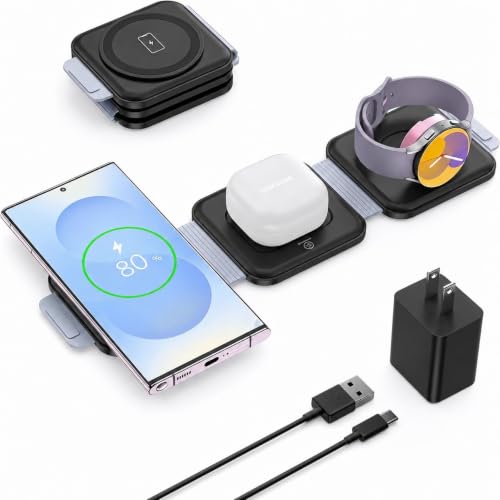
PERFECT LITTLE TRIPLE CHARGER FOR TRAVEL:⚠️ Not compatible with Galaxy Watch9 and Galaxy Watch Ultra2!!! Compact size takes up negligible space, It folds up to the size of your palm and can fit in your pocket, minimalist design to save more space. one cable plug into the charger and easily charges with all 3 of your Samsung devices seamlessly. Note: Since there is no magnetic function, please lay the charging plate flat for charging.

⚠️ Not compatible with Galaxy Watch9 and Galaxy Watch Ultra2!!!【Perfect Little Triple Charger for Travel】Compact size takes up negligible space, It folds up to the size of your palm and can fit in your pocket, minimalist design to save more space. one cable plug into the charger and easily charges with all 3 of your Samsung devices seamlessly.Note: Does not fit Galaxy Watch9 / Galaxy Watch Ultra2
Optimize Screen Brightness
Adjust your screen brightness to a lower setting. The screen consumes significant battery power. Use adaptive brightness to let your device automatically adjust based on your environment.
Limit Background Activity
Restrict background data usage for apps. Go to your settings, access “Apps,” and choose which apps can refresh in the background. Limiting this activity helps conserve battery life.
Enable Battery Saver Mode
Activate battery saver mode for extended usage. This feature reduces device performance and limits app activity when your battery runs low. You can enable it in the “Battery” section of settings.
Manage Connectivity Features
Turn off connectivity features like Bluetooth, Wi-Fi, or GPS when not in use. Disabling these functions prevents unnecessary battery drain. Consider using airplane mode in low-signal areas.
Update Software Regularly
Keep your device’s software up to date. Software updates improve performance and may include battery management enhancements. Check for updates in the settings under “Software Update.”
Avoid Extreme Temperatures
Protect your device from extreme temperatures. Excessive heat or cold can adversely affect battery performance and longevity. Store and use your device within the recommended temperature range.
Charge Smartly
Charge your Samsung Z Fold 3 using original chargers. Avoid deep discharging and excessive charging. Aim to keep your battery level between 20% and 80% for optimal health.
Monitor Battery Health Regularly
Regularly check your battery health. Use the built-in “Battery and Device Care” feature or third-party apps to track capacity and performance. Early identification of issues can lead to better management.
Reduce App Usage
Minimize the use of power-intensive apps. Games and streaming services can quickly drain your battery. Identify such apps and limit their usage or adjust settings for lower power consumption.
Use Dark Mode
Consider switching to dark mode. This setting uses less power on AMOLED screens like the Z Fold 3. Activate dark mode in your settings to enhance battery efficiency.
Conclusion
Taking care of your Samsung Z Fold 3’s battery health is essential for a smooth user experience. By regularly checking your battery’s status and making small adjustments to your settings, you can significantly enhance its performance and lifespan.
Don’t wait for issues to arise; be proactive in monitoring your battery’s health and address any concerns early on. Implementing simple strategies like optimizing screen brightness and managing background activity can make a world of difference.
Enjoy your device to the fullest by keeping its battery in top shape and ensuring it’s always ready for your daily tasks.
Frequently Asked Questions
What factors affect the battery life of the Samsung Z Fold 3?
Battery life can be impacted by heavy usage, screen brightness, background activity, and connectivity features. Regularly monitoring these factors can help optimize performance.
How can I check the battery health on my Samsung Z Fold 3?
You can check battery health by going to “Settings” > “Battery and Device Care.” There, you can view battery information and usage trends. Third-party apps like AccuBattery and GSam Battery Monitor also provide detailed insights.
What does it mean if the battery capacity drops significantly?
A significant drop in battery capacity indicates cell degradation, which may require attention or even a battery replacement. Regular monitoring helps catch these issues early.
How can I extend the battery life of my Samsung Z Fold 3?
To extend battery life, optimize screen brightness, limit background app activity, use battery saver mode, and regularly update software. Charging smartly and avoiding extreme temperatures also helps.
What are some signs my Samsung Z Fold 3 battery might need replacement?
Signs include rapid discharging, overheating, or swelling. If you notice these issues, it’s essential to investigate further using the “Battery and Device Care” diagnostics.
