

Key Takeaways
- Understanding Battery Health: Regularly checking your Samsung Note 20 Ultra’s battery health is essential for maintaining its performance and preventing unexpected shutdowns.
- Signs of Poor Battery Health: Look out for rapid battery drain, overheating, unexpected shutdowns, and slow charging as key indicators of declining battery health.
- How to Check Battery Health: Utilize the built-in settings under “Battery and Device Care” or downloadable third-party apps like AccuBattery and GSam Battery Monitor for detailed insights on battery usage and health.
- Maintenance Tips: Prolong battery life by avoiding extreme temperatures, limiting fast charging, optimizing settings, and ensuring regular software updates.
- Benefits of Regular Monitoring: Keeping track of battery health helps enhance reliability, prolong device lifespan, and encourages adherence to proper maintenance practices.
Is your Samsung Note 20 Ultra not holding a charge like it used to? You’re not alone. Many users face battery issues over time, and knowing how to check your battery health can save you from unexpected shutdowns and performance drops.
Overview Of Battery Health
Battery health significantly affects your Samsung Note 20 Ultra’s performance. Understanding battery health helps you manage your device’s longevity and efficiency. Regular checks prevent unexpected shutdowns and ensure your phone runs smoothly.
What is Battery Health?
Battery health refers to the capacity of your battery relative to its original state. Over time, batteries degrade due to usage patterns and charging habits. A healthy battery holds a charge effectively, while a degraded battery drains faster and may not support daily activities.
Signs of Poor Battery Health
Look for these signs to assess your battery’s health:
- Rapid Drain: If your battery percentage drops quickly, it indicates underlying issues.
- Overheating: Excessive heat during charging or usage often signals a problem.
- Unexpected Shutdowns: If your phone shuts down with charge still remaining, it signals battery health decline.
- Slow Charging: Noticeable delays while charging your device can indicate battery issues.
Checking Battery Health
You can check the battery health using built-in tools or third-party apps:
- Settings Menu:
- Open the Settings app.
- Select Battery and Device Care.
- Tap Battery and then Status to view battery usage.
- Using Apps:
- Download reputable applications like AccuBattery or GSam Battery Monitor.
- These apps provide insights into battery usage and health metrics.
Maintaining Battery Health
Follow these tips to prolong your battery’s life:
- Avoid Extreme Temperatures: Keep your device in a climate-controlled environment.
- Limit Fast Charging: While convenient, frequent fast charging can shorten battery lifespan.
- Optimize Settings: Use power-saving modes and reduce screen brightness.
- Regular Updates: Keep software up-to-date for optimal performance.
Understanding and monitoring battery health ensures your Samsung Note 20 Ultra operates effectively. Frequent checks and adherence to maintenance tips can significantly improve your experience and extend battery life.
Importance Of Checking Battery Health
Checking your battery health is crucial for maintaining the performance of your Samsung Note 20 Ultra. Regularly assessing its condition helps prevent unexpected shutdowns and enhances the overall user experience.
Signs Of A Failing Battery
Recognizing the signs of a failing battery is essential. Look for these common indicators:
- Rapid Drain: Your device discharges faster than usual during regular use.
- Overheating: The phone feels excessively warm, especially during charging or heavy usage.
- Unexpected Shutdowns: The device shuts off unexpectedly even with a charged battery.
- Slow Charging: Charging takes significantly longer than it previously did.
Identifying these symptoms early allows for timely action, preventing further issues.
Benefits Of Regular Checks
Regular battery health checks offer several advantages:
- Prolongs Lifespan: Monitoring battery health helps you maintain optimal performance.
- Enhances Reliability: Regular checks reduce the likelihood of surprises, like unexpected shutdowns during important tasks.
- Encourages Proper Maintenance: Understanding battery status prompts you to follow best practices, ensuring longevity.
Adopting a routine to check your battery health not only keeps your device running smoothly but also enhances your overall satisfaction with it.
Methods To Check Battery Health
You can assess your Samsung Note 20 Ultra’s battery health using built-in settings and third-party applications. Here are the methods you can follow.
Using Device Settings
- Open Settings app: Tap on the “Settings” icon from your home screen or app drawer.
- Select Device care: Scroll down and choose “Device care.”
- Tap on Battery: Here, you’ll find battery usage details and tips.
- View more options: In the battery section, tap on the three vertical dots in the upper right corner, then select “Battery usage.”
- Check battery status: This section shows detailed stats, including battery consumption by apps over time.
Using Third-Party Apps
You can also download apps designed to monitor battery health for more detailed insights. Here are two popular options:
- AccuBattery:
- Download from Play Store: Install AccuBattery from the Google Play Store.
- Monitor usage: Open the app and grant necessary permissions. It tracks battery usage and health over time.
- View health metrics: Check the “Health” tab for information on capacity and wear level.
- GSam Battery Monitor:
- Install the app: Download GSam Battery Monitor from the Play Store.
- Open and set up: Launch the app and allow it to gather battery data.
- Analyze results: Use the app to view detailed graphs showing usage trends and estimates on battery health.
Using these methods ensures you maintain an understanding of your device’s battery performance and longevity.
Understanding Battery Specifications
Battery health directly impacts your Samsung Note 20 Ultra’s performance and longevity. Knowing battery specifications helps you track and manage battery health effectively.
Recommended Products

【Precision Compatibility for Galaxy Note 20 Ultra】:This EB-BN985ABY replacement battery is engineered specifically for the Samsung Galaxy Note 20 Ultra, compatible with models SM-N985, SM-N986, and SM-N986U. Please verify your phone model before ordering—this battery is not designed for other Galaxy Note devices.
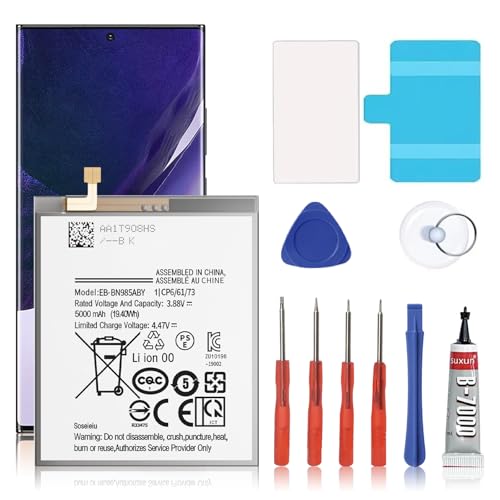
🎋【Compatible Model】EB-BN985ABY Replacement Battery for Samsung Galaxy Note 20 Ultra SM-N985 N986 N986U[Note: Not for GalaxyGalaxy Note 20 Ultra Battery Note 20 other Phone Models]
Battery Life Expectations
The Samsung Note 20 Ultra features a 4,500 mAh battery, offering reliable usage for most daily tasks. You can expect around 8 to 10 hours of screen-on time under standard usage conditions. Engaging in resource-intensive activities, such as gaming or video streaming, may lead to faster battery drain. Optimizing settings like screen brightness and background usage can extend battery life, ensuring your phone stays powered throughout the day.
Common Issues And Solutions
You may encounter several common battery issues:
- Rapid Drain: If your battery drains quickly, consider disabling unnecessary background apps. Limit location services and notifications when they’re not needed.
- Overheating: Overheating may arise from misuse or faulty apps. Ensure your phone has proper ventilation and remove cases while charging.
- Unexpected Shutdowns: Unexpected shutdowns can signify battery health deterioration. If this happens regularly, check battery stats in the “Device care” section or explore third-party apps for detailed analysis.
- Slow Charging: Faulty cables or adapters can slow down charging times. Using Samsung-approved accessories helps maintain optimal charging speeds.
Being aware of these issues and their solutions ensures your device operates smoothly. Regular checks enhance reliability and prolong your device’s lifespan.
Conclusion
Taking the time to check your Samsung Note 20 Ultra’s battery health can really make a difference in your device’s performance. By staying aware of the signs of battery issues and regularly monitoring its status, you can avoid unexpected shutdowns and improve your overall experience.
Implementing simple maintenance tips like optimizing settings and keeping your software updated will go a long way in extending your battery’s lifespan. Remember that a well-maintained battery not only enhances your phone’s reliability but also keeps you connected without interruptions. So keep an eye on that battery health and enjoy your device to the fullest!
Frequently Asked Questions
What are common battery issues with the Samsung Note 20 Ultra?
Common battery issues include rapid drain, overheating, unexpected shutdowns, and slow charging. These problems can often be addressed by checking battery health, limiting background app usage, and ensuring proper charging practices.
How can I check the battery health of my Samsung Note 20 Ultra?
You can check battery health by navigating to the “Device care” section in your phone’s Settings app. You may also use third-party apps like AccuBattery or GSam Battery Monitor for more detailed insights into battery performance.
What are the signs of poor battery health?
Signs of poor battery health include rapid battery drain, overheating during use, unexpected shutdowns, and slow charging speeds. Recognizing these symptoms early can help you take action to improve battery performance.
How can I maintain the battery health of my Samsung Note 20 Ultra?
To maintain battery health, avoid extreme temperatures, limit fast charging, optimize device settings, and keep your software updated. Regularly checking battery health can also prevent future issues.
What is the battery capacity of the Samsung Note 20 Ultra?
The Samsung Note 20 Ultra features a 4,500 mAh battery, which typically provides around 8 to 10 hours of screen-on time under standard usage conditions.
What optimizations can I make to extend battery life?
You can extend battery life by adjusting screen brightness, limiting background app activity, and keeping your software updated. Avoid using non-approved charging accessories to ensure safe charging practices.
Why is checking battery health important?
Checking battery health is crucial to maintaining optimal device performance and prolonging battery lifespan. Regular assessments help prevent unexpected shutdowns and enhance the overall user experience.
