

Key Takeaways
- Understanding Battery Health: Battery health encompasses metrics like charge cycles, capacity, and temperature, which are essential for assessing your Google Pixel’s performance.
- How to Check Battery Health: Navigate to Settings > Battery > Battery Usage on your Google Pixel to view charge cycles and battery capacity easily.
- Use Third-Party Apps: Apps like AccuBattery and GSam Battery Monitor provide deeper insights into battery health and usage, helping you make informed decisions.
- Maintain Battery Health: Avoid extreme temperatures, optimize charging habits, and keep your software updated to prolong battery life.
- Limit Background Activity: Close unused apps and disable background processes to reduce unnecessary battery drain and extend overall battery life.
- Regular Monitoring: Consistently check battery health metrics to identify potential issues early and adjust your usage and charging habits accordingly.
Have you ever noticed your Google Pixel’s battery draining faster than usual? It’s frustrating when your phone can’t keep up with your daily needs. Understanding your battery’s health can help you figure out if it’s time for a replacement or if there are simple fixes you can try.
In this article, you’ll learn how to easily check the battery health on your Google Pixel. By following these steps, you’ll gain insights into your battery’s performance and make informed decisions about its care. Whether you want to extend its life or troubleshoot issues, you’ll find the guidance you need right here.
Overview Of Battery Health
Battery health refers to the condition and longevity of your Google Pixel’s battery. Understanding this can help you identify performance issues and make informed decisions about battery management. Checking battery health ensures optimal usage and longevity of your device.
Key Indicators of Battery Health
- Charge Cycles: Track the number of times your battery has been completely charged and discharged. Most batteries retain about 80% of their capacity after 300 to 500 cycles.
- Battery Capacity: This metric shows the remaining charge your battery can hold compared to when it was new. A significant drop indicates diminished health.
- Battery Temperature: Extreme temperatures can affect battery performance. Ideal operating temperatures range from 32°F to 95°F (0°C to 35°C).
- Charging Speed: Notice if your device takes longer to charge than before. A slower charge can indicate battery wear or damage.
Checking Battery Health on Google Pixel
To check your battery health, follow these steps:
- Open the Settings app on your Google Pixel.
- Scroll down and select Battery.
- Tap on Battery Usage to view detailed statistics.
- Look for information on battery capacity and charge cycles.
Consider using third-party apps like AccuBattery for more detailed insights into battery health.
Tips for Maintaining Battery Health
- Avoid Extreme Temperatures: Keep your device away from high heat and freezing conditions.
- Optimize Charging Habits: Disconnect your charger when your battery reaches 100%. Consider using adaptive charging features.
- Regular Updates: Keep your device software up-to-date to ensure optimal battery management.
- Limit Background Activity: Close unused apps and disable background processes to reduce battery drain.
By monitoring and maintaining your battery health, you can extend the life of your Google Pixel while ensuring it performs at its best.
How To Access Battery Settings
Accessing battery settings on your Google Pixel lets you monitor battery health and usage. Follow these steps to navigate the settings easily.
Recommended Products

【1. Brand New 0 Cycle – Not a Pulled Battery】 100% new cells, 0 charge cycles. Absolutely not a pulled or used battery. Capacity is 4614mAh, matching original specifications, ensuring reliable daily battery life.
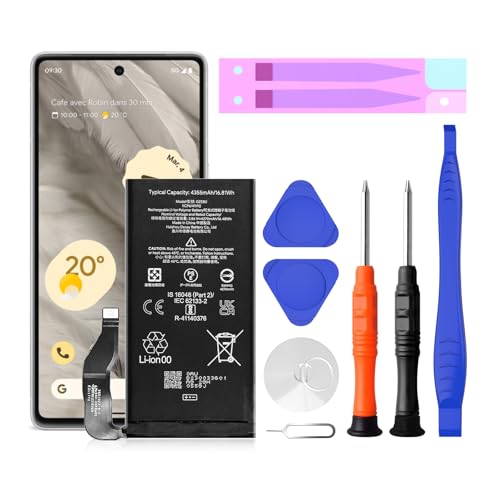
【Pixel 7 battery replacement 】quality battery replacement for Google Pixel 7 perfect fit your phone. It is safer than so-called upgraded high-capacity batteries. No potential risks during use. Multiple protection features to prevent overcharging and prevent overheating. Built-in microchip to ensure safe battery charging and improve battery life. NOTE: Please fully charge and discharge your new battery 3 to 5 cycles to release all capacity of the new battery.

Step-by-Step Guide
- Open Settings: Tap the Settings app from your home screen or app drawer.
- Select Battery: Scroll down and choose the “Battery” option.
- View Battery Health: Tap “Battery Health” to see the overall health and capacity of your battery.
- Check Usage: Tap “Battery usage” to view a breakdown of apps and processes consuming power.
Understanding Battery Usage Statistics
Battery usage statistics provide insights into which apps drain your battery most. Focus on the following details:
- App Usage: See the percentage of battery each app uses over the last 24 hours or 7 days.
- Background Activity: Identify apps that continue to run in the background, consuming additional power.
- Screen On Time: Check how long your screen has been active, comparing it to total battery usage.
By understanding these statistics, you can take action to manage power-hungry apps effectively. Limit background activity for apps that aren’t in use to help extend your battery life.
Third-Party Apps For Battery Health
Using third-party apps can enhance your understanding of battery health on your Google Pixel. These apps provide detailed insights that the default settings may not cover.
Recommended Products

REVOLUTIONARY HERZP1 SMART RING HEALTH TRACKER - The Herz P1 Smart Ring for women & men is a game-changer in the wearable tech industry. This sleek, lightweight ring provides accurate health metrics including heart rate, temperature, blood oxygen levels, activity, and stress levels. It's not just a fitness tracker, it's the next generation of wearable health tech, designed to fit effortlessly into your life.

Power Saver and Optimizer

Recommended Apps
- AccuBattery
AccuBattery offers comprehensive details about battery charge cycles, capacity, and health. It helps track battery usage over time.
- GSam Battery Monitor
GSam Battery Monitor displays detailed information about app usage and battery drain. You can see usage statistics and wake locks easily.
- Battery Guru
Battery Guru provides tips for optimizing battery life and monitoring health metrics. It features a user-friendly interface for quick access.
How To Use These Apps
- Install the App
Go to the Google Play Store, search for the chosen app, and tap ‘Install’.
- Open the App
Launch the app once the installation completes.
- Grant Necessary Permissions
Allow the app to access battery data and usage statistics. This access enables accurate readings of battery health.
- Review Battery Insights
Navigate through the app to view battery health metrics, charge cycles, and usage trends. Adjust your charging habits based on the information provided.
- Set Up Notifications
Some apps allow you to set alerts for battery percentage thresholds. Configure notifications for optimal battery management.
Using these apps offers a clearer view of battery performance, helping you make informed decisions to maintain your Google Pixel’s battery health.
Tips For Maintaining Battery Health
Maintaining battery health is essential for ensuring your Google Pixel performs optimally. Here are practical tips to help you keep your battery in top shape.
Avoid Extreme Temperatures
Avoid exposing your device to extreme heat or cold. Temperatures above 95°F (35°C) can damage battery capacity. Conversely, temperatures below 32°F (0°C) can temporarily reduce its performance.
Optimize Charging Habits
Optimize your charging habits by unplugging the charger once it reaches 100%. Overnight charging can lead to prolonged high voltage, which affects battery health. Use adaptive charging features when available to prolong battery lifespan.
Keep Software Updated
Keep your software updated to benefit from performance improvements and bug fixes. Google frequently releases updates that optimize battery usage for apps and system functions. Enable automatic updates for convenience.
Limit Background Activity
Limit background activity of unused apps. Check battery usage statistics in your settings to identify rogue apps that consume excessive power. Disable background data for these apps to save battery life.
Use Battery Saver Mode
Use the built-in battery saver mode when your phone runs low on power. This mode reduces performance and limits background activity, extending battery life during critical times.
Avoid Frequent Full Discharges
Avoid letting your battery fully discharge regularly. Lithium-ion batteries perform better when kept charged between 20% and 80%. Frequent complete discharges can shorten battery lifespan.
Monitor Battery Health Regularly
Monitor your battery health regularly using built-in settings or third-party apps. Keep an eye on charge cycles and capacity percentages. Being informed helps you take action if performance starts to decline.
Implementing these tips can significantly enhance your Google Pixel’s battery health and overall performance.
Conclusion
Taking care of your Google Pixel’s battery health is essential for keeping your device running smoothly. By regularly checking battery statistics and using helpful apps, you can stay informed about your battery’s performance.
Implementing simple habits like optimizing charging and limiting background activity can make a big difference. Remember that a little attention goes a long way in extending the life of your battery.
With these tips in hand, you’re well on your way to enjoying a longer-lasting and more efficient Google Pixel experience. Keep your battery happy and it’ll keep you connected!
Frequently Asked Questions
What is battery health in Google Pixel phones?
Battery health indicates the condition and longevity of your Google Pixel’s battery. It helps identify performance issues and manage power effectively, ensuring your device runs smoothly over time.
How can I check my Google Pixel’s battery health?
You can check your battery health by going to Settings > Battery > Battery Health on your Google Pixel. This section provides insights into battery capacity and usage statistics.
What indicators show battery health?
Key indicators of battery health include charge cycles, battery capacity, temperature, and charging speed. Monitoring these can help pinpoint potential battery issues and optimize performance.
What tips can help extend battery life?
To extend battery life, avoid extreme temperatures, optimize charging habits, keep your software updated, and limit background app activity. Also, consider using battery saver mode during low power.
Are there apps to monitor battery health?
Yes, third-party apps like AccuBattery, GSam Battery Monitor, and Battery Guru can provide detailed insights into your battery’s charge cycles, app usage, and optimization tips for better battery management.
How should I manage app activity for better battery health?
Manage app activity by reviewing battery usage statistics in the settings. Identify power-hungry apps and limit their background activity to conserve battery life and enhance performance.
Why is it important to monitor battery health?
Monitoring battery health is crucial for identifying potential issues early, ensuring optimal performance, and extending the overall life of your Google Pixel device. Regular checks help you manage power effectively.
