

Key Takeaways
- Understand Battery Health: Monitoring your Google Pixel 6’s battery health is crucial for optimal performance and longevity, affecting overall functionality and charge retention.
- Recognize Battery Issues: Be aware of common signs of battery problems such as rapid discharging, overheating, unexpected shutdowns, and slow charging to act promptly.
- Check Battery Health Easily: Use built-in settings or device diagnostics like the Testing menu to assess your battery’s condition, looking for health status and unusual app usage.
- Utilize Third-Party Apps: Enhance your battery health monitoring with apps like AccuBattery, GSam Battery Monitor, and Battery Guru, which provide detailed usage analytics and performance tips.
- Adopt Healthy Charging Habits: Prevent battery stress by avoiding deep discharges, using official chargers, charging gradually, and enabling Battery Saver mode.
- Stay Up-to-Date: Regularly update your software, manage app usage, enable Adaptive Battery, and monitor location settings to optimize your device’s battery performance continuously.
Ever wondered why your Google Pixel 6 isn’t holding a charge like it used to? You’re not alone. Many users face battery issues over time, and it can be frustrating when your phone doesn’t keep up with your daily needs.
Understanding Battery Health
Battery health represents the overall condition of your phone’s battery. A healthy battery optimizes your device’s performance, while issues can lead to decreased charge retention and unexpected shutdowns. Monitoring battery health is essential for maintaining your Google Pixel 6’s longevity.
Importance of Battery Health
Battery health affects your phone’s functionality, impacting how long it lasts during use and how quickly it charges. A declining battery can cause inconvenience and disrupt daily tasks. By checking your battery health, you gain insights into necessary replacements or maintenance. Regular assessments help avoid sudden power failures, enhancing overall user experience.
Common Signs of Battery Issues
Be aware of these indicators signaling potential battery problems:
- Rapid discharging: The battery drains within a few hours of use, even when performing light tasks.
- Overheating: The phone feels excessively warm during charging or general use.
- Unexpected shutdowns: The device turns off abruptly, even with a remaining charge.
- Charging problems: The phone charges slowly or fails to respond to the charger.
Recognizing these signs early allows you to take action, ensuring your Google Pixel 6 remains reliable and functional.
How to Check Battery Health on Google Pixel 6
Checking the battery health on your Google Pixel 6 is straightforward. You can use built-in settings or device diagnostics to monitor the battery’s condition effectively.
Recommended Products

【1. Brand New 0 Cycle – Not a Pulled Battery】 100% new cells, 0 charge cycles. Absolutely not a pulled or used battery. Capacity is 4614mAh, matching original specifications, ensuring reliable daily battery life.

[Compatible Models]: Our upgraded pixel 6 replacement battery is compatible with with HTC Google Pixel 6 Model GB7N6, G9S9B16(Not compatible with Pixel 6A and Pixel 7), please verify the part number and model of your old battery
Using Built-in Settings
- Open the Settings app on your Google Pixel 6.
- Scroll down and select Battery.
- Tap on Battery Usage. This section shows which apps and services consume your battery.
- Look for any unusual battery drain. Frequent heavy usage by certain apps may indicate underlying issues.
Using Device Diagnostics
- Open your Phone app.
- Dial
*#*#4636#*#*. This number opens the Testing menu. - Select Battery Information. Here, you’ll find details like battery health, temperature, and voltage.
- Review the battery health status. If it’s below 80%, consider seeking a replacement.
These methods help you maintain optimal performance on your Google Pixel 6. Regular checks can prevent unexpected battery issues.
Third-Party Applications
Using third-party applications can enhance your ability to check the battery health of your Google Pixel 6. These apps often provide more detailed insights than built-in options and can help track battery performance over time.
Recommended Products

HD Screen for Clear Readings: Features a wide-angle LED display that stays clear from any viewpoint. The red/yellow/green indicator lights make results instantly understandable, offering an at-a-glance health assessment. Ideal for seniors, low-light bedrooms, and quick at-a-glance health checks.

Beautiful battery monitor

1.27" AMOLED Vibrant Screen & 200+ Designer Watch Faces: The JX523 smartwatch features a 1.27" high-definition fully laminated display with color enhancement technology, improving image detail clarity by 50%. Through the "Da Fit" app, you can choose from over 200 online watch faces. The newly added personalized album background feature allows you to set your favorite photos as the dial, ensuring your wristwear style always stays ahead of the trend.
Recommended Apps
- AccuBattery: Measures battery usage and provides estimates on battery health based on charge cycles. It offers insights into discharge rates and charging speed.
- GSam Battery Monitor: Analyzes battery usage by app and shows comprehensive statistics. It presents information on wake locks and CPU usage, which can impact battery life.
- Battery Guru: Monitors battery temperature, charge cycles, and health status while offering tips for optimizing usage.
How to Use Them
- Download an App: Head to the Google Play Store and search for your chosen app. Tap “Install” to add it to your device.
- Open the App: Launch the app from your app drawer. Familiarize yourself with the interface.
- Check Battery Health: Navigate to the battery health section. This usually displays current health status, charge cycles, and detailed analytics.
- Review Recommendations: Look for specific suggestions on improving battery life. These apps often provide tailored tips based on your usage patterns.
- Regular Monitoring: Make it a habit to check the app periodically. Tracking changes in battery health over time helps notify you before serious issues arise.
Using third-party applications offers a user-friendly way to manage and understand your Google Pixel 6’s battery health effectively.
Tips for Maintaining Battery Health
Maintaining the battery health of your Google Pixel 6 is essential for ensuring long-lasting performance. Follow these tips to optimize battery usage and enhance longevity.
Recommended Products

【Why Don't Sell Increased Capacity Battery 】- Because most of the so-called upgraded batteries on the market are exaggerated, the actual use time does not increase much, but the price is expensive. Our battery capacity and voltage is 100% same as your original Pixel 6 battery, it is a real 4614mAh can be perfectly compatible with the motherboard of your phone, and will not damage the hardware and reduce the service life of phone, true to providing long-lasting battery life.

【6200mAh High Capacity】6200mAh Super battery Compatible with Google Pixel 6 Pro power more than Original or Other Battery. Brand new 0 cycle, last over 2000 cycles. Make your Pixel 6 Pro last longer and reduce your recharging times. Say goodbye to the trouble of insufficient old batteries!
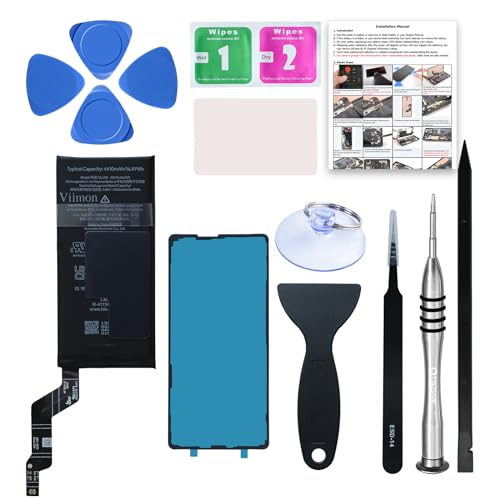
【OEM Battery Cells】 OEM quality battery replacement for Google Pixel 6a. It is safer than so-called upgraded high-capacity batteries. No potential risks during use. Multiple protection features to prevent overcharging and prevent overheating. Built-in microchip to ensure safe battery charging and improve battery life. NOTE: Please fully charge and discharge your new battery 3 to 5 cycles to release all capacity of the new battery.
Charging Habits
- Avoid Deep Discharges: Don’t let your battery drain completely. Try to charge it when it reaches around 20% to prevent stress on the battery.
- Use Official Chargers: Stick to the charger that came with your Pixel 6 or certified alternatives to ensure safe charging.
- Charge Gradually: Place your phone on the charger when you can, but avoid leaving it plugged in all night. Shorter charge sessions help maintain battery health.
- Enable Battery Saver: Activate Battery Saver mode when you notice low battery levels. This feature reduces background activity, helping your battery last longer.
Software Updates
- Update Regularly: Google frequently releases updates that optimize battery performance. Navigate to Settings > System > System update to check for any new updates.
- Manage Apps: Some applications may drain your battery more than others. Monitor app usage under Settings > Battery to identify and limit background activities.
- Enable Adaptive Battery: This feature learns your app usage patterns and limits power to infrequently used apps. Turn it on by going to Settings > Battery > Adaptive battery.
- Monitor Location Services: Reduce battery drain by adjusting location settings. Use “Device only” for GPS when needed, and turn off background location for apps that don’t require it.
By implementing these simple tips, you can significantly boost the battery health of your Google Pixel 6, prolonging its lifespan and ensuring reliable performance.
Conclusion
Taking care of your Google Pixel 6’s battery health is essential for a smooth experience. By regularly checking your battery status and recognizing signs of decline, you can avoid unexpected shutdowns and keep your device running efficiently.
Utilizing built-in options or third-party apps gives you the insights you need to manage your battery effectively. Remember to adopt good charging habits and stay on top of software updates to maximize battery life.
With a little attention and care, you’ll enjoy your Pixel 6’s performance for much longer. Happy charging!
Frequently Asked Questions
What are common battery issues for Google Pixel 6 users?
Google Pixel 6 users may experience rapid discharging, overheating, unexpected shutdowns, and charging problems. These issues often arise from declining battery health, which negatively impacts performance.
How can I check the battery health of my Google Pixel 6?
You can check the battery health by going to Settings > Battery > Battery usage to identify apps draining power. Alternatively, dial ##4636## in the Phone app to access detailed battery information.
What should I do if my battery health is below 80%?
If your Google Pixel 6 battery health is below 80%, it is recommended to consider a battery replacement. This helps restore optimal performance and ensures reliable usage.
How can third-party apps help with battery health monitoring?
Third-party apps like AccuBattery, GSam Battery Monitor, and Battery Guru provide detailed insights into battery performance. They help users track usage, monitor temperature, and offer optimization tips for better battery life.
What are some tips for maintaining battery health on Google Pixel 6?
To maintain battery health, avoid deep discharges, use official chargers, and enable Battery Saver mode. Regular software updates and managing app usage by activating Adaptive Battery also help boost performance.
