

Key Takeaways
- Battery Capacity Basics: Understanding battery capacity, measured in milliampere-hours (mAh), is crucial for optimizing your Samsung device’s performance and lifespan.
- Multiple Checking Methods: You can check battery capacity via Settings, the Samsung Members app, or third-party apps like AccuBattery and GSam Battery Monitor, each providing different insights.
- Monitor for Longevity: Regularly reviewing battery capacity helps prevent overuse, manage performance, and set realistic expectations about battery life based on usage.
- Early Issue Detection: Keeping an eye on battery health allows for the early identification of declining performance, making it easier to take corrective actions.
- Best Practices for Battery Health: Maintain battery health by avoiding full discharges, using Adaptive Battery, managing screen brightness, and regularly updating software.
- Utilize Resources: Take advantage of built-in tools and apps to track battery performance trends, enhancing your device’s reliability over time.
Ever wondered how much life your Samsung battery really has left? You’re not alone. Many people face the frustration of a phone that seems to drain faster than expected. Knowing your battery capacity can help you manage its performance and extend its lifespan.
Understanding Battery Capacity
Battery capacity refers to the amount of energy a battery can store, typically measured in milliampere-hours (mAh). Higher mAh numbers indicate greater energy storage, meaning longer usage times between charges. For instance, a battery rated at 4000 mAh generally lasts longer than one rated at 3000 mAh under similar conditions.
You can check your Samsung device’s battery capacity using specific methods. Samsung has built-in features that help you monitor battery health. For most devices, go to Settings > Battery and Device Care > Battery. Here, you’ll see information about your battery usage and its estimated capacity.
Keep in mind that battery capacity can degrade over time. Factors like age, charging habits, and usage patterns all affect performance. Regularly reviewing battery statistics helps you identify usage trends and manage battery life effectively.
For a more detailed look, try using apps like AccuBattery or GSam Battery Monitor. These tools provide insights into your battery’s capacity, health status, and charging cycles. With this information, you can take steps to improve battery retention and longevity.
You can also find battery capacity details in device specifications online. Simply search for your device model along with “battery specifications” to find accurate figures. Understanding these details allows you to set realistic expectations regarding your device’s performance.
Methods to Check Battery Capacity on Samsung
You can check the battery capacity of your Samsung device using several methods. Here are the most common and effective ways.
Recommended Products
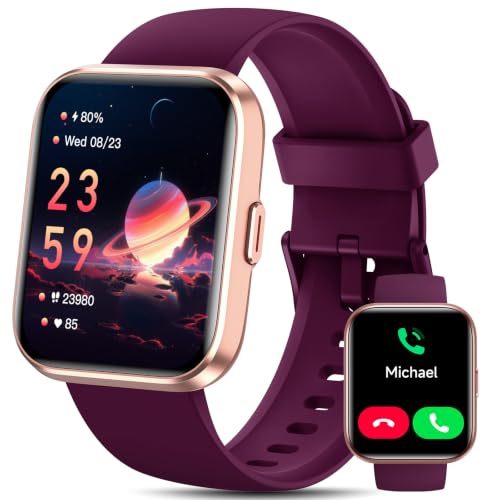
【24H Health Monitor & Sleep Analysis】ENOMIR smart watches for women equipped with advanced sensors for all day health monitoring such as heart rate, stress, sleep monitoring and generate a sleep analysis report (Deep/Light Sleep/Wake), helping you develop a healthier lifestyle with professional data-driven guidance. The thoughtful stress monitoring function, which helps you better relieve stress and relax yourself in a fast-paced and stressful society!
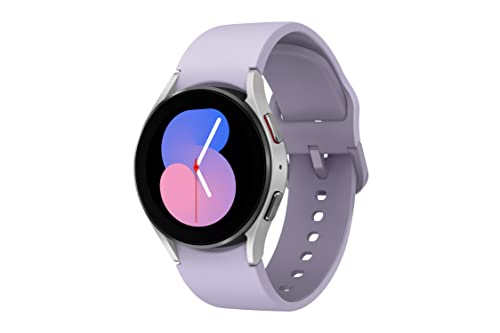
LEAVE YOUR PHONE BEHIND: All you need is your Galaxy Watch5 with LTE Connectivity; You can make or take calls, track workouts, send texts and pull up a playlist anywhere, anytime, without your phone or Wi-Fi

Using Device Settings
- Open the Settings app on your Samsung phone.
- Scroll down and select Battery and Device Care.
- Tap Battery.
- Look for Battery Usage; this section often shows the approximate battery capacity in mAh.
This method provides a quick overview of your battery’s health and usage information.
Using Samsung Members App
- Open the Samsung Members app, which usually comes pre-installed.
- Tap on Get Help or Diagnostic.
- Choose Battery Status to view detailed metrics, including current capacity and health percentage.
The Samsung Members app offers a more detailed analysis of your battery performance, helping you track its condition over time.
Using Third-Party Apps
- Download battery monitoring apps such as AccuBattery or GSam Battery Monitor from the Google Play Store.
- Open the app and follow the setup instructions.
- View the battery statistics displayed, including your battery’s capacity in mAh and other health metrics.
These apps provide comprehensive insights into your battery life, performance trends, and charging habits, allowing you to make informed decisions.
By using these methods, you can easily monitor and maintain the battery capacity of your Samsung device.
Importance of Monitoring Battery Capacity
Monitoring battery capacity is essential for maintaining the performance of your Samsung device. Battery capacity, measured in milliampere-hours (mAh), indicates how much charge the battery can hold. Understanding this metric helps you make informed decisions about your device’s use and care.
- Enhance Longevity: Regularly checking battery capacity prevents overuse, which can degrade battery health. By understanding how your battery depletes, you can adjust usage patterns accordingly.
- Manage Performance: When you monitor battery capacity, you can identify apps or settings that drain power quickly. This awareness allows you to optimize device settings for better performance.
- Set Realistic Expectations: Knowing your device’s battery capacity informs you about potential battery life based on your usage habits. This understanding helps manage expectations for when to charge the phone.
- Identify Issues Early: Regular monitoring can reveal declining battery health. If you notice significant drops in capacity or quicker-than-normal drainage, you can take steps to remedy the situation, such as checking for software updates or considering battery replacement.
- Utilize Tools: Using tools like the Samsung Members app or third-party battery monitoring apps provides deeper insights. These resources can track trends and offer suggestions for improving battery health.
By prioritizing battery capacity monitoring, you ensure that your Samsung device remains reliable and functions optimally over time.
Tips for Maintaining Battery Health
- Avoid Full Discharges: Keep your battery between 20% and 80% charged. Frequent full discharges can stress the battery and reduce its longevity.
- Use Adaptive Battery: Enable Adaptive Battery in your device settings. This feature optimizes battery usage based on your app habits, extending battery life.
- Limit Background Activity: Go to app settings and restrict background data for apps that don’t require constant updating. This reduces unnecessary battery drain.
- Manage Screen Brightness: Adjust your screen brightness to a comfortable level. Automatic brightness settings can help, but manually lowering it saves energy.
- Update Software Regularly: Regular updates improve performance and often include battery optimization features. Check for new updates in your settings.
- Activate Battery Saver Mode: Enable Battery Saver mode when you know you’ll be away from a charger for a while. This feature limits background functions to conserve life.
- Disable Unused Connectivity Features: Turn off Wi-Fi, Bluetooth, and GPS when not in use. These features consume power even when not actively connecting to devices.
- Clean Charging Port: Keep the charging port free of lint and debris. A clean port ensures a good connection and efficient charging.
- Use Original Chargers: Always use original or certified chargers. Third-party chargers may overheat and damage your battery.
- Monitor Battery Health: Regularly check your battery health through your settings or apps. Monitoring helps identify patterns in battery performance over time.
Recommended Products

Slim Size, Big Power: One of the slimmest and lightest 10,000mAh portable chargers on the market. Provides 2 charges for iPhone 15, 1.93 charges for Galaxy S23, and 1.23 charges for iPad mini 6.


Huge Capacity 50000mAh Power Bank:OHOVIV Portable charger ultra-high massive capacity provides 10 charges for iPhone 15, which make of new high-density polymer battery.Depending on battery size, most smartphones will get over 10 full charges. Portable power bank works and does not take on any extra room, suitable for camping, hiking, vacation, travel and other outdoors.
Conclusion
Keeping an eye on your Samsung device’s battery capacity is key to ensuring it runs smoothly for as long as possible. By regularly checking your battery stats and using helpful apps, you can spot any issues early and make adjustments to your usage habits.
Remember to implement simple tips like avoiding full discharges and managing your settings to enhance battery health. With a little attention and care, you can enjoy a longer-lasting battery life and get the most out of your device. Stay proactive and keep your Samsung running at its best!
Frequently Asked Questions
How can I check my Samsung phone’s battery capacity?
You can check your Samsung phone’s battery capacity by going to Settings > Battery and Device Care > Battery. Alternatively, you can use the Samsung Members app or third-party apps like AccuBattery for detailed insights.
What is battery capacity measured in?
Battery capacity is measured in milliampere-hours (mAh). A higher mAh rating indicates a greater ability to hold charge, which generally translates to longer usage time between charges.
Why does my Samsung phone’s battery drain faster over time?
Battery performance can degrade due to age, heavy usage, and specific usage patterns. Regular app usage, high screen brightness, and constant connectivity can contribute to faster battery drain.
What apps can help monitor my battery health?
Apps like AccuBattery and GSam Battery Monitor can provide in-depth insights into your Samsung phone’s battery health, usage statistics, and performance tips to optimize longevity.
How can I improve my Samsung phone’s battery life?
To improve battery life, keep your phone charged between 20% and 80%, enable Adaptive Battery, limit background activity, manage screen brightness, and use Battery Saver mode when needed.
What routine maintenance can help with battery longevity?
Regularly monitor battery health, update software, clean the charging port, use original chargers, and disable unused connectivity features. Following these practices can enhance your device’s battery efficiency over time.
