

Key Takeaways
- Understanding Optimized Battery Charging: This feature helps extend battery lifespan by learning your charging habits and managing charging times, especially during overnight charges.
- Charging Impact: Maintaining your battery around 80% while plugged in reduces wear and prolongs overall battery life, keeping your device performing efficiently.
- Steps to Customize Settings: Access the battery settings in your Realme device to enable or disable optimized charging and align it with your daily schedule.
- Troubleshooting Tips: Resetting charging settings and keeping your software updated are effective methods to address common battery management issues.
- Performance Benefits: Optimized charging enhances device responsiveness, especially during intensive tasks, by preserving battery health and overall battery management features.
Ever found yourself frustrated because your phone’s battery charging time doesn’t match your schedule? You’re not alone. Many Realme users face this issue, especially when optimized battery charging kicks in unexpectedly, leaving you with less power when you need it most.
Overview of Optimized Battery Charging
Optimized Battery Charging is a feature designed to extend battery lifespan by learning your charging habits. It monitors your charging patterns and adjusts charging times to reduce battery wear over time. For instance, if you regularly charge your Realme phone overnight, this feature ensures the battery isn’t kept at full charge for too long.
This feature typically kicks in when your device is plugged in for extended periods. It pauses charging at around 80% and only completes the cycle just before you typically wake up or need the phone. This process preserves battery health.
To check if Optimized Battery Charging is active on your Realme device, navigate to Settings > Battery > Battery Optimization. From there, you can see the charging settings. If the feature’s enabled, you might experience some delays in charging time during your usual schedule.
Adjusting the optimized charging schedule can alleviate concern over unexpected delays. If you frequently need a full charge quickly, consider disabling the feature or changing your charging routine.
Importance of Battery Charging Time
Understanding battery charging time is crucial for maximizing your Realme device’s performance and longevity. Optimized charging enhances both battery health and device efficiency, impacting your daily usage.
Benefits for Battery Health
Extended battery life is a primary advantage of managing charging time. By using optimized charging, your device learns your routine and delays full charge completion, usually keeping the battery around 80% when plugged in for long periods. This practice reduces stress on lithium-ion batteries, slowing down capacity degradation. Keeping your battery charged in this range can add years to its lifespan compared to consistently charging to 100%.
Impact on Device Performance
Optimizing battery charging time directly influences device performance. When battery optimization saves energy, it maintains device responsiveness and functionality. A device with a healthy battery performs better during intensive tasks, such as gaming or multitasking. Additionally, managing your charging time can enhance overall battery management features, ensuring your Realme device operates smoothly throughout the day.
Steps to Change Optimized Battery Charging Time on Realme
Changing the optimized battery charging time on your Realme device involves a few straightforward steps. Follow the instructions below to customize your charging preferences to fit your schedule better.
Recommended Products
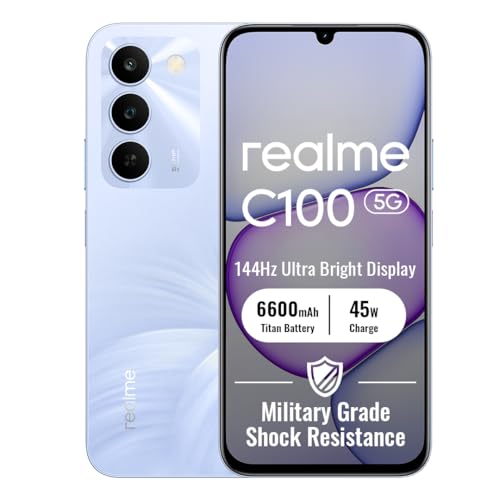
144Hz High Refresh Rate Large Display – Equipped with a 6.8-inch high-definition LCD screen featuring a 144Hz ultra-smooth refresh rate, delivering fluent visual experience for daily browsing, video watching, gaming and social media. The large screen brings wider field of view and comfortable single-hand operation, effectively reducing screen stutter and eye fatigue during long-time use.

Product Type: Li-Polymer, Volts: 3.87V, Capacity: 4880mAh/18.88Wh
144Hz High Refresh Rate Large Display – Equipped with a 6.8-inch high-definition LCD screen featuring a 144Hz ultra-smooth refresh rate, delivering fluent visual experience for daily browsing, video watching, gaming and social media. The large screen brings wider field of view and comfortable single-hand operation, effectively reducing screen stutter and eye fatigue during long-time use.
Accessing Battery Settings
- Open the Settings app on your Realme device.
- Scroll down and select Battery.
- Tap on Battery Optimization to view the options available for battery management.
Modifying Charging Preferences
- Look for the Optimized Battery Charging option.
- Toggle the switch to enable or disable the feature as desired.
- If you wish to adjust the charging time, check if there’s an option to set your typical sleep and wake times.
- Save your changes to ensure your charging schedule aligns with your routine.
Adjusting these settings helps ensure your device charges according to your needs, preventing unexpected delays when you require power.
Troubleshooting Common Issues
You may encounter some common issues while managing optimized battery charging on your Realme device. Here’s how to address them effectively.
Resetting Charging Settings
Resetting your charging settings can resolve many issues. Follow these steps:
- Go to Settings.
- Tap on Battery.
- Select Battery Optimization.
- Disable Optimized Battery Charging.
- Restart your device.
- Re-enable Optimized Battery Charging.
This process clears any glitches and restores default settings. After resetting, monitor your device’s charging behavior.
Software Updates
Keeping your software updated ensures optimal performance and compatibility with features like optimized battery charging. To check for updates:
- Open Settings.
- Scroll down and select Software Updates.
- Tap on Download and Install.
Regular updates can fix bugs and improve battery management algorithms. Install updates as they become available to enhance your device’s functionality.
Conclusion
Managing your Realme device’s optimized battery charging can make a world of difference in your daily routine. By taking the time to adjust your charging preferences you’ll ensure your phone is ready when you need it most. Don’t hesitate to explore the settings and make changes that fit your lifestyle.
Remember that keeping your battery healthy is just as important as having it charged. With a little effort you can strike the perfect balance between convenience and longevity. So go ahead and customize those settings to enjoy a smoother and more reliable experience with your device. Happy charging!
Frequently Asked Questions
What is Optimized Battery Charging in Realme devices?
Optimized Battery Charging is a feature designed to enhance battery lifespan by learning your charging habits. It pauses charging at around 80% when plugged in for a long time, completing the charge just before you wake up or need your phone.
How can I check if Optimized Battery Charging is enabled?
To check if this feature is active, go to Settings > Battery > Battery Optimization. Here, you’ll see if Optimized Battery Charging is turned on.
Why does my phone charge slowly with Optimized Battery Charging?
Optimized Battery Charging may result in slower charging times because it intentionally delays charging to prolong battery health. If this causes issues, consider adjusting or disabling the feature.
How can I change my charging schedule for Optimized Battery Charging?
You can customize your charging schedule by accessing Battery settings through the Settings app. Adjust your typical sleep and wake times to better suit your routine.
What should I do if I have issues with Optimized Battery Charging?
If you experience problems, try resetting the charging settings by disabling and re-enabling the feature. Additionally, ensure your device software is up-to-date for optimal performance.
Does maintaining a battery level of 80% really extend lifespan?
Yes, keeping your battery charged around 80% reduces stress on lithium-ion batteries. This practice can significantly enhance battery lifespan compared to charging it to 100%.
How does battery charging time impact device performance?
Proper management of battery charging time can improve device performance, ensuring better responsiveness during intensive tasks like gaming or multitasking, leading to a smoother user experience.
What is the best way to optimize battery charging time?
To optimize charging time, regularly adjust your known sleep and wake times in the Battery settings. This will allow your phone to charge more effectively based on your schedule.
