

Key Takeaways
- Understand Battery Types: Huawei smartphones typically use standard or high-capacity lithium-ion batteries, with most recent models featuring non-removable options that require special skills for replacement.
- Identify Signs of Battery Problems: Watch for rapid drainage, overheating, or physical distortion as indicators that your battery may need replacement.
- Gather Necessary Tools: Essential tools for the replacement process include a Phillips screwdriver, plastic pry tools, tweezers, and possibly a heat gun for adhesive removal.
- Follow Step-by-Step Instructions: Carefully power off your device, remove the old battery, and install a new one while ensuring proper connections and seals.
- Ensure Battery Compatibility: Always match the new battery’s model number, capacity, and type with your specific Huawei device to prevent performance issues.
- Adhere to Safety Precautions: Turn off your phone, work in a clean area, and use anti-static tools to minimize risks during the battery replacement process.
Is your Huawei phone running out of juice way too quickly? You’re not alone. Many users face battery issues that can turn a reliable device into a frustrating experience. If you’ve noticed your phone struggling to hold a charge, it might be time to consider a battery replacement.
Overview of Huawei Batteries
Huawei batteries are designed to power various models of smartphones, tablets, and other devices. These lithium-ion batteries offer reliable performance, generally ranging from 3,000 mAh to 5,000 mAh, depending on the device.
Battery Types
- Standard Batteries: Commonly found in flagship models, these batteries provide optimal performance for everyday tasks and moderate usage.
- High-Capacity Batteries: Available in certain models, these batteries support extended usage, ideal for heavy multitaskers or gamers.
- Removable vs. Non-Removable: Most recent Huawei phones come with non-removable batteries, which require specific skills for replacement.
Signs of Battery Issues
Look for these indicators if you suspect battery problems:
- Rapid battery drain despite lower usage
- Device overheating during charging or use
- Swelling or physical distortion of the battery
Replacement Importance
Replacing a faulty battery is crucial for the overall lifespan of your Huawei device. A fresh battery improves not only performance but also device safety and efficiency.
Official Specifications
To ensure compatibility, refer to official specifications when considering a replacement battery. Using the correct model enhances device longevity, and performance.
Tools Required for Replacement
- Screwdriver: A small Phillips screwdriver for securing the device back together.
- Plastic Pry Tools: These assist in safely opening the device without damaging it.
- Tweezers: Helpful for removing small components and connecting new battery cables.
Steps for Battery Replacement
- Power Off: Turn off your device completely to avoid any short circuits.
- Open the Device: Use the plastic pry tool to carefully separate the casing.
- Disconnect the Battery: Locate the battery connector and gently detach it.
- Replace the Battery: Install a new battery and reconnect the cable.
- Reassemble: Put the casing back together and secure screws.
Following these steps allows you to effectively change your Huawei battery while preserving the device’s integrity.
Tools Required for Battery Replacement
When it comes to replacing your Huawei battery, having the right tools makes the process easier and safer. Here’s a breakdown of what you’ll need.
Recommended Products

Compatible with: Huawei Mate 10/ Mate 10 Pro/ Mate 20/ P20 Pro/ Honor View 20 V20; Battery Model: HB436486ECW; Please check your battery type before purchasing

【Quality Assurance】 All items were thoroughly tested and packed before shipping. Brand new and high quality.

This battery is compatible with Huawei Y7 Prime / Y7 2017 / Y9 2019, please carefully check your phone model before purchase.
Essential Tools
- Screwdriver: A small Phillips-head screwdriver is necessary for removing screws. Ensure it’s the right size to prevent stripping.
- Plastic Pry Tools: These tools help you carefully open the device without damaging the plastic casing. They’re essential for separating the screen from the body.
- Tweezers: Use tweezers to handle small components and screws. Their precision aids in avoiding slips that could lead to damage.
- Suction Cup: A suction cup can assist in lifting the screen away from the body without putting too much pressure on it.
- Anti-Static Wrist Strap: This strap will help you avoid static electricity damage, protecting both the battery and internal components.
Optional Tools
- Heat Gun or Hair Dryer: Gently warming the adhesive can ease the removal of the screen. Use this tool carefully to avoid overheating.
- Magnetic Mat: This mat keeps your screws organized and in one place. It prevents loss during the replacement process.
- Spudger: A spudger is another handy tool for prying open the phone. It’s slightly sturdier than plastic pry tools.
- Multimeter: While not necessary for replacement, a multimeter can help check the voltage of your new battery to ensure it’s functioning properly.
Having these tools on hand will ensure a smooth battery replacement process.
Step-by-Step Guide to Change Huawei Battery
Follow these steps for a smooth battery replacement process. Ensure you have all necessary tools ready before starting.
Recommended Products

1. Applicable Models:Compatible with Huawei P30 Pro & Mate 20 Pro ,Please carefully check your mobile phone model before purchasing to avoid purchasing the wrong model and damaging your product
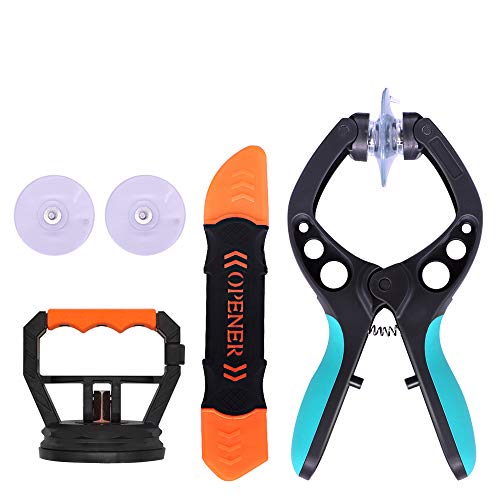
The professional Tools for phone repair, ensure its quality and adjustable, good flexibility and resilience force protect electronic products undamaged from the rigid impact.

★MULTIPURPOSE TOOLS: Suitable for fix iPhone 17 16 15 14 13 12 11 Pro Max Plus XS XR X 8 7 6S 6 Plus, iPad Pro/Air/Mini,iPod, Cellphone,Computer/PC/Laptop/Desktop(HP,ASUS,Lenovo,Apple Macbook/Macbook Air/Macbook Pro,Imac/Imac Pro),Tablet/ iPad mini/iPad Pro,SLR Cameras,Game Console(PS4, Xbox, Nintendo),Game handle/joystick and other electronic devices.
Preparing Your Device
- Power Off Your Device: Turn off your Huawei phone completely to prevent any electrical issues during the process.
- Remove SIM and MicroSD Cards: Use the SIM ejector tool to take out the SIM and microSD cards for added safety.
- Work in a Clean Area: Choose a flat, clutter-free space to lay out your tools. This keeps everything organized.
Removing the Old Battery
- Heat the Device: If your device has adhesive, gently use a heat gun or hair dryer on low to soften the adhesive. Avoid overheating.
- Pry Open the Phone: Use a suction cup and plastic pry tools to carefully open the device. Start at a corner and work your way around to avoid damage.
- Disconnect the Battery: Locate the battery connector, usually secured with screws. Use a small Phillips-head screwdriver to remove them, then carefully lift the connector off.
- Take Out the Battery: If the battery is glued down, use the plastic pry tools to loosen it. Lift it out gently to avoid damaging other components.
Installing the New Battery
- Position the New Battery: Align the new battery with the connectors inside the phone. Ensure it’s seated properly.
- Reconnect the Battery: Press the battery connector firmly into place. Replace any screws you removed earlier to secure it.
- Seal the Device: Align the device halves and press them together until they snap back into place. If applicable, reapply adhesive to ensure a tight seal.
- Reinsert SIM and MicroSD Cards: Place your SIM and microSD cards back in their slots after sealing the device.
Completing these steps will effectively change your Huawei battery, improving performance and extending device life.
Common Issues and Troubleshooting
Occasionally, replacing a Huawei battery doesn’t go as smoothly as planned. Understanding common issues and how to troubleshoot them enhances your battery replacement experience.
Recommended Products

Product Type: Li-Polymer, Volts: 3.82V, Capacity: 3900mAh / 14.9Wh

Product Type: Li-Polymer, Volts: 3.82V, Capacity: 3650mAh/13.95Wh

Product Type: Li-Polymer, Volts: 3.82V, Capacity: 3900mAh / 14.9Wh
Battery Compatibility
Choosing the right battery is essential for successful replacement. Ensure you source a battery compatible with your specific Huawei model. Check the specifications on the official Huawei website or reputable retailers. Look for information such as:
- Model numbers: Match the battery’s model number with your device.
- Capacity: Verify that the mAh rating aligns with your device requirements.
- Type: Confirm whether you need a removable or non-removable battery.
Using an incompatible battery can lead to performance issues or potential damage to your device.
Device Performance After Replacement
After successfully replacing the battery, monitor your device’s performance. You might encounter a few common scenarios:
- Charging Issues: If your Huawei phone doesn’t charge, double-check that you’ve properly connected the battery and that the charging port is clean.
- Rapid Drain: If the battery drains quickly, calibrate it by fully charging it to 100%, then allowing it to discharge completely before charging again. Repeat this cycle a couple of times to optimize performance.
- Overheating: If your device overheats, inspect the battery for proper fit and connections. An improperly installed battery may cause excess heat.
Address these common issues promptly for a better user experience. If problems persist, consider consulting a professional technician for assistance.
Safety Precautions
Before starting the battery replacement, follow these safety precautions to avoid injury and damage to your device:
- Power Off the Device: Turn off your Huawei phone completely. This reduces the risk of short circuits during the process.
- Remove Accessories: Take off any cases, screen protectors, or accessories attached to your phone. This gives you unobstructed access to the device.
- Work in a Clean Area: Choose a well-lit, clean workspace. This prevents loss of small parts and keeps the area free from dust.
- Use Anti-Static Tools: Wear an anti-static wrist strap to discharge static electricity. This protects sensitive components from static shock.
- Be Cautious with Adhesives: If using heat to soften the adhesive, handle tools carefully to avoid burns. Always exercise caution with heated surfaces.
- Handle Components Gently: Use plastic pry tools to avoid damaging the phone’s casing or internal components. Avoid metal tools when possible.
- Check Battery Condition: Inspect the old battery for swelling or leaking. Discard damaged batteries properly according to local regulations, as they can be hazardous.
- Follow Manufacturer Guidelines: Refer to Huawei’s specifications for your model. This ensures compatibility and proper handling.
- Monitor Device After Replacement: After changing the battery, observe your device for irregularities, such as overheating or rapid drain. Address any issues immediately.
By adhering to these precautions, you significantly reduce the risk of injury and ensure a smooth battery replacement process.
Conclusion
Replacing your Huawei battery can breathe new life into your device and enhance its performance. By following the steps outlined and using the right tools you can tackle this task with confidence. Remember to keep safety in mind and monitor your device after the replacement to catch any issues early on.
If you run into any challenges don’t hesitate to reach out to a professional. With a little patience and care you’ll have your Huawei running smoothly again in no time. Happy tinkering!
Frequently Asked Questions
What are the common signs of battery issues in Huawei phones?
Common signs include rapid battery drain, overheating, and physical distortion of the battery. If you notice any of these symptoms, it may indicate that your battery needs replacing.
How do I know if I need to replace my Huawei battery?
If your Huawei phone frequently runs out of charge quickly, overheats, or shows swelling, it’s likely time for a battery replacement. Checking for these signs can help you maintain device performance.
What tools do I need to replace a Huawei battery?
Essential tools for replacing a Huawei battery include a small Phillips-head screwdriver, plastic pry tools, tweezers, a suction cup, and an anti-static wrist strap. Optional tools can help make the process easier.
Can I use any battery for my Huawei phone?
No, you should only use a compatible battery that matches your device’s model number, capacity, and type to ensure optimal performance and prevent damage.
What should I do after replacing my Huawei battery?
After replacing the battery, monitor the device for any issues like rapid drain or overheating. If problems arise, consult a professional technician to address any ongoing concerns.
What precautions should I take before replacing my battery?
Before starting, power off your device, remove accessories, work in a clean area, use anti-static tools, and handle components gently. Following these precautions will help ensure a safe replacement process.
