

Key Takeaways
- Importance of CMOS Battery: The CMOS battery is essential for maintaining accurate system settings, including date and time, while the laptop is powered off.
- Symptoms of a Failing Battery: Key indicators of a dying CMOS battery include time resets, BIOS errors, and unexpected changes in custom settings.
- Proper Replacement: Ensure to select the correct replacement battery, typically a CR2032, and gather necessary tools like a small Phillips screwdriver, tweezers, and an antistatic wrist strap.
- Procedure Steps: Follow a clear step-by-step process to safely replace the CMOS battery, starting from powering down the laptop to reassembling it after the new battery installation.
- Troubleshooting Tips: If issues arise post-replacement, verify battery orientation, set the time in BIOS, and check for possible motherboard issues if problems persist.
- Maintenance Reminder: Regularly monitor battery performance to prevent disruptions in laptop functionality and to ensure a smooth user experience.
Have you ever noticed your Sony Vaio laptop losing time or resetting settings? This frustrating issue often points to a dead CMOS battery. Don’t worry; changing it isn’t as daunting as it sounds.
Understanding CMOS Battery
The CMOS battery in your Sony Vaio laptop stores essential system settings and keeps the time accurate, even when the laptop is powered off. This rechargeable battery helps your laptop remember BIOS settings, date, and time configurations.
Importance of the CMOS Battery
A functioning CMOS battery is crucial for normal laptop operation. If your laptop loses time or resets settings, the CMOS battery often causes this issue. As it nears the end of its lifespan, you’ll notice more frequent disruptions in settings like the date and time.
Symptoms of a Dying CMOS Battery
- Time Reset: The laptop date and time revert to factory settings after shutdown.
- BIOS Errors: You encounter errors when booting up, indicating corrupted BIOS settings.
- Settings Reset: Custom BIOS settings revert unexpectedly after powering down.
Choosing the Right Replacement Battery
When changing the CMOS battery, selecting the correct type is essential. Sony Vaio laptops typically use a CR2032 or a similar coin cell battery. Check your laptop documentation or inspect the old battery to confirm the specific model required.
Tools Needed
- Screwdriver: A small Phillips screwdriver to open the laptop casing.
- Tweezers: These help extract and install the battery without damaging the connectors.
- Antistatic Wrist Strap: This prevents static electricity from damaging sensitive components.
Understanding the CMOS battery and its role clarifies why addressing battery issues is critical for maintaining your laptop’s performance.
Tools Required
To change the CMOS battery in your Sony Vaio laptop, you’ll need a few essential tools for a smooth process. Gather the following items before starting.
Recommended Products

We use high quality battery,manufactured by Japanese battery giant to produce the CMOS battery.

Voltage: 3V; Capacity: Diameter: 20.5mm, Height: 6.5mm. Connector: CR2032-MX51021.
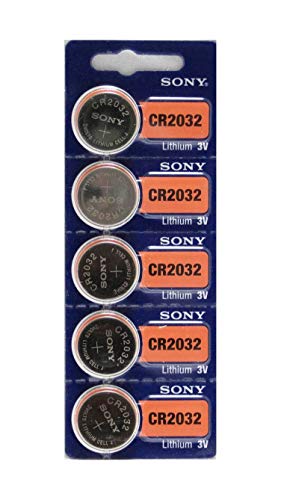
CR2032 Coin Type Lithium Batteries
Essential Tools
- Small Phillips Screwdriver: This helps remove screws securing the laptop’s back cover.
- Tweezers: These assist in safely handling the CMOS battery, especially if it’s tightly fitted.
- Antistatic Wrist Strap: Wearing this prevents static electricity from damaging your laptop’s internal components.
Recommended Accessories
- Replacement CMOS Battery: A CR2032 or equivalent battery serves as the best replacement.
- Plastic Pry Tool: This tool helps gently open the laptop casing without causing damage.
- Fine-tip Marker: Use this to annotate wire placements if needed, ensuring a trouble-free reassembly.
By organizing your tools and accessories properly, you streamline the battery replacement process, making it more efficient.
Step-by-Step Guide
Follow this guide to change the CMOS battery in your Sony Vaio laptop. This process is straightforward, requiring minimal tools and attention to detail.
Recommended Products

High-quality Cmos Battery: This CR2032 battery is specifically designed for laptops and has high-quality performance and reliability, so you can say goodbye to laptop time and date setting issues!
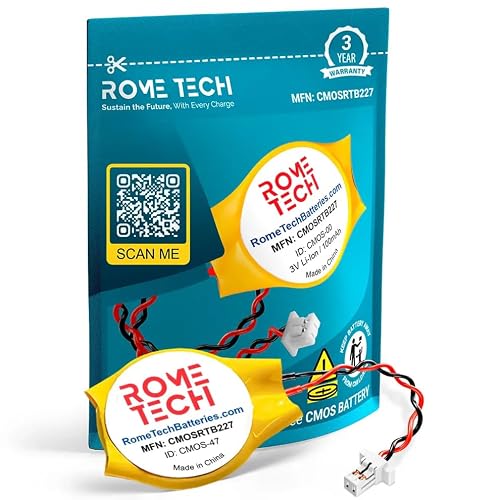
Rome Tech BIOS Dell Inspiron CMOS battery CR2032 best suits to replace your broken or non-working old battery - we provide premium quality only

Rome Tech BIOS CMOS battery CR2032 best suits to replace your broken or non-working old battery - we provide premium quality only
Powering Down The Laptop
First, turn off your laptop completely. Unplug the power adapter and remove any connected peripherals. Allow the laptop to sit for a few minutes to ensure all residual power dissipates before opening it.
Locating The CMOS Battery
Next, locate the CMOS battery. On most Sony Vaio models, the battery resides under the back cover. Use the small Phillips screwdriver to remove the screws securing the cover. Carefully lift the cover off to access the internal components. Look for a small round battery, typically a CR2032.
Removing The Old Battery
To remove the old battery, use the tweezers to gently lift it out of its socket. Take care not to touch the circuit board with your hands. Remember the orientation of the battery, which helps you insert the new one correctly.
Installing The New Battery
Insert the new CMOS battery into the socket, ensuring it’s positioned the same way as the old one. Push down gently until it clicks into place. Confirm that it sits firmly in the socket to ensure a reliable connection.
Reassembling The Laptop
Finally, reassemble your laptop. Replace the back cover securely and reattach all screws. Plug in the power adapter and turn on your laptop. Check the time and settings to confirm everything functions correctly.
Troubleshooting Common Issues
If you encounter problems after changing your CMOS battery, check these common issues:
Laptop Fails to Boot
Ensure the CMOS battery is installed correctly. Confirm the orientation aligns with the marked plus (+) side. If the battery contacts aren’t touching, the laptop won’t boot.
Time Resets After Replacement
After replacing the CMOS battery, set the time in the BIOS. Access the BIOS by pressing F2 or Delete during startup. Navigate to the time settings, adjust them, and save changes before exiting.
Persistent BIOS Errors
If BIOS errors continue, the new battery may be faulty. Consider replacing it with another CR2032 or similar battery. If problems persist, check for issues with the motherboard.
Missing Settings or Profiles
Resetting settings may occur if the BIOS does not retain new configurations. Double-check the battery installation and ensure it’s seated properly. If problems persist, update the BIOS firmware from Sony’s official website.
Incorrect Date and Time
If your laptop shows the wrong date and time after a battery change, verify the time zone settings in Windows. Go to Settings > Time & Language > Date & time, and adjust accordingly.
Tools Required
While changing the battery, ensure you use the recommended tools. A small Phillips screwdriver helps remove the cover, while tweezers assist in handling the battery safely. An antistatic wrist strap prevents static damage to laptop components.
By addressing these issues promptly, you can ensure your Sony Vaio laptop functions optimally after a CMOS battery change.
Conclusion
Changing the CMOS battery in your Sony Vaio laptop doesn’t have to be a daunting task. With the right tools and a little patience you can restore your laptop’s time and settings without any hassle.
Remember to double-check the battery orientation and ensure everything is securely reassembled. If you run into any issues afterward just troubleshoot as needed and you’ll be back up and running in no time.
Taking these simple steps not only helps maintain your laptop’s performance but also saves you from future headaches. Enjoy your refreshed device and the peace of mind that comes with it!
Frequently Asked Questions
What causes my Sony Vaio laptop to lose time or reset settings?
Many Sony Vaio laptop users experience time loss or resetting settings due to a dead CMOS battery. The CMOS battery is essential for retaining system settings and keeping accurate time when the laptop is off.
How can I tell if my CMOS battery needs replacement?
Symptoms of a failing CMOS battery include the laptop resetting the time, showing BIOS errors, or losing custom settings. If you notice these issues, it’s likely time to replace your CMOS battery.
What type of CMOS battery do I need for my Sony Vaio?
Most Sony Vaio laptops use a CR2032 coin cell battery for the CMOS. However, it’s best to check your specific model’s manual to confirm the correct type before purchasing a replacement.
What tools do I need to replace the CMOS battery?
To replace the CMOS battery in a Sony Vaio, you’ll need a small Phillips screwdriver, tweezers, and an antistatic wrist strap. These tools will make the process easier and help avoid damage to your laptop.
How do I replace the CMOS battery in my Sony Vaio laptop?
Start by powering down the laptop, unplugging it, and allowing all residual power to dissipate. Remove the back cover, locate the CMOS battery, and carefully use tweezers to replace the old battery with a new one, ensuring correct orientation.
What should I do after replacing the CMOS battery?
After changing the CMOS battery, reassemble your laptop and check the BIOS settings to ensure the time is accurate. You may also need to reconfigure custom settings if they were lost.
What if my laptop still has issues after replacing the CMOS battery?
If problems persist, confirm that the new CMOS battery was installed correctly. You may need to set the BIOS time again, check for defective batteries, or verify the installation if any settings are missing.
Can I change the CMOS battery myself?
Yes, replacing the CMOS battery in a Sony Vaio laptop is a manageable task that many users can perform. Following the step-by-step guide will help ensure a successful battery replacement.
