

Key Takeaways
- Understanding Battery Types: Samsung phones come with either removable or non-removable batteries, impacting ease of replacement and maintenance.
- Signs You Need a Replacement: Common indicators for battery replacement include rapid drainage, overheating, and visible physical damage like swelling or cracks.
- Essential Tools for Replacement: For a successful battery change, gather essential tools like a plastic pry tool, screwdriver set, tweezers, and optionally, a heat gun and magnetic mat.
- Step-by-Step Process: Follow a systematic approach: prepare your phone, remove the old battery gently, and securely install the new one while ensuring proper connections.
- Troubleshooting Issues: If the new battery doesn’t respond, verify correct installation and check for proper charge levels; performing a soft reset can also help resolve power issues.
- Maintenance Tips: To extend battery life, adjust screen brightness, limit background apps, and utilize battery saver mode during low power.
Is your Samsung phone running out of juice way too quickly? You’re not alone. Many people face battery issues that can make their devices frustrating to use. Instead of rushing to a repair shop or shelling out cash for a new phone, why not take matters into your own hands?
Overview Of Samsung Phone Batteries
Samsung phone batteries come in various types and capacities, catering to different models and user needs. These lithium-ion batteries are common across smartphones, ensuring efficient energy storage and performance.
Battery Types
- Removable Batteries: Some older Samsung models feature removable batteries, allowing easy replacement. This design simplifies maintenance and gives you control over the battery’s lifespan.
- Non-removable Batteries: Most recent Samsung models use non-removable batteries. Although these batteries provide a sleek design, replacing them requires more effort and tools.
Battery Capacity
Samsung batteries vary in capacity, typically measured in milliamp hours (mAh). Higher mAh ratings indicate longer battery life. For example:
| Model | Capacity (mAh) |
|---|---|
| Galaxy S21 | 4000 |
| Galaxy Note 20 | 4500 |
| Galaxy A52 | 4500 |
Battery Life Tips
Maintaining your battery’s health can extend its lifespan. Consider the following tips:
- Adjust Screen Brightness: Reducing brightness saves battery life.
- Limit Background Apps: Close apps running in the background to prevent battery drain.
- Enable Battery Saver Mode: Activate this mode during low power to optimize usage.
Replacement Indicators
Look for signs indicating a battery replacement is necessary:
- Rapid Drain: If your battery depletes significantly within a short time.
- Overheating: Excess heat during charging or use suggests a failing battery.
- Physical Damage: Any swelling, cracking, or leakage requires immediate attention.
By understanding these aspects of Samsung phone batteries, you can manage their performance and know when to consider a change effectively.
Tools Needed For Battery Replacement
Replacing a battery on your Samsung phone requires specific tools for a smooth process. Gather the following items to ensure a successful replacement.
Recommended Products

COMPATIBILITY: The battery model is EB-BR880ABY, it is only compatible with Samsung Galaxy Watch 4 (40 mm), SM-R860 SM-R865 series and Galaxy Watch 4 Classic (42mm) SM-R880 SM-R885, please carefully confirm the model of your smartwatch before purchase.
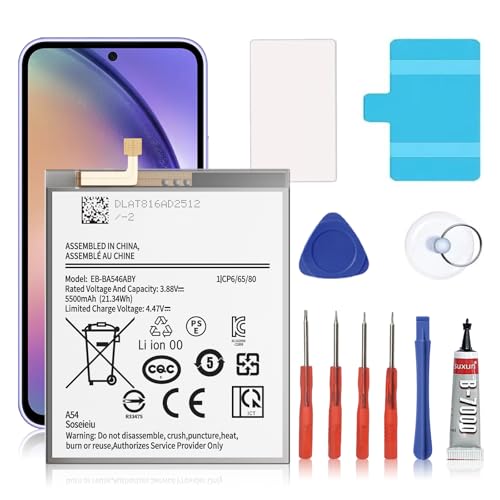
🎋【Compatible Model】EB-BA546ABY Replacement Battery for Galaxy A54 5G & A34 5G, SM-A546V, SM-A546U, SM-A546U1, SM-A546B, SM-A546B/DS, SM-A546E, SM-A546E/DS, SM-A5460, SM-A546M, SM-A546M/DS, SM-A346M, SM-A346E, SM-A346B.[Note: Not for Galaxy A52 ,Galaxy A53 or other Phone Models]

★MULTIPURPOSE TOOLS: Suitable for fix iPhone 17 16 15 14 13 12 11 Pro Max Plus XS XR X 8 7 6S 6 Plus, iPad Pro/Air/Mini,iPod, Cellphone,Computer/PC/Laptop/Desktop(HP,ASUS,Lenovo,Apple Macbook/Macbook Air/Macbook Pro,Imac/Imac Pro),Tablet/ iPad mini/iPad Pro,SLR Cameras,Game Console(PS4, Xbox, Nintendo),Game handle/joystick and other electronic devices.
Essential Tools
- Plastic Pry Tool: Use this tool to open the phone casing gently without damaging it.
- Screwdriver Set: A set with small Phillips and Torx screwdrivers will fit the screws in your phone.
- Tweezers: Handy for removing small components like screws or battery connectors.
- Suction Cup: This can help lift the screen away from the body of the phone if needed.
Optional Tools
- Heat Gun or Hair Dryer: Use this to soften adhesive, making it easier to remove the back cover.
- Magnetic Mat: This keeps screws organized so you don’t lose them during the replacement.
- Anti-Static Wrist Strap: Wearing this strap helps prevent static damage to electronic components.
Gathering these tools before starting ensures a more efficient and hassle-free battery replacement.
Step-by-Step Guide On How To Change Battery On Samsung Phone
Changing the battery on your Samsung phone requires a few steps. Follow this guide for a smooth replacement process.
Recommended Products
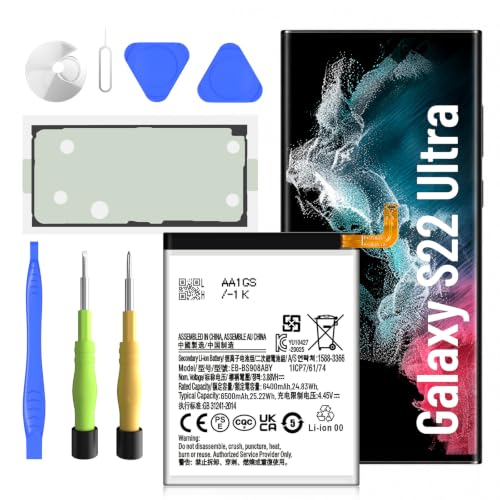
【Precise EB-BS908ABY Compatibility】 Direct replacement for OEM battery model EB-BS908ABY. Fits Samsung Galaxy S22 Ultra SM-S908U, SM-S908U1, SM-S908B, SM-S908W, SM-S908N, and all S908 series variants. Please verify your phone model in Settings > About Phone before ordering.

Compatible Model: It is compatible with Samsung Galaxy Note 10+ Plus Only, Model: SM-N975, EB-BN972ABU. Not for Note 10. Please double identify and check your phone model matches before purchasing the battery.

🔋 High-Capacity 6200mAh Battery for Galaxy S23 Plus Upgraded 6200mAh power delivers longer battery life than original (4700mAh). Enjoy all-day video streaming, gaming, or working without frequent recharging. Perfect for heavy users and travelers.
Preparing The Phone
- Turn Off Your Phone: Switch off your device completely to prevent any damage during the replacement process.
- Gather Tools: Collect a plastic pry tool, a screwdriver set, tweezers, and a suction cup. Optional tools like a heat gun or hair dryer can help loosen adhesive.
- Clean Your Work Area: Remove clutter and have a clean surface ready for the battery replacement. This helps to keep your components organized.
Removing The Old Battery
- Pry Open The Back Cover: Use the plastic pry tool to gently disconnect the back cover from the phone. Start at a corner and work your way around.
- Disconnect The Battery Connector: Locate the battery connector on the motherboard. Carefully lift the connector using the tweezers, ensuring not to damage any components.
- Remove The Old Battery: If the battery is removable, simply lift it out. For non-removable batteries, use the suction cup to create some lift, then carefully pry it out with the plastic tool.
Installing The New Battery
- Insert The New Battery: Place the new battery into the designated slot, aligning it with the connectors.
- Reconnect The Battery Connector: Firmly press the battery connector back into its place on the motherboard to ensure a good connection.
- Reattach The Back Cover: Align the back cover and press down until you hear it snap into place. Make sure it fits snugly and securely.
By following these steps, you can successfully replace the battery in your Samsung phone.
Troubleshooting Common Issues
Troubleshooting helps ensure a smooth battery replacement process for your Samsung phone. Here are some common issues and solutions.
Battery Not Responding
Sometimes, a new battery may not respond immediately. First, check if the battery is installed correctly. Make sure the battery connectors align properly with the device’s connectors. If the battery still doesn’t work, try reseating it. Remove the battery, wait 10 seconds, and reconnect it firmly. If issues persist, test the battery with a multimeter to check for voltage. A fully charged battery typically shows around 3.7 volts. If it doesn’t register any voltage or shows insufficient voltage, the new battery may be faulty.
Phone Not Turning On
If your phone won’t turn on after a battery replacement, several factors may contribute. First, ensure the battery is charged. Leave the device plugged in to the charger for at least 15 minutes. Then, try holding down the power button for 10 seconds. If there’s still no response, check the charger and cable. Use a different charger and cable to verify that they function properly. If the phone still doesn’t power up, consider performing a soft reset by pressing and holding the power and volume down buttons together for about 10 seconds. If your phone remains unresponsive, the problem may lie in another component, necessitating further diagnosis.
Conclusion
Replacing the battery in your Samsung phone can seem daunting but it’s entirely doable with the right tools and guidance. By taking the initiative to swap out your battery yourself you not only save money but also gain a deeper understanding of your device.
Remember to keep an eye on your battery’s performance and address any issues promptly. With a little care and attention you can keep your phone running smoothly for a long time. Enjoy your refreshed device and the freedom that comes with a reliable battery!
Frequently Asked Questions
What causes Samsung phone batteries to drain quickly?
Samsung phone batteries can drain quickly due to various factors like high screen brightness, multiple background apps running simultaneously, and outdated software. Other potential reasons include using resource-heavy applications, poor network reception, or battery age affecting performance.
How can I maintain my Samsung phone’s battery health?
To maintain your Samsung phone’s battery health, adjust screen brightness, limit background app activity, use battery saver mode, and avoid extreme temperatures. Regularly updating your software and minimizing app notifications can also help prolong battery life.
When should I consider replacing my Samsung phone battery?
You should consider replacing your Samsung phone battery if you notice rapid battery drain, excessive overheating, or if the battery shows physical damage like swelling. If your phone fails to charge or turn on after a replacement, further diagnosis may be necessary.
What tools do I need to replace a Samsung phone battery?
Essential tools for replacing a Samsung phone battery include a plastic pry tool, a screwdriver set, tweezers, and a suction cup. Optional tools, such as a heat gun, magnetic mat, and anti-static wrist strap, can improve efficiency and safety.
How do I replace the battery in my Samsung phone?
To replace your Samsung phone battery, start by turning off the device and cleaning the work area. Use the pry tool to open the back cover, disconnect the battery connector, and carefully remove the old battery. Install the new battery, reconnect the connector, and reattach the back cover.
What should I do if my new battery isn’t responding?
If your new battery isn’t responding, check the installation and make sure all connectors are seated properly. You can also reseat the battery or test it using a multimeter to ensure it is functioning correctly.
My phone won’t turn on after replacing the battery. What should I do?
If your phone won’t turn on after replacing the battery, ensure the new battery is charged and the charger and cable are functioning. Try performing a soft reset. If the issue persists, further diagnostic checks might be needed to address other possible problems.
