

Key Takeaways
- Understand Battery Indicators: Recognize signs that indicate a battery replacement is necessary, such as reduced battery life, swelling, or overheating.
- Select Quality Replacement Parts: Always choose high-quality or OEM batteries compatible with your Lenovo tablet model to ensure optimal performance and safety.
- Gather Essential Tools: Use a precision screwdriver set, plastic pry tool, and tweezers to facilitate the battery replacement process effectively.
- Prioritize Safety Precautions: Power off the device, use an anti-static wrist strap, and manage tools properly to prevent damage during disassembly.
- Follow a Clear Step-by-Step Process: Adhere to the outlined guide for powering down, disassembling, replacing, and reassembling your Lenovo tablet safely and effectively.
- Avoid Common Mistakes: Back up data, use the correct tools, and ensure compatibility with replacement parts to prevent errors during the battery change.
Have you ever found yourself frustrated with a sluggish Lenovo tablet that just won’t hold a charge? You’re not alone. Many users face battery issues over time, and replacing the battery can seem daunting. But it doesn’t have to be!
Overview of Lenovo Tablet Batteries
Lenovo tablets often use lithium-ion batteries due to their efficiency and durability. These batteries provide reliable performance, enabling extended usage without constant recharging.
Battery Lifespan
Battery lifespan typically ranges from 2 to 3 years depending on usage patterns. Frequent deep discharges or extreme temperatures can shorten this lifespan.
Replacement Indicators
You may notice several symptoms indicating it’s time for a battery replacement:
- Reduced Battery Life: If your tablet requires charging more often, it’s a clear sign.
- Swelling: A bulging battery can damage your device and poses safety risks.
- Overheating: A battery that overheats during charging or usage may need replacement.
Choosing the Right Battery
Look for high-quality replacement batteries compatible with your specific Lenovo tablet model. Brands that provide OEM (original equipment manufacturer) batteries ensure optimal compatibility and safety.
Tools Required for Replacement
Preparing the right tools makes the battery replacement process smoother:
- Screwdriver Set: A precision screwdriver set aids in unscrewing small screws.
- Plastic Pry Tool: This tool helps in safely opening the tablet without damaging the casing.
- Tweezers: Tweezers assist in handling small components, especially during reassembly.
Safety Precautions
- Power Down Your Device: Ensure the tablet is powered off before starting.
- Avoid Short-Circuits: Do not let metal tools contact battery terminals.
- Dispose Responsibly: Follow local regulations for battery disposal to prevent environmental harm.
Tools Needed for Battery Replacement
Gathering the right tools simplifies the battery replacement process for your Lenovo tablet. Here’s a list of essential and optional tools to help you complete the task effectively.
Recommended Products

【Compatible Tablet Model】Lenovo Tab P11 Tab P11 5G Tablet Model TB-J606F TB-J606L TB-J607Z 11-Inch (3.86V,29.0Wh,7500mAh) with Tools
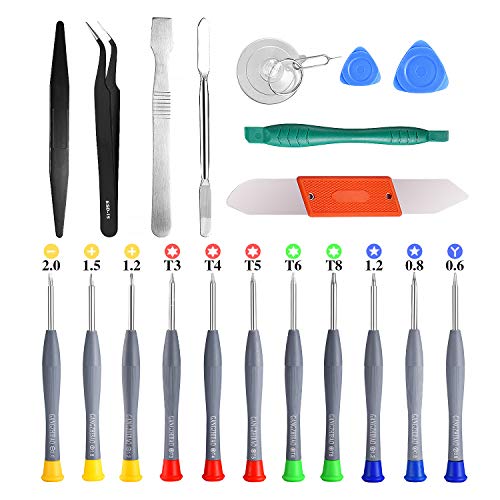
PentalobeScrewdriver Set: p5 Pentalobe screwdriver,PH000 Phillips Screwdriver, Pentalobe T5 Pentalobe T6 Screwdrivers Repair Tool Kit for Apple MacBook Mac Retina Pro Air,T5 for Macbook air & pro repair, it can remove fan screws, including SSD or hard disk replacement. The improved T5 has curved corner tip, which are different from the previous straight corner tip, It will not damage the screws and is more durable

【Compatible Laptop Model】Lenovo Tab 4 10 Tablet Model TB-X304F TB-X304L TB-X304N TB-X304X 10.1-Inch (3.85V,27.0Wh,7000mAh) with Tools
Essential Tools
- Precision Screwdriver Set: Use a set with various heads, including Phillips and flathead, to handle small screws found in the tablet.
- Plastic Pry Tool: This tool helps you safely open the tablet casing without damaging it.
- Tweezers: Tweezers assist in handling small components and connectors inside the device.
- Anti-Static Wrist Strap: Wearing this strap prevents static electricity from damaging sensitive electronic parts.
Optional Tools
- Heat Gun or Hair Dryer: Applying gentle heat softens adhesive used to secure the battery, making removal easier.
- Suction Cup: A suction cup can help lift and separate the screen from the tablet body.
- Magnifying Glass: This tool improves visibility when working with tiny screws and connectors.
Equipping yourself with these tools ensures a smoother battery replacement experience. Always prioritize safety precautions throughout the process.
Step-by-Step Guide on How to Change Battery in Lenovo Tablet
Follow these steps to successfully change the battery in your Lenovo tablet. This process involves powering down your device, disassembling the tablet, and replacing the battery with a new one.
Recommended Products

Battery Specification: Capacity: Capacity: 27Wh 7000mAh Voltage: 3.85V. Brand new. Up to 500 recharge cycles over the life of the battery. High-quality materials and circuit board.

Specification: Battery type:Li-ion Voltage:10.8V Capacity:72Wh Cells:6cell. Rrecharge cycles:500; The battery is durable and has overcurrent protection, anti-overcharge, anti-overdischarge and temperature control functions.

Specifications: Battery Model: 01AV423 SB10K97580, Voltage: 11.4V Capacity: 24Wh ; Cells: 2-cell; Color: Black ,Condition :New,Packages includes: 1x 01AV423 Battery,2 x Screwdrivers,1x Instruction for Lenovo t480 Battery
Powering Down the Device
- Power off your tablet. Before starting, hold down the power button until a menu appears, and select “Power off.”
- Disconnect any external accessories. Remove chargers, headphones, or any other connected devices to prevent accidents.
Disassembling the Tablet
- Use a precision screwdriver. Locate and remove the screws at the edges of the tablet using the appropriate head size.
- Pry open the casing. Insert a plastic pry tool into the seam. Gently work your way around the edges to release the clips. Don’t force it.
- Remove the screen. If your model has a separate glass screen, carefully lift it away, being mindful of any adhesive.
Removing the Old Battery
- Locate the battery connection. Identify the battery’s connector, which links it to the mainboard.
- Disconnect the battery. Gently lift the connector using tweezers. Avoid pulling on the wires directly.
- Take out the battery. If the battery is secured with adhesive, use the pry tool again to lift it out carefully.
Installing the New Battery
- Position the new battery. Place the replacement battery in the slot, aligning it with the connector.
- Reconnect the battery. Firmly attach the battery’s connector to the mainboard, ensuring it’s secure.
- Check for swelling or damage. Before sealing, confirm that the new battery sits flat and there are no signs of defect.
Reassembling the Tablet
- Replace the screen or casing. Align the screen or back cover with the tablet, pressing gently to snap it into place.
- Reinsert screws. Use the precision screwdriver to reinstall all screws in their original locations.
- Power on the device. Hold the power button until the Lenovo logo appears. Check for proper battery function and ensure everything operates smoothly.
By following these steps, you’ll successfully change the battery in your Lenovo tablet and enhance its performance.
Tips for Successful Battery Replacement
Ensuring a successful battery replacement for your Lenovo tablet requires careful attention to detail and safety measures. Follow these tips for a smoother experience.
Recommended Products

Specification: 61 Battery; type:Li-ion; Voltage:11.4V; Capacity: 24Wh; Cells:3cell; Recharge cycles:500; The battery is durable and has overcurrent protection, anti-overcharge, anti-overdischarge and temperature control functions.

Replacement For Tablet : Fit for Lenovo M10 Plus (Gen 2/2nd Gen) 2020 10.3-inch Tablet Series,Lenovo Tab M10 FHD Plus (Gen 2/2nd Gen) 2020 10.3-inch Tablet Series,Lenovo Smart Tab M10 FHD Plus 2020 10.3-inch Tablet Series:Lenovo TB-X606 TB-X606X TB-X606F TB-X606V TB-X606FA TB-X606XA,Lenovo Tab M10 HD (Gen 2/2nd Gen) Tablet 2020 10.1-inch Series:Lenovo TB-X306 TB-X306X TB-X306F TB-X306V TB-X306FA TB-X306XA Series Tab.

Replacement For Tablet : Fit for Lenovo Smart Tab M10 TB-X505F TB-X505L TB-X505Xl TB-X605F TB-X605FC TB-X605L TB-X605LC TB-X605M TB-X605Cl Tablet.
Safety Precautions
- Power Down the Device: Always turn off your tablet before starting. This prevents potential electrical shock and protects the internal components.
- Use an Anti-Static Wrist Strap: Wear one to prevent static electricity damage to sensitive parts. Ensuring all components stay safe is crucial.
- Work in a Clean Environment: Clear away debris and clutter. A tidy workspace reduces the risk of misplacing small screws and tools.
- Handle the Battery Carefully: Avoid puncturing the battery. Swollen or leaking batteries can pose fire hazards.
- Dispose of Old Batteries Properly: Follow your local regulations for battery disposal. This helps protect the environment and public safety.
Common Mistakes to Avoid
- Forgetting to Back Up Your Data: Always back up important files before starting. Accidental damage can occur during disassembly.
- Using Wrong Tools: Employ only the recommended tools. Using improper tools could strip screws or damage components.
- Skipping Steps: Follow each step in the guide carefully. Rushing can lead to mistakes and negatively impact the new battery’s performance.
- Ignoring Compatibility: Confirm that the replacement battery matches your model specifications. Using an incompatible battery can damage your tablet.
- Neglecting Reassembly Order: Take note of the order when disassembling. Reassembling incorrectly may lead to fit issues or functional problems.
By prioritizing safety and avoiding common pitfalls, you enhance your chances of successfully replacing your Lenovo tablet’s battery and extending its life.
Conclusion
Changing the battery in your Lenovo tablet can breathe new life into your device. With the right tools and a bit of patience you can tackle this task with confidence. Remember to prioritize safety by following the steps carefully and using quality replacement batteries.
By replacing the battery you’re not just improving performance but also extending the overall lifespan of your tablet. So don’t hesitate to take on this project. Enjoy the satisfaction of revitalizing your device and getting back to what you love most. Happy tinkering!
Frequently Asked Questions
What are common issues with Lenovo tablets?
Lenovo tablet users often face sluggish performance and battery life problems. As tablets age, battery issues like reduced lifespan, swelling, and overheating may occur, affecting overall performance.
How long do Lenovo tablet batteries last?
Typically, Lenovo tablet batteries last between 2 to 3 years. However, factors such as deep discharges and exposure to extreme temperatures can reduce this lifespan.
How do I know if my Lenovo tablet needs a new battery?
Signs that indicate a battery replacement is needed include decreased battery life, swelling of the battery, and overheating during usage.
Where can I find compatible replacement batteries?
It’s best to choose high-quality replacement batteries that are compatible with your specific Lenovo tablet model. Opt for OEM batteries to ensure safety and optimal performance.
What tools do I need for battery replacement?
Essential tools for battery replacement include a precision screwdriver set, a plastic pry tool, tweezers, and an anti-static wrist strap. Optional tools might enhance the process but are not mandatory.
What safety precautions should I take during replacement?
Always power down your device before starting. Use an anti-static wrist strap, work in a clean environment, and ensure old batteries are disposed of responsibly to avoid hazards.
What are the steps to replace a Lenovo tablet battery?
Begin by powering down the tablet, then carefully disassemble it using a precision screwdriver. Remove the old battery, install the new one, and ensure connections are secure before reassembling the tablet.
What common mistakes should I avoid during battery replacement?
Avoid forgetting to back up your data, using incorrect tools, skipping crucial steps, neglecting compatibility, and misordering reassembly. These mistakes can lead to complications or further damage.
