

Key Takeaways
- Charging Limits: ASUS laptops are typically set to charge up to 80% by default to enhance battery longevity.
- Battery Health vs. Immediate Needs: Charging to 80% reduces wear on the lithium-ion battery, but adjusting to 100% can be beneficial for heavy usage days.
- Adjusting Settings: Users can change the charging limit from 80% to 100% through the Control Panel or by using the Asus Battery Health Charging utility.
- Impact of Full Charging: Frequent charging to 100% can increase heat production and decrease overall battery lifespan due to higher voltage stresses.
- Balancing Charge Preferences: It’s essential to balance charging requirements with battery health to ensure optimal performance and longevity of the laptop battery.
Have you ever wondered why your ASUS laptop stops charging at 80%? While this feature is designed to extend battery life, it can be frustrating if you need that extra power for a long day of work or play.
Understanding Battery Charging Limits
Many ASUS laptops charge up to 80% by default. This charging limit aims to enhance battery longevity, but it might not meet your needs in every situation.
Importance of Charging Levels
Charging your laptop to 80% can reduce wear on the battery. Lithium-ion batteries, like those in ASUS laptops, experience less stress when not charged to their full capacity. Maintaining this level can extend the overall life of your battery, allowing for more cycles before significant capacity loss. If you require more power, adjusting this limit to 100% is possible.
Effects on Battery Lifespan
Charging habits significantly impact battery lifespan. Batteries charged to 100% frequently can degrade faster due to higher voltage stresses. If you keep your laptop plugged in constantly, this could shorten its useful life. By only charging to 80%, you allow for a longer battery lifespan, but charging to 100% occasionally can be beneficial for heavy usage days. Always balance between immediate power needs and long-term battery health.
Checking Your Asus Laptop Settings
To adjust the charging limit from 80% to 100%, you’ll need to check your laptop settings. Follow these steps for a smooth process.
Recommended Products

Battery Model : B31N1912 Voltage: 11.55V Capacity: 42Wh Li-ion polymer Battery

USB C Laptop charger:Watt: 65W 45W Input :100-240V 1.5A 50-60Hz Output:5V-3A or 9V-3A or 15V-3A or 20V -3.25A,Connector:USB Type-C; VJYUIJAY Laptop Charger Fast charging Compatible with More USB C laptops,For use with compatible devices only,Do not exceed the rated power,Use certified cables,and Avoid placing in enclosed, high-temperature areas

Battery type: Li-ion; Cells: 6-cell; Capacity: 5200mAh; Voltage: 11.1V. The battery is durable and has overcurrent protection, anti-overcharge, anti-overdischarge and temperature control functions.
Accessing the Control Panel
- Open the Start Menu: Click the Windows icon in the bottom-left corner of your screen.
- Select Control Panel: Type “Control Panel” in the search bar, then click on the result.
- Choose Hardware and Sound: In the Control Panel window, find and click on “Hardware and Sound” to access relevant options.
Navigating Power Options
- Click on Power Options: Locate “Power Options” in the Hardware and Sound section.
- Select Change Plan Settings: Identify your active power plan and click on “Change plan settings” next to it.
- Access Advanced Power Settings: Click on “Change advanced power settings.” This opens a new window with various settings to customize.
- Look for Battery Settings: In the advanced settings, find and expand the “Battery” section. Here, you can see options for critical and low battery actions, among others.
- Adjust Battery Charge Limits: Check for settings related to battery charging levels or thresholds. Change these from 80% to 100% if available.
Following these straightforward steps ensures your ASUS laptop charges fully, allowing for extended use when necessary. Adjust settings carefully to maintain a balanced approach to battery health.
Changing Charging Limits on Asus Devices
You can easily adjust the charging limits on your Asus device to suit your needs. Here are two main methods to change the settings from 80% to 100%.
Recommended Products

This charger is designed for devices with power requirements up to 65W(45W 33W included). It is not fit for TUF Gaming A14 A15 17 F15 F17 A16. Not fit for ROG Strix G15 G16 G17 G18. Not fit for ROG Zephyrus G14 G15 M15 G16 S15 S17. Not fit for Vivobook Pro 15 15X 16X. Not compatible with Zenbook Pro 14 Duo 15 16X OLED. Not fit for ROG Flow X16 X13 Z13, ProArt StudioBook 15 16 17, ProArt P16 PX13. Not fit for Chromebook CX1 CX3 CR11 Flip CX5 CX9 and other models more than 65W
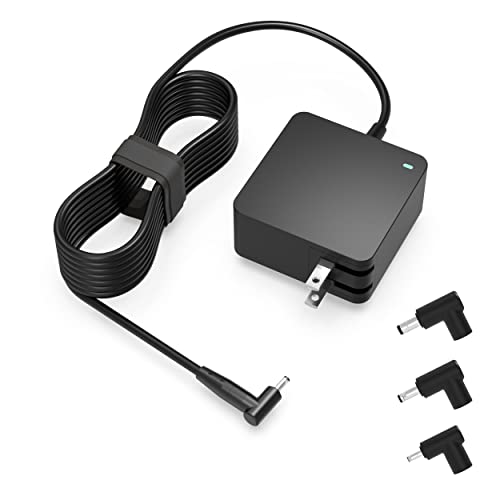
Exceptional compatibility--- Fit for Asus laptop 65W and under (incl. 45W and 33W) with round power connector. Fit for Vivobook 11 17 Flip 14 15, S14 S15 S13, fit for Zenbook UX, fit for Chromebook Flip, fit for Transformer, fit for Eeebook, fit for Imaginebook, fit for Expertbook series. A real 'One for All' solution that aims to make your life easier

# Flawless compatibility # --- Exclusively designed switchable round connectors fit for ASUS Vivobook, Zenbook, fit for Chromebook, Transformer, fit for EeeBook, ImagineBook, ExpertBook laptops of 65W, 45W, 33W with round power connectors
Using Asus Battery Health Charging Utility
- Open the Utility: Click on the Battery Health Charging icon in the taskbar or search for “Asus Battery Health Charging” in the Start menu.
- Select Settings: Inside the utility, look for options related to battery charge limits.
- Change Limits: Choose the option to set the charging limit to 100%. This setting will enable your laptop to charge fully whenever you connect it.
Manual Configuration in Advanced Settings
- Access Control Panel: Search for “Control Panel” in the Start menu and open it.
- Navigate to Power Options: Click on “Power Options” in the Control Panel.
- Adjust Settings: Find the “Change plan settings” option next to your selected power plan and click it.
- Change Advanced Settings: Click on “Change advanced power settings.”
- Expand Battery Settings: Look for the “Battery” section and expand it.
- Adjust Charge Thresholds: Modify the settings to increase the charging threshold to 100%.
Following these steps can help you customize your charging preferences while balancing battery health.
Potential Risks of Charging to 100%
Charging your ASUS laptop to 100% can lead to certain risks that impact both performance and battery health.
Increased Heat Production
Charging to 100% often increases the laptop’s heat production. Heat can arise from higher voltage levels during the last stage of charging. Increased temperatures may affect not only the battery but also internal components, potentially leading to hardware malfunctions. It helps to use your laptop on a flat, hard surface to allow for better airflow, reducing overheating risks.
Reduced Battery Lifespan
Charging your laptop to 100% regularly can reduce the battery’s lifespan. Lithium-ion batteries experience wear and tear due to prolonged exposure to high voltage. Over time, this can lead to diminished capacity and cause the battery to hold less charge. To counter this, consider using the battery health settings available on your ASUS laptop. This allows you to balance immediate charging needs with long-term battery care, ensuring better longevity for your battery without sacrificing performance.
Conclusion
Adjusting your ASUS laptop’s battery charging from 80% to 100% can make a real difference when you need that extra boost for heavy usage days. Just remember to weigh the benefits of a full charge against the potential long-term impacts on your battery’s health.
By following the steps outlined, you can easily make this change and enjoy the flexibility it brings. Keep an eye on your charging habits to ensure you’re getting the most out of your battery while maintaining its longevity. With the right balance, you’ll be set to power through your tasks without worry. Happy charging!
Frequently Asked Questions
Why do ASUS laptops stop charging at 80%?
ASUS laptops limit charging to 80% to extend the lifespan of lithium-ion batteries. This practice reduces wear and helps maintain battery health by minimizing stress caused by higher voltage levels.
Is it safe to charge my ASUS laptop to 100%?
While it’s generally safe to charge to 100%, it can increase heat and stress on the battery, potentially shortening its lifespan. Use this option sparingly, especially for heavy usage days.
How can I change my charging limit on an ASUS laptop?
You can adjust the charging limit through the ASUS Battery Health Charging Utility or manually in the Power Options settings within the Control Panel. Follow the specific instructions provided in the article for detailed steps.
What are the risks of charging to 100%?
Charging to 100% increases heat production and can lead to battery degradation over time. Prolonged exposure to high voltage stresses the battery, potentially causing it to hold less charge in the future.
Should I always keep my laptop charged to 80%?
Keeping your laptop charged to 80% can enhance battery longevity. However, occasionally charging to 100% is advisable for days when you require extra power, striking a balance between immediate needs and long-term health.
