

Key Takeaways
- Essential Tools: Gather the necessary tools for a successful battery replacement, including a screwdriver, plastic pry tool, tweezers, suction cup, and a compatible replacement battery.
- Prepare Your Device: Back up your data using cloud storage or Samsung Smart Switch and ensure the phone is powered down to prevent damage during the process.
- Battery Replacement Steps: Follow the steps carefully to remove the back cover, disconnect the old battery, install the new battery, and reassemble the phone.
- Troubleshooting: Be aware of common issues post-replacement, such as the phone not starting or the battery not charging, and know how to address them effectively.
- Check Compatibility: Always verify that the replacement battery is compatible with your specific Samsung phone model to avoid performance issues.
Is your Samsung phone dying faster than usual? You’re not alone. Many people face the frustration of a battery that just won’t hold a charge anymore. It can be annoying when your device can’t keep up with your busy life, but don’t worry—you can take matters into your own hands.
Tools You Will Need
Changing the battery in your Samsung phone requires specific tools for a smooth process. Gather the following items before starting.
Recommended Tools
- Small Phillips Head Screwdriver: This tool helps remove screws from the phone’s casing.
- Plastic Pry Tool: Use this to safely detach the phone’s back cover without causing damage.
- Tweezers: These allow for precise handling of small components and screws.
- Suction Cup Tool: This aids in lifting the back cover gently away from the phone.
- Replacement Battery: Ensure you choose a compatible battery for your specific Samsung phone model.
Safety Equipment
- Anti-Static Wrist Strap: Wearing this prevents static electricity from damaging the phone’s internal components.
- Safety Goggles: Protect your eyes while working, especially when using tools like a screwdriver or pry tool.
- Work Surface Mat: Use a clean, flat area to keep your components organized and minimize the risk of losing small items.
Having these tools ready ensures a more efficient battery replacement process, reducing the chances of complications.
Steps to Prepare for Battery Replacement
Prepare for a battery replacement by following these key steps to ensure a smooth process.
Backing Up Your Data
Backing up your data protects your information during the battery replacement. Use the following methods:
- Cloud Storage: Use services like Google Drive or OneDrive to store important files and photos.
- Samsung Smart Switch: Install this app on your device to transfer data to another device or PC.
- Manual Backup: Manually save contacts, messages, and additional content by exporting them to a SIM card or external storage.
Backing up data ensures you keep everything safe in case of accidental loss.
Powering Down Your Device
Power down your device before starting the replacement. Follow these steps:
- Press and Hold: Press and hold the power button until the power menu appears.
- Select Power Off: Tap “Power Off” from the menu to turn off your device properly.
- Wait: Wait for a few seconds until the screen goes completely black.
Powering down prevents electrical damage during battery replacement and minimizes the risk of injury.
How to Change a Battery in a Samsung Phone
Changing the battery in your Samsung phone is a straightforward process. Follow these steps carefully to ensure a successful replacement.
Recommended Products

【Spare Battery Specs】EB-BA426ABY Replacement battery has a capacity of 5100mAh, the Voltage is 3.86V.

COMPATIBILITY: The battery model is EB-BR880ABY, it is only compatible with Samsung Galaxy Watch 4 (40 mm), SM-R860 SM-R865 series and Galaxy Watch 4 Classic (42mm) SM-R880 SM-R885, please carefully confirm the model of your smartwatch before purchase.

🔋 High-Capacity 6200mAh Battery for Galaxy S23 Plus Upgraded 6200mAh power delivers longer battery life than original (4700mAh). Enjoy all-day video streaming, gaming, or working without frequent recharging. Perfect for heavy users and travelers.
Removing the Back Cover
- Power off your phone. Hold down the power button, select “Power Off,” then wait for the screen to turn off.
- Use a suction cup tool. Place it near the bottom edge of the back cover. Gently pull while sliding a plastic pry tool into the gap.
- Pry open the back cover. Work your way around the edges to detach it completely. Be careful not to apply too much pressure to avoid damage.
Disconnecting the Old Battery
- Locate the battery connector. Find the thin ribbon cable connecting the battery to the motherboard.
- Use tweezers to lift the connector. Gently grasp the connector and pull it away from the motherboard.
- Remove the old battery. If it’s glued in place, carefully slide the plastic pry tool between the battery and the phone frame to loosen it.
Installing the New Battery
- Position the new battery. Align it with the battery compartment.
- Reconnect the battery. Firmly press the connector onto the motherboard. Ensure it’s secure.
- Check compatibility. Make sure your replacement battery matches your phone model to prevent issues.
Reassembling the Phone
- Replace the back cover. Align it with the phone’s edges and press down until it clicks securely.
- Power on your device. Press the power button and wait for your phone to start up.
- Test the new battery. Check for proper charging and ensure your phone functions smoothly.
Following these steps ensures a successful battery replacement, extending your phone’s lifespan and improving performance.
Troubleshooting Common Issues
You might encounter a few problems after changing the battery in your Samsung phone. Here’s how to address some common issues.
Recommended Products

Compatible Model: It is compatible with Samsung Galaxy Note 10+ Plus Only, Model: SM-N975, EB-BN972ABU. Not for Note 10. Please double identify and check your phone model matches before purchasing the battery.
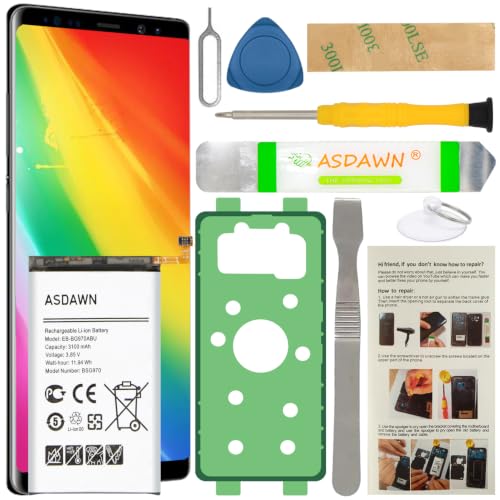
[FOR COMPATIBLE MODEL] -- Contains the instruction to guide you step by step installation, and we have professional engineers to answer all your questions about the repair process. Please verify your old battery part number and model before purchasing this replacement battery. Compatible with Samsung Galaxy S10e SM-G970, EB-BG970ABU, SM-G970F/DS, SM-G970U, SM-G970W ★NOT FOR Samsung Galaxy S10/ S10 Plus/ Note 10/ Note 10 Plus★
Phone Won’t Start
If your phone doesn’t turn on after replacing the battery, check the following:
- Power Connection: Ensure the new battery is properly connected. A loose connection can prevent the phone from receiving power.
- Charging Time: Plug the phone into a wall charger for at least 15 minutes. Sometimes, a depleted battery requires a bit of time to gain enough charge.
- Display Issues: Press and hold the power button for about 10 seconds. If the screen is blank, it might be a display issue instead of a battery problem.
- Hard Reset: Perform a hard reset. Press and hold both the power and volume down buttons simultaneously for about 10 seconds.
Battery Not Charging Properly
If your battery charges slowly or not at all after installation, try these steps:
- Charger Check: Test your charger and cable with another device. A faulty charger can affect charging.
- Cleaning Ports: Inspect the charging port for dirt or debris. Use a soft brush or compressed air to clean it carefully.
- Battery Compatibility: Confirm the replacement battery is compatible with your phone model. Using a non-compatible battery can lead to charging issues.
- Software Update: Ensure your phone’s software is up to date. Sometimes, outdated software can cause charging problems.
Addressing these common issues can enhance performance and extend the lifespan of your Samsung phone.
Conclusion
Changing the battery in your Samsung phone can feel daunting but it’s a rewarding task that can breathe new life into your device. By following the steps outlined and taking the necessary precautions you can tackle this challenge with confidence.
Remember to back up your data and ensure your workspace is safe and organized. With the right tools and a little patience you’ll have your phone running smoothly again in no time.
Don’t hesitate to reach out for help if you run into any issues. Enjoy your revitalized phone and the peace of mind that comes with knowing you’ve done it yourself!
Frequently Asked Questions
What causes Samsung phone batteries to drain quickly?
Battery drainage in Samsung phones can be caused by various factors, including background apps running, outdated software, high screen brightness, and location services being enabled. Regularly managing app settings and updating your software can help improve battery life.
How can I prepare my Samsung phone for a battery replacement?
To prepare for a battery replacement, back up your data using cloud services or the Samsung Smart Switch app. Ensure to power down your phone by holding the power button, selecting “Power Off,” and waiting for the screen to turn black.
What tools do I need for replacing a Samsung phone battery?
You will need a small Phillips head screwdriver, a plastic pry tool, tweezers, a suction cup tool, a compatible replacement battery, and safety equipment like an anti-static wrist strap, safety goggles, and a work surface mat.
What steps should I follow to change my Samsung phone battery?
Start by removing the back cover with a suction cup tool, then disconnect the old battery with tweezers. Install the new battery, ensuring proper alignment and connection, and finally replace the back cover before powering on the device.
What should I do if my phone doesn’t start after changing the battery?
If your phone doesn’t start, check the power connection, allow the phone some charging time, or try performing a hard reset. Ensuring that the new battery is compatible can also help resolve the issue.
How can I troubleshoot battery charging issues after replacement?
For charging issues post-replacement, check the charger compatibility, clean the charging port, and confirm that your phone’s software is updated. If problems persist, consider testing with another charger to rule out hardware issues.
