

Key Takeaways
- Understanding Battery Calibration: Calibration ensures accurate measurement of your Lenovo laptop’s battery capacity, optimizing performance and lifespan.
- Signs of Calibration Need: Look for inconsistent power readings, sudden shutdowns, charging anomalies, and a gradual decrease in battery life to determine if calibration is necessary.
- Preparation is Key: Gather essential tools like the official laptop charger, timer, battery report tool, and a backup solution to safeguard your data before calibrating.
- Calibration Steps: Follow a clear process: fully charge the battery, allow it to discharge completely, rest the laptop for several hours, and then recharge it fully again for effective calibration.
- Maintain Battery Health: Establish a regular calibration schedule, avoid overcharging, and manage power settings to maximize your Lenovo laptop battery’s lifespan and performance.
Ever noticed your Lenovo laptop battery draining faster than it should? You’re not alone. Many users face this frustrating issue, and it can really hinder your productivity. The good news is that calibrating your battery can help restore its performance and extend its lifespan.
Understanding Battery Calibration
Battery calibration ensures your Lenovo laptop accurately measures its power capacity. Proper calibration helps maximize battery life and performance.
Importance of Battery Calibration
Battery calibration is vital for accurate battery life readings. When the battery isn’t calibrated, you may see misleading percentages, which can lead to unexpected shut-downs. Regular calibration helps maintain your laptop’s optimal performance and prolongs the battery’s lifespan.
Signs Your Battery Needs Calibration
Look for these signs to determine if your battery needs calibration:
- Inconsistent Power Readings: If your battery indicates a full charge but drains quickly, calibration may be necessary.
- Sudden Shutdowns: The laptop shutting down unexpectedly, especially when the indicator shows a remaining charge, signals a potential issue.
- Charging Anomalies: If your battery takes too long to charge fully or doesn’t reach 100%, calibration could help resolve these problems.
- Gradual Decrease in Battery Life: A noticeable decline in the time your laptop lasts on a charge suggests calibration might restore performance.
Recognizing these signs enables you to take proactive measures.
Preparing for Calibration
Before calibrating your Lenovo laptop battery, ensure you’re ready with the necessary tools and steps. Proper preparation helps you achieve accurate results and enhances battery performance.
Tools and Requirements
- Laptop charger: Use the official charger to ensure compatibility and safety.
- Timer or clock: Monitor the charging and discharging phases effectively.
- Battery report tool: Access this feature through Windows to track battery statistics.
- Backup storage: If you store important work, make sure you have a backup solution, like an external hard drive or cloud storage.
Backing Up Your Data
Backing up your data protects important files during the calibration process. You can use built-in Windows features for easy backups:
- File History: Go to Settings > Update & Security > Backup, and set up File History to save your files automatically.
- OneDrive: Store files in the cloud for easy access from any device. Ensure your account has enough space for all necessary files.
- External storage devices: Copy essential documents and media onto a USB flash drive or external hard drive.
Taking these steps ensures your data is safe, allowing you to calibrate your battery without worry.
Steps to Calibrate Lenovo Laptop Battery
Calibrating your Lenovo laptop battery involves a simple series of steps to ensure accurate battery life readings. Follow these clear instructions for effective calibration.
Recommended Products

【Specifications】Model: 01AV418. Type: Li-ion. Voltage: 14.6V. Capacity: 41Wh 2810mAh. Up to 1000 recharge cycles over the life of the battery

【Specifications】Model: L16C2PB2. Type: Li-ion. Voltage: 7.6V. Capacity: 30Wh 4030mAh. Up to 1000 recharge cycles over the life of the battery

【Specifications】Model: L18C3PF6. Type: Li-ion. Voltage: 11.25V. Capacity: 36Wh. Up to 1000 recharge cycles over the life of the battery
Charge the Battery Fully
Plug in your laptop using the official charger. Charge the battery until it reaches 100%. You can check the battery icon on your taskbar to confirm it’s fully charged. Keep it connected for at least two hours to ensure a full charge.
Use the Laptop Until It Shuts Down
Disconnect the charger and use your laptop normally. Run applications, stream videos, or browse the web. Continue using the laptop until it shuts down from low battery. This step allows the battery to discharge completely, giving an accurate measure of its capacity.
Leave the Laptop Off for a Period
After the laptop shuts down, leave it off for at least five hours. This pause allows the battery to rest and reset its measurement system. Avoid turning on the laptop during this time, as it helps maintain the calibration process.
Fully Charge the Battery Again
Reconnect the charger and charge your laptop back to 100% without interruption. It’s best to charge it continuously until fully charged again. This step finalizes the calibration process, ensuring your battery readings reflect its actual capacity.
By following these steps, you’ll ensure your Lenovo laptop battery remains well-calibrated, improving its performance and longevity.
Tips for Maintaining Battery Health
Maintaining your Lenovo laptop battery’s health requires consistent practices. Follow these tips to ensure optimal performance.
Recommended Products

【Specifications】Model: L14M2P21 / Type: Li-ion / Voltage: 7.4V / Capacity: 30Wh 4050mAh
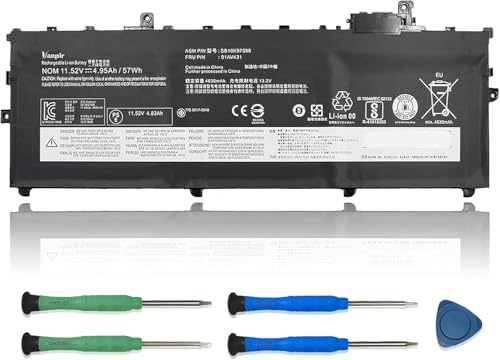
【Specifications】Model: 01AV431 / Type: Li-ion / Voltage: 11.52V / Capacity: 57Wh 4950mAh

【Specifications】Model: 01AV490 (61). Type: Li-ion. Voltage: 11.4V. Capacity: 24Wh 1950mAh. Up to 1000 recharge cycles over the life of the battery
Regular Calibration Schedule
Establish a regular calibration schedule. Aim to calibrate your battery every one to three months. Consistency helps the laptop accurately measure battery levels. Set reminders on your calendar for easy tracking. This habit keeps your battery performance steady and prevents sudden issues.
Avoiding Overcharging
Avoid overcharging your laptop. While modern batteries have mechanisms to handle charging, excessive power can still degrade battery health. Disconnect the charger once the battery reaches 100%. If you frequently work near a power source, consider using battery-saving modes to limit charging. This practice maximizes battery lifespan.
Managing Power Settings
Manage your laptop’s power settings wisely. Utilize power management tools available in Windows. Select the “Power & sleep” settings to customize when your laptop sleeps or hibernates. Optimize performance modes based on your usage. For instance, use “power saver” mode during light tasks. Adjusting these settings can reduce battery drain and extend overall battery life.
Conclusion
Taking the time to calibrate your Lenovo laptop battery can make a world of difference in its performance. By following the steps outlined and recognizing when your battery needs attention, you’ll ensure your laptop runs smoothly and efficiently.
Regular calibration not only helps maintain accurate battery readings but also extends its lifespan. Remember to back up your data before starting the process and keep an eye on your battery health.
With a little effort and care, you can enjoy longer usage times and fewer unexpected shutdowns. Happy computing!
Frequently Asked Questions
What causes Lenovo laptop batteries to drain quickly?
A Lenovo laptop battery may drain quickly due to various factors such as background applications running, outdated software, or poor battery health. Additionally, high screen brightness, inefficient power settings, and hardware issues can contribute to rapid battery depletion. Regularly checking these aspects can help users improve battery performance.
How does battery calibration help my Lenovo laptop?
Battery calibration helps your Lenovo laptop by ensuring the battery accurately measures its charge capacity, which improves battery performance and longevity. It allows the system to recognize the actual capacity of the battery, preventing misleading power percentage readings and unexpected shutdowns.
How can I tell if my Lenovo battery needs calibration?
Signs that your Lenovo battery needs calibration include inconsistent power readings, sudden shutdowns, charging issues (like not holding a charge), and a noticeable decrease in battery life. Recognizing these symptoms can help you address potential battery performance issues promptly.
What preparation is needed before calibrating my Lenovo laptop battery?
Before calibrating your Lenovo laptop battery, gather the following: the official laptop charger, a timer or clock, a battery report tool, and a backup storage solution. Additionally, back up important files using Windows File History, OneDrive, or external devices to protect your data during the calibration process.
What are the steps to calibrate my Lenovo laptop battery?
To calibrate your Lenovo laptop battery, follow these steps:
- Fully charge the battery using the official charger for at least two hours.
- Disconnect the charger and use the laptop until it shuts down from low battery.
- Leave it off for at least five hours.
- Reconnect the charger and fully charge it again without interruption.
How often should I calibrate my Lenovo laptop battery?
It is recommended to calibrate your Lenovo laptop battery every one to three months. Regular calibration helps maintain accurate battery level measurements, ultimately extending the battery’s lifespan and improving performance.
What tips can help maintain my Lenovo laptop battery health?
To maintain your Lenovo laptop battery health, avoid overcharging by disconnecting the charger once it reaches 100%. Use Windows power management tools to customize sleep and hibernation settings, and regularly calibrate your battery to ensure accuracy in charge readings.
