

Ever wondered why your Dell laptop battery seems to drain faster than you’d like? Picture this: you’re in the middle of an important task, and your battery percentage drops dramatically. Frustrating, right? Well, what if I told you there’s a simple solution that could make a world of difference for your Dell battery life?
Understanding Battery Calibration
When it comes to battery calibration, it’s essentially the process of resetting the power gauge of your Dell laptop. Over time, this gauge might become inaccurate, leading to issues like sudden shutdowns even when the battery appears to have charge left. Calibrating the battery helps ensure that the reported battery life matches its actual performance.
To calibrate your Dell battery, follow these steps:
- Step 1: Fully charge your laptop battery.
- Step 2: Let it rest. Wait for a few hours after it’s fully charged.
- Step 3: Use your laptop. Discharge the battery. You can do this by running applications or tasks that require more power.
- Step 4: Regularly check the battery level. Continue using your laptop until the battery is almost completely drained.
- Step 5: Fully recharge. Plug in your Dell laptop and let it charge to 100%.
Proper battery calibration can help optimize the performance and extend the lifespan of your Dell laptop’s battery.
Why Calibrating Your Dell Battery is Important
Calibrating your Dell battery is essential for ensuring accurate power readings and preventing unexpected shutdowns while using your laptop. Inaccurate battery readings can lead to inconvenience and disrupt your work or entertainment activities.
The Benefits of Proper Calibration
- Optimized Performance: Calibrating your Dell battery helps your laptop gauge the available power accurately, allowing you to use it more efficiently.
- Enhanced Battery Life: Proper calibration contributes to prolonging your battery’s lifespan, saving you money on frequent replacements.
- Improved Accuracy: Matching reported battery life with actual performance gives you peace of mind and allows you to plan your tasks effectively.
Avoiding Common Issues
- Inconsistent Power Levels: Without calibration, your battery may display fluctuating power levels, causing confusion about when to recharge.
- Sudden Shutdowns: Improperly calibrated batteries can lead to sudden shutdowns, potentially resulting in data loss or interrupted work.
How Calibration Works
- Step-by-Step Process: Following a simple calibration process can help sync your battery’s reported capacity with its actual capabilities.
- Regular Maintenance: Calibrating your Dell battery periodically is crucial for maintaining its accuracy and performance over time.
- Schedule Regular Calibrations: Make it a habit to calibrate your Dell battery every few months to ensure optimal performance.
- Stay Informed: Keep an eye on your battery’s health and performance indicators to identify when calibration is necessary.
Step-by-Step Guide to Calibrating Your Dell Battery
Calibrating your Dell battery is a straightforward process that can help optimize performance and prevent unexpected shutdowns. Here’s a simple guide to help you through:
- Step 1: Charge to Full
Make sure your Dell laptop is plugged in and charge it to 100%. Don’t unplug it once it’s fully charged. - Step 2: Let It Rest
Allow your laptop to rest while still plugged in for at least 2 hours. This helps stabilize the battery. - Step 3: Discharge
After the resting period, use your laptop normally until the battery is completely drained and the system shuts down. - Step 4: Further Rest
Keep your laptop off for at least 5 hours to let the battery cool down. - Step 5: Recharge
Plug in your laptop and charge it back to 100% without interruption. - Step 6: Calibration Complete
Congratulations! Your Dell battery is now calibrated, and you can enjoy optimized performance.
Regularly calibrating your battery every few months ensures accurate power readings and extends the battery life of your Dell laptop.
Recommended Products

Specifications: Battery Model: 6GTPY, Voltage: 11.4V Capacity:97Wh ; Cells: 6-cell; Color: Black ,Condition :New,Packages includes: 1x XPS 15 9560 battery,2 x Screwdrivers,1x Instruction for Precision 5520 battery
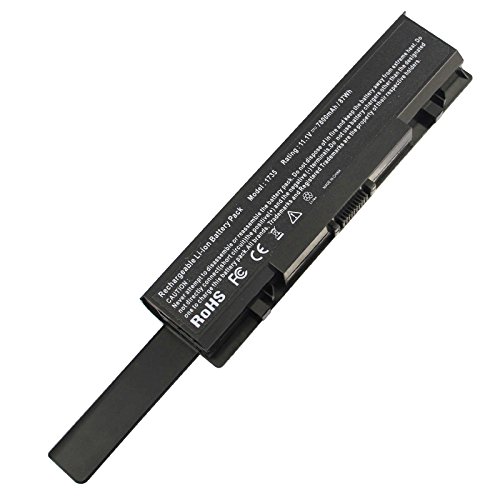
SPECIFICATION: Model Name: 1735. Battery Type: Lithium-Ion. Voltage: 11.1V. Capacity: 87Wh. Cells: 6-cells. Battery life: Up to 500 recharge cycles over the life of the battery.
Tips to Maintain Battery Health
Taking care of your Dell laptop battery is essential for its longevity and optimal performance. Here are some tips to help you maintain your battery health:
- Avoid Extreme Temperatures: Keep your laptop in a moderate temperature environment to prevent damage to the battery.
- Partial Discharges: Try not to let your battery run out completely often. It’s better to do regular partial discharges instead.
- Unplug When Fully Charged: Once your battery reaches 100%, unplug the charger to avoid overcharging and reduce wear on the battery.
- Regularly Update Software: Keeping your Dell laptop’s software up to date can help improve battery efficiency.
- Use Battery Saving Modes: Take advantage of power-saving settings on your laptop to conserve battery life when not plugged in.
- Clean Your Battery Contacts: Periodically clean the metal contacts on your battery to maintain a good connection.
Remember, a few simple habits can go a long way in ensuring your Dell laptop battery stays healthy and performs optimally. Taking care of your battery will not only extend its lifespan but also enhance your overall laptop experience.
Recommended Products

[POWER SPECS] Output Max - 65W, 19.5V 3.34A (also for 45W laptop as well), Input Range - 100 - 240V. /(DC Connecter Size: 4.5 x 3.0mm) Compatible with Dell Charger Laptop AC Adapter Power Cord

This is a Dell OEM Genuine part.

【Compatibility】This 65W power adapter is designed for Dell laptops, including the Dell inspiron 17 16 15 14 13 11 (5000 3000 7000), Latitude (3510 3520 3310 3440 3520), Vostro 15 14 13 (5000 3000), and XPS 13 12 11 (9P33 9Q33 3943 9333 9350) more series .It is also compatible with Dell laptops equipped with 45W power supplies. (Note: Please ensure your connector size is 4.5mm x 3.0mm before purchasing.) If your model requires 19.5V/3.34A output, this well-designed adapter is ideal.
Frequently Asked Questions About Dell Battery Calibration
Have questions about calibrating your Dell laptop battery? Here are some common queries and their answers for your convenience:
Q: Why is battery calibration important for my Dell laptop?
- Proper calibration ensures that your battery’s power readings are accurate and helps maintain its health for optimal performance.
Q: How often should I calibrate my Dell battery?
- It’s recommended to calibrate your battery every 3 months or after 50 charge cycles to keep it functioning efficiently.
Q: Can I overcharge my Dell battery during calibration?
- Overcharging is not a concern during calibration as the process is designed to establish accurate power levels without harming your battery.
Q: How can I tell if my Dell battery needs calibration?
- If you notice unexpected shutdowns, decreased battery life, or erratic power percentages, it’s a sign that calibrating your battery may be necessary.
- Avoid intensive tasks during calibration to ensure accurate results. It’s best to let the calibration process run without disruptions.
Remember, following these calibration practices will help you maximize your Dell laptop battery’s lifespan and keep it running smoothly.
Conclusion
By following the recommended calibration steps every few months, you’ll optimize your Dell battery’s performance and longevity. Remember to pay attention to signs that indicate it’s time for calibration, like sudden shutdowns or reduced battery life. Prioritize maintaining your battery health through these simple practices to ensure your Dell laptop operates smoothly. Regular calibration is key to accurate power readings and optimal battery performance, so make it a habit to keep your device running at its best. With these guidelines in mind, you can enjoy extended battery life and improved efficiency from your Dell laptop.
Frequently Asked Questions
Q: Why is calibrating my Dell laptop battery important?
A: Calibrating your Dell laptop battery is crucial for accurate power readings and optimal performance. It helps extend the battery lifespan and ensures reliable operation.
Q: How often should I calibrate my Dell laptop battery?
A: It is recommended to calibrate your Dell laptop battery every 3 months or after around 50 charge cycles to maintain its health and performance.
Q: Can overcharging occur during the calibration process?
A: No, overcharging is not a concern during the calibration process. Following the recommended steps will help optimize the battery’s performance without risks of overcharging.
Q: What are the signs that indicate my Dell laptop battery needs calibration?
A: Signs that your Dell laptop battery needs calibration include unexpected shutdowns, decreased battery life, and inaccurate power readings.
Q: Should I perform intensive tasks while calibrating my Dell laptop battery?
A: It is advisable to avoid intensive tasks during the battery calibration process to ensure accurate results and maximize the battery’s lifespan.
