

Key Takeaways
- Easy Access to Battery Percentage: Displaying your battery percentage on Samsung devices can be done quickly through the Settings menu or Quick Settings, ensuring you always know your device’s power status.
- Settings Navigation: To show battery percentage, navigate to Settings > Battery and Device Care > Battery, then toggle on the “Show battery percentage” option.
- Quick Settings Feature: Utilize the Quick Settings menu for immediate visibility by swiping down from the top of the screen and enabling the battery percentage indicator next to the battery icon.
- Home Screen Widgets: Enhance accessibility by adding a battery widget to your home screen, providing constant updates on battery life without needing to access the settings.
- Power Management Tips: Activate Power Saving Mode, monitor background apps, and adjust screen brightness to prolong battery life and maintain accurate readings.
- Third-Party Apps: Consider using apps like GSam Battery Monitor or AccuBattery for detailed insights into battery health and usage patterns, but be aware of potential battery drain and security risks.
Ever find yourself guessing how much battery life you have left on your Samsung device? It can be frustrating to suddenly realize your phone’s about to die, especially when you need it most. Knowing your battery percentage can save you from those last-minute panics.
Understanding Battery Percentage on Samsung Devices
Knowing your battery percentage keeps you informed about your device’s power status. Samsung devices feature various ways to display the battery percentage. Familiarizing yourself with these settings ensures you can avoid unexpected shutdowns.
Displaying Battery Percentage in the Status Bar
- Open Settings: Swipe down from the top of the screen to access the notification panel, then tap the gear icon.
- Select Battery and Device Care: This option may also appear as Device Maintenance or similar on some models.
- Tap Battery: Here, you’ll find battery-related options.
- Enable Percentage: Look for “Show battery percentage” and toggle it on. Now, your battery percentage will appear next to the battery icon in the status bar.
Checking Battery Percentage in Quick Settings
- Swipe Down: Pull down the notification panel.
- Locate Quick Settings: On the top of the panel, you should see various toggles.
- Find the Battery Icon: The icon shows the battery level in real-time. Tapping on it often reveals the percentage.
Using Battery Widgets
You can also add a battery widget on your home screen for quick access.
- Long-Press on Home Screen: Choose “Widgets.”
- Select Battery Widget: Pick a widget style that shows battery percentage.
- Place on Home Screen: Drag it to your desired location.
Tips for Managing Battery Life
- Enable Power Saving Mode: Activate it under Settings > Battery > Power Saving Mode.
- Monitor Background Apps: Limit apps running in the background through Battery settings.
- Adjust Screen Brightness: Lowering brightness extends battery life and displays it accurately.
By following these steps, you’ll easily keep track of your battery percentage and manage your Samsung device’s power more effectively.
Steps to Show Battery Percentage in Settings
Displaying the battery percentage on your Samsung device is easy. Follow these steps to enable it through the settings.
Accessing the Settings Menu
- Tap the Settings app on your home screen or app drawer.
- Scroll down and select Battery and Device Care.
- From there, tap on Battery to proceed to the battery settings.
Navigating to Battery Options
- In the Battery settings, look for the More battery settings option, usually found at the bottom.
- Toggle on the Show battery percentage option.
- Once enabled, you’ll see the battery percentage visible in your status bar.
By following these steps, you can keep track of your battery more effectively during your daily tasks.
Using Quick Settings Menu
The Quick Settings Menu provides a convenient way to view your battery percentage. You can easily check it with just a few taps.
Recommended Products
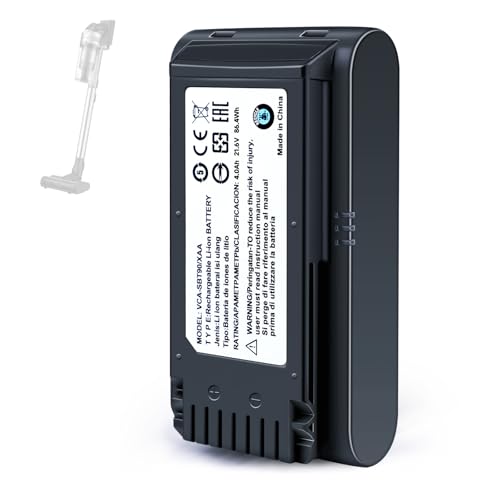
【Specifications】 Model:VCA-SBT90 ;Battery Type: Li_ion, Voltage:21.6V Capacity: 4000mAh ; Color: Gray and black

POWER ANYWHERE YOU WANT IT: Charge up any of your devices with the Galaxy Magnetic Wireless Battery Pack. Whether you want to plug in to the USB-C port or use the built-in magnetic wireless charger, the 5,000mAh battery is waiting to power you up throughout the whole day.

[PLS CONFIRM DEVICE MODEL] -- The repair kit contains the instruction to guide you step by step installation, and we have professional engineers to answer all your questions about the repair process. Please verify your old battery part number and model before purchasing this replacement battery. Part Number: Scud-WT-N6, Compatible with Samsung Galaxy A10s SM-A107F/DS SM-A107M/DS, Samsung Galaxy A20s SM-A207F/DS SM-A207M/DS SM-A2070, Samsung Galaxy A21 SM-A215U SM-A215U1.
Enabling Battery Percentage Indicator
- Swipe Down: Pull down from the top of your screen to open the Quick Settings Menu.
- Locate Battery Icon: Look for the battery icon at the top right corner. If you don’t see the percentage next to it, you can enable it.
- Access Settings: Tap on the battery icon to access additional settings.
- Toggle On Percentage: In the options that appear, toggle on the “Show battery percentage” feature. This displays the percentage directly next to the battery icon.
Customizing Quick Settings for Easy Access
- Open Quick Settings Menu: Again, swipe down from the top of your screen.
- Edit Icons: Tap the three vertical dots or ‘Edit’ button in the top right corner.
- Add Battery Widget: Drag the battery widget to your Quick Settings panel. This allows for quick visibility without diving into settings each time.
- Rearrange Icons: Organize the icons by dragging them to your preferred order. Place the battery icon where it’s easily accessible.
Using the Quick Settings Menu keeps your battery percentage visible and makes managing your device easier.
Third-Party Apps for Battery Monitoring
Third-party apps offer an alternative way to check your battery percentage on Samsung devices. Many of these applications provide detailed insights into battery health and usage patterns.
Recommended Products
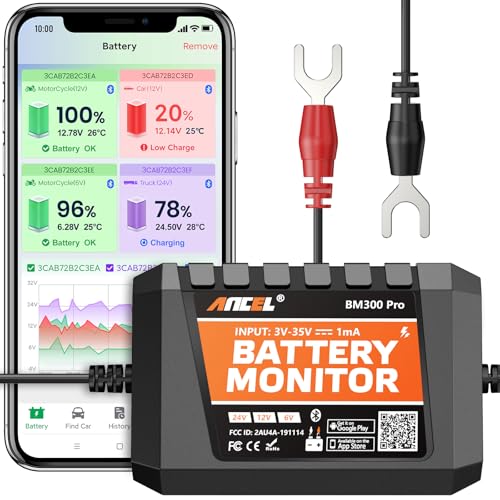
6V, 12V & 24V MONITORING - View voltage, estimated state of charge and temperature through the ANCEL BM300 Pro app. On supported 12V and 24V vehicle systems, review cranking and charging voltage tests. For 6V systems, use voltage, SOC and temperature monitoring; cranking and charging tests are not supported.

🔋High Value Battery Tester: BM200 is your go-to solution for 12V lead-acid and lithium battery. Equipped with advanced features like voltage & cranking & charging system test, abnormal alarm and real-time trip records.This battery monitor ensures your car battery is always in optimal condition. Whether it's for your car, motorcycle, truck, RV or boat, this 12V battery tester has got you covered. Get it, and forget winter breakdown worries.
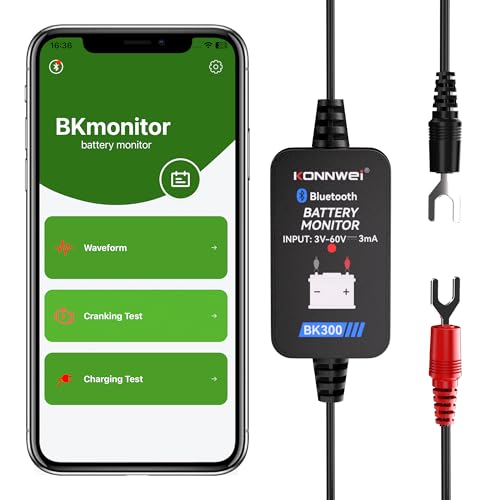
【Car Battery Monitor Assistant】The BK300 battery monitor is equipped with advanced features such as voltage, starting and charging system testing, and real-time trip logging.Works with Lead-acid, AGM Flat/Spiral, EFB,VRLA,GEL and Lithium batteries—never face winter breakdowns again.
Recommended Apps for Tracking Battery Percentage
- GSam Battery Monitor
- GSam Battery Monitor tracks battery usage and provides detailed statistics, including app consumption and remaining time estimates. It’s user-friendly and customizable.
- AccuBattery
- AccuBattery measures battery capacity and health. It notifies you when charging is optimal and helps extend overall battery lifespan. The app displays current battery percentage prominently.
- BatteryGuru
- BatteryGuru offers suggestions to optimize battery performance. It runs in the background, analyzing usage patterns and giving insights about the best charging practices. The home screen widget shows the battery percentage.
Pros and Cons of Using Third-Party Solutions
Pros:
- Detailed Insights: Third-party apps often offer more than just battery percentage, including health and usage trends.
- Customization: Many apps let you customize notifications and displays according to your preferences.
- Battery Optimization: Some apps provide tips to extend battery life, improving device efficiency.
Cons:
- Battery Drain: Running additional apps can potentially use more battery, especially if they’re resource-intensive.
- Security Risks: Some apps may require excessive permissions that could compromise your data security or privacy.
- Compatibility Issues: Not all apps function well with every Samsung device, leading to potential malfunctions or incorrect readings.
Leveraging these apps can enhance your understanding of battery performance while allowing for more control over your device’s power management.
Conclusion
Knowing your battery percentage can make a big difference in your daily routine. With just a few simple steps you can easily keep track of your battery life on your Samsung device. Whether you prefer using the settings menu the Quick Settings panel or even third-party apps there are plenty of options to suit your needs.
By staying aware of your battery status you can avoid those unexpected shutdowns and manage your device more effectively. So go ahead and enable that battery percentage indicator today. You’ll feel more in control and ready to tackle whatever the day throws your way.
Frequently Asked Questions
How can I see the battery percentage on my Samsung device?
You can display the battery percentage on your Samsung device by going to Settings > Battery and Device Care > Battery, and then toggling the option for Show battery percentage. This will allow you to see the remaining battery life in the status bar.
What is the Quick Settings Menu?
The Quick Settings Menu is a panel that you can access by swiping down from the top of your screen. It provides quick access to commonly used features, including the battery percentage. You can enable this setting by tapping the battery icon and toggling on Show battery percentage.
Are there any apps to monitor battery life on Samsung devices?
Yes, there are several third-party apps like GSam Battery Monitor, AccuBattery, and BatteryGuru that can help you track battery usage and health. These apps offer detailed insights but can consume additional battery power and may have security risks.
How can I extend my Samsung device’s battery life?
You can extend battery life by enabling Power Saving Mode, monitoring background apps, reducing screen brightness, and turning off unused features. Regularly checking the battery usage under Settings can also help identify apps that drain your battery.
Is it important to monitor battery percentage?
Yes, monitoring your battery percentage is important to prevent unexpected shutdowns, especially during critical tasks. Being aware of your battery life helps you manage your device’s usage more effectively and ensures you can recharge before it’s too late.
