

Struggling with your Lenovo laptop battery not charging? Ever been in a situation where you need your laptop the most, but the battery just won’t cooperate? Frustrating, right? Well, worry not, because help is on the way! In this article, you’ll uncover simple and effective solutions to get your Lenovo battery back on track.
Imagine this: you’re in the middle of an important project or binge-watching your favorite show, and suddenly, your laptop battery decides to act up. We’ve all been there, and it’s not a pleasant experience. But fear not, as we’re about to share some valuable tips and tricks to resolve this issue swiftly.
Check the power adapter
If your Lenovo battery is not charging, the first step is to ensure that the power adapter is functioning correctly. Here are some tips to consider:
- Check if the power adapter is properly plugged into both the wall outlet and your laptop.
- Inspect the adapter for any damaged cords or connectors that may be affecting the charging process.
- Test the power outlet with another device to confirm that it’s providing power.
- Try using a different power adapter to determine if the issue lies with the adapter rather than the laptop.
Power Adapter Troubleshooting:
Test the voltage output of the power adapter using a multimeter to ensure it matches the manufacturer’s specifications.
| Power Adapter Voltage | Manufacturer's Specification |
|-----------------------|-----------------------------|
| 18.5V - 20V | Appropriate range for Lenovo laptops |
Recommended Products
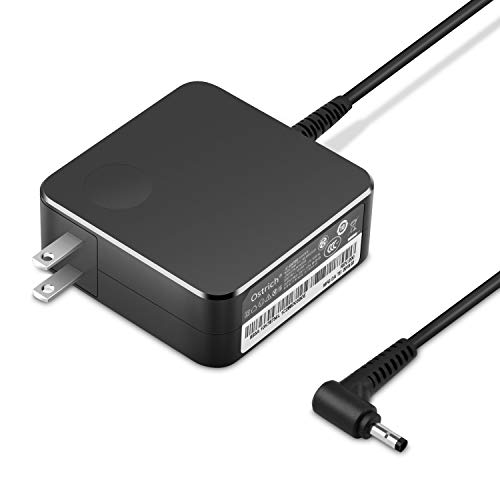
POWER SPECS Output Max: 20V 3.25A 65W/20V 2.25A 45W Input Volt Range: 110-240V/50/60Hz (For Worldwide Use) Compatible with Lenovo Charger Laptop AC Adapter Power Cord

😊【PLEASE NOTE】before placing an order: This product is an OEM charger, not an original charger

【Power Product Type】 : Max 65W 45W (compatible) AC Input: 100 - 240V 50 - 60Hz, Output: DC 5V/3A, 9V/3A, 12V/3A, 15V/3A, 20V/2.25A, 20V/3.25A. Connector size: USB Type-C
Restart your laptop
If your Lenovo battery is not charging, a simple yet effective troubleshooting step is to restart your laptop. Restarting can help refresh the system and resolve minor software glitches that may be causing the charging issue.
Here’s how you can restart your laptop to potentially fix the problem:
- Save any ongoing work and close all the applications.
- Click on the “Start” menu in the lower left corner of your screen.
- Select “Restart” from the power options.
- Wait for your laptop to shut down and then start up again.
After the restart, check if the battery is now charging properly. If the issue persists, proceed with further troubleshooting steps to pinpoint the root cause of the problem.
Update battery driver
If your Lenovo laptop’s battery is still not charging after restarting, the next step is to update the battery driver. Outdated or corrupted drivers can often cause charging issues. Here’s how you can do it:
- Press the Windows key + X on your keyboard to open the Power User menu
- Choose Device Manager from the list
- Locate and expand the Batteries category
- Right-click on Microsoft ACPI-Compliant Control Method Battery
- Select Update driver
- Choose Search automatically for updated driver software
- Follow the on-screen instructions to complete the process
By updating the battery driver, you can ensure that your laptop is using the latest software to manage the charging process effectively. This simple fix may help you resolve the battery not charging problem.
Run hardware diagnostics
When troubleshooting a Lenovo battery not charging issue, running hardware diagnostics can help pinpoint potential problems with your laptop’s components.
- Launch the Lenovo Vantage app on your laptop.
- Navigate to the “Hardware Settings” section.
- Look for the “Device diagnostics” or “Hardware scan” option.
- Initiate a scan to check the health of your laptop’s hardware components.
Running these diagnostics can identify any underlying hardware issues affecting your laptop’s ability to charge properly.
Replace the battery
If updating the battery driver and running diagnostics did not solve the issue, you may need to consider replacing the battery of your Lenovo laptop. Over time, batteries naturally degrade and may no longer hold a charge effectively. Here are some steps to help you replace the battery:
- Check Compatibility: Ensure you purchase a battery that is compatible with your specific Lenovo laptop model. Consult the manufacturer’s website or customer support for guidance.
- Prepare the Workspace: Find a clean, well-lit area to work in and gather the necessary tools, such as a screwdriver, in advance.
- Power Off the Laptop: Before starting, it’s crucial to power off your laptop completely and disconnect it from any power source.
- Locate the Battery Compartment: Most Lenovo laptops have a removable battery that is easy to access. Refer to your laptop’s manual for specific instructions on locating and removing the battery.
- Replace the battery: Carefully remove the old battery from its compartment and insert the new battery in its place. Make sure it is securely seated and properly connected.
- Test the New Battery: Once the new battery is installed, plug in your laptop and let it charge fully. Test the battery to ensure it is charging correctly and holding a charge as expected.
- Dispose of the Old Battery: Remember to dispose of the old battery properly according to local regulations. Some retailers may also offer recycling programs for used batteries.
By following these steps, you can successfully replace the battery of your Lenovo laptop and potentially resolve the issue of it not charging properly.
| Steps | Description |
|---|---|
| Compatibility | Ensure the new battery is compatible with your Lenovo laptop model. |
| Workspace | Prepare a clean workspace with necessary tools. |
| Power Off | Turn off the laptop and disconnect it from any power source. |
| Locate | Find and remove the old battery following the laptop’s manual. |
| Replace | Carefully insert the new battery, ensuring proper connection. |
| Test | Charge the laptop fully and test the new battery for proper charging and performance. |
| Dispose | Dispose of the old battery responsibly according to local regulations or retailer recycling programs. |
Recommended Products
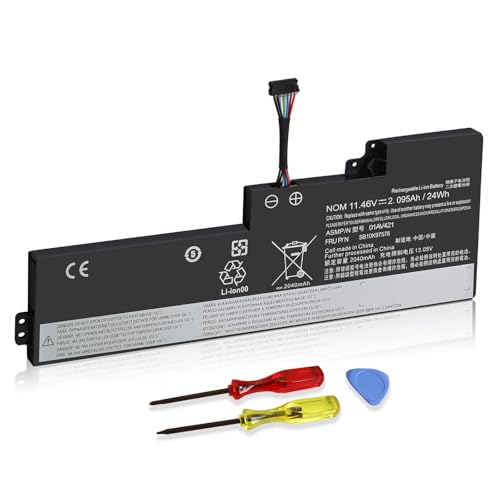
【Specifications】 Replacement for Lenovo Internal Battery T470 T480 , Voltage: 11.46V Capacity: 24Wh ; Cells: 3-cell; Color: Black ,Condition :New,Packages includes: 1x 01AV421 Battery,2 x Screwdrivers,1x Instruction for Lenovo Laptop Battery Replacement

Internal Battery 01AV489, 01AV421 Fit for ThinkPad T470 T480 A475 A485 Series Notebook, fit for T470 T480 A475 A485 Series Laptop.

Specifications: Battery Model: 01AV423 SB10K97580, Voltage: 11.4V Capacity: 24Wh ; Cells: 2-cell; Color: Black ,Condition :New,Packages includes: 1x 01AV423 Battery,2 x Screwdrivers,1x Instruction for Lenovo t480 Battery
Conclusion
That’s it! By updating your battery driver and running diagnostics through the Lenovo Vantage app, you’ve taken important steps to resolve the charging issue on your Lenovo laptop. If these solutions didn’t work, replacing the battery might be the next best option. Remember to follow the steps carefully to ensure a successful battery replacement. With these troubleshooting methods, you’re on your way to getting your Lenovo laptop back to full charging capacity. Good luck!
Frequently Asked Questions
How do I update the battery driver on my Lenovo laptop?
To update the battery driver on your Lenovo laptop, access the Device Manager, find the Batteries category, and update the Microsoft ACPI-Compliant Control Method Battery driver.
Why is it important to update the battery driver?
Updating the battery driver is crucial as outdated or corrupted drivers often lead to charging issues on laptops. Ensuring you have the latest driver can help in fixing battery charging problems effectively.
What should I do if updating the driver doesn’t work?
If updating the driver does not work, run hardware diagnostics using the Lenovo Vantage app to identify any underlying hardware issues affecting your laptop’s charging capability.
When should I consider replacing the battery?
Consider replacing the battery if updating the driver and running diagnostics do not resolve the charging problem on your Lenovo laptop.
