

Ever wondered if Samsung’s Always On Display feature is secretly draining your phone’s battery while you’re not looking? Picture this: you’re out and about, relying on your phone for the day ahead, but that battery percentage keeps dropping faster than you’d like. Frustrating, right? But fear not, because in this article, we’ve got your back. We’re here to uncover the truth behind whether Samsung’s Always On Display is a battery villain or just a misunderstood hero. So, sit back, relax, and get ready to learn how to make the most of your device without sacrificing precious battery life.
The Science Behind Samsung Always On Display
Once enabled, Samsung’s Always On Display uses low-power modes to show information when the screen is off. It utilizes a small portion of your phone’s battery to function.
The technology behind this feature involves selectively lighting up pixels on an AMOLED display to show the time, date, notifications, and more. While it may seem like it’s constantly active, Always On Display is efficiently designed to minimize battery consumption.
By leveraging the AMOLED display’s ability to light up individual pixels without needing a backlight for the entire screen, Samsung ensures that only the necessary pixels are active. This customizable feature optimizes battery usage without affecting your overall experience.
To extend your battery life when using Always On Display, consider adjusting the brightness and selecting which elements you want to display. By tailoring these settings to your preferences, you can enjoy the convenience of this feature while maximizing your phone’s battery life.
| Enabled Technology | Low-power modes |
| Display Type | AMOLED |
| Customizable Settings | Battery optimization |
Impact on Battery Life: Myth vs. Reality
When it comes to Always On Display (AOD) on Samsung devices, the concern about battery drainage often sparks a debate. Let’s delve into the myth versus reality to set the record straight.
Myth: AOD Drains Battery Quickly
Many believe that AOD significantly drains your battery, but the reality may surprise you. While AOD does consume some power, modern smartphone batteries are optimized to handle this feature efficiently.
Reality: Battery Impact is Minimal
In truth, the impact of AOD on your battery life is relatively minor. Samsung has fine-tuned AOD to ensure that it conserves power effectively, allowing you to enjoy the convenience without constantly worrying about battery drainage.
Tips to Optimize Battery Performance
To make the most of AOD without compromising your device’s battery life, consider these tips:
- Adjust the brightness: Lowering the brightness setting can help conserve power.
- Customize displayed elements: Choosing which elements appear on AOD can further reduce battery usage.
Remember, managing your device’s settings smartly can help strike a balance between functionality and battery longevity.
Tips and Tricks to Optimize Always On Display
If you’re looking to make the most out of Samsung’s Always On Display feature without worrying too much about battery drainage, here are some handy tips and tricks to help you optimize your device:
- Adjust Brightness Levels: Lowering the brightness of the Always On Display can significantly reduce its impact on battery life while still keeping the information visible.
- Customize Displayed Information: Limit the number of items displayed on the screen to minimize power consumption. Choose essential items like time, date, and notifications for a balance between functionality and battery efficiency.
- Enable Tap to Show: Consider enabling the “Tap to Show” feature, allowing you to activate the display by tapping it when needed. This helps conserve battery by only showing information when you interact with it.
- Scheduled Display: Utilize the scheduled display option to set specific times for the Always On Display to be active. This way, you can ensure it’s only on when you’re most likely to check your device.
- Use Dark Themes: Opt for dark or black backgrounds and themes for the Always On Display. Darker colors consume less power on devices with OLED screens, ultimately helping to save battery.
| Statistics | |
|---|---|
| Samsung AOD Impact on Battery | Minimal |
| Brightness Optimization | Reduces Power Consumption |
| Customization Benefits | Balance Between Functionality and Battery Life |
Remember, a few simple adjustments can go a long way in optimizing your phone’s battery life while enjoying the convenience of Samsung’s Always On Display feature.
Recommended Products

Flip Cover with smart, interactive window provides quick access to key phone features and ability to respond to incoming calls and alarms without opening the cover
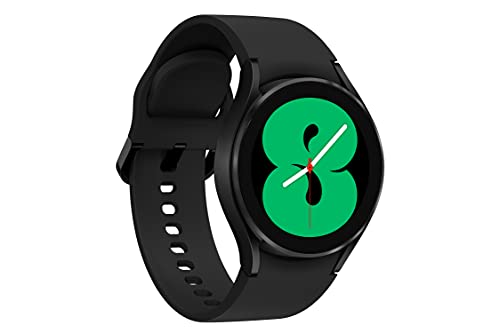
Get Ready To Crush Your Wellness Goals With Body Readings Right On Your Wrist

6.7" Dynamic LTPO AMOLED 2X QHD+, 120Hz Adaptive Refresh Rate, HDR10+, 1440x3120px, Android 15, up to 7 major Android upgrades, One UI 7
How to Maximize Battery Life Without Sacrificing Features
When aiming to maximize your Samsung device’s battery life without compromising its Always On Display features, here are some practical tips to consider:
- Lower Brightness: Decreasing the brightness of your display can significantly help conserve battery power. Try adjusting it to a level that is comfortable for you while still being energy-efficient.
- Optimize Display Information: Choose only the essential information to be displayed on your screen. Limiting the widgets and notifications can reduce the energy consumption of the Always On Display.
- Activate “Tap to Show”: By enabling “Tap to Show”, you can ensure that the display is on only when you interact with it, thus minimizing unnecessary power drain.
- Utilize Scheduled Display Times: Set specific times for the Always On Display to be active. This way, you can enjoy the feature when you need it most, saving battery during periods of inactivity.
- Dark Themes: Opt for dark themes or wallpapers as they are more power-efficient on OLED screens. The battery consumption is lower when displaying darker colors.
By implementing these strategies, you can strike a balance between enjoying the convenience of Always On Display and maximizing your Samsung device’s battery life.
Conclusion
Maximize Samsung’s Always On Display feature while conserving battery life with these strategies. Adjust brightness, customize displayed info, enable “Tap to Show,” schedule display times, and use dark themes for OLED screens. These tips help you balance feature use and battery efficiency effectively.
Frequently Asked Questions
How can I maximize Samsung’s Always On Display while saving battery life?
You can maximize Samsung’s Always On Display by lowering brightness, customizing displayed info, enabling “Tap to Show,” scheduling display times, and using dark themes for OLED efficiency.
Does changing brightness help conserve battery life on Always On Display?
Yes, lowering brightness on Always On Display can save battery as high brightness consumes more power, especially on OLED screens.
Is there an interactive feature to activate Samsung’s Always On Display?
Yes, enabling “Tap to Show” allows interactive activation of Samsung’s Always On Display by tapping on the screen.
How can scheduling display times help in preserving battery life with Always On Display?
Scheduling display times helps by turning off the Always On Display during periods when it’s not needed, conserving battery power efficiently.
Why is using dark themes recommended for maximizing battery efficiency on OLED screens?
Dark themes are recommended for OLED screens as they require less power to display dark pixels, thus conserving battery life effectively.
