

Key Takeaways
- Battery Performance Changes: Android 12 may alter battery consumption patterns, with features like “Adaptive Battery” optimizing power for frequently used apps while possibly causing temporary drain during learning phases.
- Impact of Features: New features such as Material You, Privacy Dashboard, and improved notifications may increase battery usage due to more frequent user interactions and background activities.
- User Experience Variability: Battery drain experiences post-upgrade can vary widely among users, influenced by individual app engagement and settings optimizations.
- Background Processes: Applications running in the background, such as social media and location services, can significantly impact battery life, necessitating careful monitoring and management.
- Optimization Tips: Implement settings such as Battery Saver Mode, reduced screen brightness, limited background data, and regular app updates to enhance battery longevity on Android 12.
- Monitor Battery Usage: Utilize built-in tools to identify battery-draining apps and adjust settings accordingly for better performance and extended battery life.
Are you wondering if Android 12 is draining your battery faster? You’re not alone. Many users have noticed changes in their device’s performance after upgrading, and it can be frustrating when your phone doesn’t last as long as it used to.
Overview Of Android 12
Android 12 introduces significant changes that affect user experience, including battery performance. Users often notice changes in how their devices manage power after upgrading.
Key Features Of Android 12
- Material You: This new design feature allows for personalized themes based on your wallpaper. It enhances visual appeal and may affect battery usage based on screen activity.
- Privacy Dashboard: It offers transparency in app permissions. Frequent permission checks can lead to increased background activity, which may impact battery life.
- Improved Notifications: New notification styles make actions quicker. This may encourage more frequent interactions with apps, leading to increased power consumption.
Changes In Battery Management
- Adaptive Battery: This feature learns your usage patterns and limits battery use for inactive apps. While it aims to enhance efficiency, initial adaptation may cause temporary drain until optimization occurs.
- Battery Saver Mode: It offers stricter background restrictions. Activating this mode can extend battery life significantly, especially during low-power situations.
- Performance Modes: Android 12 provides options to prioritize performance or battery life. Choosing a performance-focused mode can lead to faster battery drain due to higher CPU activity.
These features and changes highlight the balance Android 12 seeks between enhanced user experience and battery efficiency. Adjusting settings can help you optimize battery performance based on your usage habits.
Comparing Battery Life: Android 11 vs. Android 12
Android 12 introduces several features that may influence battery life compared to Android 11. Exploring these differences helps you understand whether the upgrade affects battery performance.
Recommended Products
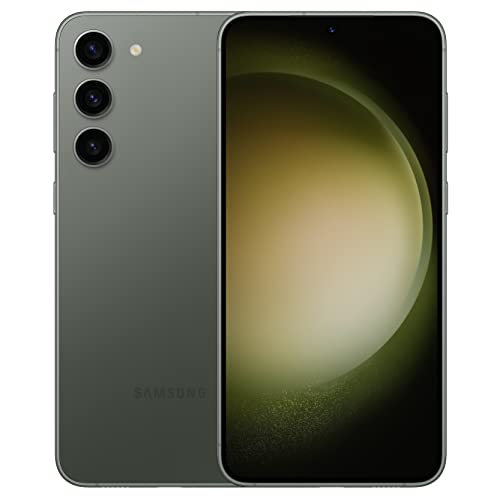
GALAXY AI IS HERE: Search like never before¹, get real-time interpretation on a call², format your notes into a clear summary³, and effortlessly edit your photos⁴ - all from your smartphone, all with AI

GALAXY AI IS HERE: Search like never before¹, get real-time interpretation on a call², format your notes into a clear summary³, and effortlessly edit your photos⁴ - all from your smartphone, all with AI

𝗜𝗡𝗧𝗘𝗟𝗟𝗜𝗚𝗘𝗡𝗧 𝟱𝟱𝗗𝗕 𝗔𝗗𝗔𝗣𝗧𝗜𝗩𝗘 𝗡𝗢𝗜𝗦𝗘 𝗖𝗔𝗡𝗖𝗘𝗟𝗟𝗜𝗡𝗚— REDMI Buds 8 Pro wireless earbuds feature intelligent adaptive noise cancellation that reduces ambient sounds by up to 55dB. With multi-selectable levels and real-time environment adaptation, they excel on planes, trains, and in busy offices. The wind noise reduction design keeps calls clear even in 12m/s winds, making them ideal noise canceling earbuds wireless for travel and sports.
Performance Insights
Android 11 offered solid battery performance, but Android 12 enhances it through features like “Adaptive Battery.” This functionality learns your app usage patterns over time and prioritizes power for frequently used apps. Users with high app engagement may experience less battery drain due to this optimization.
Adaptive features can vary based on usage. If you primarily use a few apps daily, Android 12’s learning curves can significantly improve battery management. Contrast this with Android 11, which lacked this level of personalization, possibly leading to faster depletion for less-used apps.
Other enhancements in Android 12, such as improved notifications and engaging interface elements, may also lead to increased interactions, sometimes causing slight increased battery usage during high activity periods. Adjusting these features can help mitigate the impact on your battery life.
User Experiences
User feedback on battery life after upgrading to Android 12 varies widely. Some users report a noticeable increase in battery drain, particularly those using power-intensive apps or features. Others see little to no change, especially if they optimize settings for battery performance.
For example, a user heavily reliant on social media and streaming apps may encounter faster battery usage compared to someone using basic functions like texting or browsing. If you often indulge in high-demand activities, adjusting your settings, like enabling “Battery Saver Mode,” can extend battery life.
Many users recommend checking app permissions as well. Android 12’s Privacy Dashboard allows you to monitor which apps access background functions, which can help pinpoint sources of battery drain effectively. By staying informed about app behavior, you can enhance battery longevity.
Exploring these elements helps you manage and optimize battery life on Android 12 effectively.
Factors Affecting Battery Consumption
Battery consumption in Android 12 is influenced by several factors. Understanding these elements helps optimize your device’s performance and longevity.
Recommended Products

USB C Microphone with Noise Cancellation: Built-in dynamic noise canceling chip, along with windproof cap, this mini lapel microphone can record clear audio and minimize the noise. The omnidirectional condenser mic helps us get sound from all direction, just clip on microphone to shirt, no need to point the microphone to your mouth

Automatic battery saving mechanisms

【High-Performance Touchscreen Stereo】As part of the S8 Gen2 series, this car stereo features a 9" 1280x720 HD QLED touchscreen with a 178° full-viewing angle and a smooth touch panel, providing a comfortable viewing and touch experience. It incorporates a 12nm SoC with an ARM Cortex Octa-Core Processor and runs on AICE UI 11.0 based on Android 10, delivering efficient performance and supporting customization.
Background Processes
Background processes significantly impact battery life. These processes include apps that run silently, consuming resources even when you aren’t actively using them. Applications like social media, location services, and email sync can drain your battery more rapidly. You can check which apps are using battery in the Settings menu. If background activities drain your battery, consider limiting background data or disabling auto-sync for less critical apps.
Screen Time and Usage Patterns
Screen time and usage patterns play pivotal roles in battery consumption. Higher screen brightness and prolonged usage lead to increased drain. Apps that utilize graphics-intensive features, such as games or streaming services, also contribute significantly to battery life reduction. Tracking your usage can reveal which applications consume the most power. To extend battery life, reduce screen brightness, set a shorter screen timeout, and limit usage of high-drain apps during the day.
Tips To Optimize Battery Life On Android 12
Optimizing battery life on Android 12 helps maximize your device’s performance and longevity. Follow these practical tips to extend your battery life.
Settings Adjustments
- Activate Battery Saver Mode: Enable Battery Saver Mode in Settings > Battery > Battery Saver. This limits background activity and preserves battery for essential tasks.
- Manage Screen Brightness: Adjust brightness manually or use the adaptive brightness feature under Settings > Display. Lowering brightness reduces battery drain.
- Reduce Screen Timeout: Set a shorter screen timeout in Settings > Display > Screen timeout. Limiting prolonged screen time helps save power.
- Limit Location Services: Navigate to Settings > Location and choose ‘Use App Only’ instead of ‘Always On’. This limits GPS usage when apps aren’t actively in use.
- Turn Off Unused Features: Disable features like Bluetooth, Wi-Fi, and mobile data when not in use in the Quick Settings menu. Turning off connectivity features reduces battery consumption.
App Management
- Identify Battery-Draining Apps: Check Settings > Battery > Battery usage to see which apps drain the most battery. Consider limiting usage of resource-heavy apps.
- Restrict Background Data: Prevent apps from using data in the background by going to Settings > Network & internet > Mobile network > Data usage. Select apps you want to restrict.
- Update Apps Regularly: Keep your apps updated via the Google Play Store. Developers often release updates that improve efficiency and reduce battery usage.
- Uninstall Unused Apps: Remove apps you rarely use. Every installed app can drain battery, even when not actively used.
- Utilize Built-in Tools: Use Android’s built-in tools like “App info” to restrict apps from running in the background. Adjust settings in Settings > Apps > See all apps, then select the app.
By implementing these tips, you can make the most of your Android 12 device’s battery life and enjoy better performance throughout the day.
Conclusion
Adjusting to Android 12 might come with some battery challenges but it also offers tools to help you manage your usage effectively. By exploring features like Adaptive Battery and Battery Saver Mode you can tailor your experience to suit your needs.
It’s all about finding the right balance between performance and battery life. With a few tweaks to your settings and mindful app management you can enhance your device’s longevity. Remember to keep an eye on background processes and adjust your habits as needed.
With a little effort you can enjoy the benefits of Android 12 while keeping your battery in check. Happy optimizing!
Frequently Asked Questions
Why is my Android 12 battery draining faster after the update?
Many users report faster battery drain after upgrading to Android 12 due to new features like “Adaptive Battery,” which can prioritize power for frequently used apps. Changes in background processes and usage patterns may also contribute.
What is “Adaptive Battery” in Android 12?
“Adaptive Battery” is a feature that learns your app usage habits to optimize power consumption. It restricts background activity for less frequently used apps, helping to extend overall battery life while ensuring the most-used apps remain accessible.
How can I improve my battery life on Android 12?
To enhance battery life on Android 12, activate Battery Saver Mode, reduce screen brightness, shorten screen timeout, limit location services, and turn off unused features like Bluetooth and Wi-Fi. Managing your apps can also help.
What is the Privacy Dashboard?
The Privacy Dashboard in Android 12 offers transparency about app permissions. It allows you to monitor which apps access sensitive data and adjust permissions to reduce background processes that may drain your battery.
Are there specific apps that drain battery more than others?
Yes, apps that utilize background processes, such as social media and location services, can significantly affect battery life. Users should check their Settings to identify and manage battery-draining apps effectively.
How does battery performance in Android 12 compare to Android 11?
Android 12 introduces features like “Adaptive Battery” that may improve performance, but some users experience increased drain, especially when using power-intensive apps. Optimizing settings can make a significant difference.
What are the effects of screen time and brightness on battery life?
Long screen time and high brightness levels can drain your battery quickly. Reducing screen brightness and setting shorter screen timeouts can help extend battery longevity.
How can I identify battery-draining apps on my device?
You can identify battery-draining apps by going to Settings > Battery > Battery Usage. This menu shows which apps are using the most power, allowing you to manage or uninstall them if necessary.
