

Key Takeaways
- Battery Lifespan Understanding: Google Pixel batteries typically last 2-3 years, influenced by usage patterns and charging habits.
- DIY Replacement Feasibility: Yes, you can replace your Google Pixel battery yourself, but it’s essential to assess your comfort with electronics before undertaking this process.
- Essential Tools Required: A precision screwdriver set, plastic pry tools, tweezers, a suction cup, and a heat source are necessary to successfully replace the battery.
- Official Replacement Benefits: Opting for official battery replacement guarantees quality service and maintains warranty, with costs usually ranging from $100 to $200 depending on the model.
- Post-Replacement Care: Testing the new battery and implementing maintenance tips like avoiding extreme temperatures and using original chargers can enhance battery longevity and performance.
Have you ever found yourself frustrated with a phone that just won’t hold a charge? If you own a Google Pixel, you might be wondering if it’s possible to replace the battery yourself. You’re not alone; many users face this issue as their devices age and battery performance declines.
This article will guide you through the ins and outs of replacing your Google Pixel battery. You’ll learn about the tools you need, the steps to follow, and whether it’s worth tackling this task on your own. By the end, you’ll have a clearer idea of how to breathe new life into your device and save some money along the way.
Understanding Google Pixel Batteries
Google Pixel batteries are crucial for device performance. Knowing their lifespan and common issues helps in making informed decisions regarding replacements.
Battery Lifespan and Performance
Google Pixel batteries typically last about 2-3 years. Factors that affect lifespan include usage patterns, charging habits, and environmental conditions. Regularly charging your phone overnight may lead to accelerated battery wear. To improve battery longevity, consider minimizing background app activity, adjusting screen brightness, and utilizing battery optimization settings. Users often notice diminished performance when the battery health drops below 80%. If you find your device draining rapidly or struggling to hold a charge, it’s time to evaluate your battery’s health.
Common Battery Issues
Common battery issues with Google Pixel devices include rapid depletion, overheating, and failure to charge. Rapid depletion can result from resource-heavy apps running in the background or outdated software. Overheating often indicates a hardware malfunction or persistent high usage. If you experience failure to charge, inspect your charging port for debris or damage. A faulty charger or an aging battery could also be the culprit. Identifying these problems early can prevent larger issues and potentially save you time and money.
Can You Replace The Battery On A Google Pixel?
Yes, you can replace the battery on a Google Pixel device. While it’s a doable process, consider your comfort level with electronics before proceeding.
Recommended Products
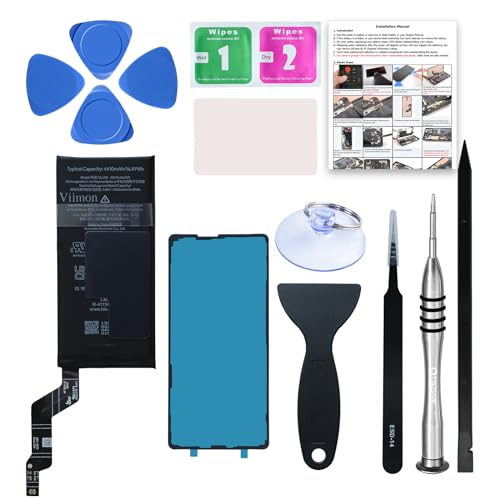
【OEM Battery Cells】 OEM quality battery replacement for Google Pixel 6a. It is safer than so-called upgraded high-capacity batteries. No potential risks during use. Multiple protection features to prevent overcharging and prevent overheating. Built-in microchip to ensure safe battery charging and improve battery life. NOTE: Please fully charge and discharge your new battery 3 to 5 cycles to release all capacity of the new battery.

✅【Compatible Model】This Pixel 7a Battery Compatible with for Google Pixel 7a Model GWKK3, GHL1X, G0DZQ, G82U8. (Note: NOT compatible with other model). Before purchasing this battery, please make sure that the your model number matches!
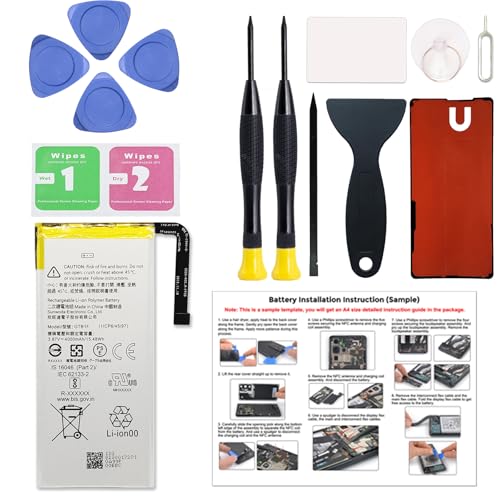
Compatible Phone Model: This battery kit is specifically designed for Google Pixel 5 (with model GD1YQ, GTT9Q, G5NZ6 series), NOT work for Pixel 5A, please double confirm your phone model before purchasing
Official Replacement Options
Official replacement is a reliable choice for battery issues. You can visit the Google Store or authorized service centers for professional battery replacement. This option ensures quality and maintains your device’s warranty. Prices for this service vary depending on the model, typically ranging from $100 to $200. Check Google’s official website for precise rates and service locations.
DIY Replacement Guide
If you’re up for a DIY approach, gather these tools:
- Small Phillips screwdriver
- Prying tool
- Tweezers
- Suction cup
- New battery
Follow these steps for the replacement:
- Power Down your Google Pixel completely.
- Remove the Back Cover using a prying tool to gently lift it away from the frame.
- Disconnect the Battery by carefully unscrewing the battery connector.
- Replace the Old Battery with the new one, ensuring proper alignment.
- Reconnect the Battery Connector and secure it.
- Reattach the Back Cover by pressing it firmly into place.
This process requires careful attention to detail; handling internal components can void warranties, so proceed with caution. Make sure to dispose of the old battery properly at a designated recycling location.
Tools Required For Battery Replacement
Replacing the battery in your Google Pixel requires specific tools for a successful and safe process. Below are the essential tools you’ll need and important safety precautions to follow.
Recommended Products

【Pixel 6 battery replacement 】quality battery replacement for Google Pixel 6 perfect fit your phone. It is safer than so-called upgraded high-capacity batteries. No potential risks during use. Multiple protection features to prevent overcharging and prevent overheating. Built-in microchip to ensure safe battery charging and improve battery life. NOTE: Please fully charge and discharge your new battery 3 to 5 cycles to release all capacity of the new battery.
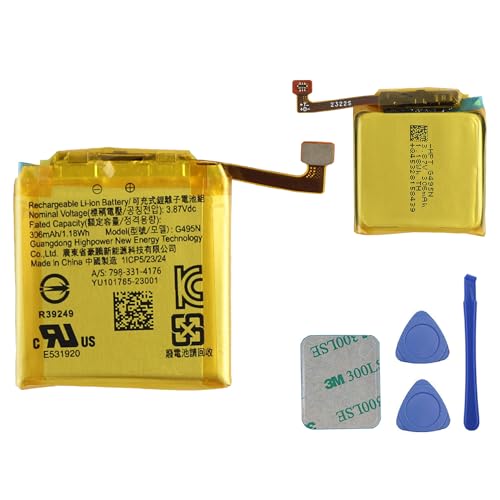
This battery is Compatible with Google Pixel Watch 2, please carefully check your phone model before purchase.

【6200mAh High Capacity】6200mAh Super battery Compatible with Google Pixel 6 Pro power more than Original or Other Battery. Brand new 0 cycle, last over 2000 cycles. Make your Pixel 6 Pro last longer and reduce your recharging times. Say goodbye to the trouble of insufficient old batteries!
Essential Tools
- Screwdriver Set: Use a precision screwdriver set that includes Phillips and Torx heads. These fit the screws in your Pixel device.
- Plastic Pry Tools: Use these tools to gently pry open the device without damaging the casing.
- Tweezers: Use tweezers for handling small components and screws during the process.
- Suction Cup: A suction cup helps lift the screen away from the body without applying too much pressure.
- Heat Gun or Hair Dryer: Use a heat source to soften the adhesive, making it easier to separate the screen from the device.
- Battery Replacement: Obtain a compatible replacement battery. Ensure it meets OEM standards for best performance.
- Anti-Static Wrist Strap: Wear this strap to prevent static electricity from damaging sensitive components.
Safety Precautions
- Power Off Your Device: Always turn off your Google Pixel before starting the replacement to avoid electrical shocks or short circuits.
- Work in a Clean Space: Set up in a well-lit, clutter-free environment. This minimizes the risk of losing small screws or tools.
- Handle Components Carefully: Avoid using excessive force when prying or unscrewing parts. Follow the proper steps to mitigate damage.
- Dispose of Old Battery Properly: Don’t throw the old battery in the trash. Take it to a recycling center to safely dispose of it.
- Avoid Contact with Internal Parts: When you open your device, avoid touching the logic board and other internal components to prevent contamination.
- Use Eye Protection: It’s wise to wear safety glasses to protect your eyes from any small parts that may spring loose during the process.
After Replacement Care
After replacing the battery, you’ll want to take specific steps to ensure your Google Pixel runs smoothly. Proper care immediately following the installation can prolong battery life and enhance overall device performance.
Testing The New Battery
Testing the new battery confirms its functionality. To do this, power on your device after replacing the battery. If it powers on, check for abnormal behavior, such as unusual overheating or slow response times. Once it’s well-operated, let the battery charge completely. Monitor how long it takes to reach a full charge and observe how quickly it discharges during regular use.
Tips for Battery Maintenance
Maintaining your new battery ensures longevity and optimal performance. Follow these tips:
- Avoid extreme temperatures: Keep the device away from hot or cold environments, as extreme temperatures can affect battery health.
- Charge regularly: Charge the battery when it drops to around 20%. Avoid draining it completely before recharging.
- Use original chargers: Stick to the charger that came with your phone or certified replacements to prevent damage.
- Limit fast charging: While convenient, frequent fast charging can contribute to longer-term battery degradation.
- Close unused apps: Apps running in the background consume battery power. Closing them can extend battery life.
- Turn on battery saver: Use battery saver mode during low charge times to optimize remaining power.
Implementing these practices helps keep your Google Pixel’s battery in good condition, ensuring it performs well for as long as possible.
Conclusion
Replacing the battery on your Google Pixel can breathe new life into your device. Whether you choose to tackle the project yourself or go through an official service, you’ve got options that can save you money and extend your phone’s lifespan. Just remember to weigh your comfort level with tech repairs and always prioritize safety.
Once you’ve got that new battery in, take the time to care for it properly. Simple habits like avoiding extreme temperatures and charging regularly can make a big difference. With a little effort, you can keep your Google Pixel running smoothly and enjoy its performance for years to come. Happy fixing!
Frequently Asked Questions
What are the common signs of battery issues in Google Pixel devices?
Common signs include rapid battery depletion, overheating, and failure to charge. Users may notice their device shutting down unexpectedly, even with a charge. It’s important to address these issues early to prevent more significant problems.
Can I replace the battery in my Google Pixel myself?
Yes, you can replace the battery yourself using the right tools and following a detailed guide. However, make sure you’re comfortable working with electronics to avoid damaging your device.
What tools do I need for battery replacement?
Essential tools include a precision screwdriver set, plastic pry tools, tweezers, a suction cup, a heat gun or hair dryer, an anti-static wrist strap, and a compatible replacement battery. These tools will help ensure a safe and effective replacement process.
How much does it cost to replace a Google Pixel battery?
Costs for replacing a Google Pixel battery typically range from $100 to $200 if done through the Google Store or authorized service centers. This option ensures quality and maintains the device’s warranty.
What precautions should I take when replacing the battery?
Always power off the device before starting, work in a clean space, handle components carefully, and avoid contact with internal parts. Also, wear eye protection and properly dispose of the old battery.
How can I improve the battery life of my Google Pixel?
To enhance battery life, avoid extreme temperatures, charge regularly with original chargers, limit fast charging, close unused apps, and activate battery saver mode. These practices can help maintain battery health over time.
What should I do after replacing the battery?
After replacing the battery, test it for functionality and monitor performance. Following maintenance tips, such as regular charging and avoiding extreme conditions, can prolong the new battery’s lifespan.
