

Key Takeaways
- Background Apps: Limit background apps and services to conserve battery; check settings to manage their activity.
- Screen Settings: Lower screen brightness and enable adaptive brightness to optimize power usage.
- Location Services: Use location services sparingly; switch them off when not needed to reduce battery drain.
- Software Updates: Regularly update your device’s operating system and apps to improve battery efficiency.
- User Habits: Be mindful of charging practices and usage patterns to enhance battery longevity.
- Power Management: Utilize battery saver mode and adjust app permissions to minimize unnecessary power consumption.
Ever noticed how your Samsung Galaxy battery seems to drain faster than you’d expect? You’re not alone. Many users find themselves constantly searching for a charger, frustrated by how quickly their phone loses power.
Common Reasons for Battery Drain
Several factors contribute to the rapid battery drain on your Samsung Galaxy. Understanding these reasons helps you take steps to improve battery life.
Background Apps and Services
Background apps and services often run without your knowledge, consuming battery power. Apps like social media, streaming, and location services frequently refresh and update even when you’re not using them. To manage this:
- Check your settings for running apps in the background.
- Limit background data for non-essential applications.
- Use the “Battery Usage” feature under Settings to identify power-hungry apps.
Screen Brightness and Settings
Screen brightness settings significantly impact battery life. Higher brightness levels consume more power. To optimize your settings:
- Adjust screen brightness to a lower level that remains comfortable.
- Enable adaptive brightness, which automatically adjusts based on ambient light.
- Set your screen timeout to a shorter duration to save battery when inactive.
Location Services
- Use location services only when necessary. Switch them off when not in use.
- Opt for “Battery saving mode” in location settings to limit GPS accuracy.
- Check app permissions to prevent unnecessary location access by less essential apps.
Device Software and Updates
Software and updates play a significant role in battery performance on your Samsung Galaxy. Regularly checking for updates can improve your device’s efficiency and help manage battery drain.
Recommended Products

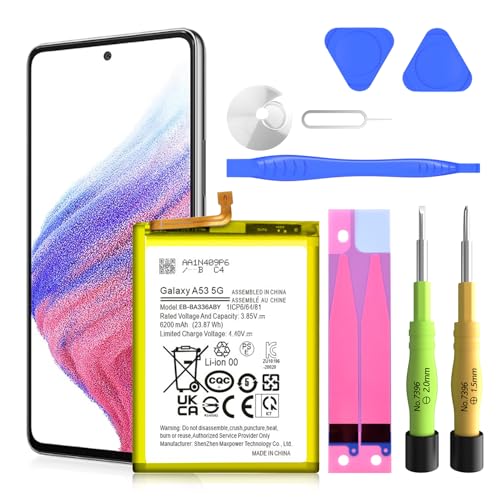
✅【6200mAh High-Capacity Upgrade】Upgraded 6200mAh Li-Polymer Galaxy A53 battery delivers 1200mAh more than the original 5000mAh cell. Extend your Galaxy A53 5G usage significantly – perfect for heavy users and long days out. Brand new 0-cycle cell with built-in over-charge, over-discharge, short-circuit, and over-heat protection.
Operating System Version
The operating system version impacts how effectively your phone uses power. Newer versions typically include optimizations for battery life. To check your current OS version:
- Open Settings.
- Select About phone.
- Tap on Software information.
Update your OS if a newer version is available. Doing so can enhance performance and reduce unnecessary battery usage.
App Compatibility Issues
Incompatible apps can lead to accelerated battery drain. Some apps may not run smoothly with your current software version, consuming more power than needed. To identify problematic apps:
- Open Settings.
- Tap Apps.
- Check for apps flagged as incompatible or consuming excessive battery.
Uninstall or update these apps to ensure they function properly. Implementing this step can prevent unnecessary battery load, helping your device run more efficiently.
User Habits Impacting Battery Life
Your habits directly affect your Samsung Galaxy’s battery life. Understanding these behaviors can lead to better energy management.
Charging Practices
Proper charging methods enhance battery longevity. Regularly charging your device before it reaches a critical low can prevent deep discharging, which may harm battery health. Avoid overcharging by unplugging your phone once it hits 100%. Using a compatible charger also helps. Generic chargers can lead to inefficient charging, increasing the time needed to reach full power and affecting battery longevity.
Usage Patterns
Your daily phone usage patterns play a significant role in battery drain. Frequent app use, especially resource-intensive ones like games or streaming services, depletes battery life quickly. Additionally, leaving multiple apps open runs background processes that consume power. Minimizing notifications and vibrations can conserve energy. Adjusting screen timeout settings to a shorter interval reduces display time, optimizing battery usage during idle periods. Lastly, using battery saver mode can help extend battery life during critical times.
Tips to Improve Battery Life
Enhancing your Samsung Galaxy’s battery life requires smart adjustments. Follow these tips to manage settings and apps effectively.
Adjusting Settings
- Lower Screen Brightness: Set your screen brightness to a moderate level. Bright screens consume more battery.
- Enable Dark Mode: Switch to dark mode if your device supports OLED displays. Dark backgrounds save power significantly.
- Limit Background Data: Navigate to settings and restrict background data for apps that don’t need constant internet access.
- Reduce Location Usage: Only activate location services when necessary. Setting location to “High Accuracy” drains battery quickly.
- Check Battery Usage: Visit the battery settings to see which apps consume the most power, and adjust accordingly.
Managing Apps Efficiently
- Close Unused Apps: Regularly close apps running in the background. They can drain your battery without your notice.
- Uninstall Unnecessary Apps: Remove apps that you rarely use. Fewer apps mean less chance for battery drain.
- Update Apps Regularly: Keep your apps up-to-date. Developers frequently release updates that enhance performance and efficiency.
- Use Battery Saver Mode: Enable battery saver mode when your charge is low. This setting reduces performance slightly to extend battery life.
- Review App Permissions: Check app permissions. Some apps may access background features that unnecessarily use power.
Implement these strategies to optimize your Samsung Galaxy’s battery life, ensuring that your device keeps up with you throughout the day.
Conclusion
Dealing with a fast-draining battery can be frustrating but understanding the reasons behind it can make a big difference. By adjusting your settings and habits you can extend your Samsung Galaxy’s battery life significantly.
Regularly checking for software updates and managing app usage are simple steps that can lead to noticeable improvements. Remember to keep an eye on your screen brightness and limit background activities to conserve energy.
With a few tweaks you can enjoy a more reliable battery performance and keep your phone running smoothly throughout the day. So take charge of your device’s battery life and make those small changes today.
Frequently Asked Questions
What causes rapid battery drain on Samsung Galaxy phones?
Rapid battery drain can be caused by various factors, including background apps using power, high screen brightness, and poor battery management practices. Understanding these causes is crucial for improving battery life.
How can I identify which apps are draining my battery?
You can check battery usage in your device settings. Navigate to “Battery” and then “Battery usage” to see which apps consume the most power, helping you identify potential culprits.
Does updating my device software help with battery life?
Yes, updating your device software can improve battery performance. Newer versions often include optimizations that enhance efficiency, reducing battery drain.
What are some effective tips to extend battery life?
To extend battery life, lower screen brightness, enable battery saver mode, limit background data, and close unused apps. Additionally, consider using dark mode and keeping apps updated.
How does screen brightness affect battery life?
High screen brightness significantly impacts battery life, as the display consumes a large portion of power. Reducing brightness can help conserve energy throughout the day.
Should I avoid charging my phone overnight?
Overcharging can lead to battery wear over time. It’s better to charge your phone before it reaches a critically low level and unplug it when it’s fully charged.
Can user habits impact battery performance?
Yes, user habits, like leaving multiple apps open or frequently using resource-intensive apps, can deplete battery life. Adjusting these habits can lead to better energy management.
Is dark mode beneficial for battery life?
Yes, dark mode can save battery life on OLED displays because it uses less power to display black pixels compared to bright ones, making it a practical feature for battery conservation.
