

Key Takeaways
- Identify Background Usage: Understand that background apps significantly drain your battery; limit their activity through app settings to conserve power.
- Adjust Screen Settings: Lower your screen brightness and utilize adaptive brightness to reduce battery consumption, especially during prolonged usage.
- Utilize Power Saving Modes: Activate Samsung’s power saving modes to effectively manage battery usage based on your needs and situation.
- Monitor App Battery Usage: Regularly check app battery consumption in settings to identify and manage power-hungry applications, optimizing or uninstalling when necessary.
- Consider Hardware Age: Be aware that aging batteries lose efficiency over time; if your device is over two years old, consider assessing battery health or replacing it.
- Stay Updated: Keep your phone’s software updated to benefit from optimizations, but also be cautious of new updates that may introduce bugs affecting battery performance.
Is your Samsung phone dying faster than you can keep it charged? You’re not alone. Many users find themselves frustrated as their devices seem to drain battery life at an alarming rate. Whether you’re scrolling through social media or catching up on emails, it can feel like you’re constantly searching for a charger.
Common Reasons for Fast Battery Drain
Fast battery drain on your Samsung phone often results from specific issues. Understanding these can help you identify what might be affecting your device.
Background App Activity
Background apps can significantly drain your battery. Apps running in the background consume resources, even when you’re not using them. Limit background activity by checking your app settings. You can go to Settings > Apps, select an app, and toggle off background usage. Apps like social media, streaming, and navigation tend to be the worst culprits. Regularly closing apps that you don’t need can enhance battery life.
Screen Brightness and Usage
Screen brightness directly impacts battery consumption. A high brightness setting consumes more power. Change your brightness level to a lower setting, or enable adaptive brightness in Settings > Display. Additionally, using your phone for extended periods, especially for gaming or video streaming, drains your battery quickly. Reducing screen time or using power-saving modes during intensive tasks can help preserve battery life.
Battery Settings and Management
Battery management plays a crucial role in extending your Samsung phone’s battery life. By adjusting settings and understanding how your device uses power, you can make significant improvements.
Recommended Products

SUPERCHARGE YOUR DEVICES: The 45W Power Adapter is your companion for fast charging & high efficiency¹⁻²; Designed to seamlessly integrate with your Galaxy devices, this power adapter ensures your device stays powered wherever your day takes you


Wide Compatibility: MoKo universal touch screen stylus pen is compatible with most IOS/Android tablets, such as iPad/iPad Air/iPad Mini/iPad Pro, iPhone, Huawei, HTC, Samsung (non-S Pen models) and other capacitive screen devices. One MoKo universal stylus pen can be used for different devices.
Power Saving Modes
Power saving modes help reduce battery consumption. Samsung offers several options, including:
- Regular Power Saving Mode: This mode limits background processing, decreases screen brightness, and reduces color effects. Activating it can enhance battery life when you’re running low.
- Medium Power Saving Mode: This mode restricts CPU usage, decreases screen resolution, and limits your app options. It’s ideal for long days away from a charger.
- Maximum Power Saving Mode: This mode turns your phone into a basic device, allowing calls and texts only but disabling most apps and features. Use this in emergencies when power is critical.
To enable these modes, go to Settings > Battery and device care > Battery > Power saving. Each option comes with user-friendly toggles that make switching modes simple.
App Battery Usage
Understanding app battery usage can help you identify power-hungry applications. You can access this information through:
- Settings > Battery and device care > Battery > Battery usage. Here, you’ll see a list of apps with their corresponding battery drain percentages.
- Restricting Background Usage: Tap on specific apps to adjust their background data usage, reducing unnecessary consumption.
- Optimizing Individual Apps: You can also choose to optimize any app by selecting the “Optimize” option, which can help improve efficiency while maintaining necessary functionality.
Monitoring and managing app battery usage empowers you to keep better tabs on your battery health. Aim to uninstall or limit the use of apps that drain your battery significantly.
Hardware and Software Factors
Several hardware and software factors impact your Samsung phone’s battery life. Understanding these elements helps you take steps to manage battery drain effectively.
Recommended Products
![ITMBET Battery for Samsung Galaxy S22 Ultra, [6700mAh] Upgraded 2026 New 0 Cycle EB-BS908ABY Battery Replacement for Samsung Galaxy S22 Ultra 5G SM-S908U with Professional Replacement Tool Kits](https://m.media-amazon.com/images/I/51g4mG3ulkL._SL500_.jpg)
►【 Upgrade Capacity to 6700mAh】- Galaxy S22 Ultra battery replacement use advanced technology makes the battery capacity for S22 Ultra up to 6700mAh with the same size. Best Replacement for the original S22 Ultra battery, With extra enhanced talk time, standby time and longevity . It will provide you with up to 1000+ charge cycles with the high-speed and efficient charge.
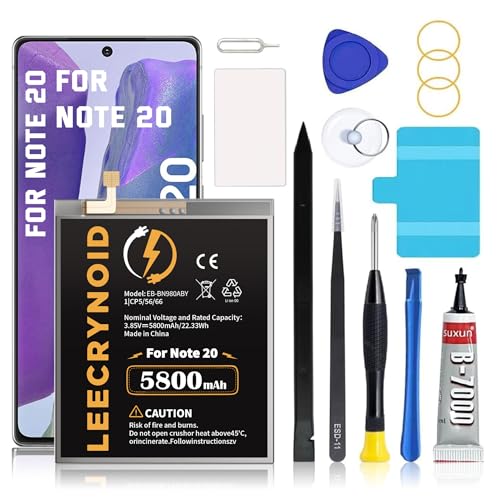
【Battery Compatible Model】: This Upgraded high capacity battery compatible with Samsung Galaxy Note 20 SM-N980, N980V, N980A, N980T, N980P, N980R4, N980U, N980U1

☑️【Compatible Model】Developed especially for Samsung Galaxy A54/A34 5G . Compatible with Samsung Galaxy A34 5G SM-A346B Galaxy A54 5G SM-A546U SM-A546U1 SM-A546B SM-A546E SM-A546V SM-A5460 EB-BA546ABY [NOTE: You can find your phone model on phone back over for reference.]
Aging Battery Condition
Aging is a natural part of battery life. If your Samsung phone’s battery is two years or older, its capacity may have decreased significantly. Batteries lose efficiency over time, leading to rapid drain even during regular use. Consider checking the battery health through device settings to assess the current status. If the condition isn’t optimal, replacing the battery could restore your phone’s performance.
Software Updates and Bugs
Software updates play a crucial role in battery management. Each update often contains optimizations aimed at improving battery life. Regularly check for updates in your settings, and install them when available. However, specific updates may introduce bugs that can lead to accelerated battery drain. If you notice rapid depletion after an update, consider reporting the issue to Samsung or seeking further assistance. Rolling back to a previous version might be possible if the problem persists.
Tips to Extend Battery Life
To manage your Samsung phone’s battery life effectively, implement these practical tips.
Recommended Products
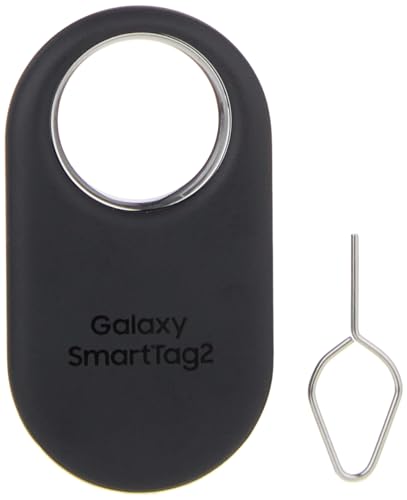
Find your things with ease: The SmartThings Find app uses Bluetooth and ultra-wideband (UWB) technology to locate and keep track of your stuff

🌠【Compatible Battery Model】: This a Updated Galaxy J3 Replacement Battery Compatible with Samsung Galaxy J3 (2016) J320V J320A J320F J320P EB-BG530BBE /J3 Prime, Emerge, Star, Orbit, Eclipse, On5, Mission, Luna Pro, Achieve Battery

Disable Unnecessary Features
Disabling features you don’t use helps conserve battery life.
- Bluetooth: Turn off Bluetooth when not connecting devices. This can save power consistently.
- Wi-Fi: Switch off Wi-Fi in areas with no signal; your phone searches for networks, draining the battery.
- Location Services: Disable GPS and location tracking for apps that don’t require it. Going into settings lets you control which apps can access location data.
- NFC (Near Field Communication): If you don’t use tap-to-pay features, toggle off NFC. This simple step prevents your phone from consuming energy unnecessarily.
Optimize App Settings
Adjusting your app settings allows for better battery management.
- Background Data: Limit background data for apps that rarely need it. Navigate to Settings > Apps, choose an app, and disable background data if it’s not crucial.
- Social Media Apps: Manage notification settings for these apps. Reducing or turning off notifications cuts down on screen wake-ups and battery usage.
- Battery Optimization: Enable battery optimization for individual apps. You can find this option in Settings > Battery and device care > Battery > App battery management.
- Uninstall Unused Apps: Regularly check for and uninstall apps you no longer use. Each application can draw power on standby, so decluttering helps.
Implementing these tips can significantly enhance your battery performance.
Conclusion
Dealing with a fast-draining battery can be a real hassle but you have the tools to tackle it. By adjusting settings and being mindful of your usage habits you can prolong your Samsung phone’s battery life.
Don’t forget to explore power-saving modes and keep an eye on app activity to pinpoint any culprits. Regularly checking your battery health and staying updated with software can also make a big difference.
With a little effort you can enjoy your device longer between charges and keep it running smoothly. Happy optimizing!
Frequently Asked Questions
What causes rapid battery drain on Samsung phones?
Rapid battery drain on Samsung phones can be caused by several factors, including background app activity, high screen brightness, and aging batteries. Background apps use resources even when not in use, while activities like gaming and video streaming can increase battery consumption significantly.
How can I limit background app activity on my Samsung phone?
To limit background app activity, go to your phone’s Settings, select “Apps,” choose the specific app, and adjust its background data usage settings. This helps conserve battery life by minimizing the resources consumed by apps when they’re not actively being used.
What are the power-saving modes available on Samsung phones?
Samsung phones offer three power-saving modes: Regular, Medium, and Maximum Power Saving Modes. Each mode reduces battery consumption in varying degrees, allowing you to choose the best option based on your usage needs. You can enable these modes in your device settings under “Battery.”
How can I check the battery health of my Samsung phone?
You can check the battery health of your Samsung phone by going to Settings > Battery and Device Care, then selecting “Battery.” Here, you’ll find information about battery usage and health. If the battery health is poor, consider scheduling a replacement.
What can I do to extend my Samsung phone’s battery life?
To extend your Samsung phone’s battery life, disable unnecessary features like Bluetooth, Wi-Fi, GPS, and NFC when not in use. Additionally, lower screen brightness, manage app notifications, and uninstall unused apps to optimize performance and conserve battery power effectively.
Are software updates important for battery life?
Yes, software updates are important for battery life as they often include optimizations and fixes for efficiency. However, be cautious of potential bugs that may arise from updates, which can lead to increased battery drain. Report any issues to Samsung for assistance.
