

Key Takeaways
- Identify Power-Hungry Applications: Use Task Manager to determine which applications are consuming the most battery and close those that are not needed.
- Monitor Background Processes: Check and manage background apps through Settings to prevent unnecessary battery drain from updates and syncing.
- Adjust Display and Power Settings: Lower screen brightness and set a shorter screen timeout to extend battery life; engage Battery Saver Mode to enhance power conservation.
- Assess Battery Health: Run diagnostics using Windows’ built-in tools to check if your battery’s health is below 80% and consider replacement if necessary.
- Limit External Device Usage: Disconnect unnecessary USB and external devices that can draw power from your laptop, aiding in battery longevity.
- Regular Maintenance: Keep software and drivers updated, manage startup programs, and perform routine battery health checks to optimize device performance and efficiency.
Have you ever found yourself frustrated because your new Lenovo laptop’s battery drains faster than you’d expect? You’re not alone. Many users experience this issue, leaving them wondering if there’s something wrong with their device or if they’re missing a simple fix.
Common Reasons for Fast Battery Drain
Fast battery drain can stem from various sources on your Lenovo laptop. Identifying these issues can help you extend your battery life.
Power-Hungry Applications
Power-hungry applications consume significant battery resources. Programs such as video editors, graphic design software, or games often require high processing power. To identify which apps are draining your battery, open the Task Manager by pressing Ctrl + Shift + Esc and look for applications with high CPU or memory usage. Consider closing unused applications or finding alternatives that use less power.
Background Processes and Updates
Background processes and updates can silently sap battery life. Windows may run updates or sync files while you work. You can check for active background apps by going to Settings > Privacy > Background Apps. Toggle off apps you don’t need running constantly. Additionally, schedule updates during off-hours to prevent interruptions during your active hours.
Settings That Affect Battery Life
Your laptop settings play a crucial role in determining battery life. Adjusting these settings can help extend the period between charges.
Recommended Products
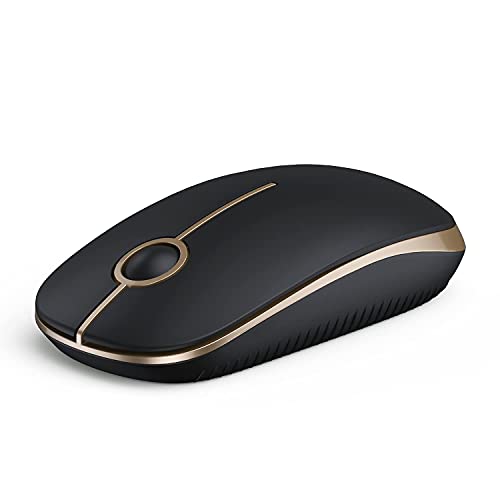
LOW POWER CONSUMPTION: Intelligent sleep mode can better extend battery life. It will enter auto sleep mode if you don't use it for 5 minutes to save battery and need to click it, the mouse will enter working mode again

【🚗 Sleek silver Car Design】This silver mouse features a sporty car-shaped body with dazzling LED lights, adding a touch to your workspace. As a mini mouse for laptop and small wireless mouse for laptop, its compact and stylish design makes it a perfect decorative accessory for daily use. Loved by men, women, and children alike, this cute wireless mouse for laptop combines fun with functionality, ideal for home or office environments where style matters.

Stylish Beige & Brown Typewriter Keyboard: Swap the plain black keyboard for a warm, cozy beige-and-brown retro typewriter-style design. The latte-inspired color mix brings a clean, aesthetic look to your desk while keeping everyday typing comfortable and fun.
Screen Brightness and Timeout
Screen brightness significantly affects battery consumption. Lowering brightness reduces battery drain. You can adjust this by selecting the battery icon in the taskbar and moving the slider to decrease brightness. Additionally, set a shorter screen timeout. This setting turns off the display after a period of inactivity. Go to Settings, select System, and then Power & Sleep to modify the timeout duration.
Battery Saver Mode Configuration
Battery Saver Mode optimizes settings to help conserve power. Activating this mode limits background activity and reduces screen brightness automatically. To enable Battery Saver, click the battery icon in the taskbar. Toggle the switch on when the battery level drops below 20%. For more control over settings, navigate to Settings, click System, then Battery, and turn on Battery Saver under your desired conditions. Adjust additional settings here to prioritize battery life effectively.
Hardware Factors to Consider
Various hardware elements can affect your Lenovo laptop’s battery life. Analyzing these factors helps identify potential causes for rapid battery drain.
Recommended Products

Specification: Battery type:Li-ion Voltage:10.8V Capacity:72Wh Cells:6cell. Rrecharge cycles:500; The battery is durable and has overcurrent protection, anti-overcharge, anti-overdischarge and temperature control functions.

【Tech Specs & 100% New Products】Model: L18M4PH0 Voltage: 7.68V Capacity:60Wh/7820mAh Battery type: Li-ion. (We only use grade A battery cells that provide up to 500 recharge cycles over the life of the battery.Come with screwdrivers.)

Specifications: Battery Model: 01AV423 SB10K97580, Voltage: 11.4V Capacity: 24Wh ; Cells: 2-cell; Color: Black ,Condition :New,Packages includes: 1x 01AV423 Battery,2 x Screwdrivers,1x Instruction for Lenovo t480 Battery
Battery Capacity and Health
Battery capacity directly influences how long your laptop lasts on a single charge. New laptops typically feature lithium-ion batteries, with capacities usually ranging from 30Wh to 70Wh. Checking your battery’s health percentage can reveal if it’s performing below expectations. Use Windows’ built-in diagnostic tool by typing “powercfg /batteryreport” in Command Prompt. Examine the report for cycle count and design capacity compared to current capacity. If your battery health is below 80%, consider replacing it for better performance.
Impact of External Devices
External devices can drain your laptop battery quickly. Peripherals such as USB devices, external hard drives, and even mice can increase power consumption. For example, a USB external drive might consume up to 7 watts of power. Disconnect unnecessary devices when not in use. Ensure that power-hungry accessories aren’t frequently plugged in if you want to extend battery life. Also, consider using wireless devices instead of wired ones, as they may consume less power.
Tips to Extend Battery Life
Extend your Lenovo laptop’s battery life with a few straightforward adjustments. Consider the following strategies.
Recommended Products

【Power Product Type】 : Max 65W 45W (compatible) AC Input: 100 - 240V 50 - 60Hz, Output: DC 5V/3A, 9V/3A, 12V/3A, 15V/3A, 20V/2.25A, 20V/3.25A. Connector size: USB Type-C

20,000mAh Large Capacity Power: The Lenovo 140W laptop power bank is enough to power up the 14" MacBook Pro 16 to 46% within 30 Minutes.Set off on extended journeys with a huge 20,000mAh capacity that supports your devices through multiple uses.Equipped with a 5 Ft USB-C to USB-C 240W cable, supporting 140W Lenovo Legion and 125W Motorola fast charging.
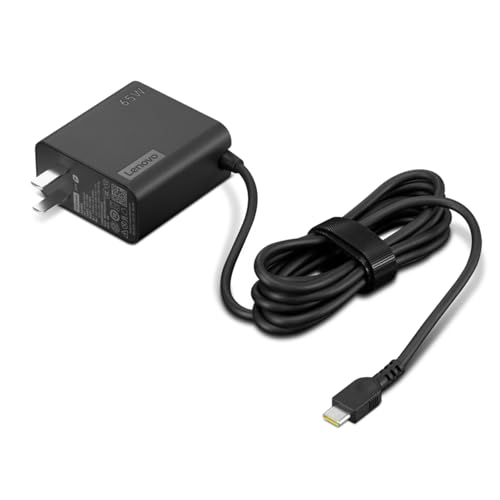
[PORTABLE CHARGING] Slim, light design and extra-long 1.7 m (5.9 ft) cable lets you charge in any spot, making powering up more convenient.
Adjusting System Settings
- Lower Screen Brightness: Reducing screen brightness decreases power consumption. Access this option through the battery icon in the taskbar or in Settings under System > Display.
- Change Power Plan: Select a power-saving mode. Go to Control Panel > Hardware and Sound > Power Options and choose “Power saver” or customize your current plan for optimized performance.
- Enable Battery Saver Mode: Activating Battery Saver Mode limits background activity and reduces brightness. Find this setting under Settings > System > Battery. This mode triggers automatically at lower battery levels but can also be activated manually.
- Shorten Screen Timeout: Setting a shorter screen timeout saves energy. Adjust this in Settings > System > Power & sleep. Set the “Screen” option to turn off after a few minutes of inactivity.
Regular Maintenance Practices
- Update Software and Drivers: Keeping your software and drivers updated can improve battery efficiency. Use Windows Update to check for updates regularly.
- Manage Startup Programs: Excessive startup programs drain battery. Open Task Manager (Ctrl + Shift + Esc) and disable unnecessary programs under the “Startup” tab.
- Unplug External Devices: Disconnect USB devices when not in use. Each connected device can draw power, especially external hard drives and gaming peripherals.
- Run Battery Health Checks: Use the built-in Windows diagnostic tool for battery health assessments. If the battery health is below 80%, consider replacement for optimal performance.
These practices help improve battery longevity and enhance your overall Lenovo laptop usage experience.
Conclusion
Dealing with a fast-draining battery can be frustrating but you’re not alone in this. By understanding the common culprits and making a few adjustments to your settings and habits, you can significantly improve your Lenovo laptop’s battery life.
Keep an eye on those power-hungry apps and background processes. It’s often the little things that add up. Regularly checking your battery health and disconnecting unnecessary devices can also make a big difference.
With these tips in mind, you’ll be able to enjoy your laptop without constantly worrying about finding a charger. Happy computing!
Frequently Asked Questions
Why is my Lenovo laptop battery draining so quickly?
Battery drain can result from power-hungry applications like video editors and games. Background processes or updates can also silently use battery life. Monitoring your battery usage through Task Manager can help identify the culprits.
How can I reduce battery consumption on my Lenovo laptop?
To reduce battery consumption, lower your screen brightness, use Battery Saver Mode, and set a shorter screen timeout. You should also close unused applications and look for less power-intensive alternatives.
What is Battery Saver Mode and how do I enable it?
Battery Saver Mode is a feature that helps conserve power by limiting background activity and reducing screen brightness. To enable it, click on the battery icon in the taskbar and turn on Battery Saver from the settings menu.
How can I check my Lenovo laptop’s battery health?
You can check your laptop’s battery health using Windows’ built-in diagnostic tool. Go to the settings and look for the battery option to view the health status. If it’s below 80%, consider replacing the battery.
Do external devices affect laptop battery life?
Yes, external devices like USB peripherals and external hard drives can significantly increase power consumption. It’s best to disconnect any unnecessary devices to help extend your laptop’s battery life.
What maintenance practices can improve battery longevity?
Regularly update your software and drivers, manage startup programs, unplug external devices, and run battery health checks. These practices can help improve battery longevity and overall performance of your Lenovo laptop.
