

Key Takeaways
- Identify Common Causes: Fast battery drain in Lenovo laptops can be caused by high screen brightness, running multiple background applications, outdated power settings, aging batteries, faulty hardware, and malware.
- Adjust Display and Power Settings: Lowering screen brightness and switching your power plan to “Power Saver” or “Energy Saver” can significantly enhance battery life.
- Limit Background Processes: Closing unnecessary applications and monitoring them through Task Manager will help reduce battery usage and improve overall performance.
- Keep Software and Drivers Updated: Regular updates for the operating system and drivers can prevent battery drain issues and optimize laptop performance.
- Monitor Battery Health: Utilize tools like Lenovo Vantage to check battery health status, and consider battery replacement if performance drops below 80%.
- Conduct Regular Maintenance: Regular inspections for hardware issues and malware scans can uncover hidden problems that contribute to faster battery drain.
Ever find yourself frantically searching for a charger because your Lenovo laptop’s battery just won’t hold a charge? You’re not alone. Many users face the frustrating issue of rapid battery drain, and it can really disrupt your day.
Overview of Lenovo Battery Issues
Lenovo battery issues often stem from several common factors. Understanding these can help you diagnose and manage your laptop’s performance effectively.
Common Causes of Fast Battery Drain
- High Screen Brightness: Keeping your screen brightness at maximum can quickly deplete your battery. Lowering brightness improves battery life significantly.
- Background Applications: Running numerous applications simultaneously consumes more power. Check Task Manager for any high-drain apps running in the background.
- Power Settings: Using a balanced or high-performance power plan drains the battery faster. Switch to a battery saver mode to extend life.
- Aging Battery: Batteries naturally lose capacity over time. If your Lenovo laptop is a few years old, consider replacing the battery.
- Hardware Issues: Faulty hardware components can lead to excessive power use. Conduct hardware diagnostics using Lenovo’s built-in tools.
- Malware or Viruses: Malware can increase CPU usage, leading to faster battery drain. Regularly scan for malware to safeguard battery performance.
Practical Steps for Improving Battery Life
- Adjust Display Settings: Reduce screen brightness and set a shorter timeout for sleep mode.
- Limit Background Processes: Close unnecessary applications and browser tabs when not in use.
- Change Power Settings: Navigate to Control Panel > Hardware and Sound > Power Options, and select “Power Saver” mode.
- Update Drivers: Outdated drivers can affect battery performance. Regularly check Lenovo’s support page for updates.
- Perform Battery Calibration: Calibration helps the battery report accurate charge levels. Follow Lenovo’s guidelines for calibration.
Monitoring Battery Health
Use Lenovo Vantage or other battery monitoring tools to track battery health. These tools provide insights into capacity, cycle count, and usage patterns, allowing you to take appropriate action.
Understanding these factors and employing strategic adjustments can enhance your Lenovo laptop’s battery life, making your computing experience smoother and more efficient.
Common Causes of Fast Battery Drain
Several factors contribute to fast battery drain in your Lenovo laptop. Understanding these causes helps you manage and improve battery life effectively.
Background Processes and Apps
Background processes and apps often consume significant power. Apps running without your knowledge can drain the battery quickly. For instance, streaming services, file syncing applications, and system updates can all cause increased usage. You can check which apps are using the most battery through the Task Manager:
- Press Ctrl + Shift + Esc to open Task Manager.
- Select the Processes tab to view running applications.
- Identify power-hungry apps by monitoring CPU and memory usage.
Consider closing unnecessary applications when they’re not in use. You might also disable startup applications that run automatically upon booting your laptop to further conserve energy.
Hardware Issues
Hardware issues can lead to higher battery consumption. Components like a malfunctioning battery, outdated drivers, or components running excessively can impact battery life. Here are some key areas to inspect:
- Battery age: Lithium-ion batteries degrade over time. If your laptop’s battery is over 2-3 years old, its capacity may have diminished, leading to quicker drains.
- Outdated drivers: Ensure all drivers, especially for graphics and power management, are up to date. You can check for updates via Lenovo Vantage or Windows Update.
- Power-hungry hardware components: Some hardware, such as a malfunctioning hard drive or excessive peripherals, can increase power usage. Disconnect external devices when they’re not in use.
Addressing these hardware-related issues can lead to improved battery performance. Consider running Lenovo’s hardware diagnostics tool for in-depth checks on your laptop’s components.
Tips for Extending Battery Life
Improving your Lenovo laptop’s battery life is essential for a seamless experience. Implement these strategies to maximize your device’s performance.
Recommended Products
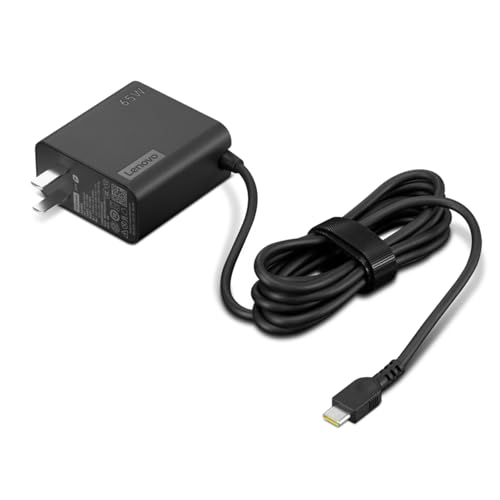
[PORTABLE CHARGING] Slim, light design and extra-long 1.7 m (5.9 ft) cable lets you charge in any spot, making powering up more convenient.

😊【PLEASE NOTE】before placing an order: This product is an OEM charger, not an original charger

Power up your portable devices with the constant voltage supply
Adjusting Power Settings
Adjusting your power settings can significantly impact battery life.
- Access Power Options: Go to Control Panel, then select “Power Options.”
- Choose a Power Plan: Select “Energy Saver” or “Balanced” for better battery efficiency.
- Customize Settings: Click “Change plan settings,” then tweak options like “Turn off the display” and “Put the computer to sleep.”
- Reduce Airplane Mode: Enable Airplane Mode when not using Wi-Fi and Bluetooth.
These adjustments help conserve battery during use, enhancing overall performance.
Closing Unused Applications
Closing unused applications prevents battery drain.
- Open Task Manager: Right-click the taskbar and select “Task Manager.”
- Identify Power-Hungry Apps: Look for apps listed under the “Processes” tab that consume high CPU or memory.
- Close Unneeded Apps: Right-click on any application you aren’t using and select “End task.”
- Check Startup Programs: Limit background apps that open on startup to reduce initial load.
By managing your open applications, you lessen background activity and extend battery life.
Troubleshooting Steps
To address battery drain in your Lenovo laptop effectively, follow these troubleshooting steps. These actions target common sources of excessive power consumption and can help extend your battery life.
Recommended Products

Specifications: Battery Model: 01AV423 SB10K97580, Voltage: 11.4V Capacity: 24Wh ; Cells: 2-cell; Color: Black ,Condition :New,Packages includes: 1x 01AV423 Battery,2 x Screwdrivers,1x Instruction for Lenovo t480 Battery

Specification: Battery type:Li-ion Voltage:10.8V Capacity:72Wh Cells:6cell. Rrecharge cycles:500; The battery is durable and has overcurrent protection, anti-overcharge, anti-overdischarge and temperature control functions.

Specification: Battery type: Li-ion Voltage: 11.1V Capacity: 2060mAh/24Wh. The battery is durable and has overcurrent protection, anti-overcharge, anti-overdischarge and temperature control functions.
Software Updates
Keeping your operating system and applications up to date improves performance and addresses potential battery drain issues. Check for software updates regularly by following these steps:
- Open Settings – Click on the Start menu and select Settings.
- Select Update & Security – Click this option to view available updates.
- Check for Updates – Click on the ‘Check for updates’ button. Install any pending updates for your system and applications.
Regular updates ensure that you benefit from fixes and optimizations, which can directly improve your laptop’s battery life.
Checking Battery Health
Evaluating your battery’s health helps identify issues affecting performance. Here’s how to check your battery health using Lenovo Vantage:
- Open Lenovo Vantage – If you haven’t installed it, download it from the Lenovo support site.
- Select Device – In the app, choose the ‘Device’ tab.
- Battery Information – Look for the battery section to view its current health status and capacity.
A battery health score below 80% often indicates the need for a replacement. Monitoring your battery’s health can prevent unexpected shutdowns and improve your laptop’s overall usability.
Implementing these steps can help you better understand and address the factors contributing to rapid battery drain.
Conclusion
Dealing with a fast-draining battery can be a real hassle but you don’t have to let it ruin your day. By understanding the common causes and taking a few proactive steps, you can significantly improve your Lenovo laptop’s battery life.
Remember to keep an eye on your settings and apps that may be draining your power. Regularly checking your battery health and updating your software can also make a big difference.
With a little effort and some smart adjustments, you can enjoy longer usage times and a smoother experience with your device. So go ahead and implement these tips to keep your Lenovo running strong.
Frequently Asked Questions
Why is my Lenovo laptop battery draining so quickly?
Rapid battery drain in Lenovo laptops can be caused by several factors, including high screen brightness, unnecessary background applications, outdated drivers, and the age of the battery itself. Malware and hardware issues may also contribute. Monitoring these can help identify the specific reasons for your battery’s quick depletion.
How can I improve my Lenovo laptop’s battery life?
To enhance battery life, adjust the screen brightness, limit background processes, and change power settings to energy-efficient modes. Also, update your drivers, perform battery calibration, and regularly check your battery health using tools like Lenovo Vantage to track capacity and usage patterns.
What apps drain the battery the most on Lenovo laptops?
Common apps that heavily drain Lenovo laptop batteries include streaming services, file syncing applications, and other processes running in the background. Use Task Manager to identify and close these power-hungry applications to reduce battery consumption.
How can I check the battery health of my Lenovo laptop?
You can check your Lenovo laptop’s battery health by using the Lenovo Vantage application. This tool provides insights into the battery’s status, capacity, and health score. A health score below 80% usually indicates that it’s time to consider a replacement.
What should I do if my Lenovo laptop’s battery health score is low?
If your Lenovo laptop’s battery health score is below 80%, it’s advisable to replace the battery soon. A declining battery health can lead to unexpected shutdowns and affect overall performance. Always consult a professional for replacement or servicing.
Does keeping my laptop plugged in all the time damage the battery?
Yes, leaving your Lenovo laptop plugged in constantly can lead to battery wear over time. While modern laptops have built-in protection, it’s good practice to unplug the device occasionally to maintain battery health and longevity.
How do I customize power settings on my Lenovo laptop?
To customize power settings, access the Control Panel, select “Power Options,” and choose an energy-efficient power plan. You can further customize settings to optimize battery usage, such as adjusting sleep mode and screen brightness settings according to your preferences.
What is battery calibration and why is it important?
Battery calibration is the process of resetting a laptop’s battery management software to ensure it accurately reflects the battery’s actual capacity. It’s important because it helps improve battery performance and longevity by ensuring the laptop’s system properly recognizes the battery’s state.
