

Key Takeaways
- Screen Brightness Management: Lowering screen brightness or using adaptive brightness can significantly reduce battery consumption.
- Control Location Services: Disable or limit GPS and location services when not in use to conserve power.
- Monitor App Usage: Identify and manage battery-hungry applications by checking battery usage stats and adjusting their settings.
- Restrict Background Processes: Limit background activity for apps to decrease unnecessary battery drain, and consider uninstalling unused applications.
- Utilize Battery Saver Mode: Activate battery saver mode to reduce background activity and extend battery life, especially when battery levels are low.
- Regular Device Maintenance: Keep your apps updated and monitor your battery’s health to ensure optimal performance and identify potential replacements when needed.
Ever noticed your Android phone draining battery faster than usual? You’re not alone. Many users find themselves in a constant battle with battery life, wondering why their device can’t keep up with their daily needs.
This article will help you uncover the common culprits behind that pesky battery drain. By understanding what’s happening behind the scenes, you can take steps to optimize your phone’s performance and extend its life. Say goodbye to the anxiety of running out of juice, and get ready to enjoy your device without the constant need for a charger.
Understanding Battery Drain on Android Devices
Battery drain on Android devices often occurs due to various factors that affect performance and energy consumption. Recognizing these factors can help you manage your device’s battery life more effectively.
Common Reasons for Battery Usage
- Screen Brightness: High brightness levels consume significant battery. Reducing it or using adaptive brightness can save energy.
- Location Services: GPS and location services increase battery use. Turning off unnecessary location access for apps conserves power.
- App Usage: Some apps require more power, especially games or streaming services. Check which apps drain the most battery in the settings and limit their use.
- Network Connectivity: Searching for Wi-Fi or mobile signals uses battery. Disable mobile data or Wi-Fi when not in use.
- Background Data: Apps running in the background can quickly drain your battery. Restrict background data for apps you don’t need constantly updated.
Background App Activity
Background activity from apps contributes significantly to battery drain. Apps like social media or email clients frequently sync data, leading to unnecessary power usage.
- Limit Background Processes: Go to settings and restrict background activity for specific apps. This reduces battery consumption.
- Use Battery Saver Mode: Activating battery saver mode can limit background activities altogether when your battery is low.
- Manage App Notifications: Frequent notifications also wake your phone and use battery. Adjust notification settings for less essential apps.
- Uninstall Unused Apps: Remove apps you rarely use. Some may run background processes that drain battery even when not in use.
- Update Apps: Keeping apps up to date can resolve bugs that contribute to battery drain. Regular updates improve performance and efficiency.
By understanding these factors and proactively managing settings, you can extend the battery life of your Android device effectively.
Identifying Battery-Hungry Applications
Identifying which apps drain your battery helps you manage your Android’s power more effectively. Focus on checking battery usage stats to pinpoint these apps.
Recommended Products

Displays Battery Percentage in status bar
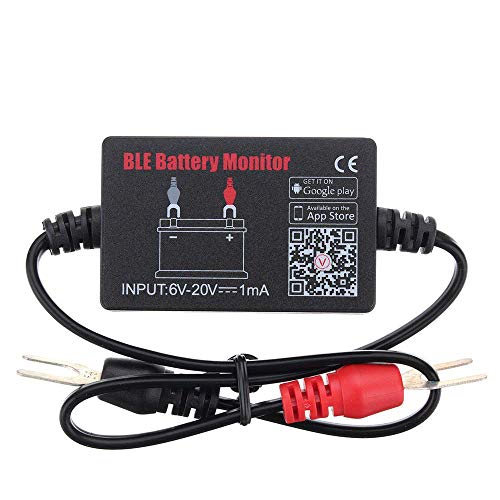
SIMULTANEOUSLY MONITOR UP TO 4 OF 12V BATTERIES: Download APP "BM2", you can monitor 1 of 12v batteries. If you have more batteries, please Download APP "BM3", you can simultaneously monitor up to 4 of these devices(APP BM2/FREE,APP BM3/ NOT FREE)

【WIDELY COMPATIABLE & SUPER LONG】 This is the LATEST and LONGEST wireless endoscope design at the moment, unlike other traditional endoscopes on the market, this wifi endoscope camera can support both Android smartphone(Above Android 4.4) and iPhone IOS system(Above IOS 8.0). This wireless endoscope has made some UPGRADED improvements based on our previous black wireless endoscopes, the camera is MORE CLEAR and the battery works MUCH LONGER.
Checking Battery Usage Stats
Access your device’s battery usage settings to review which applications consume the most power. Go to Settings > Battery > Battery Usage. This section displays a list of apps ranked by battery consumption. Pay attention to apps using significant percentages. If an app consistently uses over 15% of your battery, consider adjusting its usage or settings.
Apps That Consume Excessive Battery
Some common app categories often use excessive battery life:
- Streaming Services: Apps like Netflix and Spotify can drain your battery, especially during video playback or music streaming.
- Games: Graphics-intensive games often keep your device’s processor and graphics chips active, thus consuming extra power.
- Social Media Apps: Facebook and Instagram, which refresh content in the background, can lead to higher battery drainage.
- Navigation Apps: Google Maps and Waze use GPS continuously, significantly impacting battery life.
- Messaging Apps with Background Sync: Apps like WhatsApp and Snapchat that sync constantly can also contribute to battery drain.
If you notice any of these applications frequently at the top of your battery usage list, consider limiting their use or adjusting their settings, such as turning off background refresh or notifications.
Tips to Optimize Battery Life
Improving your Android device’s battery life requires both adjustments in settings and smart usage habits. Here are effective strategies to help maximize your battery performance.
Adjusting Device Settings
- Reduce Screen Brightness: Lower the brightness level or use adaptive brightness to adjust based on surrounding light conditions.
- Limit Background Data: Go to Settings > Network & internet > Data usage. Select apps and disable background data to prevent unnecessary battery drain.
- Disable Location Services: Turn off GPS when not required, or switch to battery-saving mode in Location settings. This helps conserve battery life significantly.
- Manage Notifications: Limit notifications for unimportant apps. Navigate to Settings > Apps & notifications, then adjust app notification settings based on priority.
- Turn Off Unused Connectivity: Disable Bluetooth, Wi-Fi, and mobile data when not in use. This reduces power consumption and helps your battery last longer.
Using Battery Saver Mode
- Activate Battery Saver Mode: Enable Battery Saver by going to Settings > Battery > Battery Saver. This feature reduces background activity and limits performance to extend battery life.
- Choose a Schedule: Set Battery Saver to activate automatically at a specific percentage (e.g., 20%). This ensures your device stays functional without excessive battery drain.
- Monitor Battery Usage: Regularly check battery usage stats. Go to Settings > Battery > Battery Usage to identify and manage apps that consume the most power. Consider uninstalling or disabling those that drain too much battery.
Implementing these tips enhances your Android experience by prolonging battery life and reducing the frequency of charging.
Hardware Considerations
Hardware components significantly influence battery performance on your Android device. Understanding these aspects can help you diagnose why your battery drains quickly.
Battery Health and Age
Battery health diminishes over time. Lithium-ion batteries typically last 2 to 3 years before their capacity noticeably drops. You might notice quicker battery drain if your device is older. Check your battery’s health by using an app like AccuBattery, which provides insights into capacity and charge cycles. If your battery’s health is below 80%, consider a replacement.
Impact of Screen Brightness
Screen brightness is one of the top culprits for battery drain. A bright display consumes more power than a dim one. Consider lowering your brightness or enabling adaptive brightness, which adjusts based on your environment. For example, if you’re in a dark room, your screen can automatically dim to save energy. Use the quick settings menu to easily toggle your screen brightness. Reducing it by just 20-30% can lead to noticeable battery savings throughout the day.
Conclusion
Taking control of your Android’s battery life can make a world of difference in your daily experience. By understanding the factors that contribute to battery drain and implementing simple adjustments you can significantly extend your device’s longevity.
Pay attention to your screen brightness app usage and background activities. Regularly checking your battery stats will help you identify those pesky power-hungry apps. Remember to keep your device updated and consider replacing the battery if it’s showing signs of wear.
With a few mindful changes you’ll find yourself charging less often and enjoying your Android more.
Frequently Asked Questions
What causes battery drain on Android phones?
Battery drain on Android phones is often caused by high screen brightness, active location services, background apps, and poor network connectivity. Specific apps, especially those that require significant power like games and streaming services, can also contribute to faster battery depletion.
How can I extend my Android phone’s battery life?
To extend your Android phone’s battery life, reduce screen brightness, limit background data, disable location services, and avoid using power-hungry apps. Activating Battery Saver mode and monitoring battery usage stats can also help improve performance.
What apps typically drain battery the most?
Common apps that drain battery include streaming services like Netflix and Spotify, graphics-intensive games, and social media apps that refresh content in the background. Navigation apps using GPS also consume a significant amount of battery.
How can I check which apps are using the most battery?
You can check battery usage by going to Settings > Battery > Battery Usage. This section shows which apps consume the most power, helping you identify and manage battery-hungry applications effectively.
When should I consider replacing my Android phone battery?
If your battery health drops below 80% and you’re experiencing quick battery drain, it’s time to consider replacing it. Regularly check battery health using apps like AccuBattery to monitor its performance over time.
