

Key Takeaways
- Understand Background App Activity: Background apps can significantly drain battery life. Regularly check app usage in settings to limit data and close unused apps.
- Optimize Screen Settings: Reduce screen brightness and set shorter timeout durations to conserve power. Utilize Adaptive Brightness for automatic adjustments based on surroundings.
- Manage Location Services: Use Battery Saving mode for location settings and restrict access for apps to only when actively in use. This minimizes unnecessary tracking.
- Identify Power-Hungry Apps: Regularly review battery usage statistics to identify and limit or uninstall apps that consume excessive power, especially social media and streaming services.
- Adjust Sync and Notifications: Limit sync frequency and turn off unnecessary notifications to reduce background activity that can impact battery performance.
- Enable Battery Saver Mode: Activate Battery Saver mode to extend battery life during critical times and utilize device settings like Adaptive Battery and regular software updates for optimal performance.
Ever wondered why your Android phone seems to lose battery life faster than ever? You’re not alone. Many people find themselves frantically searching for a charger halfway through the day, wondering what’s draining their device.
Common Reasons for Battery Drain
Multiple factors contribute to rapid battery drain on Android phones. Understanding these causes helps you make informed decisions to extend battery life.
Background App Activity
Background apps continue running even when you’re not using them. Certain apps, like social media and streaming services, consume significant battery power while updating or syncing data. To manage background activity:
- Check App Usage: Go to Settings > Battery > App Battery Usage. Identify which apps draw the most power.
- Limit Background Data: Access Settings > Network & Internet > Data Usage, then select specific apps to restrict background data.
- Close Unused Apps: Swipe away or close apps from the recent apps menu. Regularly doing this can prevent unnecessary battery drain.
Screen Brightness and Timeout Settings
High screen brightness and extended timeout durations impact battery life significantly. A bright screen uses more energy. Adjust settings to conserve battery:
- Reduce Brightness: Navigate to Settings > Display > Brightness Level. Lower brightness or use Adaptive Brightness, which adjusts levels based on your environment.
- Set Shorter Timeout: Under Settings > Display > Sleep, set a shorter timeout like 30 seconds. This reduces the time your screen remains on when not in use.
Location Services Usage
- Change Location Settings: Go to Settings > Location. Opt for “Battery Saving” mode instead of “High Accuracy,” which utilizes GPS.
- Disable Location for Specific Apps: Access Settings > Location > App Permissions. Set apps to “While Using the App” to minimize location tracking when not actively in use.
Power-Hungry Applications
Applications can significantly impact your Android phone’s battery life. Certain apps consume more energy than others, leading to rapid drain. You can manage this by identifying which apps are the main culprits.
Identifying Battery-Hogging Apps
You can check which apps use the most battery by following these steps:
- Open Settings on your phone.
- Tap Battery or Battery Usage.
- Review the list of apps and their battery consumption.
Look for apps that consume an unusually high percentage. Common offenders include social media, GPS navigation, and streaming apps. You can uninstall or restrict usage for these applications to help conserve battery.
Managing App Permissions
Excessive permissions can lead to unnecessary battery drain. To adjust app permissions:
- Open Settings on your phone.
- Tap Apps or Application Manager.
- Select the app you want to manage.
- Tap Permissions and disable non-essential ones.
Limiting background data and location access can reduce battery consumption. For example, restrict a weather app from constantly accessing your location when you’re not using it. Adjusting these settings creates a more battery-efficient experience.
Device Settings Impacting Battery Life
Device settings play a crucial role in how long your Android phone’s battery lasts. Understanding and adjusting these settings can lead to significant improvements in battery performance.
Sync and Notifications Settings
Sync settings can lead to excessive battery drain if left unchecked. Applications like email, social media, and cloud services often sync data in the background. To manage this:
- Limit Sync Frequency: Change sync settings to manual or reduce the frequency. This prevents constant data checks.
- Turn Off Unnecessary Notifications: Disable notifications for apps that don’t require immediate alerts. Reducing the number of notifications can save battery life.
- Uninstall Apps with Heavy Background Activity: If certain apps continually drain battery despite adjustments, consider removing them altogether.
Adaptive Battery Features
Adaptive Battery is a feature on many Android devices that optimizes battery usage based on your habits. To make the most of this feature:
- Enable Adaptive Battery: Go to Settings > Battery > Adaptive Battery. This typically prioritizes battery use for frequently used apps.
- Monitor App Usage: Check which apps are considered “active” and which are not. Adaptive Battery restricts background activity for infrequently used apps, saving energy.
- Adjust Battery Saver Mode Settings: Set up your Battery Saver mode to activate automatically at lower battery levels. This can minimize performance of less important apps automatically.
Adjusting these settings can significantly reduce battery drain on your Android device. Keeping a close eye on how apps sync and utilizing adaptive features leads to a more efficient battery life.
Tips to Improve Battery Life
Improving the battery life of your Android phone is straightforward with a few adjustments and settings optimizations.
Recommended Products

𝐖𝐡𝐲 𝐂𝐡𝐨𝐨𝐬𝐞 𝐓𝐡𝐢𝐬 𝐌𝐚𝐠𝐧𝐞𝐭𝐢𝐜 𝐏𝐨𝐰𝐞𝐫 𝐁𝐚𝐧𝐤? It packs an upgraded 10000mAh capacity, 20W fast charging, and a tiny body all in one. Unlike bulky chargers, it won't block your iPhone's rear camera. The strong magnetic grip holds your phone firmly – no slipping, no wobble. The smart LED display shows exact remaining battery percentage in real-time – so you're never caught off guard. Works with iPhone 17/16/15/14/13/12 series, giving you 1.8~2.5 full charges. When used with a magnetic phone case, it also supports fast wireless charging for Samsung Galaxy S26/S25/S25 Ultra, Huawei Mate 70/Pura 80 Pro and most Android phones, no need to remove the case.
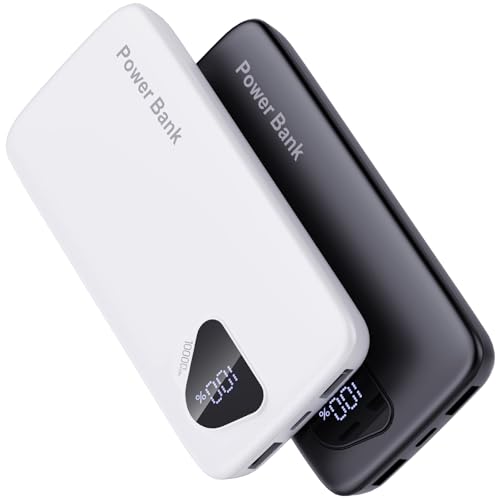
【Charge 4 Devices Simultaneously】Total 4 output ports (built-in 2 cabls,IOS cable and USB-C cable and 2 USB A), supports charging for 4 smart devices simultaneously, All in one portable charger, you would not need to carry various cables or adapter any more, save you time and no more waiting.

Huge Capacity 50000mAh Power Bank:OHOVIV Portable charger ultra-high massive capacity provides 10 charges for iPhone 15, which make of new high-density polymer battery.Depending on battery size, most smartphones will get over 10 full charges. Portable power bank works and does not take on any extra room, suitable for camping, hiking, vacation, travel and other outdoors.
Battery Saver Mode
Enabling Battery Saver mode helps extend battery life during critical times. You can find this option in your device’s settings. Once activated, this mode limits background activity, reduces screen brightness, and pauses syncing processes. Set your phone to activate it automatically when the battery reaches a certain percentage, such as 20% or 15%. This proactive approach ensures your phone conserves energy when you need it most.
Optimizing Device Settings
Tweaking device settings significantly impacts battery performance. Here are some specific adjustments:
- Screen Brightness: Lower your screen brightness or enable adaptive brightness to adjust automatically based on your environment.
- Screen Timeout: Set your screen timeout to 30 seconds or 1 minute to ensure your display turns off quickly when not in use.
- Sync Settings: Limit the frequency of sync for accounts like email or social media. Consider sync intervals of 15, 30 minutes, or even manual sync to save battery.
- Location Services: Change GPS settings to “Battery Saving” mode, which uses Wi-Fi and mobile networks instead of GPS.
Regular Software Updates
Keeping your software updated is crucial for optimal performance. Software updates often include improvements that reduce battery drain and enhance device efficiency. Check for updates by going to Settings > System > System Updates. Install updates to ensure your device benefits from the latest features and fixes, which can prolong battery life without compromising functionality.
Conclusion
You don’t have to let a fast-draining battery ruin your day. By being mindful of your app usage and adjusting settings like screen brightness and location services, you can significantly improve your battery life.
Take a moment to explore your device’s settings and enable features like Adaptive Battery and Battery Saver mode. These small changes can make a big difference in how long your phone lasts throughout the day.
Remember to keep your apps updated and regularly check for any power-hungry offenders. With a little effort, you can enjoy a more reliable battery life and stay connected longer.
Frequently Asked Questions
What causes my Android phone battery to drain quickly?
Rapid battery drain on Android phones is often caused by background app activity, high screen brightness, and location services. Apps like social media and streaming services consume significant power, even when not actively in use.
How can I check which apps are draining my battery?
To check which apps are consuming battery, go to your device’s Settings, select “Battery,” and view the apps using the most power. This will help you identify power-hungry applications that you may need to limit or uninstall.
Does adjusting screen brightness help improve battery life?
Yes, reducing screen brightness can significantly extend battery life. Lower brightness settings and setting a shorter screen timeout can conserve energy and reduce the frequency of charging your device.
What is Adaptive Battery and how does it work?
Adaptive Battery is a feature that optimizes battery usage based on your habits. It learns which apps you use most and limits resources for apps you rarely use, helping prolong battery life for essential tasks.
Should I enable Battery Saver mode on my Android device?
Enabling Battery Saver mode is a good practice, especially during low battery situations. It limits background activity, reduces screen brightness, and extends battery life, allowing you to use your device longer without a charge.
How can managing app permissions affect my battery life?
Limiting app permissions can reduce unnecessary background activity, which leads to less battery usage. Adjusting permissions can help prevent apps from tracking your location or syncing data excessively, enhancing overall battery performance.
Are there any specific tips to improve my Android battery life?
Practical tips include reducing screen brightness, setting a shorter screen timeout, limiting background app activity, using Battery Saver mode, and ensuring regular software updates to improve efficiency and reduce battery drain.
