

Key Takeaways
- Understand Common Causes: Familiarize yourself with factors contributing to Google Pixel battery drain, including background app activity, screen brightness, and connectivity features.
- Manage Background Apps: Limit background activity for apps that refresh data frequently; this can significantly extend your battery life.
- Adjust Screen Brightness: Use adaptive brightness settings or lower your screen brightness manually to help conserve power during usage.
- Keep Software Updated: Regularly check for software updates, as they often contain improvements and fixes that optimize battery performance.
- Utilize Power Saving Modes: Activate battery saver modes when your device is low on power to minimize background activity and enhance longevity.
- Limit Widgets and Notifications: Reduce the use of active widgets and notifications to save battery while keeping essential functions operational.
Ever find yourself frantically searching for a charger halfway through the day? If you own a Google Pixel, you’re not alone in experiencing battery drain that feels way too fast. Many users share the frustration of their phones dying before they even get home.
In this article, you’ll discover the common reasons behind that pesky battery drain and some practical tips to help you extend your phone’s life. Whether it’s background apps or settings you didn’t know about, understanding these factors can make a big difference. Let’s help you keep your Pixel powered up and ready for whatever your day throws at you.
Overview of Google Pixel Battery Performance
Google Pixel smartphones are known for their advanced features, but many users experience rapid battery drain. Several factors contribute to this performance issue, impacting daily usage.
Battery Capacity and Usage Patterns
Google Pixel models vary in battery capacity, with the Pixel 6 featuring a 4614 mAh battery and the Pixel 7 a 4355 mAh battery. Your daily usage patterns significantly influence how long the battery lasts. Activities such as gaming, video streaming, and extensive app usage consume power quickly. For example, streaming HD videos on platforms like YouTube can cut battery life dramatically.
Background Apps and Services
Background apps and services drain battery life without you noticing. Apps running in the background, like social media and navigation tools, continuously use power. You’ll find this can contribute to battery drain significantly. Regularly check your device’s app settings to identify and limit background activity.
Screen Brightness and Settings
Screen brightness has a direct impact on battery performance. High brightness settings typically consume more power. Consider using adaptive brightness or reducing brightness to save battery life. Setting your screen timeout to a shorter duration also helps conserve power when the device isn’t in use.
Connectivity Features
Connectivity features like GPS, Bluetooth, and Wi-Fi can drain your battery. Leaving GPS on while not in use can lead to significant power loss. Turning off GPS and Bluetooth when not needed is a simple yet effective way to prolong battery life. You can also toggle Airplane mode in low-signal areas to prevent the phone from expending energy trying to connect.
Software Updates and Optimization
Software updates play a vital role in battery performance. Google optimizes battery life with each new update. Keeping your phone updated ensures that you take advantage of improvements and bug fixes. Check for updates regularly to maintain optimal battery performance.
Power Saving Modes
Google Pixel devices offer power-saving modes designed to extend battery life. Activate these modes when your battery is low to limit background activity, reduce screen brightness, and decrease performance. You’ll notice a significant improvement in battery longevity when utilizing these features.
Managing Widgets and Notifications
Widgets and notifications can also contribute to battery drain. Limit the use of active widgets on your home screen and manage notifications to essential apps only. Reducing these features helps conserve battery life while keeping your device functional.
By addressing these factors, you can enhance your Google Pixel battery performance, ensuring your device remains operational throughout the day.
Common Reasons for Battery Drain
Understanding the underlying causes of battery drain can help you make informed adjustments to minimize power loss.
Background App Activity
Background apps consume power even when you’re not actively using them. Apps that frequently refresh data, like social media and email clients, can significantly impact battery life. Limiting background activity can conserve energy.
To manage this:
- Open Settings.
- Select Apps & notifications.
- Tap on See all apps.
- Choose an app, then click Battery.
- Select Background restriction to limit its activity.
Screen Brightness and Display Settings
Screen brightness plays a crucial role in battery consumption. Higher brightness levels drain more power. Automatic brightness adjustments may not always be efficient based on your environment.
To lower brightness consumption:
- Go to Settings.
- Tap Display.
- Adjust Brightness level or enable Adaptive brightness.
- Consider using Dark theme, which saves battery on OLED screens.
Software Updates and Bugs
Software updates often include battery performance improvements. However, bugs can occasionally lead to unexpected battery drain. Regularly checking for updates ensures you benefit from the latest optimizations.
To check for updates:
- Open Settings.
- Scroll down to System.
- Tap System updates to see if you have the latest version.
- If a bug is suspected, consider reporting it to Google for resolution.
By addressing these common concerns, you can enhance your Google Pixel’s battery longevity and maintain its efficiency throughout the day.
User Experiences and Testimonials
Many Google Pixel users share their experiences regarding battery drain, revealing a mix of satisfaction and frustration. Insights from real users help illuminate the issue.
Positive Feedback
Some users appreciate the overall performance of their Google Pixel devices, noting efficient battery management during regular use. For example, those who limit background app activity often report extended battery life. One user mentioned their Pixel lasting over 12 hours even with moderate use, thanks to adjusting the screen brightness and turning off unnecessary connectivity features.
Another user highlighted the benefits of the adaptive battery feature. This function learns app usage patterns to prioritize power allocation, resulting in better longevity. Users who actively manage their settings, such as enabling power-saving modes at crucial times, often experience less battery drain.
Negative Feedback
Conversely, many users voice concerns about rapid battery drain, especially during heavy tasks like gaming or streaming videos. A frequent complaint involves occasional drops in battery percentage, with one user reporting a decrease from 80% to 20% in just three hours of video playback.
Several testimonials point to unexpected background activity as a primary source of battery drain. Users express frustration over applications running without their knowledge, leading to sluggish device performance and frequent charging. For instance, one user discovered that a specific app consumed over 30% of their battery despite not being actively used.
Additional feedback emphasizes the impact of software updates, with some users experiencing worsened battery life after an update. Tracking how updates affect performance can help mitigate potential issues.
Tips to Extend Battery Life
You can implement several strategies to enhance your Google Pixel’s battery performance. Here are a few practical tips.
Recommended Products

【Why Don't Sell Increased Capacity Battery 】- Because most of the so-called upgraded batteries on the market are exaggerated, the actual use time does not increase much, but the price is expensive. Our battery capacity and voltage is 100% same as your original Pixel 6 battery, it is a real 4614mAh can be perfectly compatible with the motherboard of your phone, and will not damage the hardware and reduce the service life of phone, true to providing long-lasting battery life.

【OEM Battery Cells】OEM quality battery replacement for Google Pixel 6 perfect fit your phone. It is safer than so-called upgraded high-capacity batteries. No potential risks during use. Multiple protection features to prevent overcharging and prevent overheating. Built-in microchip to ensure safe battery charging and improve battery life. NOTE: Please fully charge and discharge your new battery 3 to 5 cycles to release all capacity of the new battery.
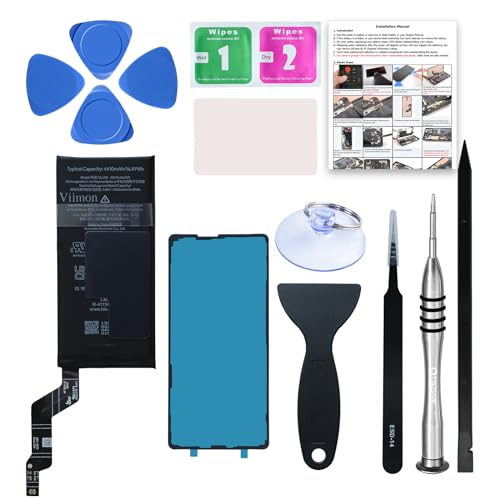
【OEM Battery Cells】 OEM quality battery replacement for Google Pixel 6a. It is safer than so-called upgraded high-capacity batteries. No potential risks during use. Multiple protection features to prevent overcharging and prevent overheating. Built-in microchip to ensure safe battery charging and improve battery life. NOTE: Please fully charge and discharge your new battery 3 to 5 cycles to release all capacity of the new battery.
Adjusting Settings
Adjusting settings significantly conserves battery life. Start by lowering your screen brightness. You can also enable adaptive brightness, which automatically adjusts based on your environment. Turn off location services for apps that don’t require GPS. Disabling Bluetooth and Wi-Fi when not in use conserves power, too. Restrict background data for apps that frequently run in the background, such as social media and streaming services. Access the app settings and toggle off background activity to save energy. Switch to “Dark Theme” if your Pixel has an OLED display—black pixels use less power.
Utilizing Battery Saver Mode
Utilizing Battery Saver Mode provides an efficient way to extend battery life. This feature reduces background activity and limits performance for less critical tasks. To enable it, go to “Settings,” then “Battery,” and tap on “Battery Saver.” You can set it to activate automatically at a certain battery percentage, ensuring your device lasts longer when you need it most. Consider activating “Extreme Battery Saver” for even more extended usage. This mode turns off most background processes, allowing critical apps to remain functional while conserving as much battery as possible.
Conclusion
Understanding why your Google Pixel battery drains quickly can make all the difference in your daily experience. By taking control of your settings and being mindful of your usage habits, you can keep your phone powered throughout the day.
Implementing simple adjustments like managing background apps and optimizing screen brightness can lead to noticeable improvements. Don’t forget to regularly check for software updates and utilize power-saving modes to give your battery that extra boost.
With a few tweaks, you can enjoy your Pixel without the constant worry of running out of juice. Happy optimizing!
Frequently Asked Questions
What causes battery drain in Google Pixel phones?
Battery drain in Google Pixel phones can be caused by various factors, including high screen brightness, background apps running without user knowledge, connectivity features like GPS and Bluetooth, and outdated software. Understanding these elements can help users manage their battery life more effectively.
How can I extend my Google Pixel’s battery life?
To extend your Google Pixel’s battery life, consider adjusting screen brightness, using adaptive brightness, turning off unnecessary connectivity features, and managing background app activity. Regularly updating your software and utilizing Battery Saver Mode can also make a significant difference.
What is Battery Saver Mode?
Battery Saver Mode is a feature on Google Pixel phones that reduces background activity and limits performance to extend battery life. Users can enable it in the settings, and there’s also an “Extreme Battery Saver” option for maximum conservation while keeping essential apps functional.
How does screen brightness affect battery life?
Screen brightness directly impacts battery life, especially on OLED screens. Higher brightness levels consume more power. Adjusting brightness to a lower level or enabling adaptive brightness can help conserve battery.
Are software updates important for battery performance?
Yes, software updates are crucial for optimizing battery performance. They often include improvements and bug fixes that can enhance battery life. However, some users may experience worsened battery performance after updates, so it’s important to monitor changes post-update.
