

Key Takeaways
- Background Applications: Close unused apps and disable auto-start for non-essential programs to conserve battery life.
- Screen Settings: Lower your screen brightness and enable battery saver mode to help optimize power usage.
- Battery Health Monitoring: Regularly check battery health through the Command Prompt to assess performance and consider replacements when necessary.
- Power Settings Adjustment: Modify your laptop’s power settings to select energy-efficient plans and customize options for display and sleep durations.
- Hardware Optimization: Turn off Bluetooth and Wi-Fi when not in use, and limit the use of external displays to extend battery life.
- Software Maintenance: Keep your operating system updated and uninstall unnecessary applications to limit background processes that drain battery power.
Ever found yourself scrambling for a charger just an hour into using your Lenovo laptop? You’re not alone. Many users face the frustrating issue of a rapidly draining battery, leaving them tethered to an outlet when they’d rather be on the go.
Understanding why your laptop battery dies so fast can save you from those inconvenient moments. In this article, you’ll discover common culprits behind battery drain and learn practical tips to extend your laptop’s life. With a few adjustments, you can enjoy longer usage without constantly worrying about your battery percentage.
Common Reasons for Fast Battery Drain
Rapid battery drain in Lenovo laptops often stems from several common factors. Understanding these reasons can help you manage your laptop’s power usage effectively. Here are the key causes:
Background Applications
Background applications can significantly affect battery life. Programs running without your direct input consume resources, causing quicker battery depletion. Examples include cloud sync services, messaging apps, and software updates.
Tips to manage background applications:
- Check the Task Manager for running applications.
- Close apps you aren’t using.
- Disable auto-start for non-essential programs during system startup.
Screen Brightness and Settings
Screen brightness and display settings play a crucial role in battery performance. Higher brightness levels drain battery faster, especially when using your laptop on the go.
Adjust your screen settings:
- Lower screen brightness in the settings menu or use the keyboard shortcuts.
- Use battery saver mode to optimize display settings.
- Set a shorter timeout period for the screen to turn off when idle.
By addressing these common reasons, you can prolong your Lenovo laptop’s battery life and enhance your overall user experience.
Battery Health and Age
Battery health and age play critical roles in your Lenovo laptop’s battery life. Aging batteries often show diminished performance, leading to quicker drains during use.
Recommended Products

REPLACE BATTERY PART : Type 61 11.4V 24Wh 01AV423 4X50M08810 01AV422 SB10K97579 SB10K97580 01AV424 SB10K97581 01AV452 SB10K97597 01AV490 external laptop Battery

Bulk Pack: This product includes 20 high-quality CR2032 lithium coin cell batteries, perfect for various electronics and devices. Voltage: 3V; Capacity: 230mAh; Connector: CR2032-51021-0200(1.25 2P), this is reverse polarity. Attention: Do not charge!

Specification: Battery type:Li-ion Voltage:10.8V Capacity:72Wh Cells:6cell. Rrecharge cycles:500; The battery is durable and has overcurrent protection, anti-overcharge, anti-overdischarge and temperature control functions.
Signs of a Failing Battery
Recognizing the signs of a failing battery can prevent unexpected shutdowns. Look for these indicators:
- Rapid battery depletion: If your battery percentage drops significantly within a short period, it may indicate wear.
- Swelling or physical damage: A swollen battery can damage your laptop. If you notice any bulging, seek professional help immediately.
- Failure to hold charge: If your laptop shuts down despite showing a partially charged battery, the battery likely needs replacement.
- Frequent overheating: Excessive heat during charging or usage could signal battery issues, affecting performance and lifespan.
How to Check Battery Health
Checking your Lenovo laptop’s battery health is crucial for maintaining performance. Follow these steps:
- Open Command Prompt: Type
cmdin the Windows search bar and open the Command Prompt. - Generate a battery report: Type the command
powercfg /batteryreportand hit Enter. This creates a battery report in your user directory. - Access the report: Navigate to the specified location (usually
C:\Users\YourUsername) and open the generatedbattery-report.htmlfile using a web browser. - Review health metrics: Look at the design capacity versus current capacity to assess your battery’s overall health.
Regularly checking your battery health leads to informed decisions about maintenance and potential replacements.
Power Settings and Management
Power settings and management play a crucial role in extending your Lenovo laptop’s battery life. By adjusting these settings, you can significantly reduce battery drain and enhance overall performance.
Recommended Products

Output:20V-3.25A / 15V-3A / 9V-2A / 5V-2A, 65W USB Type C
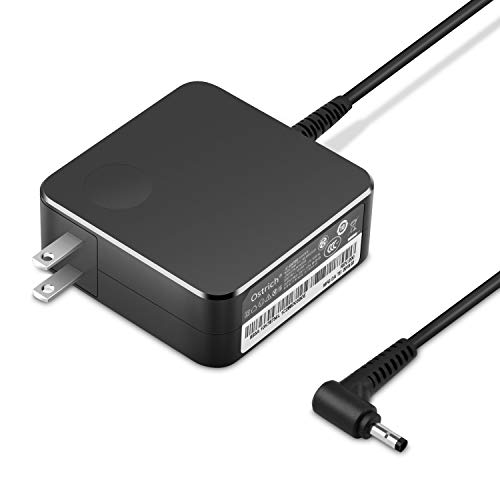
POWER SPECS Output Max: 20V 3.25A 65W/20V 2.25A 45W Input Volt Range: 110-240V/50/60Hz (For Worldwide Use) Compatible with Lenovo Charger Laptop AC Adapter Power Cord
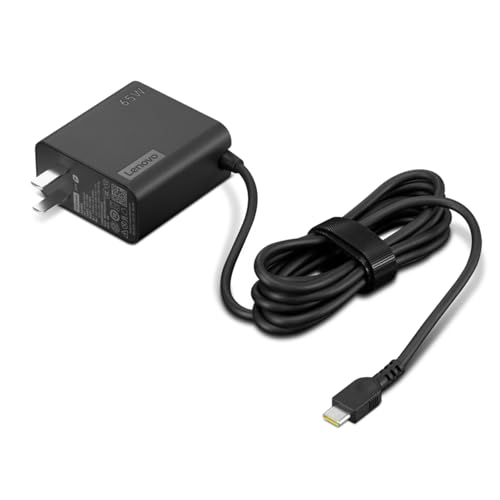
[PORTABLE CHARGING] Slim, light design and extra-long 1.7 m (5.9 ft) cable lets you charge in any spot, making powering up more convenient.
Adjusting Power Options
Adjusting power options helps you control how Windows conserves energy. Follow these steps to optimize your power settings:
- Open Control Panel: Press the Windows key, type “Control Panel,” and select it.
- Select Power Options: Click “Hardware and Sound,” then “Power Options.”
- Choose a Power Plan: Select a power plan that suits your needs. The “Balanced” plan is a good starting point, as it balances performance with energy savings.
- Modify Power Plan Settings: Click on “Change plan settings” next to your selected plan. You can adjust the time for the display to dim or turn off and set the laptop to sleep after a shorter duration.
- Advanced Settings: Click on “Change advanced power settings” for more specific adjustments. Look for settings under “Processor power management” and lower the “Minimum processor state” to 5% or less to save battery life.
Using Battery Saver Mode
Using Battery Saver Mode can actively extend your Lenovo laptop’s battery. This built-in feature optimizes settings for optimal energy consumption. Here’s how to enable it:
- Access Battery Settings: Click on the battery icon in the taskbar.
- Enable Battery Saver: Toggle the Battery Saver option to “On” when your laptop is unplugged. This mode reduces background activity and limits notifications from apps.
- Customize Battery Saver Settings: Go to “Settings,” then “System,” and select “Battery.” You can adjust settings for when Battery Saver kicks in and which features it limits.
- Monitor Battery Usage: In the same Battery settings, view which apps consume the most battery. Consider limiting or uninstalling apps that drain power excessively.
By fine-tuning power options and using Battery Saver Mode, you maximize your Lenovo laptop’s battery performance and enjoy longer usage without frequent recharges.
Tips to Extend Battery Life
Improving battery life on your Lenovo laptop involves making both hardware adjustments and utilizing software solutions. Implementing these tips can help you maximize usage time before needing to recharge.
Recommended Products

Compatible with Lenovo IdeaPad G400S, G405S, G410S, G500S, G505S, G510S, S410P, S510P Touch, Z710, G40, G50, Z40, and Z50 series.

【Tech Specs & 100% New Products】Model: L18M4PH0 Voltage: 7.68V Capacity:60Wh/7820mAh Battery type: Li-ion. (We only use grade A battery cells that provide up to 500 recharge cycles over the life of the battery.Come with screwdrivers.)

Power Specs: Battery Type: Li-polymer Voltage: 15.36V Capacity:71Wh; Cells: 4-cell; The battery is durable and has overcurrent protection, anti-overcharge, anti-overdischarge and temperature control functions.
Hardware Adjustments
- Lower Screen Brightness: Dimming your display reduces energy consumption. Aim for about 50% brightness for a good balance between visibility and battery life.
- Turn Off Bluetooth and Wi-Fi: If you’re not using these features, disable them. They continuously search for connections, draining battery life.
- Use Energy-Efficient Peripherals: Opt for wired devices when possible. Wireless mice and keyboards can consume extra power, especially if they rely on batteries.
- Close Unused Ports: If you’re not using USB or HDMI ports, consider physically removing devices. This prevents any power draw from active connections.
- Limit External Displays: Connecting to multiple monitors can significantly consume battery. Use your laptop as the sole display to extend battery life.
Software Solutions
- Manage Running Applications: Check Task Manager for background apps using resources. End processes that you don’t need to conserve battery life.
- Adjust Power Settings: Access the Power Options in Control Panel and select a power plan that prioritizes battery life, such as “Power Saver.” Customize settings for display dimming and sleep duration.
- Update Software Regularly: Keeping your operating system and applications up-to-date ensures optimal performance and security, which can help in efficient battery usage.
- Utilize Battery Saver Mode: Activate this mode to limit background activity and adjust settings for power consumption. Go to Settings > System > Battery and enable Battery Saver.
- Uninstall Unnecessary Programs: Remove apps that you rarely use. Less software means fewer processes running in the background, which can extend battery life.
By following these tips, you can significantly reduce the rate at which your Lenovo laptop battery drains, letting you enjoy longer periods between charges.
Conclusion
Addressing the battery drain issue on your Lenovo laptop doesn’t have to be a daunting task. By implementing some of the tips shared in this article, you can make a noticeable difference in how long your battery lasts.
Regularly checking your battery health and adjusting your power settings can lead to a more enjoyable experience. Plus, managing background applications and optimizing your display settings will help keep you unplugged for longer.
With a bit of effort, you’ll find that you can extend your laptop’s battery life and reduce those frustrating moments of scrambling for a charger. Enjoy your time on your Lenovo without the constant worry of running out of power.
Frequently Asked Questions
Why is my Lenovo laptop battery draining so quickly?
Rapid battery drain can be caused by background applications using resources, high screen brightness, or an aging battery. Cloud sync services and messaging apps are common culprits, so managing these settings can help extend battery life.
How can I check the battery health of my Lenovo laptop?
You can check your battery health by using the Command Prompt. Open the Command Prompt and type powercfg /batteryreport. This generates a report that provides details on battery performance and health, helping you determine if a replacement is needed.
What power settings can I adjust to save battery?
Access your Power Options through the Control Panel. Choose a power plan and modify settings such as display dimming and sleep duration. Enabling Battery Saver Mode can also significantly reduce background activity and help conserve battery life.
How does screen brightness affect battery life?
High screen brightness consumes more power, leading to faster battery drain. Lowering the brightness to a comfortable level and using adaptive brightness settings can greatly extend the life of your Lenovo laptop’s battery.
Are there specific apps I should close to save battery?
Yes, close unnecessary background applications like cloud storage, messaging, or music streaming services. Use the Task Manager to identify and close these apps to conserve battery power effectively.
