

Key Takeaways
- Identify Battery Drainers: Background apps, location services, and screen brightness are primary culprits for battery drain on Google Pixel devices.
- Manage Background Apps: Limit background activity and close unused apps to free up battery life and ensure efficient power usage.
- Optimize Location Services: Adjust location settings to “Battery saving” mode and restrict access for apps that don’t require constant GPS tracking.
- Utilize Battery Monitoring Tools: Take advantage of built-in battery usage statistics and third-party apps like AccuBattery and GSam Battery Monitor to analyze power consumption.
- Implement Power-Saving Tips: Activate Battery Saver mode, reduce screen brightness, and set a shorter screen timeout to conserve energy.
- Know When to Seek Help: Identify signs of hardware issues such as rapid battery drain, overheating, or frequent shutdowns, which may require professional assistance.
Ever find yourself staring at your Google Pixel, wondering why the battery’s draining faster than you can keep up? You’re not alone. Many users face this frustrating issue, and it can feel like a never-ending battle to keep your phone alive throughout the day.
In this article, you’ll discover the common culprits behind that pesky battery drain. From background apps to settings you might not even know about, we’ll break down what’s sucking the life out of your device. By the end, you’ll have practical tips to help you extend your battery life and make the most of your Google Pixel.
Common Causes of Battery Drain
Understanding what drains your Google Pixel’s battery can help you make the necessary adjustments for better battery life. Here are the most common culprits:
Background Apps
Background apps consume significant power. Apps running in the background often refresh data. This process drains battery life, especially for social media or messaging apps. Check your app settings to limit background activity.
- Close unused apps: Use the recent apps button to swipe away any apps you’re not using.
- Limit data refresh: Navigate to app settings and disable background data usage for apps that don’t require constant updates.
Location Services
Location services track your phone’s location, which uses GPS and other sensors. This feature can rapidly deplete battery life.
- Adjust location settings: Set your location to “Battery saving” mode instead of “High accuracy.” This change reduces GPS usage.
- Disable location for specific apps: Go to your device settings and restrict location access for apps that don’t need it.
Screen Brightness and Timeout Settings
Screen brightness plays a major role in battery usage. A bright display can quickly drain power.
- Reduce brightness: Access the quick settings menu and adjust the brightness slider to a lower level.
- Set a shorter screen timeout: In your display settings, choose a timeout period of 30 seconds to 1 minute. This setting turns off the screen when not in use, saving battery.
How to Identify Battery Drain Issues
Identifying battery drain issues on your Google Pixel involves recognizing patterns in usage and monitoring specific settings. Follow these steps to pinpoint what’s consuming your battery.
Recommended Products
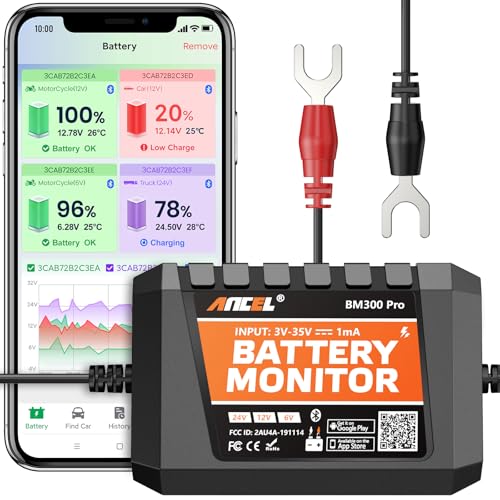
ONE DEVICE FITS ALL: Why juggle multiple single-voltage monitors? Engineered for true versatility, it auto-detects and adapts to any standard system: from 6V classic cars and 12V daily drivers to 24V diesel rigs, large RVs, and marine setups. Compatible with all common battery types including Lead-Acid (Flooded, AGM, Gel, EFB) and Lithium-Ion. This is the single, future-proof solution for enthusiasts with diverse vehicles or evolving needs. Note: 6V only for SOC, voltage & temp monitoring; no charging & cranking tests.
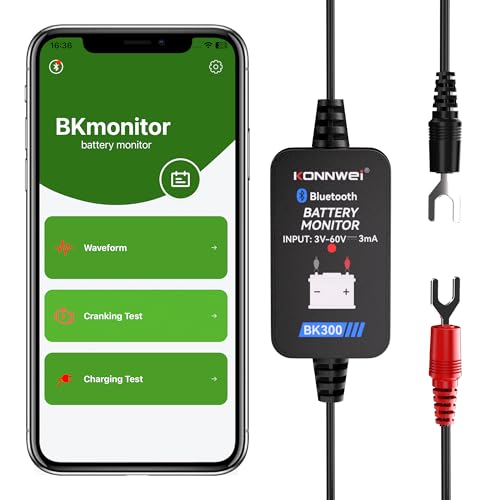
【Car Battery Monitor Assistant】The BK300 battery monitor is equipped with advanced features such as voltage, starting and charging system testing, and real-time trip logging.Works with Lead-acid, AGM Flat/Spiral, EFB,VRLA,GEL and Lithium batteries—never face winter breakdowns again.

Enhanced Safety Features: Equipped with a built-in buzzer for intelligent monitoring, it alerts you with a sound and popup reminder when low capacity or voltage is detected, enhancing safety and reliability
Using Battery Usage Statistics
Reviewing battery usage statistics provides insight into your device’s power consumption. Access battery settings by following these steps:
- Open the Settings app.
- Tap on Battery.
- Select Battery usage.
You’ll see a list of apps with their respective battery usage percentages. Focus on apps that consume an unusual amount of battery compared to others. For instance, if a social media app shows 25% usage but you only use it briefly throughout the day, consider adjusting its settings or limiting background activity.
Third-Party Apps to Monitor Battery Health
Using third-party apps can help monitor your battery’s overall health and performance. These tools offer detailed analytics that built-in settings might not provide. Consider these reliable apps:
- AccuBattery: Provides information about battery discharge and capacity, helping to track usage patterns over time.
- GSam Battery Monitor: Offers insights into which apps are consuming the most battery and how much power they use during different activities.
Install one of these apps, and you’ll gain a clearer picture of your battery’s health while identifying potential issues. Make necessary adjustments based on the information these tools provide.
Tips to Optimize Google Pixel Battery Life
You can easily enhance your Google Pixel’s battery life with a few simple adjustments. These tips help manage app usage and settings effectively.
Managing App Permissions
Limit unnecessary app permissions to prevent background activities that drain battery life. For example, review which apps access location services, contacts, and other resources.
- Open Settings.
- Select Privacy.
- Tap on Permission Manager.
- Review and adjust permissions for each app. Limit access for non-essential apps, focusing on those that you don’t use often.
Adjusting Settings for Power Saving
Tweaking your device settings can lead to significant savings. Implement these changes to extend battery life:
- Open Settings.
- Tap on Battery.
- Activate Battery Saver mode. This mode limits background processes and notifications.
- Reduce screen brightness. Set it to a comfortable level while avoiding maximum brightness.
- Shorten screen timeout. Limit to 30 seconds or 1 minute.
Regular Software Updates
Keeping your software updated ensures optimal performance and might include battery-saving enhancements.
- Open Settings.
- Scroll down to System.
- Tap on System updates.
- Check for updates regularly. Install any available updates to benefit from the latest improvements and fixes.
By following these tips, you can significantly reduce battery drain and enhance your overall Pixel user experience.
When to Seek Professional Help
Knowing when to seek professional help for battery issues is crucial to maintaining your Google Pixel’s performance. If you notice persistent and severe battery drain despite taking preventive steps, it’s time to consider professional assistance.
Recommended Products

✅【Compatible Model】This Pixel 7 battery replacement Compatible with for Google Pixel 7 Model GZE8U GVU6C GQML3 [NOTE: You can find your phone model on phone back over for reference.]

✅【Compatible Model】This for Google Pixel 8 Pro Battery Compatible with for Google Pixel 8 Pro Model GUKD8 1/CP6/52/93 GC3VE PN:Google G949-00704-01 [NOTE: You can find your phone model on phone back over for reference.]
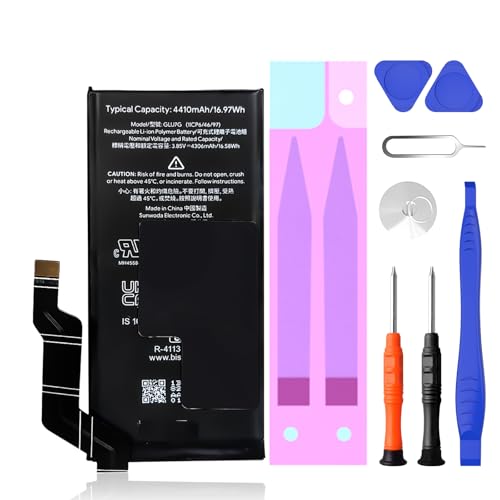
✅【Compatible Model】This Pixel 6a battery replacement Compatible with for Google Pixel 6a Model GX7AS, GB62Z, G1AZG [NOTE: You can find your phone model on phone back over for reference.]
Signs of Hardware Issues
Recognizing signs of hardware issues can help you make informed decisions. Look for these indicators:
- Rapid Battery Drain: If your battery percentage drops significantly within a short time frame, even with energy-saving measures in place, hardware malfunction may be at play.
- Overheating: Excessive heat while charging or during regular use can signal underlying problems with the battery or internal components.
- Physical Damage: Check for any visible cracks or damage on the device. Physical impairments are signs that professional inspection is necessary.
- Unresponsive Screen: If the screen frequently becomes unresponsive or flickers, it may indicate deeper hardware issues that need attention.
- Frequent Shutdowns: Unexpected shutdowns, even when the battery shows sufficient charge, often point to a failing battery or other internal components.
Contacting Google Support
Contacting Google Support can provide you with expert guidance tailored to your issue. Follow these steps:
- Visit the Google Support Website: Go to the official support site for assistance with your device.
- Select Your Device: Choose your Pixel model for specific solutions related to battery problems.
- Utilize Live Chat or Phone Support: Use live chat options for instant assistance or schedule a phone call for a thorough discussion with support personnel.
- Prepare for Diagnostics: Before contacting support, take notes of all issues or patterns related to battery drain. This information helps expedite the process.
- Consider Warranty or Repair Options: If your device is under warranty, inquire about potential repairs or replacements for defective components.
Reaching out to professionals ensures you address any serious issues effectively, keeping your Google Pixel running smoothly.
Conclusion
You’ve got the tools and knowledge to tackle that pesky battery drain on your Google Pixel. By making a few simple adjustments to your settings and being mindful of your app usage, you can enjoy longer battery life and a smoother experience.
Don’t forget to keep an eye on your battery usage statistics and regularly update your software. If you ever notice persistent issues despite your best efforts, reaching out to Google Support can help you get to the root of the problem.
With these tips in hand, you’re well on your way to maximizing your Pixel’s performance and keeping your phone charged throughout the day. Happy optimizing!
Frequently Asked Questions
What causes battery drain in Google Pixel phones?
Battery drain in Google Pixel phones can mainly be attributed to background apps, location services, and screen brightness settings. Apps that frequently refresh data, especially social media, consume a lot of power. Additionally, high screen brightness and prolonged timeout settings can contribute to faster battery depletion.
How can I identify which apps drain my battery?
You can identify battery-draining apps by reviewing the battery usage statistics in the Settings app on your Google Pixel. This feature shows you which apps consume the most power. For deeper insights, consider using third-party apps like AccuBattery and GSam Battery Monitor.
What are some tips to extend my Google Pixel’s battery life?
To extend your Google Pixel’s battery life, avoid using unneeded background apps, adjust location settings to “Battery saving” mode, reduce screen brightness, and set a shorter screen timeout. Regularly update your software and manage app permissions to limit unnecessary activities.
When should I seek professional help for my battery issues?
You should seek professional help if you notice rapid battery drain, overheating, physical damage, an unresponsive screen, or frequent shutdowns. These signs could indicate hardware problems that need expert diagnosis. Contact Google Support for further assistance and guidance.
Does Battery Saver mode really help?
Yes, activating Battery Saver mode can significantly help in extending battery life by limiting background activity and notifications. It adjusts device settings to prolong usage, making it an effective tool for managing battery drain on your Google Pixel.
How often should I check for software updates on my Pixel?
It’s recommended to check for software updates at least once a month. Regular updates often include battery-saving enhancements and performance improvements, helping to keep your Google Pixel running smoothly and efficiently.
