

Ever wondered why your laptop battery life seems to dwindle faster than expected? Picture this: you’re in the middle of an important task when suddenly your laptop dies on you. Frustrating, right? But what if there was a way to optimize your battery’s lifespan and performance? That’s where setting a charging limit for your laptop battery comes into play. By taking control of how much juice your battery receives, you can extend its longevity and ensure it’s always ready when you need it. In this article, we’ll walk you through the simple steps to set a battery charging limit on your laptop, empowering you to get the most out of your device’s battery life.
Why Set a Battery Charging Limit?
Setting a battery charging limit on your laptop is essential for prolonging the life of your device’s battery. By capping the maximum charging level, you prevent overcharging which can lead to reduced battery capacity over time.
Overcharging can stress the battery and cause it to degrade faster, shortening its overall lifespan. By implementing a charging limit, you retain more of the battery’s original capacity, ensuring it lasts longer and performs optimally when you need it most.
Maximizing the longevity of your laptop’s battery through a charging limit not only saves you money on potential replacements but also reduces the environmental impact of disposing of old batteries.
Protect your investment and improve your device’s overall performance by taking control of your battery charging habits.
Benefits of Setting a Charging Limit
When you set a charging limit on your laptop battery, you’re not just extending its lifespan. You’re also reaping a range of benefits that positively impact your device and your wallet. Here’s why it’s worth considering:
Enhanced Battery Life
By imposing a charging limit, you prevent the battery from continuously topping up to 100%. This practice reduces stress on the battery, helping maintain its overall health. As a result, you can preserve more of the battery’s original capacity over time.
Cost Savings
Prolonging your battery’s lifespan means you won’t have to replace it as frequently. By setting a charging limit, you can delay the need for a new battery, saving you money in the long run.
Environmental Impact
Extending your battery’s life through a charging limit also has positive environmental effects. With fewer batteries needing replacement due to overcharging, you contribute to reducing electronic waste.
Improved Performance
A well-maintained battery leads to optimal performance when you need it most. By setting a charging limit, you ensure that your laptop performs efficiently even after prolonged use.
Sustain Your Investment
Taking control of your battery charging habits is vital to protecting your device investment. With a simple adjustment to the charging settings, you can optimize your laptop’s performance and longevity.
| Enhanced Battery Life | Cost Savings | Environmental Impact | Improved Performance | Sustain Your Investment |
|---|---|---|---|---|
| Maintain original capacity | Save money on replacements | Reduce electronic waste | Ensure optimal performance | Protect device investment |
How to Check Current Battery Settings
To check your laptop’s current battery settings, follow these simple steps:
- Step 1: Click on the battery icon in the system tray.
- Step 2: Select “Power Options” from the menu that appears.
- Step 3: Find the option for “Advanced settings” and click on it.
- Step 4: Look for the “Battery” option in the list of settings.
- Step 5: Check the current charging mode and status of your battery.
Having a good understanding of your laptop’s current battery settings is the first step towards optimizing its charging limit.
Recommended Products

Polymer. Voltage: 7.68V Capacity: 45WH ; Color: Black (Please open the back case of your laptop and check out the exact part number of your laptop's original battery Before placing your order)

1. This battery is specially designed for Nintendo Switch 2017 Game Console HAC-001 , it can replace your old battery, Tech skills may apply when replacing the battery.

Recycled Fabric Material: This travel backpack is made of high-quality sustainable nylon fabric, which can reduce energy and pollution. Black polyester lining, soft decompression foam. High quality zippers.
Step-by-Step Guide to Set Battery Charging Limit
When it comes to setting a battery charging limit on your laptop, you want to ensure you’re taking the right steps to optimize battery health and performance. Here’s a simple guide to help you through the process:
- Navigate to Power Options: Click on the battery icon in the system tray.
- Access Advanced Settings: Look for “Power Options” and click on it.
- Adjust Advanced Power Settings: Click on “Change plan settings” next to your selected power plan.
- Modify Battery Settings: Select “Change advanced power settings” to delve into specific settings.
- Locate Battery: In the list, find and expand the “Battery” section to reveal more options.
- Set Charging Limit: Look for the “Battery Charge Threshold” or similar setting and adjust as needed.
- Save Changes: Once you’ve set your desired charging limit, save the changes and exit the settings window.
By following these straightforward steps, you can effectively manage your laptop’s charging limit and contribute to prolonging your battery’s lifespan while keeping it at peak performance.
Recommended Products
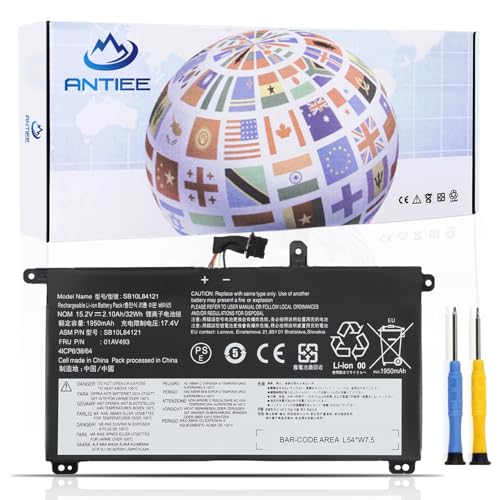
【Specification】Voltage: 15.2V. Capacity: 32Wh 2100mAh. Battery Type: Li-ion. Condition:100% New from Manufacturer. Condition: Brand new, from high quality materials, top circuit boards and smart chip.

Intelligent Shut-Off Protection: Automatically cuts power once your phone hits charge, stops heat buildup and effectively protects battery health for worry-free overnight charging.

10ms UPS, Power Uninterrupted: When the grid drops, the HomePower 1000 v2 takes over in just 10 milliseconds, so your desktop PC, gaming rig, router, and network gear never blink. This is a true uninterruptible power supply, not just a portable battery, with 1,024Wh of LiFePO4 capacity and 1,500W of pure sine wave AC across three outlets to keep essentials running for hours.
Tips for Maintaining Battery Health
- Avoid Overcharging: Remember to unplug your laptop once it reaches full charge to prevent overcharging.
- Optimize Power Settings: Adjust your power settings to balance performance and battery health.
- Keep It Cool: Ensure proper ventilation to prevent overheating, which can impact battery life.
- Regularly Use Your Battery: Allow your battery to discharge partially before charging to keep it active.
- Avoid Extreme Temperatures: Extreme heat or cold can negatively affect battery performance and longevity.
- Update Your Software: Regularly update your laptop’s operating system and firmware for optimal battery management.
| Key Tips for Battery Health |
|---|
| Avoid Overcharging |
| Unplug when fully charged |
| Optimize Power Settings |
| Balance performance and battery life |
| Keep It Cool |
| Ensure proper ventilation to prevent overheating |
| Regularly Use Your Battery |
| Allow partial discharges to keep the battery active |
| Avoid Extreme Temperatures |
| Extreme heat or cold can impact battery performance |
| Update Your Software |
| Keep your OS and firmware up to date for optimal battery management |
Recommended Products

Top-rated 65W Laptop Charger for Microsoft Surface: Full charge your Pro 8 in only 1.5h, perfect compatible with surface model 1706, 1866, 1796, 1724, 1625, 1867, 1735, 1800 and so on, higher charging performance than 44W, 39W, 36W, 24W laptop / tablet charger

【Customer Service】Rest assured with 30 days Refund and 12 months Warranty; Note: Amazon return windows will close after one month, don’t worry about it, you can click on seller store on right corner “ask a question” and contact seller directly.

【Specifications】 ①WP03XL battery for Hp EliteBook Replacement Battery, ②Type: Li-ion; ③Our WP03XL Battery Replacement for HP 51.3wh Standard WP03XL Rechargeable li-ion battery.④Voltage: 11.58V; ⑤Capacity: 51.3Wh 4249mAh; ⑥Color: Black;⑦Condition: New;
Conclusion
You’ve now learned how to set a battery charging limit on your laptop to enhance battery longevity and performance. By following the steps outlined in the article, you can customize your power settings to ensure your battery remains healthy over time. Remember to implement the recommended tips for maintaining battery health, such as avoiding overcharging and optimizing power settings. By taking these simple steps, you can prolong the lifespan of your laptop’s battery and enjoy uninterrupted usage. Stay proactive in managing your battery health to get the most out of your device.
Frequently Asked Questions
How can I set a battery charging limit on my laptop?
To set a battery charging limit on your laptop, navigate to Power Options, access Advanced Settings, adjust Power Settings, modify Battery Settings, locate the Battery section, set the Charging Limit, and save changes.
What are some tips for maintaining battery health?
To maintain battery health, avoid overcharging, optimize power settings, ensure proper ventilation, regularly use the battery, avoid extreme temperatures, and update software for optimal battery management.
