

Key Takeaways
- AirPods Compatibility with Android: While AirPods can connect to Android devices via Bluetooth, many advanced features are not supported, making battery monitoring less intuitive.
- Third-Party Apps for Battery Monitoring: Use apps like AirBattery or Assistant Trigger to easily check the battery levels of your AirPods on Android devices.
- Bluetooth Notification Access: Check for battery status notifications in the Bluetooth settings on your Android device after connecting your AirPods.
- Regularly Connect Your AirPods: Frequently connect your AirPods to your Android device to easily monitor their battery levels and receive automatic updates.
- Steps for Connecting AirPods: Follow a simple step-by-step process to connect your AirPods to an Android device, ensuring a seamless experience.
- Benefits of Monitoring Battery Levels: Keeping track of your AirPods’ battery helps avoid interruptions, optimizes performance, and reinforces informed usage patterns for a better listening experience.
Ever found yourself jamming to your favorite tunes on your AirPods, only to be caught off guard by a low battery warning? If you’re using an Android device, checking your AirPods’ battery life might seem tricky. You’re not alone in this! Many users struggle to figure out how to keep track of their earbuds’ charge.
Overview of AirPods and Android Compatibility
AirPods connect seamlessly with Apple devices, providing a straightforward user experience. However, when using AirPods with Android smartphones, certain features, like battery monitoring, become less intuitive.
Key Compatibility Factors
- Bluetooth Connection: AirPods use Bluetooth technology, allowing connectivity to Android devices. You’ll find that pairing is simple; just enable Bluetooth on both your AirPods and Android phone.
- Limited Features: While basic functions like play and pause work, advanced features, such as automatic ear detection and double-tap customization, won’t function on Android. These limitations can cause frustration.
- Battery Monitoring: Monitoring battery life isn’t directly available on Android. Instead, you must rely on third-party apps or specific methods to check your AirPods’ charge level.
Helpful Methods for Battery Monitoring
- Using Third-Party Apps: Several apps, like AirBattery or PowerBeats, allow you to monitor the battery life of your AirPods. Download one from the Google Play Store and follow the setup instructions.
- Connection Notification: When you connect your AirPods, some Android phones may display a notification with battery status. Check your notification area after connecting your AirPods for this information.
- Visual Indicators: Certain Android devices provide a widget for Bluetooth devices, offering battery information. Add this widget to your home screen for easy access.
Practical Tips
- Regularly Connect: Ensure that your AirPods connect frequently to gauge battery levels easily.
- Update Your Device: Keep your Android software updated to access the latest features and improvements supporting accessory connectivity.
Understanding the compatibility between AirPods and Android devices helps you use your earbuds effectively. Despite some limitations, these practical tips enhance your experience and ensure you stay aware of your AirPods’ battery status.
How to Connect AirPods to Android Devices
Connecting your AirPods to an Android device is straightforward. Just follow these steps for a seamless experience.
Recommended Products
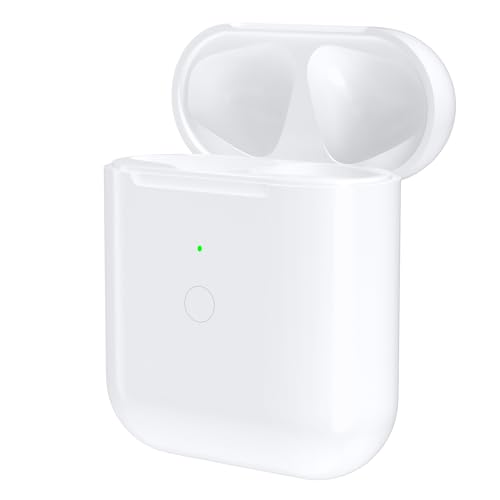
【Replacement for AirPod 1/2 Charging Case】--If you have lost or damaged your original charging case for AirPod 1/2 gen, please consider this wireless charging case as a replacement. It is compatible with Airpod 1 and 2 Gen

【Replacement Charging Case for Airpod】: Our charging case works like the original Air Pod charging case and uses the same charging port—— Lightning. If your original Air pod Charging Case is unfortunately lost/damaged, the charging case is compatible with Air Pod 1 and Air Pod 2. The charging case will be your best choice. It is not included Air Pod
Step-by-Step Connection Process
- Activate Bluetooth: Open the Settings app on your Android device. Tap on “Bluetooth” and toggle it on.
- Prepare AirPods: Put your AirPods in their charging case. Keep the lid open.
- Enter Pairing Mode: Press and hold the setup button on the back of the case until the indicator light flashes white.
- Connect via Android: On your Android device, tap “Available Devices” under Bluetooth settings. Select your AirPods from the list to connect.
- Confirm Connection: You’ll see a confirmation message once the AirPods connect successfully.
Troubleshooting Connection Issues
If you encounter problems connecting your AirPods to your Android device, try these troubleshooting tips:
- Restart Both Devices: Restart your Android device and your AirPods to reset any temporary issues.
- Check Bluetooth Settings: Ensure Bluetooth is enabled on your device and that AirPods are in pairing mode.
- Forget and Reconnect: If your AirPods appear in the Bluetooth list but won’t connect, click on “Forget” and follow the connection steps again.
- Update Software: Make sure your Android device has the latest software updates installed.
- Battery Level Check: Check that your AirPods have sufficient charge. Low battery levels may prevent a successful connection.
These steps will help you connect your AirPods to your Android device smoothly and minimize any potential issues.
How to See AirPods Battery in Android
Monitoring your AirPods battery on an Android device can be straightforward with the right steps. Here’s how you can do it effectively.
Recommended Products
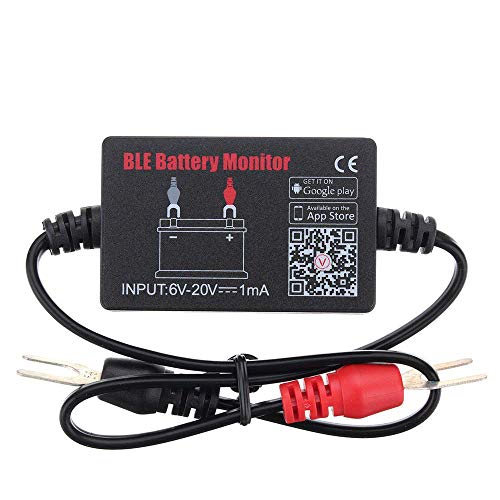
SIMULTANEOUSLY MONITOR UP TO 4 OF 12V BATTERIES: Download APP "BM2", you can monitor 1 of 12v batteries. If you have more batteries, please Download APP "BM3", you can simultaneously monitor up to 4 of these devices(APP BM2/FREE,APP BM3/ NOT FREE)
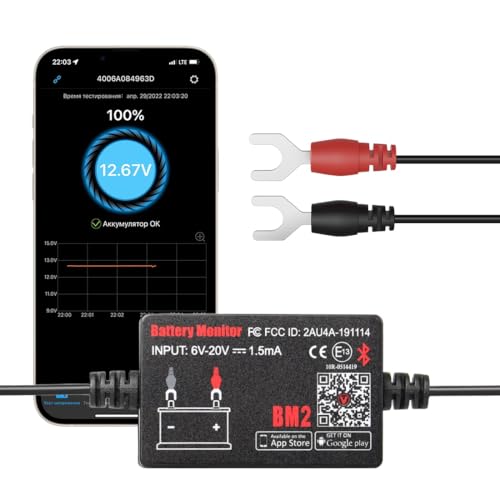
It compatible with all 12-volt vehicle Lead acid batteries;Voltage: 9-16V With Bluetooth 4.0; Supports Solar Power Systems/RVs/Motorcycles/Boats/Cars/Trucks with All 12 Volts.

【True Wireless Portable Monitor with Battery】Experience ultimate flexibility with this wireless portable monitor that supports AirPlay & Miracast. Simply tap your device's screen casting icon to instantly duplicate or extend your display—no cables needed. This portable monitor for laptop and mobile devices is compatible with iPhone, iPad, Android, MacBook, Windows laptop, and PC. Perfect as a portable laptop monitor for remote work or travel. Note: Extend mode requires manual setting on laptops; phones/tablets only mirror.
Using the Bluetooth Menu
- Connect Your AirPods: Start with your AirPods connected to your Android device. Go to your device’s settings and enable Bluetooth if it’s not already on.
- Open Bluetooth Settings: Access your Bluetooth settings by either swiping down the notification shade and tapping on the Bluetooth icon or finding Bluetooth in your device settings.
- Locate Your AirPods: Find your AirPods in the list of paired devices. Next to their name, you’ll see a battery icon indicating their charge level. Note that this may vary by device.
- Check Battery Percentage: Tap on the settings arrow or gear icon next to your AirPods in the Bluetooth menu to see more detailed battery information. This can provide a clearer indication of battery levels.
Using Third-Party Apps
- Download a Battery Monitoring App: Consider downloading apps such as “AirBattery” or “Assistant Trigger” from the Google Play Store. These apps specifically help monitor AirPods battery levels.
- Grant Necessary Permissions: After installing the app, open it and grant any required permissions to allow it access to Bluetooth data.
- Connect Your AirPods: Ensure your AirPods are connected. The app will automatically detect your AirPods and display the battery status on your screen.
- Check Battery Levels Regularly: Make it a habit to open the app when you start using your AirPods. Some apps even show battery levels for both the left and right earbuds individually, giving you a detailed view.
These methods help you stay updated on your AirPods’ battery status while using an Android device, ensuring uninterrupted listening enjoyment.
Benefits of Monitoring AirPods Battery
Monitoring your AirPods’ battery life offers several advantages. Understanding your earbuds’ battery level helps maintain a seamless listening experience.
Uninterrupted Listening
You avoid sudden interruptions when your AirPods run out of charge. Checking the battery level in advance ensures you can enjoy music, podcasts, or calls without disruptions.
Optimized Performance
You can maximize the lifespan of your AirPods by keeping an eye on the battery status. Avoiding frequent low battery situations keeps the earbuds performing effectively over time.
Informed Usage
You gain insights into your listening habits. Tracking usage patterns can help you manage how often you charge them, ensuring readiness when you need them.
Enhanced Compatibility
You find that actively monitoring battery life improves compatibility with your Android device. Staying informed allows you to use your AirPods more efficiently, despite their initial limitations with non-Apple products.
Selection of Third-Party Apps
You can utilize various third-party apps for detailed battery readings. Apps like “AirBattery” or “Assistant Trigger” give you real-time updates, allowing for precise battery management.
By regularly checking your AirPods’ battery, you enhance your overall listening experience and make sure your earbuds are always ready when you are.
Conclusion
Staying on top of your AirPods’ battery life while using an Android device doesn’t have to be a hassle. With the right tools and a little know-how you can easily keep track of your earbuds’ charge. Whether you opt for third-party apps or take advantage of the Bluetooth menu you can ensure your listening experience remains uninterrupted.
Remember to connect your AirPods regularly and keep your Android device updated. These simple steps can make a big difference in your overall experience. Enjoy your music without the worry of sudden battery drops and make the most out of your AirPods on Android. Happy listening!
Frequently Asked Questions
How do I check my AirPods battery on an Android device?
To check the AirPods battery on an Android, you can access the Bluetooth menu on your device. Some users may also find it helpful to download third-party apps like “AirBattery” or “Assistant Trigger,” which provide detailed battery information for connected AirPods.
Why can’t I see my AirPods battery life on my Android phone?
Unlike Apple devices, which offer integrated battery monitoring for AirPods, Android devices lack this feature due to compatibility issues. Therefore, you need to use third-party apps or check connection notifications to monitor battery life effectively.
Can I customize AirPods settings on my Android device?
No, advanced features like automatic ear detection and double-tap customization are not available on Android devices. Basic functions like play and pause work, but customization options are exclusive to Apple devices.
What should I do if my AirPods don’t connect to my Android device?
If your AirPods won’t connect, try restarting both your AirPods and your Android phone. Check your Bluetooth settings to ensure Bluetooth is enabled, and make sure both devices have sufficient charge for the connection.
How can I improve the compatibility of my AirPods with Android?
Regularly connecting your AirPods and keeping your Android software updated can enhance compatibility. Utilize Bluetooth connection notifications and consider downloading apps designed to display AirPods battery levels for a better experience.
