

Key Takeaways
- Optimize Battery Usage: Regularly monitor and manage apps to prevent excessive power drain, extending your device’s lifespan and enhancing performance.
- Adjust Display Settings: Lower the screen brightness, set short screen timeout durations, and utilize dark mode to conserve battery life.
- Manage Background Activity: Limit background data for battery-draining apps, disable unused apps, and ensure regular app updates for optimization.
- Utilize Power Saving Features: Activate power-saving mode and adaptive battery settings to intelligently manage energy consumption based on your usage patterns.
- Use Recommended Apps: Incorporate battery-saving apps such as Greenify and Battery Guru to monitor and manage your battery usage effectively.
- Leverage System Tools: Utilize built-in features like Battery Usage Stats and Device Care to monitor consumption and optimize power management on your Samsung S24 Ultra.
Ever find yourself frantically searching for a charger because your Samsung S24 Ultra is running low on battery? You’re not alone. Many users struggle to keep their devices powered throughout the day, especially with all the features and apps we rely on.
Understanding Battery Life on Samsung S24 Ultra
Battery life on the Samsung S24 Ultra is crucial for maintaining a seamless experience. Knowing how to optimize it ensures your device stays powered throughout the day.
Importance of Optimizing Battery Usage
Optimizing battery usage extends the lifespan of your Samsung S24 Ultra. Effective management of apps and settings prevents quick drainage. Regular monitoring helps identify which apps consume excessive power, letting you adjust accordingly. Maintaining battery health can save money on replacements and enhance the overall device performance.
Overview of Battery Specifications
The Samsung S24 Ultra features a robust 5000 mAh battery. This capacity supports extensive use, yet it requires careful management to maximize efficiency. Fast charging at 45W provides quick top-ups when needed, while wireless charging options add convenience. The device also supports reverse wireless charging, enabling you to power other devices using your phone. Understanding these specifications helps in making informed decisions about usage patterns and charging habits.
Tips for Saving Battery on Samsung S24 Ultra
Saving battery life on your Samsung S24 Ultra can enhance your everyday experience. Here are some practical tips to maximize battery efficiency.
Recommended Products

✪[Safe charging and protection design] Passed CE, FC, RoHS certification to ensure your charging safety. Use high-quality battery cells to ensure power, safety and reliability, and long-term use will not reduce the health of the battery life.

Compatibility: Designed specifically for Galaxy S24 Ultra. Please confirm your exact model before purchase. Compatible models include SM-BS928 series.

Compatible Phone Model: This battery kit is specifically designed for Galaxy S24 Ultra (with model SM-S928 series), NOT work for S24 or S24 Plus, please double confirm your phone model before purchasing
Adjusting Display Settings
Adjusting your display settings plays a significant role in conserving battery life.
- Reduce Brightness: Lower the screen brightness to a comfortable level. Automatic brightness adjustment helps as well.
- Screen Timeout: Set the screen timeout to 30 seconds or 1 minute. This turns off the display quickly when not in use.
- Dark Mode: Activate dark mode. It uses less power on AMOLED displays, like the S24 Ultra’s, especially with darker backgrounds.
Managing Background App Activity
Managing background app activity helps prevent unnecessary battery drain.
- Limit Background Data: Go to Settings > Apps. Choose apps that drain battery and restrict background data usage.
- Disable Unused Apps: Uninstall or disable apps you don’t use often. This reduces their background activity and saves resources.
- Check For Updates: Regularly update your apps. Developers often include battery optimizations in newer versions.
Utilizing Power Saving Modes
Utilizing power-saving modes offers immediate benefits for your battery life.
- Enable Power Saving Mode: Access it from your quick settings panel. This mode limits background processes and reduces performance to save battery.
- Adaptive Battery: Turn on adaptive battery in Settings > Battery. This feature learns your habits and limits power for rarely used apps.
- Battery Usage Statistics: Regularly check your battery usage statistics. Identify apps that consume the most power and make adjustments accordingly.
Implementing these tips ensures that your Samsung S24 Ultra maintains optimal performance while conserving battery life throughout the day.
Essential Features for Battery Management
Samsung S24 Ultra provides several essential features for effective battery management. Utilizing these options helps you maximize battery life throughout your day.
Recommended Products

Charging and protecting, 2 in 1 function. Built-in short-circuit and overcharge protection. Plugged-in: Charge the phone and battery case simultaneously while plugged in. The charging will be stopped after fully charged. Use the original charger and cable that come with the phone to charge the battery case as generic or non-original chargers and cables usually cause the battery case to malfunction.

Compatibility: Our battery replacement kit is exclusively compatible with Samsung Galaxy S24 Ultra (Model: SM-S928U SM-S928B SM-S928W SM-S9280). Does not fit other models. Before purchase, please verify that your device's model number matches one of those listed above. You can find your model number by going to: Settings > About Phone > Model name.
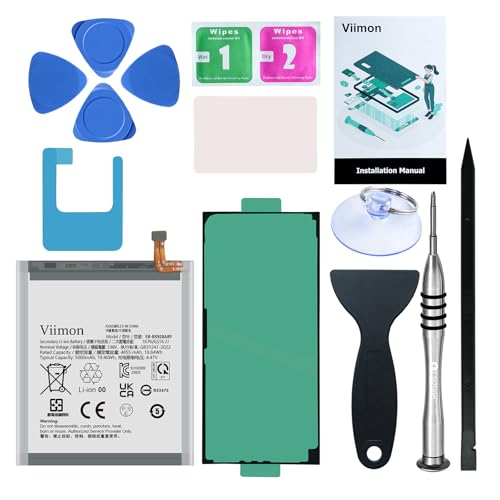
【Compatible Model】It is compatible with Samsung Galaxy S24 Ultra Only, Model: S24 Ultra 5G SM-S928. Not for S24 and S24+ Plus. Please double identify and check your phone model matches before purchasing the battery.
Adaptive Battery
Adaptive Battery intelligently learns your usage patterns and restricts power to apps you don’t use often. To enable Adaptive Battery, follow these steps:
- Open Settings.
- Tap on Battery and Device Care.
- Select Battery and then tap on More battery settings.
- Turn on Adaptive Battery.
By enabling this feature, you’ll notice increased battery longevity, as power consumption decreases for infrequently used applications.
Battery Usage Stats
Battery Usage Stats allows you to monitor which apps consume the most power. Access these statistics to identify and manage battery-draining apps:
- Open Settings.
- Tap on Battery and Device Care.
- Select Battery.
- Tap on Battery Usage.
You’ll see a list of apps ranked by battery consumption. If you notice certain apps draining your battery excessively, consider limiting their background activity or uninstalling them. Monitoring your usage stats regularly can lead to a more efficient battery performance.
Apps and Tools to Assist with Battery Savings
Utilizing specific apps and system tools can significantly enhance battery life on your Samsung S24 Ultra. These resources help monitor usage and manage power consumption effectively.
Recommended Battery-Saving Apps
- Greenify: This app hibernates background apps, preventing unnecessary battery drain. You can pinpoint which apps use the most power and freeze them when not in use.
- Battery Guru: This tool offers insights on your battery’s health and usage patterns. It provides detailed tips on optimizing settings to extend battery life.
- Power Battery: This app tracks battery usage and provides real-time statistics. You receive alerts for apps that deplete battery life, allowing for informed decisions.
- GSam Battery Monitor: By providing comprehensive reports on app usage and battery consumption, it helps identify what’s draining your battery. You can customize alerts based on specific thresholds.
- Servicely: This app allows you to stop apps from running in the background, further preventing battery drain. You can manually configure which apps get limited access.
System Tools for Monitoring Power Consumption
- Battery Usage Stats: Access this feature through Settings > Battery. It shows detailed information on which apps use the most battery, helping you make necessary adjustments.
- Device Care: Located in Settings > Device care, this tool analyzes your phone’s performance and offers optimization options, including battery management tips.
- Power Mode Settings: Navigate to Settings > Battery and Device care > Battery > Power mode. Here, you can select among different power-saving modes, like Medium power saving or Maximum power saving, to fit your usage needs.
- Adaptive Battery: Enable this feature in Settings > Battery > Adaptive battery. It limits battery access for apps you rarely use, preserving power for essential tasks.
- Always On Display (AOD): If you don’t frequently use AOD, consider disabling it or setting it to show notifications only. Access this through Settings > Lock screen > Always on Display.
Using these apps and tools empowers you to take charge of your Samsung S24 Ultra’s battery life. Implementing these strategies leads to more efficient power management and a longer-lasting device experience.
Conclusion
You’ve got the tools and tips to keep your Samsung S24 Ultra running longer on a single charge. By adjusting settings and managing apps you can make a noticeable difference in battery life.
Don’t forget to explore those handy features like Adaptive Battery and Battery Usage Stats. They’ll help you stay on top of your device’s performance.
With a little effort you can enjoy your phone without constantly worrying about finding a charger. Happy saving!
Frequently Asked Questions
What is the battery capacity of the Samsung S24 Ultra?
The Samsung S24 Ultra is equipped with a robust 5000 mAh battery. This large capacity helps ensure users can get through a full day of use without frequent recharging.
How can I extend the battery life of my Samsung S24 Ultra?
To extend battery life, adjust display settings, reduce brightness, set a short screen timeout, and enable dark mode. Additionally, manage background app activity and use power-saving modes.
What features help manage battery usage on the Samsung S24 Ultra?
Key features for battery management include Adaptive Battery, which optimizes power consumption of infrequently used apps, and Battery Usage Stats, allowing users to monitor app power consumption.
Are there apps that help improve battery life on the Samsung S24 Ultra?
Yes, recommended apps like Greenify, Battery Guru, and GSam Battery Monitor can help track usage, hibernate background apps, and provide insights on battery health to enhance battery life.
How does the fast charging feature work on the Samsung S24 Ultra?
The fast charging feature allows users to charge their Samsung S24 Ultra quickly, reducing downtime and ensuring the device is ready to use in a shorter amount of time.
What is the purpose of power-saving modes on the Samsung S24 Ultra?
Power-saving modes limit the device’s performance and background activity, which effectively conserves battery life. This is particularly useful when battery levels are low or when users expect heavy usage.
How can I monitor which apps drain my battery the most?
You can monitor battery usage by accessing Battery Usage Stats in the device settings. This feature provides detailed insights into which apps consume the most power, allowing for better management.
