

Key Takeaways
- Understanding battery factors, such as screen brightness and background apps, is essential for effective energy conservation on the Samsung A32.
- Activating power-saving modes and optimizing app settings can significantly enhance battery life and device efficiency.
- Regular maintenance, including checking battery usage statistics and uninstalling unused apps, helps in identifying and limiting power-hungry applications.
- Utilizing features like adaptive brightness, dark mode, and location services management can lead to substantial battery savings.
- Keeping device software regularly updated ensures that the device benefits from the latest optimizations for better battery performance.
Are you tired of your Samsung A32 dying on you at the worst possible moments? You’re not alone. Many users find themselves scrambling for a charger when they need their phone the most. Whether you’re out running errands or in the middle of a long day at work, a drained battery can be a real hassle.
Understanding Battery Life on Samsung A32
Knowing how battery life works on your Samsung A32 helps you identify ways to conserve energy effectively. Different factors play a significant role in this process.
Factors Affecting Battery Performance
- Screen Brightness: Higher brightness levels consume more battery. Reducing brightness or using adaptive brightness optimizes usage.
- Background Apps: Apps running in the background drain power. Check your app usage regularly and close or limit background activity for non-essential apps.
- Location Services: GPS and location services consume significant battery. Turn off these features when not in use or set them to activate only during essential tasks.
- Connectivity Features: Wi-Fi, Bluetooth, and mobile data use battery. Disable these options when not needed to extend battery life.
- Software Updates: Keeping your device updated can improve battery management and performance. Regularly check for software updates under Settings.
Importance of Battery Optimization
Optimizing battery usage enhances your Samsung A32’s efficiency. Prioritizing energy-saving settings makes a noticeable difference.
- Power Saving Mode: Activating power-saving modes limits background data and reduces performance, which saves battery life. Access this feature in Settings under Battery.
- App Optimization: Utilize the ‘Optimize battery usage’ setting to manage how apps use power. This helps extend battery life by controlling app behavior.
- Notifications Management: Limiting notifications from less-important apps prevents excessive screen activation, which drains battery power. Adjust notification settings in each app.
- Dark Mode: Using dark mode reduces energy consumption on AMOLED displays. This setting helps save battery, especially in low-light conditions.
- Regular Maintenance: Periodically review battery usage statistics in Settings to identify power-hungry apps. Uninstall or replace them as needed.
Taking these factors into account leads to better battery management, ensuring your Samsung A32 lasts longer throughout the day.
Tips to Save Battery on Samsung A32
You can significantly extend your Samsung A32’s battery life with a few simple adjustments. Consider implementing these tips to make the most of your device.
Recommended Products

COMPATIBILITY: This battery only fits for Samsung Galaxy A32 5G / A42 5G Please carefully confirm your phone model before purchase. A32 5G Models: SM-A326B, SM-A326B/DS, SM-A326BR/DS, SM-A326BR, SM-A326U, SM-A326W, SM-A326U1, SM-A326K, SCG08, SM-S326DL A42 5G Models: SM-A426B, SM-A426B/DS, SM-A4260, SM-A426U, SM-A426U1, SM-A426N

Compatible Phone Model: This battery kit is specifically designed for Samsung Galaxy A32 4G (with model SM-A325 series), A31 (with model SM-A315 series) and A22 4G (with model SM-A225 series), NOT work for A32 5G or A22 5G, please double confirm your phone model before purchasing
![Abtter [𝟓𝟏𝟎𝟎𝐦𝐀𝐡] for Samsung Galaxy A32 5G/A42 5G/A72 Battery, High Capacity 0 Cycle Battery for Samsung SM-A326 SM-A426 A725 with Professional Replacement Tool Kits](https://m.media-amazon.com/images/I/41lydhJRuYL._SL500_.jpg)
【Compatible Model】ABTTER replacement battery for GALAXY A32 5G/A42 5G/A72. Note:Battery NOT for Other Phone Model (Please carefully check model number on the back cover to avoid wrong order).
Adjusting Screen Brightness
- Lower Brightness: Reduce screen brightness to a comfortable level. Access this setting in the quick menu by swiping down from the top of your screen.
- Adaptive Brightness: Enable adaptive brightness. This feature automatically adjusts brightness based on your surroundings, saving battery when less light is needed.
- Night Mode: Use night mode settings to decrease brightness during evening hours. This reduces eye strain and saves battery life.
Managing Background Apps
- Close Unused Apps: Regularly close apps running in the background. Swiping them away in the app switcher prevents them from consuming resources.
- Limit Background Activity: Adjust your app settings to limit background activity. Navigate to Settings > Apps. Select the app, tap on Battery, then choose “Optimize Battery Usage.”
- Uninstall Unnecessary Apps: Remove apps you rarely use. Unused apps drain battery power, even in the background.
Enabling Power Saving Mode
- Activate Power Saving Mode: Turn on power saving mode for immediate battery savings. Find this option in Settings > Battery and Device Care. Select Battery, then tap on Power Saving Mode.
- Customize Power Saving Settings: After activation, customize settings to fit your usage. You can limit performance, reduce screen brightness, and restrict background data.
- Schedule Power Saving Mode: Set up a schedule for power saving mode. This feature automatically activates during specific hours, ensuring efficient battery consumption, especially during the night.
Implementing these strategies helps optimize your Samsung A32’s battery life effectively. Keep your device powered longer with these simple adjustments.
Utilizing Device Settings Wisely
Optimizing device settings can significantly enhance your Samsung A32’s battery life. Here are some practical strategies to consider.
Recommended Products

【Compatible Model】:This Battery Model is EB-BA505ABU,Compatible with Samsung Galaxy A505F /A30 SM-A305 /A20 A205FN A202F /A30s SM-A307.Please confirm your phone model and your old battery part number before placing an order.

【Compatible Model】Only Compatible with Samsung Galaxy A32 5G 2021 A42 5G 2020 A72 4G/5G battery, battery model number is EB-BA426ABY battery, please double check your cell phone model match before purchasing the battery.
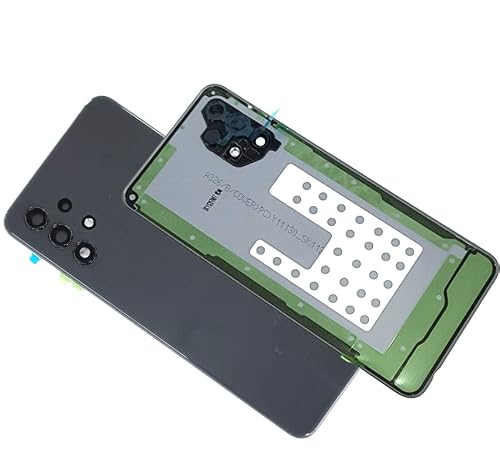
Compatible With:Samsung Galaxy A32 5G A326U A326B
Location Services Management
Manage your location services effectively to conserve battery power. Turn off location services when they’re not in use. Navigate to Settings > Location and toggle it off. For apps that need location access, adjust their settings to allow access only while using the app. You can also switch from High Accuracy mode to Battery Saving mode, which uses Wi-Fi and mobile networks without GPS.
Notification Control
Control notifications to reduce battery drain. Each notification requires resources to push through, so limit unnecessary alerts. Go to Settings > Apps, select the app, then choose Notifications. Disable notifications for apps that aren’t essential. Alternatively, consider using Do Not Disturb mode during specific hours to silence interruptions without impacting your battery life.
Additional Battery-Saving Strategies
Implement a few additional strategies to keep your Samsung A32 running longer between charges. These tactics focus on optimizing settings and ensuring you’re using the available features to their fullest potential.
Using Dark Mode
Using Dark Mode reduces battery consumption significantly. This mode switches your device’s interface to darker colors, allowing OLED screens to use less power. To enable Dark Mode, follow these simple steps:
- Go to Settings.
- Tap on Display.
- Select Dark mode.
You can also schedule Dark Mode to turn on at specific times, such as at sunset. This helps minimize battery usage while providing a visually comfortable experience at night.
Updating Device Software
Keeping your device software up to date plays a vital role in battery efficiency. Manufacturers often release updates to fix bugs and improve performance, including battery usage. To check for updates on your Samsung A32, perform the following:
- Open Settings.
- Scroll down and tap on Software update.
- Select Download and install.
By regularly updating your software, you ensure your phone benefits from the latest optimizations and features designed to enhance battery life.
Conclusion
Taking control of your Samsung A32’s battery life doesn’t have to be a daunting task. By making a few simple adjustments and being mindful of your usage habits you can significantly extend your phone’s battery performance.
Embrace features like power-saving modes and Dark Mode to keep your device running longer. Regularly checking for software updates ensures you’re getting the best performance possible.
With these tips in your toolkit you’re well on your way to enjoying a more reliable battery life. So go ahead and make those changes today and say goodbye to unexpected shutdowns.
Frequently Asked Questions
How can I improve the battery life of my Samsung A32?
To improve battery life, lower your screen brightness, enable adaptive brightness, and use Dark Mode. Managing background apps, activating power-saving mode, and reducing notification alerts are also effective strategies.
What is the importance of battery optimization on my Samsung A32?
Battery optimization reduces unnecessary battery drain by managing app behavior and device settings. It ensures your phone runs efficiently, helping it last longer throughout the day.
How does screen brightness affect battery life?
High screen brightness consumes more battery. Lowering brightness or using adaptive brightness can significantly extend your Samsung A32’s battery life, especially in low-light conditions.
What role do background apps play in battery drain?
Background apps continue to run and consume resources even when you’re not using them. Closing unused apps and limiting background activity can help reduce battery drain.
How can I manage notifications to save battery?
Disabling unnecessary notifications can conserve battery life, as each alert uses resources. Use Do Not Disturb mode during specific hours to minimize interruptions effectively.
Why is keeping my software updated important for battery life?
Software updates often include optimizations and bug fixes that can improve battery performance. Regularly checking for updates ensures your Samsung A32 benefits from the latest advancements.
What is Dark Mode, and how does it help with battery life?
Dark Mode changes your device’s interface to darker colors, reducing battery consumption, especially on OLED screens. Enabling it can help save battery life throughout the day.
How can power-saving mode extend battery life on my Samsung A32?
Activating power-saving mode limits resource-intensive features and optimizes settings to extend battery life. Customizing this mode or scheduling it to activate at certain times can provide even greater savings.
