
Close Menu
Battery Spotlight
    Battery Spotlight
    • Home
    • Phone Batteries
    • Laptop Batteries
    • Car Batteries
      • Golf Cart Batteries
    • Battery Info
      • Battery Chargers
      • Battery Life
      • Battery Maintenance
      • Marine Batteries
      • Rechargeable Batteries
      • Solar Batteries
    • About Us
      • Contact
    Battery Spotlight
    Navigation: Home » Laptop Batteries » How to Reset Dell Laptop Battery and Optimize Performance: A Complete Guide
    Laptop Batteries

    How to Reset Dell Laptop Battery and Optimize Performance: A Complete Guide

    Jackson DoyleBy Jackson DoyleSeptember 19, 20244 Mins Read
    Share Facebook Twitter Pinterest LinkedIn Tumblr Email WhatsApp Copy Link
    Share
    Facebook Twitter LinkedIn Pinterest Email Copy Link

    Ever found your Dell laptop battery acting up at the worst possible time? Picture this: You’re in the middle of an important task, and suddenly, your laptop gives up on you. Frustrating, right? But fret not, you’re not alone in this battle.

    Table of Contents

    Toggle
    • Check the Battery Health
    • Calibrate the Battery
    • Update the BIOS
    • Use Power Settings
    • Conclusion
    • Frequently Asked Questions
    • Why should I update the BIOS on my Dell laptop?
    • How can adjusting power settings help optimize battery usage?

    Check the Battery Health

    When dealing with battery issues on your Dell laptop, checking the battery health is a crucial first step. Here’s what you need to do:

    • Access the BIOS: Restart your laptop and press F2 to enter the BIOS setup. Look for the battery health section to see details on its current condition.
    • Use Dell Power Manager: If available, install Dell Power Manager to monitor your battery’s health over time and ensure optimal performance.
    • Check Battery Report: Generate a battery report by opening Command Prompt and entering “powercfg /batteryreport”. This provides detailed information on your battery usage and health.

    Remember, regularly monitoring your battery health can help prevent unexpected shutdowns and prolong the lifespan of your Dell laptop.

    Recommended Products

    J1KND 11.1V 58Wh Laptop Battery for Dell Vostro 3550 3450 1440 3750 Inspiron N7010 N7110 N5010 N5110 N5030 N5040 N5050 3520 N4010 N4110 N4050 M5010 3420 M5030 M5040 M5110 M4110 JlKND TKV2V 4T7JN WT2P4
    J1KND 11.1V 58Wh Laptop Battery for Dell Vostro 3550 3450 1440 3750 Inspiron N7010 N7110 N5010 N5110 N5030 N5040 N5050 3520 N4010 N4110 N4050 M5010 3420 M5030 M5040 M5110 M4110 JlKND TKV2V 4T7JN WT2P4

    Battery type: Li-ion; Capacity: 5200mAh/58Wh;Voltage: 11.1V;Cells: 6-cell.

    VIEW LATEST PRICE
    SEE ALSO  Safely Dispose of Laptop Batteries: Best Practices and Responsible Methods

    As an affiliate, we earn on qualifying purchases.

    40Wh M5Y1K 14.8V Battery for Dell Inspiron 15 3000 5000 Series 5559 5558 5555 5758 3567 3551 3552 3558 3565 14 3451 3452 3458 5458 17 5755 5756 5758 5759 P51F 453-BBBQ 451-BBMG GXVJ3 HD4J0 991XP VN3N0
    40Wh M5Y1K 14.8V Battery for Dell Inspiron 15 3000 5000 Series 5559 5558 5555 5758 3567 3551 3552 3558 3565 14 3451 3452 3458 5458 17 5755 5756 5758 5759 P51F 453-BBBQ 451-BBMG GXVJ3 HD4J0 991XP VN3N0

    SPECIFICATION : Model Name: 40Wh Standard Rechargeable Li-ion Battery Type M5Y1K: Battery Type: Lithium-Ion; Voltage : 14.8V; Capacity : 2600mAh; Cells: 4-cell; Size(L*W*H) about 10.6x1.5x0.75inch; Condition: 100% new

    VIEW LATEST PRICE

    As an affiliate, we earn on qualifying purchases.

    Calibrate the Battery

    When your Dell laptop battery doesn’t seem to be holding a charge as long as it used to, calibrating the battery could help. This process helps the system accurately gauge the amount of charge left in the battery. Here’s how you can calibrate your Dell laptop battery:

    • Step 1: Fully charge your laptop battery to 100%.
    • Step 2: With the charger still plugged in, allow the battery to drain completely until your laptop shuts down on its own.
    • Step 3: Keep your laptop off for at least 5 hours.
    • Step 4: Turn on your laptop and let it charge back to 100% without interruptions.
    • Step 5: You’ve successfully calibrated your battery.

    Remember, calibrating your battery regularly can help maintain its overall health and performance, ensuring you get the most out of your Dell laptop.

    Update the BIOS

    When it comes to resetting the battery on your Dell laptop, updating the BIOS can sometimes help in resolving power-related issues. The BIOS (Basic Input/Output System) is firmware that initializes the hardware and boot process of your computer. Here’s how updating the BIOS can assist with battery resets:

    • Improved Power Management: Updated BIOS versions often include enhancements to power management features, which can optimize how your laptop interacts with the battery.
    • Bug Fixes: Sometimes, outdated BIOS versions may contain bugs that affect battery performance. Updating the BIOS can address these issues and improve battery function.
    • Compatibility: Newer BIOS updates may also improve compatibility with the battery and other hardware components, ensuring smooth operation.
    SEE ALSO  How to Choose the Right Battery for Your Dell Laptop: A Practical Guide

    To update the BIOS on your Dell laptop, follow these steps:

    1. Go to the Dell Support website and enter your laptop’s service tag or model to find the latest BIOS updates.
    2. Download the BIOS update file compatible with your laptop.
    3. Ensure your laptop is plugged into a power source to prevent any interruptions during the update process.
    4. Run the BIOS update file and follow the on-screen instructions to complete the update.
    5. After the update is successful, restart your laptop to apply the changes.

    Keeping your laptop’s BIOS up to date can not only assist in resetting the battery but also enhance overall system performance and stability.

    Use Power Settings

    Adjusting your power settings can help optimize your Dell laptop’s battery usage. Here’s how:

    • Power Plan: Select a power plan that suits your usage needs.
    • Brightness: Lower your screen brightness to conserve battery life.
    • Sleep Settings: Set shorter sleep times to minimize power consumption.
    • Power Saver Mode: Activate Power Saver mode for extended battery life.

    Keeping these settings in check can significantly improve your battery performance.

    Recommended Products

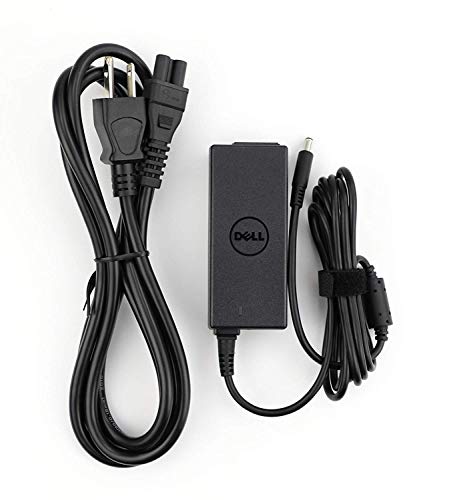
    Dell 90W AC Power Adapter, 4.5mm Connector, with 1m Cable, for Laptops
    Dell 90W AC Power Adapter, 4.5mm Connector, with 1m Cable, for Laptops

    POWER OUTPUT: 90W AC adapter provides sufficient power to simultaneously operate your Dell laptop and charge its battery.
    VIEW LATEST PRICE

    As an affiliate, we earn on qualifying purchases.

    Dell 45W Replacement AC Adapter for Dell
    Dell 45W Replacement AC Adapter for Dell

    Original Dell P/N:0KXTTW ,LA45NM140

    VIEW LATEST PRICE

    As an affiliate, we earn on qualifying purchases.

    Dell Inspiron Laptop Charger Genuine 65W watt 4.5mm tip AC Power Adapter for Inspiron 13 14 15 3000 5000 7000 Series 5558 5755 3147 7348-2in1 5555 5559 0G6j41 0MGJN with Power Cord
    Dell Inspiron Laptop Charger Genuine 65W watt 4.5mm tip AC Power Adapter for Inspiron 13 14 15 3000 5000 7000 Series 5558 5755 3147 7348-2in1 5555 5559 0G6j41 0MGJN with Power Cord

    Genuine Dell Charger: Compatible with Inspiron 13, 14, 15, 3000, 5000, 7000 series laptops

    SEE ALSO  Exploring LG G6 Battery: Performance, Longevity, and Non-Removable Design
    VIEW LATEST PRICE

    As an affiliate, we earn on qualifying purchases.

    Conclusion

    By updating the BIOS and adjusting power settings on your Dell laptop, you can effectively reset the battery and optimize its performance. These simple steps can help resolve power-related issues, improve battery life, and enhance overall hardware compatibility. Remember to regularly check for BIOS updates and customize power settings to suit your usage patterns. Taking these measures will ensure that your Dell laptop’s battery operates efficiently and lasts longer. Enjoy a longer-lasting battery life with these easy-to-follow tips!

    Frequently Asked Questions

    Why should I update the BIOS on my Dell laptop?

    Updating the BIOS can improve power management features, fix bugs affecting battery performance, and enhance hardware compatibility for your Dell laptop.

    How can adjusting power settings help optimize battery usage?

    Adjusting power settings involves selecting an appropriate power plan, lowering screen brightness, setting shorter sleep times, and activating Power Saver mode to optimize battery usage and improve overall battery performance.

    Share. Facebook Twitter Pinterest LinkedIn Tumblr Email WhatsApp Copy Link
    Jackson-Doyle
    Jackson Doyle

      Battery industry professional with 5+ years of experience. Bachelor of Science in Electrical Engineering from Georgia Tech. Specializes in power systems and renewable energy.

      Related Posts

      Laptop Batteries

      Maximize Your Laptop Battery Life: Effective Tips You Need to Know

      January 6, 2025
      Laptop Batteries

      Unlocking the Power: Does MSI Battery Calibration Really Work?

      January 2, 2025
      Laptop Batteries

      Does the Samsung S7 Have a Removable Battery? Understanding the Implications

      December 31, 2024
      Laptop Batteries

      Ultimate Guide: Where to Buy Authentic Laptop Batteries Directly from Manufacturers

      December 28, 2024
      Laptop Batteries

      5 Signs Your Laptop Battery Is Dead: Tips to Extend Battery Life

      December 27, 2024
      Laptop Batteries

      Should You Replace Your Laptop Battery? Signs, Tips & Lifespan Facts

      December 26, 2024
      Add A Comment
      Leave A Reply Cancel Reply

      Search
      Affiliate Disclaimer

      As an Amazon Associate I earn from qualifying purchases.

      Latest Articles

      23 Practical Low Ceiling Lighting Ideas for Open-Concept Rooms With Defined Zones

      Low Ceiling Lighting

      19 Mid-Century Modern Low Ceiling Lighting Ideas With Low-Profile Fixtures

      Low Ceiling Lighting

      23 Cozy Low Ceiling Lighting Ideas Using Warm Layered Illumination

      Low Ceiling Lighting

      18 Renter-Friendly Low Ceiling Lighting Ideas Without Hardwired Changes

      Low Ceiling Lighting

      22 Compact Small Room Lighting Ideas for Low Ceilings Using Wall Sconces

      Low Ceiling Lighting

      20 Contemporary Track Lighting Ideas for Low Ceilings With Adjustable Heads

      Low Ceiling Lighting
      Battery Spotlight

      Battery Spotlight is a website dedicated to helping you solve common battery problems.

      Read more about us here

      Affiliate Disclaimer
      As an Amazon Associate I earn from qualifying purchases.

      Site Navigation
      • Above Mirror Bathroom Lighting
      • Accent Lighting
      • Android Batteries
      • Bathroom Pendant Lighting
      • Battery Chargers
      • Battery Life
      • Battery Maintenance
      • Car Batteries
      • Ceiling Lighting Ideas
      • Entryway Lighting
      • Foyer Lighting Fixtures
      • Golf Cart Batteries
      • Japandi Lighting
      • Laptop Batteries
      • Laundry Room Lighting
      • Low Ceiling Lighting
      • Marine Batteries
      • Mood Lighting Living Room
      • Phone Batteries
      • Rechargeable Batteries
      • Reviews
      • Solar Batteries
      • Uncategorized
      • Vaulted Ceiling Lighting
      Latest Articles

      23 Practical Low Ceiling Lighting Ideas for Open-Concept Rooms With Defined Zones

      19 Mid-Century Modern Low Ceiling Lighting Ideas With Low-Profile Fixtures

      23 Cozy Low Ceiling Lighting Ideas Using Warm Layered Illumination

      18 Renter-Friendly Low Ceiling Lighting Ideas Without Hardwired Changes

      22 Compact Small Room Lighting Ideas for Low Ceilings Using Wall Sconces

      • Home
      • About
      • Contact
      • Privacy Policy
      • Editorial Policy
      • Disclaimer
      • Terms and Conditions
      • Affiliate Disclosure
      © 2026 Battery Spotlight

      Type above and press Enter to search. Press Esc to cancel.