

Ever wondered why your Lenovo laptop seems to lose its charge faster than you can say “battery”? Picture this: you’re in the middle of an important video call, and suddenly, the dreaded low battery warning pops up. Frustrating, right? But fret not, because in this article, you’ll discover the simple steps to replace your Lenovo laptop battery like a pro.
Say goodbye to constant charging woes and hello to uninterrupted productivity. By learning how to replace your Lenovo laptop battery, you’ll no longer be tethered to the nearest power outlet. With just a few easy-to-follow instructions, you’ll be able to swap out your old battery for a new one in no time. Get ready to enjoy extended battery life and the freedom to work or play without interruptions.
Check Compatibility of the New Battery
When replacing your Lenovo laptop battery, it’s crucial to check that the new battery is compatible with your model.
- You can usually find the compatible battery part number in your laptop’s manual or on the manufacturer’s website.
- Ensure the voltage and physical size of the new battery match those of the old one.
- Mismatched batteries can cause damage to your laptop and lead to performance issues.
By verifying compatibility beforehand, you can avoid potential problems and enjoy a smoother battery replacement process.
Recommended Products

【Power Product Type】 : Max 65W 45W (compatible) AC Input: 100 - 240V 50 - 60Hz, Output: DC 5V/3A, 9V/3A, 12V/3A, 15V/3A, 20V/2.25A, 20V/3.25A. Connector size: USB Type-C
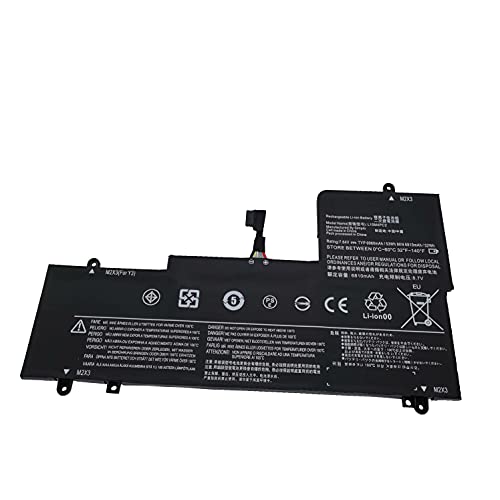
Battery type: Li-ion; Voltage: 7.64V; Capacity: 53Wh/6960mAh

Specification: 61 Battery; type:Li-ion; Voltage:11.4V; Capacity: 24Wh; Cells:3cell; Recharge cycles:500; The battery is durable and has overcurrent protection, anti-overcharge, anti-overdischarge and temperature control functions.
Gather Required Tools
To successfully replace your Lenovo laptop battery, you’ll need to gather a few essential tools. Here’s what you’ll need:
- New Battery compatible with your Lenovo laptop model
- Screwdriver (check the type required for your laptop)
- Soft cloth to clean the laptop
- Static wristband (optional but recommended to prevent static discharge)
- Work area with good lighting
- Safety goggles (protect your eyes during the replacement process)
Remember, having the right tools ensures a smooth battery replacement experience.
Recommended Products

【Specifications】Model: L16C2PB2. Type: Li-ion. Voltage: 7.6V. Capacity: 30Wh 4030mAh. Up to 1000 recharge cycles over the life of the battery

💻【Customer First】Rest assured with 30 days Refund and 12 months Warranty; 24 x 7 email support. We specialize in providing quality power products and quality customer service. (Note: Amazon return windows will close after one month, If you have any problem with battery, please Contact us - in “YOUR ORDER” options click the “contact seller”.)

♣Battery type: Li-ion; Capacity: 2600mAh Voltage: 14.8V;Cells: 4-cell. The battery is durable and has overcurrent protection, anti-overcharge, anti-overdischarge and temperature control functions.
Power Off the Laptop and Unplug It
When replacing your Lenovo laptop battery, the first step is to power off your device and unplug it from any power sources to prevent electric shock or damage to the laptop components. Here’s how to do it:
- Shut down your laptop properly by closing all open applications and selecting the shutdown option from the Start menu.
- Once the laptop is fully powered off, disconnect the power adapter from the electrical outlet and your laptop.
- Make sure to remove any additional peripheral devices such as USB drives or external hard drives before proceeding.
By following these steps, you ensure a safe working environment for replacing your Lenovo laptop battery.
Replace the Battery
To replace the battery in your Lenovo laptop, follow these steps:
- Step 1: Gather the Tools
Make sure you have the replacement battery and a screwdriver handy before starting the process. - Step 2: Locate the Battery
Find the battery compartment on the back or bottom of your laptop. It’s usually secured with a few screws. - Step 3: Remove the Old Battery
Carefully unscrew the battery and disconnect it from the laptop. Be gentle to avoid damaging any components. - Step 4: Install the New Battery
Insert the new battery into the compartment, ensuring it’s securely in place. Tighten the screws to hold it down. - Step 5: Power Up
Once the new battery is installed, plug in your laptop and let it charge fully before unplugging and using it on battery power.
Remember to follow these steps carefully to ensure a successful battery replacement without any issues.
Power On the Laptop and Check Battery Status
After securely installing the new battery in your Lenovo laptop, it’s time to power it on and check the battery status.
- Power Button: Locate the power button on your laptop.
- Press the Button: Press the power button to turn on your laptop.
- Check Battery Icon: Look for the battery icon on the screen.
- Charging Indicator: Ensure the charging indicator shows that the battery is charging.
- Battery Percentage: Check the battery percentage to ensure the battery is recognized and functioning properly.
By following these steps, you can confirm that the new battery is working correctly in your Lenovo laptop.
Conclusion
That’s it! By following the step-by-step guide provided, you can easily replace the battery in your Lenovo laptop. Remember to power on the laptop, check the battery status, ensure it’s charging, and verify the battery percentage for proper functionality. Taking these simple steps will help you make sure that your new battery is working smoothly in your Lenovo device. Happy computing!
Frequently Asked Questions
How do I replace the battery in my Lenovo laptop?
To replace the battery in your Lenovo laptop, follow these steps:
- Power off the laptop and disconnect all cables.
- Turn the laptop over and locate the battery release latch.
- Slide the latch to unlock the battery.
- Remove the old battery and insert the new one.
- Secure the battery by sliding the latch back into place.
What should I do after installing the new battery?
After installing the new battery, power on the laptop and check the battery status on the screen. Ensure the charging indicator shows that the battery is charging. Verify the battery percentage to confirm proper functionality.
How can I ensure the new battery is working correctly?
To ensure the new battery is working correctly, monitor the battery percentage regularly, charge the laptop fully, and check for any abnormal battery behavior or performance issues. Contact Lenovo support if you encounter any problems.
Is it important to follow the battery replacement process carefully?
Yes, it is crucial to follow the battery replacement process carefully to avoid damaging the laptop or the new battery. Following the correct steps ensures proper installation and functionality of the new battery in your Lenovo laptop.
