

Ever found yourself in the middle of an important task on your Dell laptop, only for the battery to give up on you? Frustrating, right? But fret not, because in this article, we’ve got your back!
Imagine having the freedom to work, stream, or browse without constantly worrying about your laptop dying on you. Sounds like a dream? Well, it’s about to become your reality.
Checking the compatibility of the new battery
When replacing the battery on your Dell laptop, it’s crucial to ensure compatibility with your specific model. Here’s how to verify compatibility:
- Check the Model Number: Look for the model number of your current battery. It’s usually located on the battery itself.
- Refer to Your Laptop’s Manual: Consult your Dell laptop’s manual or the manufacturer’s website for compatible battery models.
- Online Research: Search online using your laptop’s model number and “compatible batteries” to find reliable options.
- Reach Out to Dell Support: When in doubt, contact Dell support to get guidance on choosing the right battery for your laptop.
- Voltage and Wattage: Pay attention to the voltage and wattage specifications of the new battery to ensure it aligns with your laptop’s requirements.
- Physical Fit: Confirm that the new battery physically fits in your laptop by comparing its size and shape to the original one.
Ensuring compatibility will help you avoid issues and enjoy optimal performance from your new Dell laptop battery.
Recommended Products

Specifications: 53Wh Battery H5CKD , Battery Model: 53Wh Standard Rechargeable Li-ion battery Type H5CKD, Voltage: 15V Capacity: 53Wh ; Cells: 4-cell; Color: Black ,Packages includes: 1x H5CKD Battery,2 x Free Screwdrivers(Easy to Install),1x Instruction for Dell 53WH Type H5CKD Battery

【Customer Service】Rest assured with 30 days Refund and 12 months Warranty; Note: Amazon return windows will close after one month, don’t worry about it, you can click on seller store on right corner “ask a question” and contact seller directly
Gathering the necessary tools
To replace the battery on your Dell laptop, you’ll need to gather a few essential tools before getting started. Here’s what you’ll need:
- New Laptop Battery: Make sure to purchase a compatible battery for your specific Dell laptop model.
- Small Phillips-head Screwdriver: This will help you remove the screws securing the battery in place.
- Anti-Static Wrist Strap: To prevent any static discharge that could damage your laptop components.
- Clean Cloth: Useful for wiping down any surfaces you work on.
By having these tools ready, you’ll be prepared to smoothly complete the battery replacement process on your Dell laptop.
Recommended Products

【POWER SPECS】Battery type: Li-ion; Capacity: 40Wh; Cells: 4 Cells; Voltage: 14.8V, 100% brand new. We have concentrated on the laptop batteries production for more than...
Powering off the laptop and preparing the workspace
When it comes to replacing a battery on your Dell laptop, the first step is to power off your device. This helps prevent any potential damage during the battery replacement process.
After shutting down your laptop, unplug the power cable and any other peripherals connected to it. Next, you’ll need to find a clean and well-lit workspace that provides enough room to comfortably work on your laptop.
Ensure that you have all the necessary tools within reach, including a new compatible battery, a small Phillips-head screwdriver, an anti-static wrist strap to prevent any static discharge that could harm internal components, and a clean cloth for maintenance purposes.
By setting up your workspace correctly and having all the essential tools ready, you’re well on your way to successfully replace the battery in your Dell laptop.
Removing the old battery
When replacing the battery on your Dell laptop, removing the old one is the initial key step to ensure a smooth transition. Here’s how you do it:
- Step 1: Turn off your Dell laptop and disconnect it from any power source.
- Step 2: Locate the battery compartment. It’s typically on the bottom of the laptop.
- Step 3: You might see a latch or screws holding the battery in place. Use a Phillips-head screwdriver to undo them.
- Step 4: Gently slide the old battery out of its slot, ensuring not to force it or cause any damage.
- Step 5: Once the old battery is out, handle it carefully and set it aside.
Following these steps will make the process of removing the old battery from your Dell laptop straightforward and hassle-free.
| Step | Instructions |
|---|---|
| 1 | Turn off and disconnect the laptop from power. |
| 2 | Locate the battery compartment on the bottom of the laptop. |
| 3 | Use a Phillips-head screwdriver to remove any screws or latch securing the old battery. |
| 4 | Slide out the old battery gently without applying excessive force. |
| 5 | Handle the removed battery with care and keep it in a safe place. |
Recommended Products
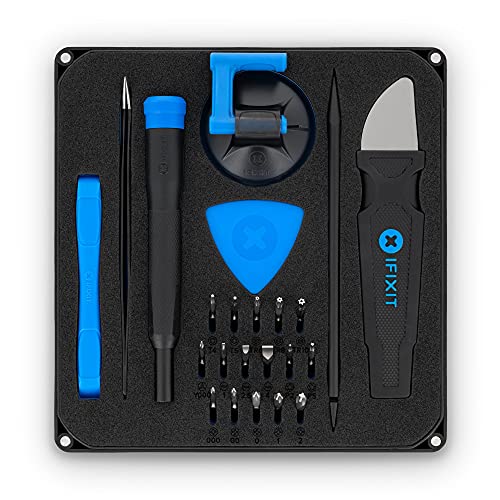
COMPLETE: This set contains a variety of tools - Besides various opening tools, it includes 16 precision bits (4 mm) and a precision screwdriver with a magnetic bit socket, knurled grip, and swivel top for easy operation.

This screw is only fit for some models of Dell XPS bottom base cover,or lower case cover.Please read the title and description senction.This screw is NOT BIG HEAD SCREW.It's not fit for HDD/SDD/HINGE/others part which uses the BIG HEAD M2X3 screw to lock.
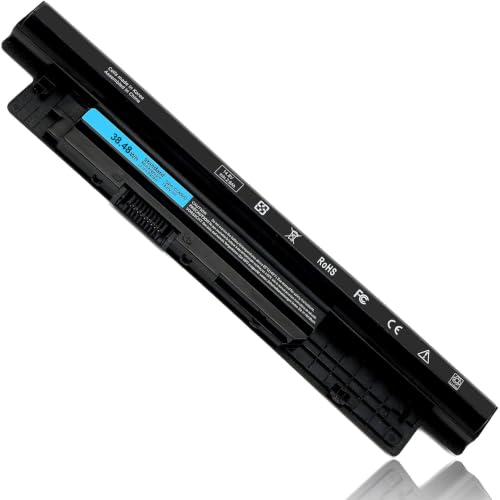
FIT LAPTOP MODELS : For Dell Inspiron 14 3421 3437 14R 5421 5437 N5421 N3421, Inspiron 15 3542 3543 3541 3521 3537 3531 15R 5521 5537, Inspiron 17 3721 3737 5749 17R 5737 5721, N3721 N3737 N5721 N5737, Latitude 3440 3540 E3440 E3540 series, Vostro 2421 2521 series P37G P28F P17E P40F laptop model.
Installing the New Battery
Installing the new battery
Replacing the old battery with a new one is a straightforward process that anyone can do with the right guidance. Here’s how you can install the new battery on your Dell laptop:
Step 1: Acquire the Replacement Battery
- Purchase a compatible battery for your specific Dell laptop model. Make sure it matches the original battery’s specifications to ensure proper functioning.
Step 2: Inserting the New Battery
- Align the new battery with the battery compartment. Gently slide it into place until it’s securely seated.
- Once in position, replace any screws or latches that were holding the old battery in place to secure the new one.
Step 3: Connecting the Battery
- Make sure the battery is firmly connected to the laptop’s battery slot. Ensure that the connectors align correctly.
Step 4: Testing the New Battery
- Turn on your Dell laptop and check if the new battery is recognized. You can do this by checking the battery status in your laptop’s settings or through a system diagnostic.
- Plug in your Dell laptop and allow the new battery to fully charge. This process may take a few hours, depending on the battery capacity.
By following these steps, you’ll successfully install the new battery on your Dell laptop, ensuring optimal performance and extended battery life.
Conclusion
You’ve now learned the essential steps for replacing the battery on your Dell laptop. By following the detailed guide provided, you can ensure a smooth and successful battery replacement process. Remember to choose a compatible replacement battery, insert it correctly, and test its recognition by your laptop. Allowing the new battery to charge fully will optimize its performance and longevity. With these tips in mind, you’ll be equipped to maintain your Dell laptop’s battery health and keep it running smoothly.
Frequently Asked Questions
Why is it crucial to properly remove the old battery when replacing it on a Dell laptop?
It is important to remove the old battery correctly to prevent damage to the laptop and ensure a smooth replacement process.
What steps should be followed when installing a new battery on a Dell laptop?
Acquire a compatible replacement battery, align and securely insert it into the battery compartment, connect it firmly, and test its recognition by the laptop.
Why is it recommended to allow the new battery to fully charge after installation?
Allowing the new battery to fully charge helps optimize its performance and extends its overall battery life.
