

Ever found yourself struggling to remove the battery from your Samsung laptop? It’s like trying to solve a puzzle blindfolded! But fret not, because in this article, you’ll discover the simple steps to free your laptop from its power source hassle-free.
Imagine this: you’re in a rush, and your laptop battery is acting up. Frustrating, right? Well, we’ve all been there. That’s why knowing how to remove your Samsung laptop battery quickly can save you time and unnecessary stress.
Step 1: Gather the necessary tools
When you’re ready to tackle the task of removing your Samsung laptop battery, the first step is to ensure you have the right tools at hand. Having the necessary tools can make the process much smoother and less stressful. Here are the items you’ll need before getting started:
- Screwdriver
- Anti-static wrist strap
- Container for screws
- Replacement battery (if needed)
Having these tools ready will help you approach the battery removal process with confidence and efficiency.
Step 2: Power off the Samsung laptop
When it comes to removing your Samsung laptop’s battery, it’s crucial to start by powering off the device properly. This step helps prevent any potential damage or mishaps during the battery removal process.
Here’s how you can power off your Samsung laptop correctly:
- Save any open files and close all applications.
- Next, shut down your laptop by selecting the shutdown option from the Start menu.
- Make sure all lights on your laptop are off before proceeding to the next step.
Remember, safety first when handling electronic devices like laptops. By powering off your Samsung laptop before removing the battery, you ensure a smoother and safer battery removal process.
Step 3: Locate the battery release switch
When removing the battery from your Samsung laptop, locating the battery release switch is crucial. It’s typically located on the underside of the laptop or near the battery itself. If you’re having trouble finding it, refer to your laptop’s user manual for guidance.
Once you’ve located the battery release switch, it’s time to prepare to remove the battery. Make sure you have a safe and clean workspace to avoid any damage or mishaps during the process. Keep track of any screws you remove and store them in a secure place to prevent losing them.
Before proceeding with removing the battery, ensure that your laptop is completely powered off and unplugged from any power source. This will prevent any potential electric shock or damage to your laptop or yourself during the battery removal process.
When handling the battery release switch, be gentle but firm. Press or slide the switch in the direction indicated to release the battery from its compartment. Take your time and don’t force the switch, as it should move smoothly without excessive effort.
Congratulations! You’ve successfully located the battery release switch on your Samsung laptop. The next step will be removing the battery safely to avoid any accidents or damage. Stay tuned for the next section for detailed instructions on how to remove the battery correctly.
Step 4: Remove the battery
Now that you’ve located the battery release switch and prepared your workspace, it’s time to remove the battery from your Samsung laptop. Here’s how you can safely complete this step:
- Disconnect any cables or accessories attached to your laptop to avoid any interference during the battery removal process.
- Identify the latch or clips securing the battery in place. This could be located near the battery release switch or on the sides of the battery itself.
- Gently press or slide the latch/clip to release the battery. Be cautious not to force it, as you want to avoid damaging any components.
- Once the latch/clip is released, carefully lift the battery from its compartment. Hold it from the sides to avoid touching any sensitive circuitry.
- Inspect the battery for any signs of damage such as swelling or leaks. If you notice any issues, handle the battery with care and dispose of it following the proper guidelines.
| Important Facts |
|---|
| Always handle the battery with care to prevent any damage. |
| Proper disposal of old or damaged batteries is essential for safety and environmental reasons. |
| Take your time during the removal process to avoid accidents or mishandling. |
Recommended Products

HIGH QUALITY: Thin flexible steel blade easily slips between the tightest gaps and corners.

High Quality & Super Suction-- Screen suction cup is made of durable ABS and natural rubber materials, and has a long service life. The suction cup has a lifting capacity of 1-2 kg , which can help you open the phone screen.
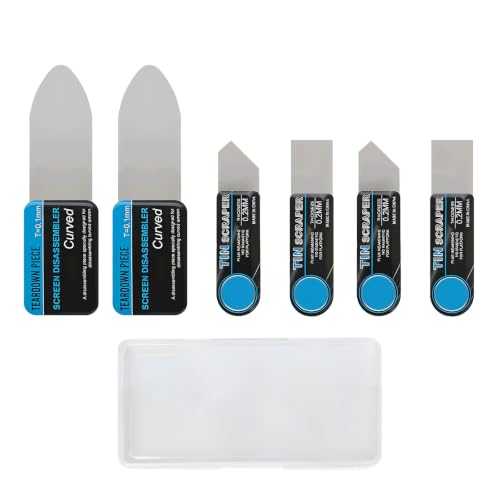
Multi-Function Electronics Repair Kit: Includes 3 independent stainless steel pry tools(2 set): 2 large ultra-thin 0.1 mm card and 4 small 0.2 mm spudgers, perfect for phones, tablets & laptops. Flat pry bar design for leverage and precision
Step 5: Reassemble and power on the laptop
So, you’ve successfully removed the battery from your Samsung laptop. Now, it’s time to reassemble everything and power on your device. Here’s what you need to do:
- Reconnect Cables: Make sure all the cables you disconnected earlier are securely reconnected. Double-check to ensure everything is in its place.
- Secure the Battery: If your battery was secured by latches or clips, gently secure it back in place using the same method you used to remove it.
- Gently Place the Battery: Carefully place the battery back into its slot, ensuring it sits snugly and securely.
- Power On the Laptop: Once everything is reassembled, it’s time to power on your laptop. Press the power button and wait for it to boot up.
- Monitor the Startup: Watch as your laptop starts up. Check for any error messages or unusual behavior that may indicate a problem.
Remember, the reassembly process is just as crucial as the removal process. Take your time, be gentle with the components, and ensure everything is properly reconnected before powering on your laptop.
| Important Note |
|---|
| Always follow safety precautions when handling electronic devices. If you encounter any difficulties during the reassembly process, consult professional assistance. |
Conclusion
You’ve now completed the step-by-step process of removing your Samsung laptop battery. Remember to reassemble your device carefully, ensuring all cables are securely connected and the battery is properly placed back into its slot. Power on your laptop and monitor the startup for any issues. Handling electronic components with care is crucial, so take your time and seek professional help if needed. Safety precautions mentioned in the article should always be followed when working with electronic devices. Now that you’ve successfully removed your Samsung laptop battery, you’re ready to tackle any future maintenance tasks with confidence. Happy computing!
Frequently Asked Questions
How do I securely reassemble my Samsung laptop after removing the battery?
After removing the battery, ensure all cables are reconnected firmly, secure the battery using latches/clip, gently place it back in the slot, and power on your laptop while monitoring for any issues.
Why is it crucial to follow the reassembly steps carefully?
Reassembly is vital to ensure safe operation of your laptop. Handle components with care, reconnect them correctly, and seek professional help if needed to avoid potential damages or malfunctions.
What precautions should I take while reassembling electronic devices?
Handle electronics delicately, secure all connections firmly, and remain cautious throughout the reassembly process to prevent accidents and maintain device functionality.
