

Ever wondered why your laptop battery seems to drain faster than usual? You’re not alone. Picture this: you’re in the middle of an important project, and your laptop battery suddenly gives up on you. Frustrating, right? But what if I told you there’s a simple way to avoid this inconvenience? By knowing your laptop battery model, you can take better care of it and ensure it lasts longer. In this article, I’ll show you how to easily find out your laptop battery model, empowering you to make informed decisions and keep your device running smoothly.
Why Knowing Your Laptop Battery Model is Important
Understanding the significance of knowing your laptop battery model is crucial for maximizing your device’s longevity and performance. Here’s why:
- Compatibility: Ensuring you have the right battery model guarantees it fits and functions correctly in your laptop.
- Optimal Performance: Matching the correct model can prevent issues and help maintain peak battery performance.
- Safety Precaution: Using an incompatible battery could pose safety risks, so knowing your laptop battery model is essential for your safety and the device’s well-being.
- Ease of Replacement: Having this information makes it easier to find a suitable replacement when needed.
- Warranty Purposes: Knowing the battery model is important if you need to claim warranty coverage or seek technical support.
Being aware of your laptop battery model empowers you to make informed decisions and ensures your device operates smoothly and efficiently.
Checking the Battery Model on Windows
Here’s how you can find your laptop’s battery model on a Windows system:
- Device Manager:
- Go to the Start Menu and search for “Device Manager.”
- Find and expand the “Batteries” category.
- Right-click on “Microsoft ACPI-Compliant Control Method Battery.”
- Select “Properties” and go to the “Details” tab.
- Look for “Battery Model” or “Device Instance Path.”
- PowerCfg Command:
- Open Command Prompt as an administrator.
- Type “powercfg /batteryreport” and hit Enter.
- Access the battery report generated to view detailed information.
By following these steps, you can easily identify your laptop’s battery model on a Windows device.
Checking the Battery Model on Mac
If you’re using a Mac and want to find out your laptop’s battery model, here are simple steps to guide you through the process:
- Click on the “Apple Menu” in the top left corner of your screen.
- Select “About This Mac” to open a window displaying your Mac’s basic information.
- Look for and click on the “System Report” button in the window.
- Once the System Report opens, find and click on “Power” under the Hardware section on the left sidebar.
- Locate your battery information, including the “Device Name” and “Model Information”, which should provide details about your Mac’s battery model.
Knowing your laptop’s battery model can help you make informed decisions about its maintenance and ensure optimal performance.
Understanding the Relevance of Knowing Your Laptop Battery Model
Knowing your laptop battery model is crucial for various reasons:
- Compatibility: Ensures you purchase the correct replacement battery suitable for your laptop.
- Performance: Opting for the right battery model can enhance your laptop’s overall performance.
- Safety: Using a compatible battery reduces the risk of overheating or other safety concerns.
- Warranty: Helps you ensure the warranty validity when replacing the battery.
Having this information readily available empowers you to make educated decisions for the maintenance and longevity of your laptop.
Tips for Extending the Lifespan of Your Laptop Battery
To prolong the lifespan of your laptop battery and get the most out of its performance, here are some practical tips to consider:
- Optimize Power Settings: Adjust your laptop’s power settings to strike a balance between performance and battery life. Dimming the screen and setting shorter periods of inactivity can help conserve power.
- Avoid Extreme Temperatures:**Heat and cold can impact your battery’s performance. Keep your laptop in a well-ventilated area and refrain from exposing it to direct sunlight or extreme cold.
- Unplug When Fully Charged: Once your battery reaches 100% charge, unplug your laptop to prevent overcharging and reduce strain on the battery.
- Regularly Update Software: Keeping your operating system and applications up to date can help optimize battery performance by fixing bugs and improving efficiency.
- Mindful Charging Cycles: Allow your battery to deplete to around 20% before recharging it. Avoid frequent short charging cycles, as they can reduce the overall lifespan of your battery.
- Battery Calibration: Occasionally calibrate your battery by fully charging it, then discharging it completely before recharging. This helps recalibrate the battery’s software for accurate capacity readings.
- Remove External Peripherals: Disconnect unnecessary external devices like USB drives or peripherals when not in use to reduce the strain on your battery.
- Storage: If storing your laptop for an extended period, make sure to remove the battery and store it in a cool, dry place with a partial charge between 20-50%.
| Fact | Data |
|---|---|
| Heat and cold can impact your battery’s performance | Keep your laptop in a well-ventilated area |
| Once your battery reaches 100% charge, unplug your laptop | Prevent overcharging and reduce strain on the battery |
| Frequent short charging cycles can reduce the overall lifespan of your battery | Allow your battery to deplete to around 20% before recharging it |
Remember, adopting these practices can help you maximize the lifespan and performance of your laptop battery, ensuring you get the most out of your device.
Recommended Products

Package Contents and Policies: HT03XL Battery, 2 Screwdrivers, User Manual for L11119-855 battery. For assistance with the HTO3XL Hp Laptop Battery or the hp ht03xl rechargeable li-ion battery, please visit our product detail page. Note: Both HT03XL and HW03XL are compatible with HP Pavilion 15 17 Series. But HT03XL Battery is not compatible with HW03XL
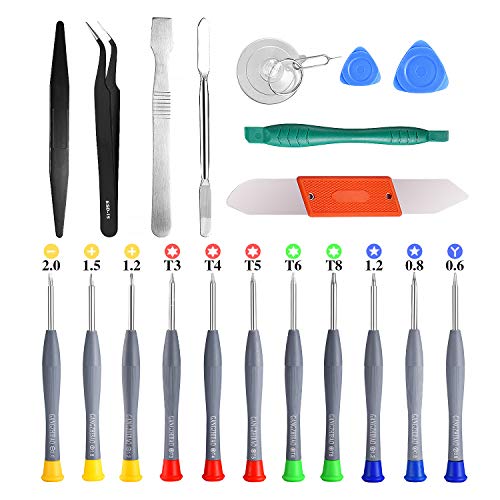
PentalobeScrewdriver Set: p5 Pentalobe screwdriver,PH000 Phillips Screwdriver, Pentalobe T5 Pentalobe T6 Screwdrivers Repair Tool Kit for Apple MacBook Mac Retina Pro Air,T5 for Macbook air & pro repair, it can remove fan screws, including SSD or hard disk replacement. The improved T5 has curved corner tip, which are different from the previous straight corner tip, It will not damage the screws and is more durable

BTY-M6K battery Capacity:52.4Wh/4600mAh Voltage: 11.4V Condition: 100% New from Manufacturer
Conclusion
You now have a better understanding of why knowing your laptop battery model is crucial. By implementing the practical tips shared in this article, you can significantly improve the lifespan and efficiency of your laptop battery. Remember to optimize power settings, avoid extreme temperatures, unplug when fully charged, update software regularly, follow mindful charging cycles, calibrate your battery, remove external peripherals, and practice proper storage techniques. These simple steps can make a big difference in how long your battery lasts and how well your laptop performs. Stay proactive in caring for your battery, and enjoy extended usage from your device.
Frequently Asked Questions
Why is it important to know my laptop battery model?
Knowing your laptop battery model is crucial for purchasing the correct replacement battery. Different laptop models have specific battery requirements, so having this information ensures compatibility and optimal performance.
How can I extend the lifespan of my laptop battery?
You can extend your laptop battery lifespan by optimizing power settings, avoiding extreme temperatures, unplugging when fully charged, updating software regularly, mindful charging cycles, battery calibration, removing external peripherals, and following proper storage practices. These tips promote longevity and efficiency in using your laptop battery.
