

Key Takeaways
- Understand Battery Life Factors: Familiarize yourself with the elements affecting your Lenovo laptop’s battery life, including hardware settings and software applications.
- Regular Maintenance is Key: Keep your laptop battery in good condition through calibration, dust cleaning, and staying updated with software.
- Manage Power Settings: Optimize your laptop’s power settings and adjust screen brightness to conserve energy effectively.
- Control Background Applications: Regularly monitor and manage running apps to prevent unnecessary battery drain.
- Consider Hardware Upgrades: Upgrading RAM or switching to an SSD can improve battery efficiency and performance.
- Utilize Software Solutions: Implement battery management software and ensure regular updates for better battery health and longevity.
Are you tired of your Lenovo laptop dying right when you need it most? You’re not alone. Many people face the frustration of a dwindling battery life, especially during those crucial moments of work or play.
Understanding Laptop Battery Life
Understanding your laptop’s battery life is crucial for maximizing performance and efficiency. Various factors influence this lifespan, from hardware settings to software applications.
Importance of Battery Maintenance
Maintaining your laptop battery plays a vital role in extending its lifespan. Regular care prevents issues such as overheating and software conflicts.
- Regular Updates: Keep your operating system and drivers updated. Outdated software can drain battery life unnecessarily.
- Calibrate Battery: Every few months, calibrate your battery. This helps accurately gauge battery capacity and performance.
- Clean Laptop Vents: Dust can accumulate in vents, leading to overheating. Regular cleaning ensures proper airflow and temperature control.
Common Battery Life Issues
Several common problems may affect your Lenovo laptop’s battery life. Recognizing these can lead to timely solutions.
- Background Apps: Unchecked apps running in the background drain battery. Monitor active applications and close unnecessary ones.
- Screen Brightness: High screen brightness consumes more power. Reduce brightness to the lowest comfortable level during use.
- Power Settings: Improper power settings can lead to inefficient energy use. Adjust your power settings for optimal battery performance.
- Hardware Malfunctions: Faulty batteries or connections can significantly impact performance. Inspect hardware and seek professional help if issues persist.
By addressing these maintenance tips and common issues, you can effectively enhance your Lenovo laptop’s battery life.
Tips to Increase Battery Life of Laptop Lenovo
You can enhance your Lenovo laptop’s battery life with several practical tips. Implementing these strategies helps maximize performance and extends usage time.
Recommended Products

20,000mAh Large Capacity Power: The Lenovo 140W laptop power bank is enough to power up the 14" MacBook Pro 16 to 46% within 30 Minutes.Set off on extended journeys with a huge 20,000mAh capacity that supports your devices through multiple uses.Equipped with a 5 Ft USB-C to USB-C 240W cable, supporting 140W Lenovo Legion and 125W Motorola fast charging.

With 20,000 mAh and 65W at your disposal, you'll never have to worry about running out of battery again. 3 hours is all it takes to charge the power bank to full battery. Once ready, you'll have enough juice to charge your laptop at least once and your mobile devices several times.
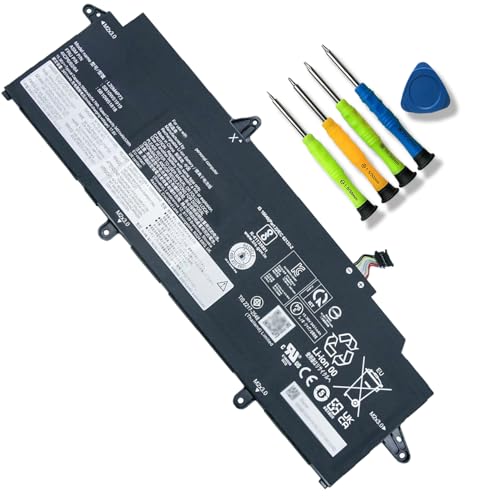
【Customer Support】Rest assured with 30 days Refund and 12 months Replacement,also get our friendly customer service;(Note: The return window will be closed a month after you received the Battery .If you have any problem with this battery, please Contact us - in "YOUR ORDER" options click the "contact seller")
Adjusting Power Settings
Adjusting your power settings can make a significant difference in battery longevity. Follow these steps:
- Access Power Options: Click on the battery icon in the taskbar and select “Power Options”.
- Choose a Power Plan: Opt for the “Power Saver” plan for optimal battery life. You can also customize your settings under “Change plan settings”.
- Set Sleep Timers: Configure your laptop to enter sleep mode after a few minutes of inactivity. This reduces energy consumption.
Managing Background Applications
Managing background applications effectively prevents unnecessary battery drain. To do this:
- Open Task Manager: Press
Ctrl + Shift + Escto open the Task Manager. - Identify High Usage Apps: Look for applications consuming excessive CPU or memory. Right-click and select “End Task” for those not currently needed.
- Limit Start-Up Programs: Under the “Startup” tab, disable applications that automatically launch on boot. This reduces background activity.
Reducing Screen Brightness
Reducing your screen brightness is an easy way to save battery power. Consider the following:
- Adjust Brightness Levels: Go to “Settings” > “System” > “Display”. Use the slider to lower brightness levels.
- Use Adaptive Brightness: Enable adaptive brightness settings if available. This feature adjusts brightness based on ambient light conditions.
- Utilize Keyboard Shortcuts: Most Lenovo laptops have function keys for quick access to brightness control. Use these to adjust your display on the fly.
Implementing these tips can make a noticeable difference in your Lenovo laptop’s battery life, allowing you to work longer without needing a charge.
Hardware Considerations
To boost your Lenovo laptop’s battery life, consider your hardware. Upgrading components and using power-saving features can significantly enhance performance.
Recommended Products

Specification: Battery type:Li-ion Voltage:10.8V Capacity:72Wh Cells:6cell. Rrecharge cycles:500; The battery is durable and has overcurrent protection, anti-overcharge, anti-overdischarge and temperature control functions.

Specifications: 6 Cell, Li-ion battery, Rated at 11.1V(10.8V Compatible) 5200mAh

Specifications: Battery Model: 01AV423 SB10K97580, Voltage: 11.4V Capacity: 24Wh ; Cells: 2-cell; Color: Black ,Condition :New,Packages includes: 1x 01AV423 Battery,2 x Screwdrivers,1x Instruction for Lenovo t480 Battery
Upgrading Hardware Components
Upgrading your hardware can lead to improved battery efficiency.
- RAM Upgrade: Adding more RAM helps your laptop run applications smoothly, reducing the need for excessive processing power, which drains battery life. Aim for at least 8GB of RAM.
- SSD Installation: Switching from a traditional hard drive to a solid-state drive (SSD) speeds up data access and reduces power consumption. SSDs use less energy while providing faster boot times and application loading.
- Battery Replacement: If your battery is old, replacing it with a new one improves performance. Check Lenovo’s guidelines for compatible battery models specific to your laptop.
Utilizing Power-Saving Modes
Utilizing power-saving modes can extend battery life significantly.
- Power Saving Plan: Activate the “Power Saver” plan in your settings. This configuration reduces CPU performance and dims the display, conserving energy during everyday tasks.
- Hibernate Mode: Instead of shutting down, use hibernate mode. It saves your current session and turns off your laptop, consuming no battery.
- Adaptive Brightness: Enable adaptive brightness in display settings. This feature automatically adjusts the screen brightness based on ambient light, saving battery power.
Implementing these hardware considerations leads to lasting improvements in battery performance, allowing you to enjoy longer usage periods without needing to recharge.
Software Solutions
Optimizing software settings plays a crucial role in enhancing your Lenovo laptop’s battery life. Implement the following strategies to get the most out of your device.
Installing Battery Management Software
Installing dedicated battery management software helps monitor and manage power usage. Popular options, like Lenovo Vantage, provide detailed information on battery health and usage trends. These tools can adjust power settings automatically based on usage patterns. Follow these steps to install Lenovo Vantage:
- Open the Microsoft Store on your laptop.
- Search for “Lenovo Vantage” in the store.
- Click “Install” to download and set up the software.
- Launch Lenovo Vantage and navigate to the “Power” section.
- Enable settings like “Battery Charge Limit” to prolong battery lifespan.
Using such software assists in keeping your battery conditions optimal.
Updating Drivers and Operating System
Keeping your laptop’s drivers and operating system updated directly impacts battery performance. Updates often include enhancements that improve efficiency and resolve bugs. Follow these steps to update your system:
- Click the Windows Start button, then select “Settings.”
- Go to “Update & Security.”
- Click “Check for updates.” Install any available updates.
- For driver updates, open “Device Manager” from the Start menu.
- Expand categories, right-click a device, and select “Update driver.”
Regular updates help ensure your laptop runs smoothly, leading to improved battery life. Check for updates monthly to maintain optimal performance.
Conclusion
By taking the time to implement these strategies you can significantly enhance your Lenovo laptop’s battery life. It’s all about making small adjustments that add up to big improvements. Whether it’s optimizing your power settings or upgrading your hardware you’ll notice the difference in your laptop’s performance.
Don’t forget to regularly check for updates and keep an eye on background applications that may be draining your battery. With a little effort you’ll be able to enjoy longer usage periods and keep your laptop running smoothly when you need it most. Happy computing!
Frequently Asked Questions
What causes Lenovo laptop battery life issues?
Battery life issues can arise from background apps consuming power, high screen brightness settings, incorrect power configurations, or possible hardware problems. Monitoring and managing these factors can help improve battery performance.
How can I extend my Lenovo laptop’s battery life?
To extend battery life, adjust power settings to “Power Saver,” reduce screen brightness, limit background applications using Task Manager, and configure sleep timers. Regularly calibrating the battery also helps maintain its health.
Should I upgrade my Lenovo laptop for better battery performance?
Yes, upgrading components like RAM to at least 8GB and switching to an SSD can improve performance and reduce power consumption. Replacing old batteries with new ones can also enhance battery life.
What software can help manage my Lenovo laptop’s battery?
Installing Lenovo Vantage is recommended. This software offers tools to monitor battery health, usage, and settings, such as enabling the “Battery Charge Limit” to improve the battery’s lifespan.
How often should I update my Lenovo laptop’s drivers?
It’s best to check for driver and operating system updates regularly. Keeping them updated ensures optimal performance, often enhancing battery efficiency and fixing bugs that can drain the battery quickly.
