

Key Takeaways
- Understanding the types of Lenovo laptop batteries (Li-ion and Li-Po) helps in selecting suitable charging practices for better battery longevity.
- Key battery specifications like capacity, voltage, and cycle count play a critical role in determining your laptop’s efficiency and usage time.
- Adjusting power settings to a “Power Saver” plan can significantly extend your Lenovo laptop’s battery life.
- Managing background applications through Task Manager is essential for preventing unnecessary battery drain by closing high resource-consuming apps.
- Optimizing display settings, such as lowering screen brightness and enabling adaptive brightness, can lead to reduced power consumption.
- Regular maintenance practices, including software updates and hardware cleaning, are vital for maintaining battery performance and ensuring longer device lifespan.
Are you tired of your Lenovo laptop dying right when you need it the most? You’re not alone. Many users face the frustration of short battery life, especially during long work sessions or while traveling.
The good news is that there are simple ways to boost your laptop’s battery performance. In this article, you’ll discover practical tips and tricks that can help you extend your battery life and keep your laptop running longer. Whether you’re a student, a professional, or just someone who loves their device, these strategies will make a noticeable difference in your daily use.
Understanding Lenovo Laptop Batteries
Understanding the types and specifications of Lenovo laptop batteries helps you maximize their performance and longevity. Here’s a breakdown of essential battery information.
Types of Lenovo Laptop Batteries
Lenovo laptops typically use two types of batteries: lithium-ion (Li-ion) and lithium polymer (Li-Po).
- Lithium-ion (Li-ion): Common in many Lenovo models, Li-ion batteries offer high energy density and are lightweight. These batteries display lower self-discharge rates than other types, ensuring more prolonged use between recharges.
- Lithium polymer (Li-Po): Found in some premium Lenovo devices, Li-Po batteries provide flexibility in design, allowing for thinner laptop profiles. Though slightly heavier than Li-ion, they offer similar performance benefits and can operate in various shapes.
Knowing the battery type helps in selecting suitable charging practices and understanding performance expectations.
Battery Specifications
Battery specifications greatly influence your laptop’s efficiency and usability. Key specifications include:
- Capacity: Measured in watt-hours (Wh) or milliampere-hours (mAh), this metric defines how long your laptop can operate before requiring a charge. A higher capacity means longer usage time.
- Voltage: Measured in volts (V), this determines the power output supplied to the laptop. Typical voltages range from 10.8V to 14.8V in Lenovo laptops.
- Cycle Count: The number of complete charge and discharge cycles your battery can endure before its capacity drops significantly. Most Lenovo batteries offer about 300 to 500 cycles, depending on usage patterns.
Understanding these specifications helps you make informed decisions on care, usage habits, and when to consider a replacement.
Tips for Improving Lenovo Laptop Battery Life
Improving your Lenovo laptop’s battery life involves a few straightforward adjustments. Implement these strategies to maximize usage time and efficiency.
Recommended Products
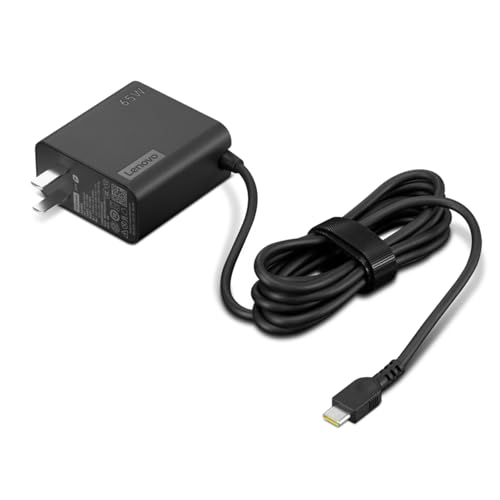
[PORTABLE CHARGING] Slim, light design and extra-long 1.7 m (5.9 ft) cable lets you charge in any spot, making powering up more convenient.

😊【PLEASE NOTE】before placing an order: This product is an OEM charger, not an original charger

- Fast charging: 65W USB-C power delivery for rapid laptop charging - Wide compatibility: Works with Lenovo ThinkPad X1 Carbon Gen 11, E16, and other USB-C laptops - Compact design: Lightweight and portable for travel and office use - Safety certified: Built-in overcurrent, overvoltage, and short-circuit protection - Includes cable: USB-C to USB-C charging cable included
Adjusting Power Settings
Adjusting your laptop’s power settings can significantly enhance battery longevity. Here’s how:
- Access Power Options: Click on the battery icon in the system tray, then select “Power Options.”
- Choose a Battery-Saving Plan: Select “Power Saver” from the available plans. This reduces overall performance but extends battery life.
- Customize Settings: Click on “Change plan settings” next to your chosen plan. Set shorter times for the display and sleep modes. For example, set the display to turn off after 5 minutes of inactivity.
Managing Background Applications
Managing background applications prevents unnecessary battery drain. Follow these steps:
- Open Task Manager: Press
Ctrl + Shift + Escto access Task Manager. - Identify High Usage Apps: Look at the “Processes” tab to see which applications consume the most resources.
- Close Unused Applications: Right-click on non-essential applications and select “End Task.” This reduces CPU load and improves battery efficiency.
Optimizing Display Settings
Optimizing your display settings can lead to reduced power consumption. Here’s what you can do:
- Lower Screen Brightness: Adjust brightness to 50% or lower. You can change this using the function keys (typically Fn + F5 or F6).
- Enable Adaptive Brightness: Go to “Settings” > “System” > “Display.” Enable “Change brightness automatically when lighting changes” to minimize power usage in bright environments.
- Set a Screen Timeout: In the “Display” settings, set the screen to turn off after a short period when inactive, like 2-5 minutes.
Incorporating these tips into your routine can greatly enhance your Lenovo laptop’s battery performance.
Maintenance Practices for Longevity
Maintaining your Lenovo laptop ensures optimal battery life and performance over time. By following specific practices, you can extend the lifespan of both the battery and your device.
Regular Software Updates
Install updates regularly to keep your operating system and drivers running smoothly. These updates often contain important optimizations that enhance battery performance. Set your laptop to install updates automatically for a hassle-free approach. For instance, you can check for updates under Settings > Update & Security > Windows Update. Staying current prevents software bugs that may drain your battery unexpectedly.
Hardware Cleaning and Care
Keep your laptop clean to promote proper ventilation and cooling. Dust can accumulate in the vents and fans, causing the system to overheat and reduce battery efficiency. Use a can of compressed air to blow out dust from the vents. Remember to clean the keyboard and screen as well to maintain overall functionality. For instance, weekly cleaning can prevent build-up and ensure your laptop operates at its best. Store your laptop in a cool, dry place to prevent heat damage. Regular hardware care contributes to longer battery life and enhanced overall performance.
Conclusion
Improving your Lenovo laptop’s battery life doesn’t have to be a daunting task. By implementing the tips and maintenance practices discussed, you can make a noticeable difference in how long your laptop lasts on a single charge.
Remember to keep an eye on your power settings and manage those background apps. A little effort goes a long way in ensuring your laptop stays powered up when you need it most.
With these simple adjustments, you’ll enjoy longer usage times and a more efficient laptop experience. So go ahead and give your battery the care it deserves, and you’ll be ready for whatever your day brings.
Frequently Asked Questions
What are common reasons for short battery life in Lenovo laptops?
Short battery life can result from high screen brightness, many background applications running, outdated software, or a failing battery. Regular maintenance and optimal settings can help alleviate these issues.
How can I improve my Lenovo laptop’s battery performance?
You can enhance battery performance by adjusting power settings to a battery-saving plan, lowering screen brightness, closing unnecessary applications, and enabling sleep modes. Regular maintenance is also key.
What types of batteries do Lenovo laptops typically use?
Lenovo laptops usually use lithium-ion (Li-ion) and lithium polymer (Li-Po) batteries. Li-ion batteries are known for their long lifecycle, while Li-Po batteries are lightweight and flexible.
What battery specifications should I consider for my Lenovo laptop?
Key battery specifications include capacity (measured in watt-hours), voltage, and cycle count. These factors affect your laptop’s overall efficiency, performance, and how long the battery lasts.
How often should I update my software to extend battery life?
Regularly updating your software is crucial, ideally every few weeks. Updates fix bugs that can drain battery life and optimize performance for overall better battery management.
What maintenance practices help extend the battery life of my Lenovo laptop?
To extend battery life, keep your laptop clean for proper cooling, store it in a dry environment, manage power settings, and update your software regularly to prevent issues that drain battery life.
