

Key Takeaways
- Understanding Battery Health is Crucial: Regularly monitoring your Samsung device’s battery health can prevent unexpected shutdowns and prolong battery lifespan.
- Identify Usage Patterns: Tracking which apps use the most battery allows you to adjust your usage habits, potentially revealing underlying issues with the battery.
- Key Factors Influencing Battery Life: Screen brightness, background apps, location services, software updates, and the age of the battery all significantly impact overall battery performance.
- Effective Methods to Check Battery Life: Utilize built-in settings and the Samsung Members app to easily access battery status and usage insights on your device.
- Leverage Third-Party Tools: Consider using battery monitoring apps like AccuBattery and GSam Battery Monitor for detailed analytics and optimization recommendations.
- Adopt Better Charging Habits: Charge your device correctly by avoiding overnight charging, keeping the battery between 20% and 80%, and using the recommended charger to maximize battery health.
Have you ever found yourself scrambling for a charger because your Samsung device suddenly died? You’re not alone. Many people struggle to keep track of their battery life, especially when they’re busy or on the go. Knowing how to check your battery status can save you from those frustrating moments.
Understanding Battery Health
Understanding battery health helps you maintain optimal performance for your Samsung device. Monitoring your battery’s status can prevent unexpected power loss and enhance your device’s longevity.
Importance of Monitoring Battery Life
Monitoring battery life lets you identify issues before they escalate. Regular checks can reveal how much charge your device uses, which helps you modify usage patterns if needed. For instance, if your battery drains quickly even with minimal use, it may signal a problem requiring attention.
Factors Affecting Battery Life
Several factors directly influence battery life on your Samsung device. Consider these key factors:
- Screen Brightness: Higher brightness consumes more battery. Reducing brightness enhances battery longevity.
- Background Apps: Apps running in the background drain battery. Closing unused apps conserves power.
- Location Services: GPS and location tracking significantly impact battery usage. Disable location services when not in use.
- Software Updates: Outdated software may cause inefficiencies. Regular updates can optimize battery performance.
- Battery Age: Over time, battery capacity diminishes. Aged batteries may require replacement for continued efficiency.
By understanding these factors, you can make informed choices to improve your device’s battery health.
Methods to Check Battery Life on Samsung Devices
You can easily check the battery life on your Samsung device using a couple of different methods. This helps you monitor usage and identify any issues affecting battery performance.
Recommended Products

This phone is unlocked and compatible with any carrier of choice on GSM and CDMA networks (e.g. AT&T, T-Mobile, Sprint, Verizon, US Cellular, Cricket, Metro, Tracfone, Mint Mobile, etc.).

This device is locked to T-Mobile only and not compatible with any other carrier.
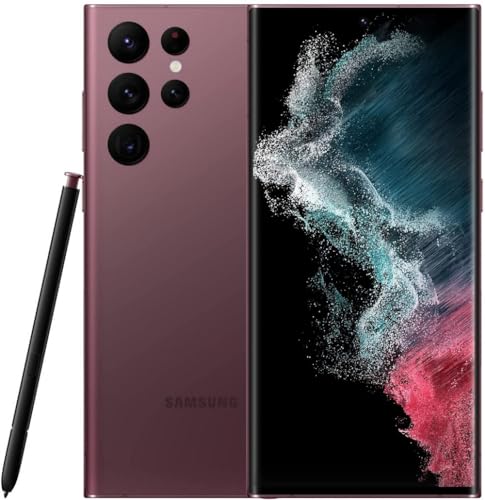
This device is locked to T-Mobile only and not compatible with any other carrier.
Using Built-in Settings
- Open Settings: Tap on the Settings app from your home screen or app drawer.
- Select Battery and Device Care: Scroll down and tap on “Battery and Device Care.”
- Tap Battery: Here, you will find your battery usage and status. It shows the percentage of battery remaining and how long it will last based on your current usage.
- View App Usage: You can also see which apps use the most battery. This information helps you close or manage apps that drain power.
Using Samsung Members App
- Download the Samsung Members App: If you haven’t already, download the Samsung Members app from the Google Play Store.
- Launch the App: Open the app and sign in with your Samsung account.
- Go to Diagnostics: Tap on “Get Help” at the bottom and then select “Diagnostics.”
- Check Battery Status: Choose “Battery Status” to see an overview of your battery’s health and performance. The app will provide recommendations for improving battery life.
By using these methods, you can keep track of your Samsung device’s battery health and optimize its performance effectively.
Additional Tools and Apps
You can take charge of your Samsung device’s battery health by using various tools and apps available. These resources help you monitor and manage battery life efficiently.
Recommended Products

【Insightful Energy Tracking】Track your plug's energy use with clear and easy-to-understand statistics and intuitive charts, helping you optimize power usage.
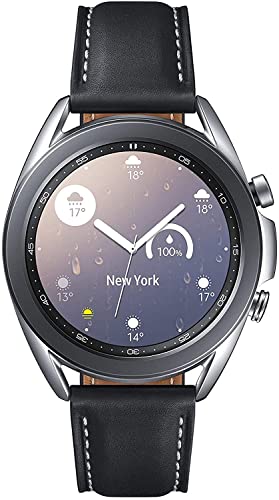
STYLE YOU CAN COUNT ON: Galaxy Watch3 combines style—two sizes, two finishes, three colors and, 50,000 plus¹ watch faces-with military-grade durability² and water resistance³.

Recommended Battery Monitoring Apps
- AccuBattery: This app provides detailed battery stats, including capacity, charging speed, and usage analytics. You can set charging alarms to protect battery health.
- GSam Battery Monitor: GSam offers in-depth insights into app usage, wake lock history, and process stats. It helps pinpoint battery-draining apps effectively.
- Battery Guru: Battery Guru focuses on optimization. It offers recommendations on how to improve battery life based on your usage patterns and device settings.
- Greenify: Greenify hibernates apps that run in the background, conserving battery life. It improves performance without sacrificing functionality.
Features to Look For in Third-Party Apps
- Detailed Battery Stats: Look for apps that provide comprehensive analytics on battery consumption by apps and services.
- Charging Insights: Ideal apps should indicate charging patterns, optimal charging times, and battery health metrics.
- Power Usage Alerts: Features that notify you of unusually high power consumption help manage battery-draining situations.
- Customization Options: Choose apps that allow you to adjust settings based on your preferences, like setting do-not-disturb times or adjusting performance profiles.
- Battery Saver Modes: Consider apps that offer aggressive battery-saving modes, which actively manage apps and processes in real-time.
Utilizing these tools and apps can enhance your awareness of battery performance and longevity, ensuring your Samsung device runs smoothly.
Tips for Maintaining Battery Life
Maintaining battery life enhances the overall performance of your Samsung device. Implementing better practices and optimizing settings can make a significant difference.
Charging Habits to Follow
- Avoid overnight charging. Overnight charging often leads to excessive heat and can degrade battery health over time.
- Use the correct charger. Always use the charger that came with your device or a certified alternative. Using non-certified chargers can harm battery performance.
- Charge between 20% and 80%. Keeping your battery above 20% and below 80% extends its lifespan. Frequent full discharges and charges can wear the battery out quicker.
- Enable adaptive charging. If your device supports it, use adaptive charging to optimize charging speed based on your usage patterns.
Settings to Optimize Battery Usage
- Reduce screen brightness. Lowering brightness significantly saves battery life. Consider using adaptive brightness to let the device adjust automatically.
- Limit background activity. Go to “Battery and Device Care” and restrict apps’ background activity. This minimizes unnecessary power consumption.
- Turn off location services. Disable location services when not in use. Consider adjusting settings for specific apps instead of turning it off entirely.
- Utilize battery saver mode. Activate battery saver mode in settings. This reduces background processes, dims the screen, and limits app activity for extended battery life.
- Update software regularly. Keeping your software up to date ensures you benefit from the latest optimizations that improve battery performance.
Implementing these habits and adjustments can result in a noticeable improvement in your Samsung device’s battery longevity.
Conclusion
Keeping an eye on your Samsung device’s battery life is key to enjoying a hassle-free experience. By regularly checking your battery status and using helpful tools, you can catch potential issues before they become major problems.
Adopting simple habits like adjusting your settings and charging practices can make a big difference in how long your battery lasts. With just a little effort, you can ensure your device stays powered up and ready for whatever you need it to do. So go ahead and take charge of your battery health, and enjoy your Samsung device to the fullest!
Frequently Asked Questions
What causes unexpected battery depletion in Samsung devices?
Unexpected battery depletion can be caused by several factors, including high screen brightness, apps running in the background, location services being enabled, outdated software, and the age of the battery. Monitoring these factors can help identify the root cause of battery issues.
How can I check the battery status on my Samsung device?
You can check the battery status by navigating to the “Battery and Device Care” section in the Settings app. Alternatively, the Samsung Members app offers diagnostic features and optimization recommendations to assess your battery’s health.
What tools can help manage battery health on Samsung phones?
Tools like AccuBattery, GSam Battery Monitor, Battery Guru, and Greenify can help manage battery health. These apps provide insights into battery stats, app usage, and optimization strategies to enhance battery longevity.
What are some tips for maintaining battery life on my Samsung device?
To maintain battery life, avoid overnight charging, charge between 20% and 80%, and enable adaptive charging. Additionally, reduce screen brightness, limit background activity, turn off location services when not in use, and utilize battery saver mode.
How often should I update my Samsung device’s software?
Regularly updating your Samsung device’s software is essential for optimal performance and battery health. Check for updates every few weeks, as software improvements often include battery performance enhancements.
