

Key Takeaways
- Common Battery Types: Samsung remotes typically use AA or AAA batteries, with some models featuring rechargeable options. Always check your remote model for the correct battery type.
- Essential Tools for Replacement: Changing batteries requires minimal tools, including new batteries, a flathead screwdriver (if the compartment is secured), and potentially tweezers for easier handling.
- Simple Steps to Change Batteries: The process involves removing the battery cover, noting the orientation of old batteries, inserting new ones, and securely replacing the cover to restore functionality.
- Troubleshooting Issues: If the remote doesn’t function after a battery change, check battery orientation, use fresh batteries, clean contacts, and ensure proper device pairing.
- Identifying and Managing Corrosion: Look for visual indicators of corrosion around battery terminals, clean any corrosion carefully, and replace corroded batteries to maintain remote performance.
Ever found yourself wrestling with a Samsung remote that just won’t respond? You’re not alone. It’s a common frustration when your favorite shows are waiting, and the batteries decide to give up on you.
Understanding Samsung Remote Controls
Samsung remote controls come in various types, designed to cater to different devices and user needs. Familiarity with your remote’s features helps address issues like non-responsiveness efficiently.
Types of Samsung Remotes
- Basic Remotes
Basic remotes feature simple buttons for power, volume, and channel changes. They’re easy to use and perfect for users who prefer minimalism.
- Smart Remotes
Smart remotes connect to smart TVs and devices. They often include voice control, touchpads, and multimedia shortcuts for a seamless experience.
- Universal Remotes
Universal remotes control multiple devices, such as TVs, sound systems, and streaming devices. These remotes often require programming but deliver convenience through centralized control.
Common Battery Types Used
- AA Batteries
Many Samsung remotes utilize AA batteries. These batteries are widely available and easy to replace.
- AAA Batteries
Some remotes require AAA batteries. Ensure you familiarize yourself with your remote to select the right type.
- Rechargeable Batteries
Certain smart remotes use rechargeable batteries. These batteries offer prolonged usage without frequent replacements. Always check your remote’s specifications for compatibility.
Tools Required for Battery Replacement
Changing the batteries in your Samsung remote requires minimal tools. Here’s what you’ll need to get started.
Recommended Products

【Universal Remote for Samsung TVs】Compatible with Samsung Crystal UHD, Neo QLED, QLED, OLED, Curved, Frame Smart TV Models — A replacement remote for all original Samsung TV remotes (Note: The Disney+ button on this remote may not function with TV models manufactured before 2022.)

【Wide Compatibility】 This premium voice remote is designed for All 2019–2026 Samsung TVs that support voice control. It is a perfect replacement for All 2019–2026 Samsung voice remotes. If your Samsung TV does not support voice control, that feature on this remote may not work.

Compatible with: UN65TU7000FXZA UN75TU7000FXZA UN55TU700DFXZA UN55TU7000FXZA UN70TU7000FXZA UN82TU700DFXZA UN58TU7000FXZA UN75TU700DFXZA UN50TU7000FXZA UN43TU7000FXZA UN82TU7000FXZA UN70TU6985FXZA UN60TU7000FXZA UN70TU7000BXZA UN85TU7000FXZA UN65TU7000BXZA UN50TU7000BXZA UN43TU7000BXZA UN55TU7000BXZA
Essential Tools
- New Batteries: Choose the correct battery type, typically AA or AAA, based on your remote model. Check the back of your remote for specifications.
- Flathead Screwdriver: Useful if your remote has a battery compartment secured with screws. Ensure it fits the screw head to avoid damage.
- Energy-Saving Tools: If your remote supports rechargeable batteries, consider using a battery charger to keep additional batteries ready.
Optional Tools
- Tweezers: Helpful for removing batteries or placing new ones, especially in tighter compartments.
- Soft Cloth: Use to clean the battery contacts inside the remote, enhancing connectivity.
- Multimeter: Optional, but useful for testing battery voltage if you suspect battery issues.
With the right tools on hand, changing the batteries becomes a straightforward task.
Step-by-Step Guide on How to Change Batteries on Samsung Remote
Changing batteries in your Samsung remote is simple and can restore functionality quickly. Follow these steps for a hassle-free process.
Recommended Products

Smartby AA59-00666A Remote Control Replaced for Samsung TVs

Value Pack of 2 Remotes: BN59-01312A remote-control replacement for Samsung Smart LCD LED UHD QLED Smart TV, with Netflix/ Prime Video / Hulu

new replaced remote; No need to set up;
Removing the Battery Cover
- Locate the battery compartment on the back of your remote.
- Slide or press the battery cover to open it. Many remotes have a small latch, while others might just slide off easily.
- If necessary, use a flathead screwdriver to gently pry open the cover if it’s secured.
Replacing the Old Batteries
- Take note of the battery orientation while removing the old batteries. Typically, the positive (+) and negative (-) ends are clearly marked.
- Dispose of the old batteries properly. Many local recycling centers accept batteries.
- Insert the new batteries, ensuring the same orientation as the old ones. For AA or AAA batteries, match the positive and negative symbols inside the compartment.
Securing the Battery Cover
- Align the battery cover with the remote.
- Press firmly to snap the cover back into place, ensuring it is secure.
- Test the remote by pressing a few buttons to confirm it responds.
These steps make battery replacement quick and easy. Regularly checking your remote’s batteries can prevent unexpected downtime when you’re ready to watch your favorite shows.
Troubleshooting Common Issues
Occasionally, issues arise even after changing batteries in your Samsung remote. Here are common problems and solutions to get your remote working again.
Recommended Products

CORROSION GONE! cleans leakage from all types of batteries including alkaline, nicad, nickel metal hydride and low cost zinc carbon cells.

All-In-One - The ultimate battery terminal cleaning kit provides all the tools to clean and protect your battery from battery corrosion.
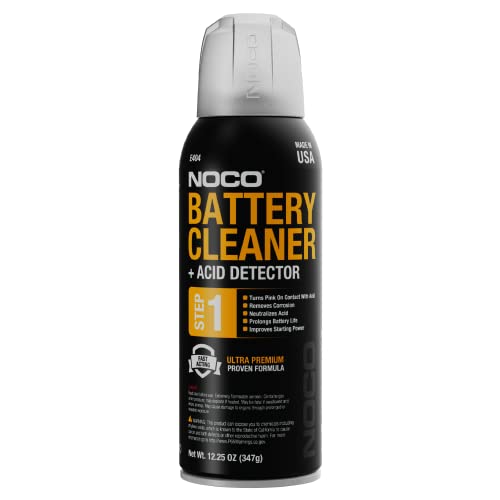
Removes Battery Corrosion - Instantly neutralizes, dissolves, and removes battery corrosion - simply spray-on and rinse-off.
Remote Not Working After Battery Change
If your remote doesn’t respond after you’ve installed new batteries, check the following:
- Battery Orientation: Ensure the batteries are positioned correctly. The + and – ends must align with the markings inside the compartment.
- Battery Quality: Use fresh, quality batteries. Cheap or expired batteries may not provide sufficient power.
- Remote Cleanliness: Clean the battery contacts using a soft cloth. Dirt or corrosion can interfere with connectivity.
- Reset Remote: Perform a soft reset. Remove the batteries, press and hold any button for about 20 seconds, then reinstall the batteries. This action can refresh the remote’s internal circuitry.
- Device Compatibility: Ensure the remote is correctly paired with the intended device. Sometimes, pairing gets disrupted during battery replacement.
Identifying Battery Corrosion
Battery corrosion can prevent your remote from functioning. Look out for these signs:
- Visual Indicators: Check for a white, crusty substance around the battery terminals. This usually indicates corrosion from leaking batteries.
- Cleaning Action: If you find corrosion, carefully clean it off using a cotton swab dipped in vinegar or a baking soda-water solution. This method helps neutralize the corrosion.
- Contact Inspection: Examine the contacts for any signs of damage. Replace the remote if the contacts appear severely corroded or broken.
- Battery Replacement: Dispose of any corroded batteries safely and replace them with new ones. Always use compatible battery types for your specific remote.
By addressing these troubleshooting steps, you can tackle common issues and keep your Samsung remote functioning smoothly.
Conclusion
Changing the batteries in your Samsung remote doesn’t have to be a hassle. With the right tools and a little know-how you can keep your remote working smoothly. Regularly checking your batteries helps avoid those frustrating moments when you’re all set to watch your favorite show.
Remember to dispose of old batteries responsibly and keep an eye out for any signs of corrosion. By staying proactive you can ensure your remote stays in top shape. Enjoy your viewing experience without interruptions and make the most of your Samsung devices. Happy watching!
Frequently Asked Questions
What should I do if my Samsung remote is not responding?
If your Samsung remote is unresponsive, first try changing the batteries. Ensure they are inserted correctly. If it still doesn’t work, check if the remote and the TV are compatible, clean the battery contacts, or perform a soft reset on the remote.
How do I know which batteries my Samsung remote needs?
Samsung remotes typically use either AA or AAA batteries, or may have rechargeable options. Check the remote’s battery compartment or the user manual for the exact battery type suitable for your specific model.
What tools do I need to replace batteries in my Samsung remote?
To replace batteries in your Samsung remote, all you need are the new batteries (AA or AAA), and possibly a flathead screwdriver for remotes with secured battery compartments. Optional tools include tweezers and a soft cloth for cleaning.
Can I clean the battery contacts of my remote?
Yes, cleaning battery contacts is advisable if you notice corrosion or poor battery contact. Use a soft cloth or a cotton swab with rubbing alcohol to gently clean the contacts, ensuring they are free of debris and corrosion.
How can I troubleshoot a Samsung remote that still doesn’t work after changing the batteries?
If your remote is still not functioning post-battery change, check the battery orientation, ensure battery quality, clean the contacts, and verify that the remote is compatible with your device. A soft reset can also help restore functionality.
How do I properly dispose of old batteries?
Old batteries should be disposed of at designated recycling centers or hazardous waste facilities. Never throw them in regular trash, as they can leak harmful substances. Check local regulations for proper disposal methods in your area.
