
Close Menu
Battery Spotlight
    Battery Spotlight
    • Home
    • Phone Batteries
    • Laptop Batteries
    • Car Batteries
      • Golf Cart Batteries
    • Battery Info
      • Battery Chargers
      • Battery Life
      • Battery Maintenance
      • Marine Batteries
      • Rechargeable Batteries
      • Solar Batteries
    • About Us
      • Contact
    Battery Spotlight
    Navigation: Home » Phone Batteries » Android Batteries » How to Calibrate ASUS Laptop Battery to Improve Performance and Longevity
    Android Batteries

    How to Calibrate ASUS Laptop Battery to Improve Performance and Longevity

    Leo HudsonBy Leo HudsonJuly 9, 20258 Mins Read
    Share Facebook Twitter Pinterest LinkedIn Tumblr Email WhatsApp Copy Link
    Share
    Facebook Twitter LinkedIn Pinterest Email Copy Link

    Key Takeaways

    • Understand Battery Calibration: Regular calibration helps maintain accurate battery reporting and enhances performance, reducing unexpected shutdowns.
    • Frequency of Calibration: It’s recommended to calibrate your ASUS laptop battery every 1 to 3 months, especially after extensive use while plugged in.
    • Calibration Steps: Follow a systematic process: charge to 100%, fully discharge, wait several hours, and then recharge without interruption for optimal results.
    • Improve Performance: Calibration provides accurate battery life readings, leading to smoother laptop operation and fewer disruptions during tasks.
    • Extend Battery Lifespan: Regular calibration prevents deep discharges and overcharging, which can significantly prolong battery health and performance.
    • Maintain Battery Health: Implement best practices like avoiding total discharges, using battery saver mode, and keeping your laptop in a cool environment to maximize battery longevity.

    Are you tired of your ASUS laptop battery draining too quickly? You’re not alone. Many users face this frustrating issue, often leading to unexpected shutdowns and constant searching for a power outlet.

    Table of Contents

    Toggle
    • Key Takeaways
    • Understanding Battery Calibration
    • Why Calibrate the Battery?
    • How Often Should You Calibrate?
    • Steps to Calibrate Your ASUS Laptop Battery
    • Importance of Battery Calibration
    • Benefits for Laptop Performance
    • Extending Battery Lifespan
    • Steps to Calibrate Asus Laptop Battery
    • Preparing Your Laptop
    • Fully Charging the Battery
    • Discharge Process
    • Full Recharge
    • Tips for Maintaining Battery Health
    • Conclusion
    • Frequently Asked Questions
    • Why is my ASUS laptop battery draining quickly?
    • How often should I calibrate my ASUS laptop battery?
    • What is the process for calibrating my ASUS laptop battery?
    • Can battery calibration prevent unexpected shutdowns?
    • How do I maintain my ASUS laptop battery's health?
    • Is it bad to let my ASUS laptop battery discharge completely?
    • What should I do before calibrating my laptop battery?
    • Can background applications affect battery life?

    Understanding Battery Calibration

    Battery calibration helps maintain accurate battery reporting and enhances overall performance. Regularly calibrating your ASUS laptop battery ensures the system correctly identifies the battery’s charge level and health.

    Recommended Products
    Fancy Buying New B21N1329 Laptop Battery for Asus X403 X403M X403MA X503M X502CA X453 X453M X453MA X553 X553M X553MA - 7.6V 30Wh
    Fancy Buying New B21N1329 Laptop Battery for Asus X403 X403M X403MA X503M X502CA X453 X453M X453MA X553 X553M X553MA - 7.6V 30Wh

    ♣Battery Type:Li-ion Color:Black Voltage:7.6V Capacity:30Wh

    VIEW LATEST PRICE

    As an affiliate, we earn on qualifying purchases.

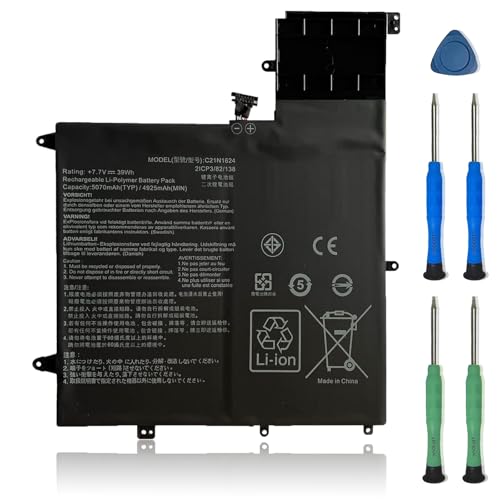
    VANPIR C21N1624 Laptop Battery Replacement for Asus Q325U Q325UA Q325UAR ZenBook Flip S UX370UA 1A 1B C4061T C4072T C4093T Series Notebook 0B200-02420000 7.7V 39Wh 5070mAh
    VANPIR C21N1624 Laptop Battery Replacement for Asus Q325U Q325UA Q325UAR ZenBook Flip S UX370UA 1A 1B C4061T C4072T C4093T Series Notebook 0B200-02420000 7.7V 39Wh 5070mAh

    【Specifications】Model: C21N1624. Type: Li-ion. Voltage: 7.7V. Capacity: 39Wh 5070mAh. Up to 1000 recharge cycles over the life of the battery.

    VIEW LATEST PRICE

    As an affiliate, we earn on qualifying purchases.

    VANPIR C41N1837 Laptop Battery 15.4V 76Wh 4940mAh Replacement for Asus ROG Zephyrus GA502DU GA502GU GU502DU GU502GU GU502GV GU532GU GU532GV GX502GV GX502GW GX532GV GX532GW Series 0B200-03380100
    VANPIR C41N1837 Laptop Battery 15.4V 76Wh 4940mAh Replacement for Asus ROG Zephyrus GA502DU GA502GU GU502DU GU502GU GU502GV GU532GU GU532GV GX502GV GX502GW GX532GV GX532GW Series 0B200-03380100

    【Specifications】Model: C41N1837. Type: Li-ion. Voltage: 15.4V. Capacity: 76Wh 4940mAh. Up to 1000 recharge cycles over the life of the battery

    VIEW LATEST PRICE

    As an affiliate, we earn on qualifying purchases.

    Why Calibrate the Battery?

    Calibrating the battery prevents discrepancies between the actual battery capacity and what the system displays. Accurate information reduces unexpected shutdowns. Regular calibration also helps prolong battery lifespan.

    SEE ALSO  Where is the Battery in a Samsung Tablet: A Complete Guide to Location and Replacement

    How Often Should You Calibrate?

    You should calibrate your ASUS laptop battery every 1 to 3 months, depending on usage. Frequent use of your laptop while plugged into power can lead to inaccurate estimates of battery life.

    Steps to Calibrate Your ASUS Laptop Battery

    1. Charge the Battery: Plug in your laptop and charge the battery to 100%. Let it remain plugged in for about 2 hours.
    2. Disconnect and Use: Unplug the charger and use your laptop until it enters sleep mode due to low battery.
    3. Wait: Leave the laptop in sleep mode for 6 hours. This allows the battery to drain completely.
    4. Recharge: Reconnect the charger and charge the battery without interruption until it reaches 100%.
    5. Check Battery Health: Use the built-in battery diagnostics tool to ensure the battery health is optimal.

    By following these steps, your laptop will provide accurate readings about battery life and usage.

    Importance of Battery Calibration

    Battery calibration plays a crucial role in maintaining your ASUS laptop’s performance and reliability. Regular calibration ensures your system accurately reflects the battery’s capacity, reducing misunderstandings about battery life.

    Benefits for Laptop Performance

    Calibrating your battery significantly enhances laptop performance. You experience more accurate readings of battery life, which leads to fewer unexpected shutdowns. Also, a well-calibrated battery maintains stable power delivery, allowing your laptop to run applications smoothly. For instance, if you’re working on a project and your battery’s inaccurately displayed, the sudden loss of power can cause data loss and disrupt workflow.

    Extending Battery Lifespan

    Calibration can extend your battery’s lifespan. By regularly calibrating, you prevent deep discharges and overcharging, both of which can shorten battery life. A properly calibrated battery charges evenly and retains its capacity longer. If you take the time to calibrate every 1 to 3 months, you ensure your battery remains effective and responsive to your needs.

    Steps to Calibrate Asus Laptop Battery

    Calibrating your Asus laptop battery ensures accurate battery life readings and boosts performance. Follow these steps to complete the calibration process effectively.

    Recommended Products

    C41N1837 Laptop Battery for ASUS ROG Zephyrus G15 GA501I GA502 GA502D GA502DU GA502GU GA502IV GU502 GU502DU GX502GW GX532GV GU532GW GU502LU GU502LW GU502LV GX502LXS GX502GV GX502GW 0B200-03380100
    C41N1837 Laptop Battery for ASUS ROG Zephyrus G15 GA501I GA502 GA502D GA502DU GA502GU GA502IV GU502 GU502DU GX502GW GX532GV GU532GW GU502LU GU502LW GU502LV GX502LXS GX502GV GX502GW 0B200-03380100

    Power Specs: Battery Type: Li-polymer Voltage: 15.4V Capacity:76Wh; The battery is durable and has overcurrent protection, anti-overcharge, anti-overdischarge and temperature control functions.

    VIEW LATEST PRICE

    As an affiliate, we earn on qualifying purchases.

    B31N1912 C31N1912 Battery for Asus VivoBook 14 E410M E410MA L410M L410MA E410KA E510MA E510KA F414MA L510MA R522MA E410MA-EK007TS EK087T E410MA-EK991TS E410MA-EK026TS 0B200-03680000 3ICP5/57/80
    B31N1912 C31N1912 Battery for Asus VivoBook 14 E410M E410MA L410M L410MA E410KA E510MA E510KA F414MA L510MA R522MA E410MA-EK007TS EK087T E410MA-EK991TS E410MA-EK026TS 0B200-03680000 3ICP5/57/80

    Battery Type: Polymer. Voltage: 11.55V Capacity: 42Wh ; Cells: 3-cell; Color: Black, Packages includes: 1x B31N1912 battery , with auxiliary installation tool and user manual.

    VIEW LATEST PRICE

    As an affiliate, we earn on qualifying purchases.

    ASUS Zenbook Duo Dual 14" OLED WQXGA+ 120Hz Notebook Intel Core Ultra 9 185H 32GB RAM 1TB SSD Intel Arc Graphics Inkwell Gray
    ASUS Zenbook Duo Dual 14" OLED WQXGA+ 120Hz Notebook Intel Core Ultra 9 185H 32GB RAM 1TB SSD Intel Arc Graphics Inkwell Gray

    Multi-screen versatility - Find the mode that best suits your task and seamlessly switch between them. Expand your workspace with Dual Screen or Desktop Mode, share content effortlessly in Sharing Mode, or snap everything back into one for Laptop Mode.

    SEE ALSO  How to Check Earbud Battery on Android: Simple Methods for Accurate Battery Monitoring
    VIEW LATEST PRICE

    As an affiliate, we earn on qualifying purchases.

    Preparing Your Laptop

    1. Back up important files. Before starting, secure your data. Unexpected shutdowns can happen during the calibration process.
    2. Close unnecessary applications. Shut down all running apps to avoid interruptions and ensure a steady discharge.
    3. Check for updates. Make sure your operating system and drivers are up to date. This enhances performance.

    Fully Charging the Battery

    1. Plug in your laptop. Connect it to a reliable power source.
    2. Charge to 100%. Let it fully charge. You’ll see a green light or notification when charging is complete.
    3. Keep it plugged in for at least 2 hours after reaching 100%. This ensures the battery is properly conditioned.

    Discharge Process

    1. Unplug your laptop. Disconnect the power cable to start the discharge.
    2. Use your laptop normally. Open files, browse the internet, or watch videos until it enters sleep mode. Avoid forcing it to sleep manually—allow it to drain naturally.
    3. Monitor battery percentage. Track its decline but avoid stopping the process too early.

    Full Recharge

    1. Let it rest. After the laptop goes to sleep, leave it off for several hours to ensure the battery fully discharges.
    2. Plug it back in. Reconnect the power supply to recharge.
    3. Charge until 100% again. Allow it to reach full capacity without interruption. Check the battery status to confirm it’s fully charged.

    By following these steps, you can keep your Asus laptop battery functioning efficiently. Regular calibration prevents problems and enhances overall performance.

    Tips for Maintaining Battery Health

    1. Avoid Total Discharge

    Discharging your battery completely can reduce its lifespan. Try to keep the charge between 20% and 80% for optimal health.

    1. Use Battery Saver Mode

    Enable battery saver mode when you’re not near a power source. This setting conserves energy by limiting background activity and reducing screen brightness.

    1. Avoid Heat Exposure

    Heat harms battery health. Keep your laptop in a cool, well-ventilated space, and avoid using it on soft surfaces like blankets or beds that can trap heat.

    1. Update System Software

    Regular software updates include performance improvements and energy-saving features. Check your ASUS laptop for updates every month.

    1. Schedule Regular Calibration

    Calibrate your battery every 1 to 3 months. This helps maintain accurate charge levels and prolongs battery life.

    1. Disconnect Peripherals

    Unplug peripherals when not in use. Devices like external hard drives and USB devices draw power, draining your battery faster.

    1. Limit Resource-Intensive Applications

    Close heavy applications that consume a lot of CPU and memory. This reduces overall energy consumption and extends your battery’s life.

    1. Keep Your Laptop Clean

    Dust accumulation can affect cooling. Regularly clean the laptop’s vents and keyboard to prevent overheating.

    By incorporating these tips into your routine, you can maintain your ASUS laptop battery’s health and ensure a longer lifespan.

    Recommended Products

    21pcs Precision Screwdriver Set Magnetic,GangZhiBao Repair Tools Kit for Fix Phone/iphone,Computer/PC,Tablet/Pad,Watch,PS4 - Replace Screen Battery Camera Small Electronics Open Pry Tool Kits Sets DIY
    21pcs Precision Screwdriver Set Magnetic,GangZhiBao Repair Tools Kit for Fix Phone/iphone,Computer/PC,Tablet/Pad,Watch,PS4 - Replace Screen Battery Camera Small Electronics Open Pry Tool Kits Sets DIY

    PentalobeScrewdriver Set: p5 Pentalobe screwdriver,PH000 Phillips Screwdriver, Pentalobe T5 Pentalobe T6 Screwdrivers Repair Tool Kit for Apple MacBook Mac Retina Pro Air,T5 for Macbook air & pro repair, it can remove fan screws, including SSD or hard disk replacement. The improved T5 has curved corner tip, which are different from the previous straight corner tip, It will not damage the screws and is more durable

    SEE ALSO  How to Fix Battery Draining Fast Android: Proven Tips to Extend Your Battery Life
    VIEW LATEST PRICE

    As an affiliate, we earn on qualifying purchases.

    MULS AP18JHQ Laptop Battery Replacement for Acer Predator Triton 500 PT515-51 PT515-52 ConceptD 7 Pro CN715-71 CN715-72G CN715-73G CN715-71P CN715-72P Ezel Pro CC715-71 CC7715-71P CC715-72P 84.36Wh
    MULS AP18JHQ Laptop Battery Replacement for Acer Predator Triton 500 PT515-51 PT515-52 ConceptD 7 Pro CN715-71 CN715-72G CN715-73G CN715-71P CN715-72P Ezel Pro CC715-71 CC7715-71P CC715-72P 84.36Wh

    Replacement For Laptop: Fit for Acer Predator Triton 500 PT515-51 Series; Fit for Acer Predator Triton 500 PT515-52 Series: ConceptD 7 CN715-71 ConceptD 7 CN715-72G ConceptD 7 CN715-73G ConceptD 7 Pro CN715-71P ConceptD 7 Pro CN715-72P ConceptD 7 Ezel CC715-71 ConceptD 7 Ezel Pro CC715-91P ConceptD 7 Ezel Pro CC715-92P ConceptD 7 Ezel Pro CC715-71P ConceptD 7 Ezel Pro CC715-72P ConceptD 7 Ezel Pro CC715-72G.

    VIEW LATEST PRICE

    As an affiliate, we earn on qualifying purchases.

    VANPIR L17L3P71 01AV478 Laptop Battery Compatible with Lenovo ThinkPad T480s Series Notebook 01AV479 L17M3P71 L17S3P71 SB10K97621 11.58V 57Wh 4920mAh 3-Cell
    VANPIR L17L3P71 01AV478 Laptop Battery Compatible with Lenovo ThinkPad T480s Series Notebook 01AV479 L17M3P71 L17S3P71 SB10K97621 11.58V 57Wh 4920mAh 3-Cell

    【Specifications】Model: L17L3P71. Type: Li-ion. Voltage: 11.58V. Capacity: 57Wh 4920mAh 3-Cell. Up to 1000 recharge cycles over the life of the battery

    VIEW LATEST PRICE

    As an affiliate, we earn on qualifying purchases.

    Conclusion

    Taking the time to calibrate your ASUS laptop battery can make a world of difference in its performance. By following the simple steps outlined, you can ensure that your battery lasts longer and provides accurate readings. Regular calibration not only helps prevent unexpected shutdowns but also contributes to a smoother experience while using your laptop.

    Remember to pair calibration with good battery maintenance practices. Keeping your charge between 20% and 80%, avoiding heat, and managing resource-heavy applications will all help keep your battery in top shape. With these tips in mind, you can enjoy a more reliable laptop experience and extend the life of your battery. Happy computing!

    Frequently Asked Questions

    Why is my ASUS laptop battery draining quickly?

    The ASUS laptop battery may drain quickly due to background applications, outdated software, or overuse while plugged in. It’s essential to monitor your settings and usage habits to identify the cause.

    How often should I calibrate my ASUS laptop battery?

    It’s recommended to calibrate your ASUS laptop battery every 1 to 3 months, especially if you often keep your laptop plugged in. Regular calibration maintains accurate battery readings and prolongs lifespan.

    What is the process for calibrating my ASUS laptop battery?

    To calibrate your ASUS laptop battery: charge it to 100%, use it until it sleeps, let it drain completely, and then recharge it fully. This process helps improve battery accuracy and performance.

    Can battery calibration prevent unexpected shutdowns?

    Yes, regular battery calibration can help prevent unexpected shutdowns by ensuring that the battery’s capacity is accurately reported, leading to stable power delivery and better performance.

    How do I maintain my ASUS laptop battery’s health?

    To maintain battery health, keep your charge between 20% and 80%, enable battery saver mode, avoid excessive heat, regularly update software, and disconnect unused peripherals. These practices help extend battery life.

    Is it bad to let my ASUS laptop battery discharge completely?

    Yes, completely discharging your ASUS laptop battery can damage its lifespan. It’s best to avoid deep discharges and charge your battery within the recommended range for optimal health.

    What should I do before calibrating my laptop battery?

    Before calibrating your laptop battery, back up important files, close unnecessary applications, and ensure the system is updated. These steps help ensure a smooth calibration process.

    Can background applications affect battery life?

    Yes, background applications can significantly impact battery life by consuming processing power and energy. Closing them when not in use can help extend the battery’s lifespan.

    Share. Facebook Twitter Pinterest LinkedIn Tumblr Email WhatsApp Copy Link
    Leo-Hudson
    Leo Hudson

      Technical writer with 3+ years of experience. Bachelor of Arts in Environmental Studies from UC Santa Cruz. Passionate about sustainability and providing clear, concise how-to guides for common battery problems.

      Related Posts

      Android Batteries

      How to Replace Battery in Samsung Phone: A Step-by-Step Guide for Easy Replacement

      October 25, 2025
      Android Batteries

      How to Remove Battery from Samsung Smart TV Remote: A Step-by-Step Guide for Easy Replacement

      October 25, 2025
      Android Batteries

      How to Check Your Battery Health on Samsung: Simple Methods to Extend Your Phone’s Lifespan

      October 25, 2025
      Android Batteries

      How Much Is a Battery for a Samsung Galaxy S6: Pricing and Replacement Options Explained

      October 25, 2025
      Android Batteries

      How to Remove Battery from Samsung Galaxy S7: A Step-by-Step Guide for Easy DIY Fixes

      October 25, 2025
      Android Batteries

      Why is My Battery Going Down While Charging Android – Effective Solutions to Fix the Issue

      October 25, 2025
      Add A Comment
      Leave A Reply Cancel Reply

      Search
      Affiliate Disclaimer

      As an Amazon Associate I earn from qualifying purchases.

      Latest Articles

      How to Replace Battery in Samsung Phone: A Step-by-Step Guide for Easy Replacement

      Android Batteries

      How to Remove Battery from Samsung Smart TV Remote: A Step-by-Step Guide for Easy Replacement

      Android Batteries

      How to Check Your Battery Health on Samsung: Simple Methods to Extend Your Phone’s Lifespan

      Android Batteries

      How Much Is a Battery for a Samsung Galaxy S6: Pricing and Replacement Options Explained

      Android Batteries

      How to Remove Battery from Samsung Galaxy S7: A Step-by-Step Guide for Easy DIY Fixes

      Android Batteries

      Why is My Battery Going Down While Charging Android – Effective Solutions to Fix the Issue

      Android Batteries
      Battery Spotlight

      Battery Spotlight is a website dedicated to helping you solve common battery problems.

      Read more about us here

      Affiliate Disclaimer
      As an Amazon Associate I earn from qualifying purchases.

      Site Navigation
      • Above Mirror Bathroom Lighting
      • Android Batteries
      • Bathroom Pendant Lighting
      • Battery Chargers
      • Battery Life
      • Battery Maintenance
      • Car Batteries
      • Ceiling Lighting Ideas
      • Golf Cart Batteries
      • Japandi Lighting
      • Laptop Batteries
      • Marine Batteries
      • Mood Lighting Living Room
      • Phone Batteries
      • Rechargeable Batteries
      • Reviews
      • Solar Batteries
      • Uncategorized
      • Vaulted Ceiling Lighting
      Latest Articles

      How to Replace Battery in Samsung Phone: A Step-by-Step Guide for Easy Replacement

      How to Remove Battery from Samsung Smart TV Remote: A Step-by-Step Guide for Easy Replacement

      How to Check Your Battery Health on Samsung: Simple Methods to Extend Your Phone’s Lifespan

      How Much Is a Battery for a Samsung Galaxy S6: Pricing and Replacement Options Explained

      How to Remove Battery from Samsung Galaxy S7: A Step-by-Step Guide for Easy DIY Fixes

      • Home
      • About
      • Contact
      • Privacy Policy
      • Editorial Policy
      • Disclaimer
      • Terms and Conditions
      • Affiliate Disclosure
      © 2026 Battery Spotlight

      Type above and press Enter to search. Press Esc to cancel.