

Key Takeaways
- Understand Battery Health: Familiarize yourself with key indicators of battery health, such as charge state, wear level, and temperature, to gauge performance and longevity.
- Check Battery Health via Settings: Easily access battery health information through your Samsung device’s Settings app by navigating to Device Care and Battery Usage.
- Utilize Samsung Members App: Download the Samsung Members app for comprehensive battery health reports and diagnostics to monitor your device’s performance effectively.
- Consider Third-Party Apps: Explore third-party battery assessment apps like AccuBattery, GSam Battery Monitor, and BatteryGuru for deeper insights and personalized tips on optimizing battery life.
- Maintain Good Charging Habits: Avoid fully discharging your battery, use original chargers, limit background apps, and charge during shorter intervals to extend battery lifespan.
- Stay Updated: Regularly update your device’s software to benefit from battery performance enhancements and fixes.
Is your Samsung phone feeling sluggish or struggling to hold a charge? You’re not alone. Many users face battery issues that can affect their daily routines. Knowing how to check your battery health can help you figure out if it’s time for a replacement or if some tweaks can extend its life.
Understanding Samsung Batteries
Samsung batteries are lithium-ion types, commonly used for their efficiency and longer life span. Over time, these batteries lose capacity due to factors like charge cycles and environmental conditions. Understanding how your battery works helps you maintain optimal performance.
Battery Life Cycle
Battery life cycle refers to the number of complete charge and discharge cycles your battery can go through before losing significant capacity. Typically, a lithium-ion battery lasts between 300 to 500 cycles. This translates to about 1 to 2 years of average use, depending on how you charge and use your device.
Capacity and Health Indicators
Capacity indicates how much charge your battery can hold compared to when it was new. Samsung devices feature built-in tools to monitor your battery’s health. Key indicators include:
- Charge State: Displays current battery percentage.
- Wear Level: Indicates how much capacity is lost compared to the original max.
- Temperature: Shows battery temperature. High temperatures can reduce battery life.
Factors Affecting Battery Health
Several factors affect your battery’s overall health. These include:
- Charging Habits: Frequent full discharges and charges can wear out the battery.
- App Usage: High-drain apps may deplete battery faster.
- Environmental Conditions: Extreme temperatures can harm battery performance.
Tips to Extend Battery Life
Several strategies can help you prolong your battery’s lifespan:
- Optimize Settings: Turn off unnecessary features like Bluetooth and Wi-Fi when not in use.
- Use Battery Saver Mode: This mode limits background activity and conserves power.
- Avoid Extreme Temperatures: Keep your device out of direct sunlight and hot environments.
- Schedule Regular Charging: Avoid letting your battery drop below 20% frequently.
Maintaining awareness of these factors enhances your Samsung battery’s durability and performance.
Checking Battery Health Through Settings
Checking your Samsung battery health through settings offers a straightforward method to assess its condition. You can easily access key information to help determine if your battery needs attention.
Steps to Access Battery Settings
- Open Settings: Tap on the Settings app from your home screen or app drawer.
- Select Device Care: Scroll down and choose “Device Care.”
- Tap Battery: Locate and select the “Battery” option within Device Care.
- Access Battery Usage: Select “Battery Usage” to see detailed statistics on app consumption and background activity.
Interpreting Battery Status Information
When viewing your battery status, note these key indicators:
- Charge State: This shows the current charge percentage. A battery below 20% may indicate a need for recharging.
- Wear Level: This percentage reflects the total capacity remaining compared to when the battery was new. A wear level over 80% means your battery may be aging.
- Charging Cycles: Access the charging history in Battery Usage. If you notice frequent high consumption, it may suggest a battery issue.
By understanding these indicators, you can gauge your battery’s health and take proactive measures if necessary.
Utilizing Samsung Members App
The Samsung Members app provides a convenient way to check your battery health and monitor device performance. This app offers detailed insights about battery status, allowing you to make informed decisions regarding battery maintenance.
Recommended Products

High-Capacity Power: 3200mAh Li-ion battery ensures long-lasting performance and reliability for your Samsung Galaxy Mega 6.3 2013 samsung model, reducing the need for frequent recharging. (Not for S4)

Sim Card Slot Count: single_sim; Display Type: AMOLED; Operating System: Android 13.0; Water Resistance Level: not_water_resistant
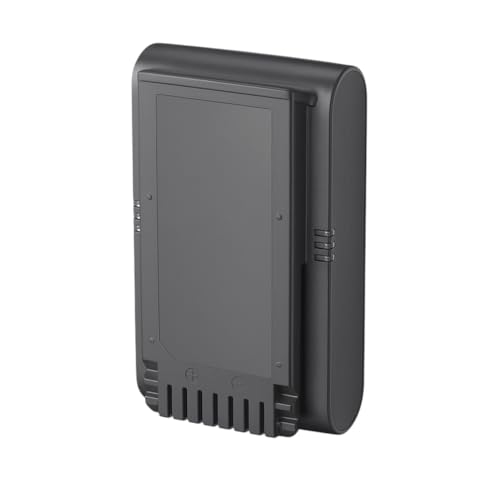
Rechargeable battery for the Samsung Jet 75 Series Stick Vacuum.
Downloading and Installing the App
- Open the Google Play Store or Samsung Galaxy Store on your device.
- Search for Samsung Members in the search bar.
- Tap Install to download the app.
- Once installed, open the app and sign in with your Samsung account.
This app is compatible with most Samsung devices, ensuring easy accessibility for checking battery health.
Analyzing Battery Health Reports
- Launch the Samsung Members app.
- Tap on Get Help at the bottom of the screen.
- Select Diagnostics.
- Choose Battery to access your battery health report.
Here, you’ll see essential information, such as:
- Charge State: Indicates the current battery percentage.
- Wear Level: Reveals how much battery capacity has diminished over time.
- Charging Cycles: Provides the number of full charge cycles your battery has gone through.
Knowing these metrics helps assess your battery’s condition and determine if a replacement is necessary. Regularly reviewing these reports aids in maintaining optimal battery performance.
Third-Party Apps for Battery Assessment
Third-party apps can help you assess your Samsung battery health more thoroughly. These tools often provide additional insights beyond what built-in settings offer. Here’s a closer look at some recommended apps and their benefits.
Recommended Apps to Use
- AccuBattery
AccuBattery measures battery wear using charge cycles. It offers detailed statistics on charge speed, battery health, and usage patterns.
- GSam Battery Monitor
GSam provides extensive information about your battery’s performance. It tracks app-specific battery usage, sleep statistics, and overall device performance.
- BatteryGuru
BatteryGuru analyzes your charging habits. It offers tips for optimizing charging times and schedules based on your usage.
Pros and Cons of Third-Party Solutions
Pros:
- Detailed Analysis: Third-party apps often provide more granular data than built-in options.
- Custom Insights: You receive tailored suggestions based on your usage patterns.
- User-Friendly Interfaces: Most apps come with intuitive designs, making them easy to navigate.
Cons:
- Potential Inaccuracy: Some apps may not measure battery health as accurately as OEM software.
- Privacy Concerns: Third-party apps might request access to personal data; it’s crucial to read privacy policies.
- Varied Compatibility: Not all apps work perfectly with every Samsung model or software version.
Using third-party apps can enhance your understanding of battery health and performance. By exploring these tools, you can take proactive steps to maintain your device’s battery effectively.
Regular Maintenance Tips for Battery Longevity
Maintaining your Samsung battery ensures it performs optimally over time. Follow these tips for better battery health.
Avoid Full Discharges
- Avoid letting your battery drop to 0%. Regularly charge it when it reaches around 20%. This practice helps prolong battery life.
Use Original Chargers
- Use original charger accessories that came with your device. They provide the proper amount of power, reducing the risk of damage.
Reduce Screen Brightness
- Reduce screen brightness to a comfortable level. Automatic brightness settings adjust the screen based on lighting conditions, conserving battery power.
Limit Background Apps
- Limit background apps running on your device. Check for apps that drain battery life and close them when not in use.
Enable Battery Saver Mode
- Enable battery saver mode when needed. This feature limits background data and reduces performance to extend battery runtime.
Keep Software Updated
- Keep your device’s software updated. Regular updates often include battery performance enhancements and fixes.
Avoid Extreme Temperatures
- Avoid exposing your phone to extreme temperatures. Store it in a cool, dry place to prevent battery swelling and deterioration.
Charge Smartly
- Charge your phone during shorter periods instead of overnight. Frequent full charges can contribute to faster wear.
Monitor Battery Usage
- Monitor your battery usage in the settings. This helps identify apps that consume excessive power. Set limits on their usage.
Following these tips can significantly enhance your Samsung battery’s longevity and performance while minimizing the need for early replacements.
Conclusion
Taking the time to check your Samsung battery health can make a big difference in how your phone performs. By understanding the key indicators and using tools like the Samsung Members app or third-party apps, you can stay informed about your battery’s condition.
Regular maintenance and smart charging habits can help extend your battery’s lifespan and keep your device running smoothly. Keep an eye on those stats and don’t hesitate to take action if you notice any concerning signs. With a little attention, you can enjoy a better battery experience and get the most out of your Samsung device.
Frequently Asked Questions
What are common battery issues for Samsung users?
Many Samsung users experience sluggish performance and poor battery life. These problems can often be tied to battery health and the number of charge cycles a battery has gone through. Regularly checking battery health is crucial for maintaining optimal performance.
How can I check the battery health on my Samsung phone?
You can check your Samsung phone’s battery health by going to the Settings app, tapping on “Device Care,” and selecting “Battery.” Here, you’ll find detailed statistics on battery usage, charge state, wear level, and charging cycles to assess your battery’s condition.
What factors affect Samsung battery health?
Several factors can influence battery health, including charging habits, app usage, and environmental conditions. Poor charging practices and exposure to extreme temperatures can cause batteries to degrade faster, leading to reduced performance.
How long should a Samsung battery last?
A Samsung battery typically lasts between 1 to 2 years or approximately 300 to 500 charge cycles. After this period, the battery may start to lose capacity significantly and may require replacement or maintenance.
What are some tips for extending battery life?
To extend battery life, optimize your phone settings, use battery saver mode, avoid extreme temperatures, and schedule regular charging. Additionally, reducing screen brightness and limiting background apps can greatly help maintain battery longevity.
What apps can help monitor Samsung battery health?
Third-party apps like AccuBattery, GSam Battery Monitor, and BatteryGuru can offer detailed insights into battery performance. While they provide valuable data, be mindful of potential accuracy concerns and compatibility issues when using these tools.
Is the Samsung Members app useful for battery health?
Yes, the Samsung Members app offers an easy way to check battery health and performance. It provides detailed insights into battery status, enabling users to make informed decisions about maintenance and potential replacements.
What maintenance tips can help with battery longevity?
To maintain battery longevity, avoid allowing its charge to drop to 0%, use original chargers, and keep your software updated. Limiting app usage and monitoring battery performance regularly will enhance your battery’s overall lifespan.
