

Key Takeaways
- Always On Display Feature: The AOD on Samsung devices allows users to see time and notifications without waking the phone, enhancing convenience but raising battery life concerns.
- Battery Drain Factors: AOD’s battery impact is influenced by brightness settings, notification frequency, and the use of dynamic content versus static images.
- Optimization Tips: To minimize battery consumption, users can adjust brightness, limit notifications, schedule AOD usage, and select simpler display images.
- User Experience: Battery drain experiences vary, with regular users reporting manageable impacts while occasional users report even less drain.
- Comparative Insights: Compared to similar AOD features from brands like Apple, Xiaomi, and OnePlus, Samsung’s AOD has a moderate battery impact, especially when settings are optimized.
- Regular Monitoring: Keeping track of battery usage in device settings helps users understand how AOD affects their device, allowing for better customization and management.
Ever wondered if that sleek Always On Display feature on your Samsung phone is draining your battery? You’re not alone. Many users love the convenience of checking notifications and the time at a glance, but the concern about battery life is real.
Imagine you’re out and about, relying on your phone for directions or important calls, only to find it’s running low on power. This article will break down how the Always On Display impacts your battery life and share tips to optimize your settings. By the end, you’ll know exactly what to do to enjoy that handy feature without sacrificing your phone’s longevity.
Overview Of Always On Display
Always On Display (AOD) keeps your screen visible even when your phone’s asleep. You see the time, date, and notifications without waking your device. This feature is popular among Samsung users for its convenience. However, the potential battery drain raises concerns.
How Always On Display Works
AOD uses OLED technology to display information. Each pixel lights up individually, consuming less power than traditional LCD screens. When the AOD feature is active, only a small number of pixels illuminate, which generally results in lower energy use.
Battery Impact
The extent of battery drain depends on several factors:
- Display Settings: The brightness level affects power consumption. Lower brightness settings contribute to better battery longevity.
- Notification Frequency: Frequent notifications will increase power use. Fewer notifications lead to improved battery performance.
- Active Features: Using additional features, like widgets, can consume more energy. Limiting these can help reduce battery drain.
Tips for Optimizing Always On Display
- Adjust Brightness: Set AOD to a lower brightness level. This adjustment minimizes power consumption.
- Limit Notifications: Choose essential notifications to display. Reducing unnecessary alerts saves energy.
- Schedule AOD: Set specific hours for AOD functionality. Activating it only during key times prolongs battery life.
- Use Static Images: Select simple images or colors for display. Dynamic content may draw more power.
- Monitor Battery Usage: Regularly check battery statistics in settings. Understanding usage patterns enables better management.
By following these tips, you can enjoy the benefits of Always On Display while keeping your phone’s battery life intact.
Impact On Battery Life
The Always On Display (AOD) feature on Samsung devices offers convenience but may raise concerns regarding battery life. Understanding its impact is essential for optimizing functionality without excessive drain.
Recommended Products

Built-In Cables and Multiple Connectivity Options: Slim portable charger features 2 built-in output cables, 4 outputs and 2 inputs for versatile charging compatibility with iPhone, iPad, Samsung, other USB C port phones, tablets, and Micro devices

Flip Cover with smart, interactive window provides quick access to key phone features and ability to respond to incoming calls and alarms without opening the cover

Item Package Dimension- 4.0157480274L X 3.3070866108W X 3.1102362173H Inches
Factors Influencing Battery Drain
Several factors affect how much battery AOD consumes. These include:
- Screen Brightness: Higher brightness levels increase power usage. Lowering brightness can significantly extend battery life.
- Notification Volume: Frequent notifications can lead to increased battery drain. Limiting notifications to crucial apps helps minimize this effect.
- Display Content: Dynamic content, like photos or moving graphics, uses more power than static images. Opting for a simple clock or image can save energy.
- Settings Configuration: AOD settings allow for customization, such as enabling specific display times. Scheduling this feature to activate only during certain hours curtails unnecessary power consumption.
- Ambient Display: Some settings may keep the display active when motion is detected. Turning this feature off can help save battery when not needed.
User Experience Reports
User feedback on AOD battery consumption varies. Some users report minimal impact on battery life, while others observe noticeable drain.
- Daily Usage Patterns: Regular users who utilize AOD primarily for notifications find it manageable, often reporting only a minor reduction in battery longevity.
- Occasional Users: Users who enable AOD sporadically tend to experience less drain, leading to a more positive experience overall.
- Use Cases: Reviewers suggest that if you primarily check the time or notifications without engaging in high-brightness or dynamic displays, AOD may not significantly affect battery performance.
Consider monitoring your device’s battery usage under settings to identify how AOD impacts your specific situation. This insight allows for better customization based on personal needs.
Comparison With Other Devices
Understanding how Always On Display (AOD) compares to similar features on other devices helps gauge its efficiency and battery impact.
Recommended Products

Always-On Display with Full-view Adjustable Brightness — The temperature readings are front, with a large font easy to see even from across the room. All the data are arranged on an aesthetically designed display screen, perfect for quick checks or for anyone who doesn’t want to squint.

Heavy Duty: ABS plastic housing, durable made for safety use, rear cover insulates terminals against any short of circuits.

✅ Premium Pure Copper & LED Power Indicator This heavy-duty car battery disconnect switch is made of high-purity pure copper for outstanding conductivity, stable current transmission and low power loss. The LED version features a static voltage measurement error within ±0.1V for precise voltage monitoring. Equipped with a bright LED indicator, this battery cut off switch provides clear working status display and enhances operation safety for 12V/24V power systems in cars, trucks, RVs, boats and marine equipment.
Similar Features In Other Brands
Many smartphone brands offer AOD-like features, such as Apple, Xiaomi, and OnePlus.
- Apple: The iPhone employs a “Wake on Tap” feature, activating the display when you tap the screen. However, it doesn’t showcase notifications continuously, which could reduce overall battery strain.
- Xiaomi: This brand utilizes an AOD feature similar to Samsung’s, with adjustable brightness settings. Users can also personalize AOD displays. However, higher brightness levels contribute to increased battery drain.
- OnePlus: OnePlus devices provide an Ambient Display feature showing notifications while consuming minimal power. Users can expect moderate battery impact, especially with frequent notifications.
Battery Performance Insights
When examining battery performance, results vary across brands and features.
- Samsung: Users report a manageable battery drain with AOD enabled. When set to a lower brightness or with limited notifications, AOD’s impact lessens.
- Apple: Apple’s approach consumes slightly less battery due to less frequent display activation. However, it also restricts quick glance functionality.
- Xiaomi: Battery life notably shortens with AOD turned on, especially if higher brightness settings and frequent notifications are employed.
- OnePlus: The Ambient Display feature uses energy-efficient measures, leading to minor battery consumption compared to full-screen features.
Overall, continuous use of AOD or similar features demands attention. You can optimize battery life by adjusting settings according to your priorities and needs.
Tips To Optimize Battery Life
To maximize battery life while using the Always On Display (AOD) feature on your Samsung device, implement the following strategies:
Recommended Products
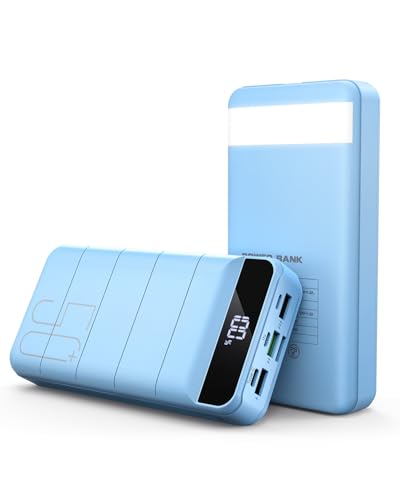
High Capacity 50000mAh Power Bank: The 50000mAh portable charger ultra-high massive capacity charging bank provides 15 charges for iPhone14, 13.5 times for Samsung S20. Depending on battery size, most smartphones will get over 10 full charges. Suitable for camping, hiking, fishing vacation, travel and other outdoors activities

High Capacity in a Compact Body: With a 10,000mAh battery, this power bank delivers reliable power to keep multiple devices charged throughout the day. Compatible with iPhone 17/16/15/14/13/12 Pro/Max/Plus. Despite its high capacity, it’s designed to be lightweight and portable, easily fitting into your bag or pocket. Perfect for travel, work, or daily commutes, it ensures you stay connected and productive without the extra bulk. A great balance of power and portability for users on the go.
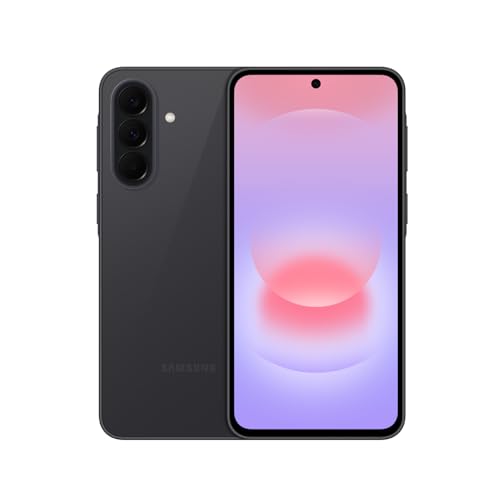
AWESOME SCREEN. ENDLESS POSSIBILITIES: Elevate your content no matter where you are with the 6.7" Super AMOLED display¹ of the Galaxy A37 5G. Enjoy massive detail and stunning clarity on the go
Adjusting Settings
- Reduce Brightness: Lower the screen brightness to the minimum comfortable level. The AOD can still be visible without excessive brightness.
- Limit Notification Alerts: Choose only essential notifications for display. This prevents your screen from lighting up unnecessarily.
- Schedule AOD Usage: Set specific hours for AOD activation. For instance, deactivate it during nighttime if you don’t need to check notifications.
- Select Static Images: Choose a single, static image instead of dynamic content. Static images consume less power and help extend battery life.
- Turn Off Always On Display: If you’re in a situation where you don’t need AOD, disabling it entirely saves battery.
Usage Habits
- Check Battery Usage Regularly: Monitor your battery usage in Settings. This helps identify if AOD significantly impacts your battery life.
- Use Do Not Disturb Mode: Activate this mode during meetings or sleep. This setting keeps notifications from coming through, reducing AOD’s activation.
- Adjust Refresh Rate: If your device allows it, set the refresh rate to a lower option. Lower refresh rates can help conserve battery.
- Simplify Your Home Screen: Limit active widgets and live wallpapers. These elements may contribute to battery drain and affect AOD performance.
- Keep Software Updated: Regularly updating your device’s software ensures you benefit from the latest optimizations and battery-saving features.
Implementing these tips effectively enhances your experience with Always On Display while keeping your device’s battery healthy.
Conclusion
You can enjoy the Always On Display feature on your Samsung phone without worrying too much about battery drain. By making a few simple adjustments to your settings and habits you can strike a balance between convenience and battery longevity.
Remember to keep an eye on your display brightness and limit notifications to just the essentials. Scheduling AOD to only run during certain hours can also help.
With these tweaks you’ll be able to make the most of AOD while keeping your device running smoothly throughout the day. So go ahead and customize your experience to fit your needs!
Frequently Asked Questions
What is the Always On Display (AOD) feature on Samsung phones?
AOD is a feature that allows users to see the clock, notifications, and other information on their phone’s screen without fully waking it up. It uses OLED technology to light up only specific pixels, which generally consumes less power compared to traditional screens.
Does Always On Display drain battery life?
AOD can impact battery life, but its effect varies based on settings and usage. Lower brightness and fewer notifications can help minimize battery consumption, making it manageable for most users.
How can I optimize the battery life while using AOD?
To save battery, adjust the brightness to lower levels, limit notifications to essentials, schedule AOD for specific hours, use static images, and monitor battery usage through your settings.
What factors influence AOD’s battery consumption?
Factors include screen brightness, notification frequency, settings configuration, and ambient display features. Higher brightness and frequent notifications significantly increase power usage.
How does AOD compare with similar features on other brands?
Apple’s “Wake on Tap” conserves battery but limits visibility. Xiaomi’s AOD resembles Samsung’s but may drain more power at high brightness. OnePlus’s Ambient Display shows notifications with minimal battery impact.
What additional tips can help enhance AOD experience?
To further enhance AOD, consider reducing screen brightness, limiting alerts, scheduling its usage, turning it off when not needed, and regularly checking battery usage. Keeping software updated also helps improve efficiency.
