

Key Takeaways
- AirPods Compatibility: AirPods can connect easily with Android devices via Bluetooth, but they lack native battery monitoring features unlike Apple devices.
- Battery Monitoring Methods: To check AirPods battery levels on Android, users need to rely on third-party apps like AirBattery, Podroid, or Bluetooth Battery.
- Connection Steps: Pairing AirPods with Android involves accessing Bluetooth settings, connecting by pressing the back button on the charging case, and confirming the connection with a sound.
- Troubleshooting Tips: Users may face issues such as battery status not displaying, connection drops, or audio quality problems; solutions include refreshing the Bluetooth connection, using third-party apps, and ensuring device software is up-to-date.
- Real-Time Monitoring: After installing recommended apps, users can easily monitor AirPods’ battery levels in real time, enhancing their listening experience on Android devices.
Ever found yourself wondering how much battery life your AirPods have left while using them with your Android device? You’re not alone. Many people enjoy the convenience of AirPods but often feel a bit lost when it comes to checking their battery status on non-Apple devices.
This article will guide you through the steps to see your AirPods’ battery on Android. You’ll discover simple methods that can help you stay connected without the guesswork. By the end, you’ll be equipped with the knowledge to manage your AirPods more effectively, ensuring you never run out of battery at the wrong moment.
Understanding AirPods and Android Compatibility
AirPods connect easily to devices, including Android smartphones. Knowing how they function with Android can help you manage battery status more efficiently.
AirPods Overview
AirPods are wireless earphones developed by Apple. They feature advanced audio technology, noise cancellation, and seamless pairing. They also offer built-in microphones for calls. Battery life typically lasts around 5 hours of listening time. When you place AirPods back in their case, they charge quickly and are ready for your next use.
Android Devices Overview
Android devices come in various models and operating systems. Most Android smartphones and tablets support Bluetooth, allowing you to connect AirPods easily. However, functionalities may vary. You may not see the battery percentage displayed directly unless you use third-party apps designed to show AirPods battery life. Features like automatic pairing or iCloud syncing found in Apple devices aren’t available on Android, but basic connectivity works well for listening to music or taking calls.
Can You See AirPod Battery on Android?
Checking your AirPods’ battery life on an Android device isn’t straightforward, but you can manage it with a few methods.
Native Support for AirPods on Android
AirPods connect seamlessly to Android devices via Bluetooth, yet they lack native battery monitoring. Unlike Apple devices, which display battery percentage directly, Android systems don’t provide this information. The Bluetooth settings menu won’t show battery levels for AirPods. Therefore, while you enjoy connecting your AirPods, monitoring their battery requires alternative methods.
Third-Party Applications
Several third-party applications provide battery monitoring for AirPods on Android. These apps can display battery levels, connection status, and even additional information about your AirPods. Some popular options include:
- AirBattery: This app shows battery status and recent connection times.
- Podroid: Provides detailed information about your AirPods, including battery percentage.
- Bluetooth Battery: Displays battery levels for various Bluetooth devices, including AirPods.
To use these apps, just download one from the Google Play Store, open it, and connect your AirPods. The app interface usually displays your AirPods’ battery percentage, allowing you to keep track of their charge easily.
How to Check AirPod Battery on Android
Checking your AirPods’ battery status on Android devices requires a few simple steps, as the native options aren’t available. Here’s how to do it.
Recommended Products

【Compatible Model】Only compatible with Apple AirPods 1 and 2 Generation, battery model number is Airpods battery, please double check your cell phone model match before purchasing the battery.

3 in 1 Charging Station for Apple: usbc charging station features 1x 100W input port, 2x 45W USB-C output ports (fast PD charging), and 15W wireless charger works with iPhone series and AirPods 4, Pro2. Note: For Android phones, a MagSafe-compatible wireless charging case is required. Thick cases may reduce magnetic alignment
Connecting AirPods to Android
- Open Bluetooth Settings: Go to your Android device’s settings and select Bluetooth.
- Pair AirPods: With your AirPods in the charging case, open the lid. Press and hold the button on the back of the case until the LED light flashes white. Select your AirPods from the list of available devices on your Android screen to connect.
- Confirm Connection: Once connected, a sound will indicate successful pairing.
Accessing Battery Information
- Install a Third-Party App: Download an app like AirBattery, Podroid, or Bluetooth Battery from the Google Play Store. These apps provide battery status for connected devices.
- Open the App: Launch the installed app after connecting your AirPods. Most of these apps display battery levels upon opening.
- Check Battery Level: The app shows individual battery percentages for each AirPod and the charging case. Keep your AirPods connected to monitor their battery life in real time.
Using these steps enables you to effectively manage your AirPods while using them with your Android device.
Troubleshooting Battery Issues
You might encounter some common problems with AirPods when using them on Android devices. Knowing these issues helps you manage expectations and find solutions quickly.
Recommended Products

Compatible model NO.: AirPods 1 (A1604, A1523, A1722) and AirPods 2 (A2032, A2031) Wireless Earphones Headsets
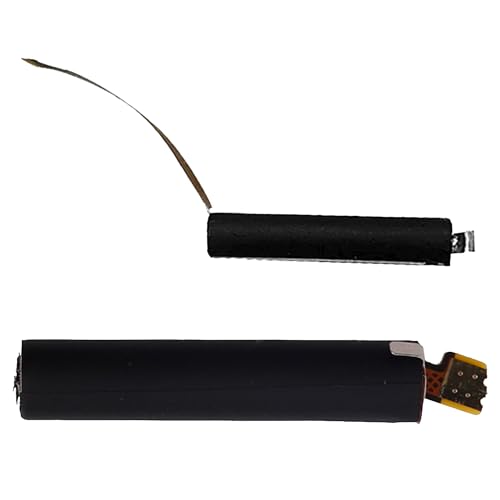
[Applicability] : Compatible with Airpods 1st 2nd Generation. With the same shape as the original battery, it fits your phone perfectly and extends the usage time of your phone.Each battery is tested to strict quality control standards before it leaves the factory
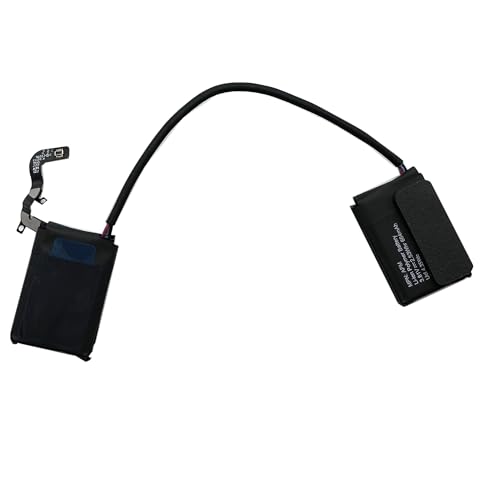
【Compatible Model】Only Compatible with Apple AirPods Max Battery,No Plastic Housing Included Will Have To Be Removed From Your Bad Battery,Headphones can be difficult to remove, so be sure to use caution!please double check your cell phone model match before purchasing the battery.
Common Problems with AirPods on Android
- Battery Status Not Displayed: Unlike iOS devices, Android doesn’t automatically show AirPods’ battery percentages. This can lead to uncertainty about how much battery life remains.
- Connection Drops: Occasionally, you may experience random disconnects between your AirPods and your Android device. These drops can disrupt audio playback and frustrate your listening experience.
- Audio Quality Issues: Sometimes, the audio may sound choppy or low quality. This can occur due to Bluetooth interference or weak connections.
Solutions to Battery Display Issues
- Use Third-Party Apps: Install apps like AirBattery, Podroid, or Bluetooth Battery from the Google Play Store. These apps can help display battery levels for your AirPods alongside connection status.
- Refresh Bluetooth Connection: If your battery status doesn’t update, try toggling Bluetooth off and on. This can refresh the connection and may update the battery information.
- Re-pair Your AirPods: If problems persist, disconnect and re-pair your AirPods. Go to your device’s Bluetooth settings, remove the AirPods from the list, and pair them again to establish a fresh connection.
- Check for Interference: Ensure other Bluetooth devices aren’t causing interference. Turn off nearby devices and see if that improves your AirPods’ performance.
- Update Your Device: Keep your Android device updated. Software updates can improve compatibility and performance with Bluetooth accessories.
Apply these tips to enhance your AirPods experience on Android and stay connected with confidence.
Conclusion
You now have the tools to manage your AirPods battery life even when using an Android device. While it might not be as seamless as with Apple products you can still stay informed about your battery status with the right apps.
By exploring options like AirBattery or Podroid you can easily check how much juice your AirPods have left. Remember to troubleshoot any connection issues you might face to keep your listening experience smooth.
Enjoy your music and podcasts without the stress of unexpected battery drops. You’re all set to make the most of your AirPods on Android!
Frequently Asked Questions
Can I check my AirPods’ battery life on an Android device?
Yes, you can check your AirPods’ battery life on an Android device, but it requires third-party applications, as Android does not natively display this information.
What are the recommended apps to monitor AirPods battery life on Android?
Popular apps include AirBattery, Podroid, and Bluetooth Battery. These apps provide battery status and connection information for your AirPods when used with Android devices.
How do I connect my AirPods to an Android device?
To connect, go to your Android device’s Bluetooth settings, make sure Bluetooth is turned on, and select your AirPods from the list of available devices to pair them.
Why doesn’t my AirPods battery status show on Android?
The lack of battery status display is due to Android’s limitations in Bluetooth functionality, which does not support the same level of integration as Apple devices.
What should I do if my AirPods aren’t connecting to my Android device?
If you encounter connection issues, try refreshing the Bluetooth connection, re-pairing the AirPods, or checking for interference from other devices.
How long do AirPods generally last on a full charge?
AirPods typically offer around 5 hours of listening time on a full charge, while the charging case provides additional battery life for extended use.
What audio issues might I face using AirPods with Android?
Users may experience audio quality issues, connection drops, or battery status not being displayed. Solutions may include re-pairing the AirPods or updating the Android device.
