

Ever wondered why your Dell laptop battery seems to be losing its spark faster than usual? Picture this: you’re in the middle of an important task, and suddenly your battery gives up on you. Frustrating, right? But fret not, because in this article, you’ll discover a simple solution to reset your Dell laptop battery and get it back to its full potential.
Have you found yourself constantly searching for power outlets or carrying your charger everywhere you go? It’s a common struggle, but the good news is that resetting your Dell laptop battery can significantly improve its performance and lifespan. By following a few easy steps, you’ll be able to optimize your battery usage and enjoy longer hours of uninterrupted work or entertainment on your laptop.
Understand the Battery Reset Process
If you’re experiencing issues with your Dell laptop battery, a reset might be just what you need to improve its efficiency. Here’s a guide to help you understand the process:
- Why Reset? Resetting your battery can recalibrate the battery gauge, helping your laptop accurately display the remaining power levels. It can also refresh the battery’s settings, potentially extending its lifespan.
- Preparation: Start by fully charging your laptop and then disconnecting the power adapter. Ensure all your work is saved and close any open applications or files.
- Reset Steps: Here’s how you can reset your Dell laptop battery:
- Step 1: Power off your laptop.
- Step 2: Disconnect the power adapter.
- Step 3: Look for the battery reset button – usually located at the bottom of the laptop – and press it.
- Step 4: Reconnect the power adapter and power on your laptop.
- Step 5: Allow your laptop to charge fully.
- After Reset: Once the reset is complete, use your laptop as usual. You might notice improved battery performance and accuracy in displaying the battery levels.
While resetting your battery can be a simple solution to common battery issues, remember that not all problems can be solved this way. If you continue to experience battery-related concerns, it’s best to seek professional help.
Check Your Dell Laptop Model
When it comes to resetting your Dell laptop battery, the first step is to ensure you have the correct information for your specific model. Here’s how you can check your Dell laptop model:
- Look for the model number: You can usually find this information on a sticker on the bottom of your laptop. The model number is essential for identifying the exact steps required for resetting the battery.
- Check the Dell website: If you can’t find the model number on the laptop itself, you can visit the Dell website and use their support tools to locate your specific model.
- Consult the user manual: Sometimes, the user manual that came with your laptop will have details about the model number and specific instructions for tasks like resetting the battery.
Ensuring you have the correct model information is crucial for successfully resetting your Dell laptop battery and optimizing its performance.
Backup Your Data
Ensure you back up all important files and documents before resetting your Dell laptop battery. It’s a good practice to safeguard your valuable data in case of any unexpected issues during the resetting process. Remember to use an external hard drive, cloud storage, or USB drive to securely store your files. Backing up your data is a crucial step to prevent any data loss scenarios.
Resetting the Dell Laptop Battery
When resetting your Dell laptop battery, follow these steps to ensure a smooth process:
- Step 1: Turn off your Dell laptop completely.
- Step 2: Unplug the power adapter from your laptop.
- Step 3: Remove the battery from your Dell laptop.
- Step 4: Press and hold the power button for about 30 seconds.
- Step 5: Reinsert the battery into your laptop.
- Step 6: Plug in the power adapter back into your laptop.
- Step 7: Turn on your Dell laptop.
Remember, always refer to your Dell laptop manual for specific instructions tailored to your model.
Monitor Battery Performance
Your Dell laptop’s battery plays a vital role in keeping your device running smoothly. Here are some tips to monitor and optimize your battery performance:
- Battery Health Check: Check your battery health regularly in the Dell Power Manager to ensure it’s functioning optimally.
- Charging Cycles: Avoid leaving your laptop plugged in all the time. It’s good practice to complete at least one full charge cycle per month to maintain battery health.
- Power Plans: Opt for power-saving plans when you’re not performing demanding tasks to extend battery life.
| Statistics | Data |
|---|---|
| Average lifespan | 2-4 years |
| Full charge cycles | 300-500 cycles |
Follow these suggestions to make the most of your Dell laptop’s battery and enjoy seamless performance on the go.
Recommended Products
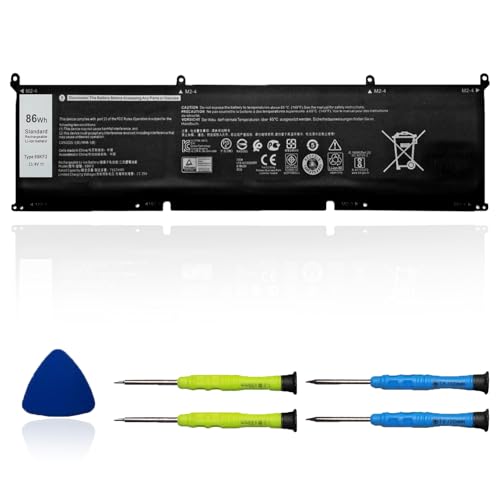
【Specifications】 ①Model: 69KF2 ②Voltage: 11.4V ③Capacity: 86Wh/7167mAh ④Cells: 6-cell ⑤Battery type: Li-ion. Color: Black;Condition: New; Battery lasts: 3-6 hours, Packages includes: 1x 69KF2 battery,4 x Free Screwdrivers,1x Instruction for Laptop battery

Battery Specification : 3 Cell , Voltage :11.4V , Capacity :42Wh
Conclusion
You now have the essential knowledge to reset your Dell laptop battery successfully. Remember to back up your important files before proceeding. By monitoring battery health, managing charging cycles, and selecting suitable power plans, you can optimize your battery performance. Following these tips will help extend your Dell laptop’s battery lifespan and ensure it operates smoothly wherever you go. Cheers to a longer-lasting battery life!
Frequently Asked Questions
Q: Why is it important to back up files before resetting the Dell laptop battery?
A: It’s crucial to back up files before resetting the Dell laptop battery as the process may result in data loss. By creating a backup, you protect your important files and prevent any loss during the reset.
Q: How can I monitor and optimize the battery performance of my Dell laptop?
A: You can monitor and optimize battery performance by regularly checking battery health, managing charging cycles, and selecting appropriate power plans. These simple steps can help prolong the battery life of your Dell laptop.
Q: What are some statistics on battery lifespan and charge cycles for Dell laptops?
A: Dell laptops typically have around 300-500 charge cycles before experiencing a decrease in battery lifespan. Following battery maintenance tips can help maximize the battery life of your Dell laptop.
Q: How can I ensure smooth performance for my Dell laptop when on the go?
A: To ensure smooth performance for your Dell laptop when on the go, it’s essential to follow the recommended tips for maximizing battery life. By checking battery health, managing charging cycles, and selecting suitable power plans, you can optimize performance.
