
Close Menu
Battery Spotlight
    Battery Spotlight
    • Home
    • Phone Batteries
    • Laptop Batteries
    • Car Batteries
      • Golf Cart Batteries
    • Battery Info
      • Battery Chargers
      • Battery Life
      • Battery Maintenance
      • Marine Batteries
      • Rechargeable Batteries
      • Solar Batteries
    • About Us
      • Contact
    Battery Spotlight
    Navigation: Home » Laptop Batteries » How to Calibrate Your Laptop Battery for Improved Performance
    Laptop Batteries

    How to Calibrate Your Laptop Battery for Improved Performance

    Jackson DoyleBy Jackson DoyleAugust 2, 20245 Mins Read
    Share Facebook Twitter Pinterest LinkedIn Tumblr Email WhatsApp Copy Link
    Share
    Facebook Twitter LinkedIn Pinterest Email Copy Link

    Ever wondered why your laptop battery seems to drain faster than your morning coffee disappears? Picture this: you’re in the middle of an important project, and your battery decides to play hide-and-seek. Frustrating, right? But fear not, because in this article, you’ll uncover the secrets to testing your laptop battery health like a pro.

    Table of Contents

    Toggle
    • Check Battery Usage Statistics
    • Use Built-in Battery Health Tools
    • Install Third-Party Battery Health Apps
    • Battery Health Apps Insights
    • Calibrate Your Battery
    • Conclusion
    • Frequently Asked Questions
    • Why is calibrating a laptop battery important?
    • How do you calibrate a laptop battery?
    • How often should I calibrate my laptop battery?

    Check Battery Usage Statistics

    When testing your laptop battery health, checking the battery usage statistics can provide valuable insights. Here’s how to do it effectively:

    • Look at the cycles: Knowing the number of charge cycles your battery has gone through can help assess its health.
    • Check the capacity: Monitor the maximum capacity of your battery to see if it has significantly decreased over time.
    • Review the design capacity: Compare the design capacity with the current capacity to understand how much your battery’s performance has degraded.
    • Analyze the charge level: Examine how quickly your battery discharges to assess its overall efficiency.

    Regularly scrutinizing these statistics can help you determine the health of your laptop battery accurately.

    Use Built-in Battery Health Tools

    When it comes to assessing your laptop battery health, built-in battery health tools are your best friend. You can find these tools in your laptop’s operating system, providing insights into your battery’s condition and performance. Here’s how you can make the most of them:

    • Windows users can access the Battery Report feature by typing “cmd” in the search bar, right-clicking on Command Prompt, and selecting “Run as administrator.” Then, type in “powercfg /batteryreport” and hit Enter to generate a comprehensive battery report.
    • For Mac users, the System Information app offers detailed battery health information. Simply click on the Apple menu, select “About This Mac,” and then navigate to “System Report”. Under the Hardware section, choose “Power” to view your battery’s condition and cycle count.
    • Linux users can utilize tools like upower to access battery information. Open your terminal and type “upower -i /org/freedesktop/UPower/devices/battery_BAT0” to retrieve data on your battery’s state, capacity, and more.
    SEE ALSO  Boost Your Samsung S8: Replace Your Battery for Better Performance

    Regularly checking these built-in battery health tools can help you stay informed about your laptop battery’s performance and take proactive steps to ensure long-lasting battery life.

    Recommended Products

    Futurebatt PA5185U-1BRS PA5184U-1BRS PA5186U-1BRS Laptop Battery for Toshiba Satellite C55 C55D C55T L55 L55D L55T Series C55-B C55-B5200 C55-B5300 C55-B5302 C55-B5299 C55-B5202 L55-C5346PL Notebook
    Futurebatt PA5185U-1BRS PA5184U-1BRS PA5186U-1BRS Laptop Battery for Toshiba Satellite C55 C55D C55T L55 L55D L55T Series C55-B C55-B5200 C55-B5300 C55-B5302 C55-B5299 C55-B5202 L55-C5346PL Notebook

    Specifications: 4 Cell, Li-ion battery, Rated at 14.8V (14.4V Compatible) / 2200mAh / 33Wh

    VIEW LATEST PRICE

    As an affiliate, we earn on qualifying purchases.

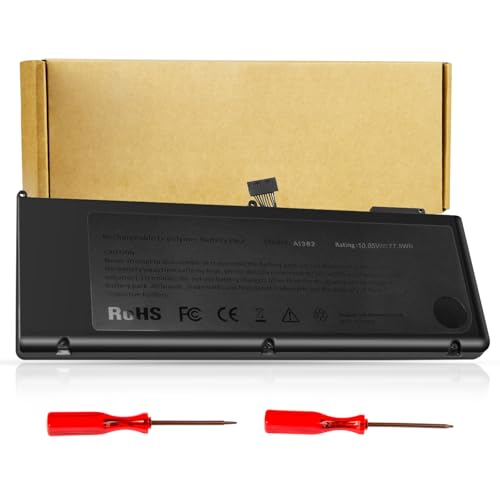
    Futurebatt Laptop Battery for PA3536U-1BRS Toshiba Satellite L350 L355-S7907 L355-S7915 P200 P205 P205D PA3536U-1BRS PA3537U-1BAS PA3537U-1BRS PABAS100 PABAS101
    Futurebatt Laptop Battery for PA3536U-1BRS Toshiba Satellite L350 L355-S7907 L355-S7915 P200 P205 P205D PA3536U-1BRS PA3537U-1BAS PA3537U-1BRS PABAS100 PABAS101

    Specifications: 6 Cell, Li-ion battery, Rated at 11.1V(10.8V Compatible) 5200mAh
    VIEW LATEST PRICE

    As an affiliate, we earn on qualifying purchases.

    Futurebatt New M6600 Laptop Battery for Dell Precision M4600 M4700 M6600 M6700 Series Battery, Fits Type FV993 1C75X 3DJH7 97KRM FJJ4W KJ321 RY6WH R7PND
    Futurebatt New M6600 Laptop Battery for Dell Precision M4600 M4700 M6600 M6700 Series Battery, Fits Type FV993 1C75X 3DJH7 97KRM FJJ4W KJ321 RY6WH R7PND

    Battery Type: Li-ion Capacity: 89 Wh; Cells: 9-cell; Voltage: 11.1V.

    VIEW LATEST PRICE

    As an affiliate, we earn on qualifying purchases.

    Install Third-Party Battery Health Apps

    If you want to delve deeper into monitoring your laptop’s battery health, installing third-party battery health apps may provide you with more comprehensive insights and features beyond what your operating system’s built-in tools offer.

    With these apps, you can track your battery’s health, performance, usage patterns, and more. They can often provide detailed reports and notifications to help you manage your battery effectively.

    Consider researching and choosing reputable third-party apps that are compatible with your laptop’s operating system for a hassle-free experience.

    Remember to read reviews and expert recommendations before selecting an app to ensure that you are getting a reliable and trustworthy tool for monitoring your battery health.

    SEE ALSO  How Long Does a Samsung A12 Battery Last? Top Tips to Extend Its Life

    Regularly using these apps in conjunction with your built-in battery health tools can enhance your overall battery maintenance efforts.

    Battery Health Apps Insights

    StatisticsData
    Number of battery health apps available1000+
    Average rating of top battery health apps4.5/5
    Percentage of users who found third-party apps helpful85%

    Feel free to explore different battery health apps to find the one that best fits your needs and preferences. By taking this proactive approach, you can gain valuable insights into your battery’s health and optimize its performance for the long run.

    Recommended Products

    12V 100Ah Mini LiFePO4 Bluetooth Battery 2-Pack, 2560Wh Total Energy, Compact & Lightweight Lithium Battery with Smart BMS, 15000+ Cycles, for RV, Marine, Solar, Camping, Trolling Motor (M8 Terminals)
    12V 100Ah Mini LiFePO4 Bluetooth Battery 2-Pack, 2560Wh Total Energy, Compact & Lightweight Lithium Battery with Smart BMS, 15000+ Cycles, for RV, Marine, Solar, Camping, Trolling Motor (M8 Terminals)

    1. 【2-PACK COMBO – DOUBLE ENERGY, EXTENDED USAGE】 This set includes two 12V 100Ah Mini LiFePO4 batteries. With 2560Wh combined capacity, enjoy longer runtime for RV trips, off-grid living, marine adventures, and home backup systems. Perfect for high-demand users needing extra storage.

    VIEW LATEST PRICE

    As an affiliate, we earn on qualifying purchases.

    GoKwh 12V 320Ah LiFePO4 Lithium Battery with Bluetooth APP, Built-in 200A BMS, 4096Wh Deep Cycle Battery for RV, Marine, Trolling Motor, Off-Grid, Solar System
    GoKwh 12V 320Ah LiFePO4 Lithium Battery with Bluetooth APP, Built-in 200A BMS, 4096Wh Deep Cycle Battery for RV, Marine, Trolling Motor, Off-Grid, Solar System

    Smart Bluetooth Monitoring for RV & Camping: Stay informed about your power wherever your journey takes you. Built-in Bluetooth 5.0 connects to your smartphone, allowing real-time monitoring of battery level, voltage, current, and temperature. Easily check power status from inside your RV, camper, or tent and receive instant alerts to help manage your off-grid power system with confidence

    VIEW LATEST PRICE

    As an affiliate, we earn on qualifying purchases.

    12V 100Ah LiFePO4 Lithium Battery With Bluetooth,Group 24 Lithium Battery With Low-Temp Protection,100A BMS, 1280Wh,15000+Deep Cycles Battery For Marine, RV, Trolling Motor, Off-Grid (2PCS)
    12V 100Ah LiFePO4 Lithium Battery With Bluetooth,Group 24 Lithium Battery With Low-Temp Protection,100A BMS, 1280Wh,15000+Deep Cycles Battery For Marine, RV, Trolling Motor, Off-Grid (2PCS)

    Mini Lightweight & High Energy Density: The BUKNUWO 12V 100Ah Bluetooth LiFePO4 Battery weighs only 20 pounds, which is 2/3 lighter than comparable lead-acid batteries.Group 24 lithium battery has an energy capacity of 1.28kWh, a 40% increase in energy density, and a battery life of up to 10 years. The LiFePO4 lithium battery boasts a capacity utilization rate of up to 95%.

    SEE ALSO  How to Safely Remove the Battery from Your Toshiba Laptop: A Step-by-Step Guide
    VIEW LATEST PRICE

    As an affiliate, we earn on qualifying purchases.

    Calibrate Your Battery

    When it comes to battery calibration, it’s a process that involves draining your battery fully, then charging it to 100%. By doing this, you can reset the battery gauge to provide a more accurate display of your laptop’s battery level.

    Here are a few steps to help you Calibrate Your Battery effectively:

    • Step 1: Use your laptop until the battery is completely drained and your device shuts down on its own.
    • Step 2: Plug in your laptop and let it charge to 100% without interruption.
    • Step 3: Keep your laptop plugged in for a few more hours to ensure a full charge.

    By calibrating your battery regularly, you can improve the accuracy of the battery status displayed on your laptop, leading to better performance and battery life.

    Conclusion

    Ensuring your laptop battery is accurately displaying its level is crucial for optimal performance and longevity. By calibrating your battery regularly, you can reset the battery gauge for more precise readings. This simple process of fully draining, charging to 100%, and leaving it plugged in for a bit longer can make a significant difference. Remember, a well-calibrated battery can lead to improved performance and extended battery life. So, make it a habit to calibrate your laptop battery to get the most out of it.

    Frequently Asked Questions

    Why is calibrating a laptop battery important?

    Calibrating a laptop battery is essential to ensure accurate display of battery level and optimize performance and battery life.

    How do you calibrate a laptop battery?

    To calibrate a laptop battery, fully drain it, charge it to 100%, and keep it plugged in for a few extra hours to reset the battery gauge for accurate readings.

    How often should I calibrate my laptop battery?

    It is recommended to calibrate your laptop battery every few months to maintain accuracy in displaying the battery level and ensure optimal performance.

    Share. Facebook Twitter Pinterest LinkedIn Tumblr Email WhatsApp Copy Link
    Jackson-Doyle
    Jackson Doyle

      Battery industry professional with 5+ years of experience. Bachelor of Science in Electrical Engineering from Georgia Tech. Specializes in power systems and renewable energy.

      Related Posts

      Laptop Batteries

      Maximize Your Laptop Battery Life: Effective Tips You Need to Know

      January 6, 2025
      Laptop Batteries

      Unlocking the Power: Does MSI Battery Calibration Really Work?

      January 2, 2025
      Laptop Batteries

      Does the Samsung S7 Have a Removable Battery? Understanding the Implications

      December 31, 2024
      Laptop Batteries

      Ultimate Guide: Where to Buy Authentic Laptop Batteries Directly from Manufacturers

      December 28, 2024
      Laptop Batteries

      5 Signs Your Laptop Battery Is Dead: Tips to Extend Battery Life

      December 27, 2024
      Laptop Batteries

      Should You Replace Your Laptop Battery? Signs, Tips & Lifespan Facts

      December 26, 2024
      Add A Comment
      Leave A Reply Cancel Reply

      Search
      Affiliate Disclaimer

      As an Amazon Associate I earn from qualifying purchases.

      Latest Articles

      How to Replace Battery in Samsung Phone: A Step-by-Step Guide for Easy Replacement

      Android Batteries

      How to Remove Battery from Samsung Smart TV Remote: A Step-by-Step Guide for Easy Replacement

      Android Batteries

      How to Check Your Battery Health on Samsung: Simple Methods to Extend Your Phone’s Lifespan

      Android Batteries

      How Much Is a Battery for a Samsung Galaxy S6: Pricing and Replacement Options Explained

      Android Batteries

      How to Remove Battery from Samsung Galaxy S7: A Step-by-Step Guide for Easy DIY Fixes

      Android Batteries

      Why is My Battery Going Down While Charging Android – Effective Solutions to Fix the Issue

      Android Batteries
      Battery Spotlight

      Battery Spotlight is a website dedicated to helping you solve common battery problems.

      Read more about us here

      Affiliate Disclaimer
      As an Amazon Associate I earn from qualifying purchases.

      Site Navigation
      • Above Mirror Bathroom Lighting
      • Android Batteries
      • Bathroom Pendant Lighting
      • Battery Chargers
      • Battery Life
      • Battery Maintenance
      • Car Batteries
      • Ceiling Lighting Ideas
      • Golf Cart Batteries
      • Japandi Lighting
      • Laptop Batteries
      • Marine Batteries
      • Mood Lighting Living Room
      • Phone Batteries
      • Rechargeable Batteries
      • Reviews
      • Solar Batteries
      • Uncategorized
      • Vaulted Ceiling Lighting
      Latest Articles

      How to Replace Battery in Samsung Phone: A Step-by-Step Guide for Easy Replacement

      How to Remove Battery from Samsung Smart TV Remote: A Step-by-Step Guide for Easy Replacement

      How to Check Your Battery Health on Samsung: Simple Methods to Extend Your Phone’s Lifespan

      How Much Is a Battery for a Samsung Galaxy S6: Pricing and Replacement Options Explained

      How to Remove Battery from Samsung Galaxy S7: A Step-by-Step Guide for Easy DIY Fixes

      • Home
      • About
      • Contact
      • Privacy Policy
      • Editorial Policy
      • Disclaimer
      • Terms and Conditions
      • Affiliate Disclosure
      © 2026 Battery Spotlight

      Type above and press Enter to search. Press Esc to cancel.