

Ever wondered how to give your HP Pavilion x360 laptop a new lease on life? Picture this: you’re in the middle of an important project when your laptop battery decides to call it quits. Frustrating, right? But fear not – you can easily replace the battery yourself and get back to being productive in no time.
In this article, you’ll discover the step-by-step process of replacing the battery in your HP Pavilion x360 laptop. By the end, you’ll be equipped with the knowledge and confidence to tackle this task like a pro. Say goodbye to sudden shutdowns and limited battery life – it’s time to take control and keep your laptop running smoothly.
Gather the Necessary Tools
To get started on replacing the battery in your HP Pavilion x360 laptop, you’ll need to gather a few essential tools. Here’s what you’ll need:
- Replacement Battery: Make sure you have the correct battery model compatible with your HP Pavilion x360 laptop.
- Screwdriver Set: Prepare a set of small screwdrivers to help you open the laptop casing.
- Anti-static Wrist Strap: This will help prevent damaging sensitive electronic components with static electricity.
- Plastic Spudger: Use this tool to gently pry open the laptop without causing damage.
- Clean Cloth: Have a soft cloth on hand to wipe down any components.
It’s essential to have these tools ready before you start the battery replacement process.
Recommended Products

【Specifications】 Model: TF03XL; Battery Type: Lithium polymer; Voltage: 11.55V; Capacity: 42Wh; Cells: 3 cells; with 1x Free Screwdrivers 1x Instruction for Laptop Battery for easy installation.

Specifications :Model Name: BK03XL Rechargeable Battery; Battery Type: Lithium polymer; Voltage: 11.55V; Capacity: 41.7Wh; Cells: 3 cells; Color: Black; Condition: New;

Specification - TF03XL battery for HP Pavilion. Battery Type: Li-ion, Capacity: 41.9Wh 3630mAh, Voltage: 11.55V, Cells: 3-cell. Up to 500 recharge cycles over the life of the battery
Power Off and Prepare the Laptop
When replacing the battery in your HP Pavilion x360 laptop, the first step is to power off the device completely. Shut down the laptop and disconnect any cables or peripherals attached to it. This helps prevent any electrical mishaps during the battery replacement process.
Next, flip the laptop over so that the bottom panel is facing up. Ensure you are working on a clean and flat surface to avoid any small screws or components getting lost. Grab your necessary tools, including the replacement battery, a screwdriver set, an anti-static wrist strap, a plastic spudger, and a clean cloth. These tools are essential for a smooth battery replacement.
Before proceeding, put on the anti-static wrist strap to prevent any static electricity from damaging the internal components of your laptop. Remember, electrostatic discharge can harm sensitive electronics like those found in your laptop.
Using a screwdriver from your set, carefully remove the screws that secure the bottom panel of your laptop. Keep the screws in a safe place as you will need them to secure the panel back in place after replacing the battery. Once the screws are removed, gently pry open the bottom panel using the plastic spudger. Take your time to avoid damaging the panel or any internal components.
With the bottom panel removed, you now have access to the old battery. Use the clean cloth to gently clean any dust or debris that may have accumulated in this area. This ensures a clean workspace and prevents any interference during the battery replacement process.
Your laptop is now prepared for the battery replacement process. In the next steps, you’ll learn how to safely remove the old battery and install the new one to revive your HP Pavilion x360.
Removing the Old Battery
When tackling the replacement of the battery in your HP Pavilion x360 laptop, the next step involves removing the old battery. Follow these steps carefully:
- Power off your laptop if you haven’t already done so after preparing for the battery replacement process.
- Ensure all cables are disconnected from the laptop before proceeding.
- Locate the battery on the bottom side of your laptop.
To remove the old battery:
- Identify the battery latch holding it in place.
- Slide or unlatch the mechanism that secures the battery.
- Gently lift the battery from its compartment once it’s released.
You’re one step closer to successfully replacing the battery in your HP Pavilion x360 laptop.
Installing the New Battery
When Installing the New Battery in your HP Pavilion x360 laptop, follow these steps:
- Step 1: Place the new battery into the compartment where the old one was removed.
- Step 2: Ensure the battery is facing the correct way, aligning the connectors properly.
- Step 3: Gently press down on the battery until you hear a click, indicating it’s securely in place.
- Step 4: Reattach any cables or covers that were removed during the process.
Remember, proper battery installation is crucial for the optimal performance of your laptop. Take your time and double-check that everything is correctly positioned before powering on your device.
Recommended Products

Battery specifications: Battery Model: BK03XL , Battery Type: Li_ion, Voltage: 11.55V Capacity: 41.7Wh 3Cell ; Color: Black ,Condition : New
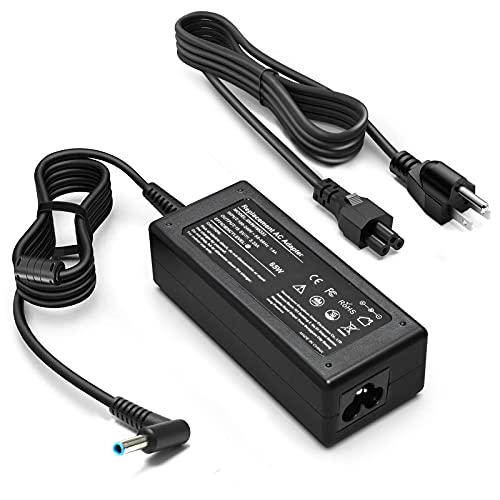
KAQIAR Adapter Compatible with HP Laptop Charger Output Max: DC 19.5V 3.33A 65W; Input: 100~240V~1.7A 50/60Hz; Connector: 4.5 mm outer diameter / 3.0 mm inner diameter blue tip.

【POWER SPECS】 Model: BI03XL ON03XL, Battery type: Li-ion, Capacity: 41.7Wh/ 3470mAh, Voltage: 11.55V, Cells: 3-A+cell, 100% brand new. Black with two Free Screwdrivers. We have concentrated on the laptop batteries production for more than twenty years. You can use our BI03XL Battery for HP Stream 14-ax 14-ax010nr 14-ax010wm safety .
Testing the Replacement
After securely installing the new battery, it’s essential to ensure that it functions correctly in your HP Pavilion x360 laptop. By following these steps, you can verify that the replacement was successful:
- Power On: Press the power button to start up your laptop.
- Check Battery Icon: Look for the battery icon on your screen to confirm it’s recognized.
- Monitor Battery Life: Keep an eye on the battery life percentage to see if it’s charging and discharging properly.
- Run Performance Tests: Open programs and apps to see if the laptop operates smoothly with the new battery.
Remember, proper testing after replacing the battery can help prevent any issues and ensure your HP Pavilion x360 functions optimally.
Conclusion
You’ve now learned how to replace the battery in your HP Pavilion x360 laptop. Following the detailed steps for installation is key to ensuring your laptop performs optimally. Remember to test the replacement by powering on the laptop, checking the battery icon, monitoring battery life, and running performance tests. Testing is essential to avoid any issues and maintain the smooth functionality of your HP Pavilion x360.
Frequently Asked Questions
How do I install a new battery in my HP Pavilion x360 laptop?
To install a new battery in your HP Pavilion x360 laptop, follow these steps: turn off the laptop and disconnect the power adapter, locate the battery compartment, remove the old battery, insert the new battery in the same position, secure the battery, and reconnect the power adapter. Ensure the battery is compatible with your laptop model before installation.
What should I do after installing the new battery?
After installing the new battery, power on your HP Pavilion x360 laptop to check if it is recognized by the system. Monitor the battery icon for proper charging and discharging indications. Test the battery life by using the laptop on battery power. Run performance tests to ensure the laptop functions smoothly with the new battery installed. Proper testing helps prevent issues and ensures optimal laptop functionality.
Why is proper installation of the new battery important?
Proper installation of the new battery is crucial for optimal performance of your HP Pavilion x360 laptop. Incorrect installation can lead to poor battery life, charging issues, or even damage to the laptop’s internal components. Following the correct installation steps helps maintain the health of the battery and ensures that your laptop operates efficiently. Always refer to the manufacturer’s guidelines for installing the specific battery model in your laptop to prevent any potential issues.
