

Ever found yourself in a situation where your Toshiba Satellite laptop dies on you at the worst possible moment? Fret not, as we dive into the simple yet crucial task of replacing the battery in your trusty laptop. How confident are you in tackling this common issue that many laptop users face?
Imagine this: you’re in the middle of an important video call or working on a crucial project when your laptop battery decides to call it quits. The frustration is real, isn’t it? In this article, we’ll guide you through the step-by-step process of replacing the battery in your Toshiba Satellite laptop, ensuring that you’re always powered up and ready to go.
Step 1: Preparation
Before you replace the battery in your Toshiba Satellite laptop, here are some important steps to help you prepare:
- Turn off your laptop and disconnect any cables.
- Ensure you’re working in a well-lit and clean area to prevent losing small screws or components.
- Gather the necessary tools: a small screwdriver, replacement battery compatible with your laptop model, and any guides or manuals that came with your laptop.
- Take note of the battery type and model number to make sure you purchase the correct replacement.
| Important Note |
|---|
| Always handle the battery carefully and refer to your laptop’s manual for specific instructions. |
Now that you’re prepared, you’re ready to move on to the next step in replacing your laptop’s battery.
Step 2: Removing the Old Battery
Now that you’ve prepared everything, it’s time to remove the old battery from your Toshiba Satellite laptop. Follow these steps carefully:
- Turn off your laptop and unplug it from any power source.
- Locate the battery compartment. In most Toshiba Satellite models, it is usually on the underside of the laptop.
- Remove any screws securing the battery compartment cover. Keep these screws in a safe place.
- Take off the battery compartment cover gently, revealing the battery inside.
- Identify how the battery is connected to the laptop. It might be held in place with screws or connectors.
- Carefully disconnect the battery from the laptop. Be gentle to avoid damaging any components.
- Once disconnected, carefully lift the battery out of its housing.
Remember, each laptop model might have slight variations in the removal process, so always refer to your laptop’s manual for specific instructions.
Continuing with the replacement process, ensure you handle the old battery properly by recycling it responsibly.
Recommended Products

Rating: 14.4V(Compatible 14.8V) ,2800mAh/45Wh ; Battery type: Li-ion ; Color: Black ;

Capacity: 5200Mah/48Wh; Cells: 6-cell; Voltage: 11.1V

Specifications :Model No: PA3817U-1BRS Voltage: 10.8V; Capacity: 58Wh / 5200mAh; Cells: 6 cells; Color: Black; Condition: New; Packages includes: 1x PA3817U-1BRS toshiba battery replacement and 1pc instruction manual
Step 3: Installing the New Battery
- Position the new battery in the compartment, ensuring it aligns properly.
- Connect any cables or connectors securely.
- Replace any screws you removed during the removal process.
- Put back the cover on the battery compartment and secure it in place.
- Double-check everything to make sure it’s correctly installed.
- Ensure the new battery is compatible with your Toshiba Satellite model.
- Refer to the manual for any specific installation instructions.
- Charge the new battery fully before using it for the first time to optimize performance.
| Important Data |
|---|
| Always handle the battery carefully to avoid damage. |
| Consult a professional if you’re unsure about the installation process. |
Recommended Products
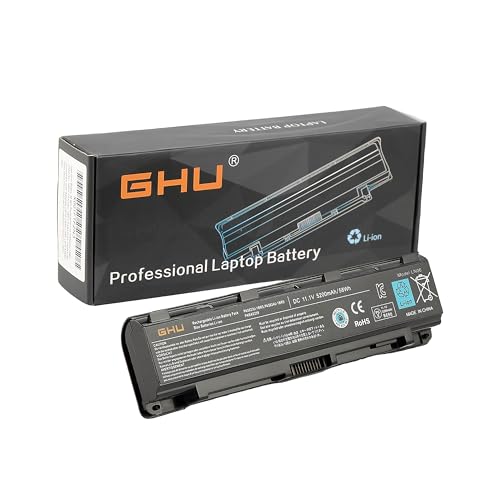
Compatible Models: Replacement PA5024U battery for Toshiba Satellite C875 C855 C855D L855 L875 M840 P875 P845 P855 and S855 laptops.

Compatible Models: Replacement battery for compatible Toshiba Satellite C855, C855D, L855, L875, P855, P875, S855, S875 and C55-A series laptops. Please confirm your exact model before ordering.

Compatible Models: Replacement for Toshiba C55 and Satellite S55T laptop series using PA5185U battery families.
Step 4: Testing and Verification
It’s time to test and verify that your new battery replacement for your Toshiba Satellite laptop is working as it should. This step is crucial to ensure that everything is functioning optimally before you start using your device regularly.
- Power On: Start by powering on your laptop to check if the new battery is recognized by the system.
- Charging Indicator: Look for the charging indicator to confirm that the battery is receiving power from the laptop.
- Battery Status: Check the battery status on your laptop to see if it’s charging and at what percentage.
If you encounter any issues or the battery doesn’t seem to be functioning correctly, revisit the installation steps to ensure everything is connected properly. If problems persist, consider contacting a professional for assistance.
Remember, proper testing and verification are essential to guarantee that your Toshiba Satellite laptop operates smoothly with the new battery. So, take your time and don’t rush through this step to avoid any potential problems in the future.
Recommended Products

Battery type: Li-ion Voltage: 14.8V Capacity: 2200mAh . The battery is durable and has overcurrent protection, anti-overcharge, anti-overdischarge and temperature control functions.

Compatible with Toshiba Satellite L755, L675, L750, L700, P755, P750, C655, A655, and A665 series notebooks.

Specifications: 6 Cell, Li-ion battery, Rated at 11.1V(10.8V Compatible) 5200mAh
Conclusion
That’s it! By following the steps outlined in the article, you’ve successfully replaced the battery in your Toshiba Satellite laptop. Remember to test the new battery to ensure it’s working correctly. Power on your laptop, check the charging indicator, and keep an eye on the battery status. If you encounter any issues, refer back to the installation instructions or consider seeking professional assistance. Testing the new battery is essential for the smooth functioning of your laptop. Stay proactive and enjoy the improved battery life on your Toshiba Satellite laptop.
Frequently Asked Questions
1. Why is testing the new battery replacement in a Toshiba Satellite laptop important?
Proper testing ensures the new battery functions correctly, preventing future issues and ensuring smooth laptop operation.
2. How can I test the new battery replacement?
Power on the laptop, check the charging indicator, and monitor the battery status for proper functionality.
3. What should I do if issues arise during testing?
Review the installation steps, and if problems persist, seek professional help for further assistance.
