

Ever wondered what to do when your laptop’s battery starts losing its spark? Picture this: you’re in the middle of an important task, and your laptop suddenly gives up on you. Frustrating, right? But fret not, because in this article, you’ll discover the secrets to replacing your built-in laptop battery effortlessly.
Imagine the convenience of having a laptop that lasts as long as you need it to, without unexpected shutdowns or interruptions. By learning how to replace your laptop’s built-in battery, you’re not just saving time and money, but also ensuring uninterrupted productivity whenever you need it.
Preparing for Battery Replacement
When preparing to replace the built-in battery of your laptop, it’s crucial to take the right steps to ensure a smooth and successful process. Follow these tips to get ready for the battery replacement:
- Backup Important Data: Before starting the replacement, ensure you back up all your important files and data to prevent any loss during the procedure.
- Gather Necessary Tools: Make sure you have the required tools handy, such as a screwdriver and any other equipment specified in your laptop’s user manual for the battery replacement.
- Power Off and Unplug: Turn off your laptop and unplug it from the power source to avoid any electrical mishaps during the replacement.
- Static Discharge Prevention: To prevent static discharge that could damage sensitive components, consider using an anti-static wristband or work in a static-free environment.
- Read the Manual: Refer to your laptop’s user manual for specific instructions on how to safely replace the battery. Each laptop model may have unique steps to follow.
- Identify the Battery Location: Locate where the battery is situated in your laptop. Different laptop models may have varied placements for their built-in batteries.
By following these steps and precautions, you’ll be well-prepared to tackle the battery replacement process smoothly without encountering any unexpected issues.
Finding the Right Replacement Battery
When seeking a replacement battery for your built-in laptop, it’s essential to ensure compatibility with your laptop model. Here are some tips to help you find the right one:
- Check your laptop’s model number to determine the specific battery required for your device.
- Verify the battery type (e.g., lithium-ion) and capacity to match it with potential replacements.
- Consult the laptop manufacturer’s website or customer support for recommendations on compatible batteries.
- Look for reputable retailers or online stores specializing in laptop batteries to ensure quality and authenticity.
By investing time in researching and identifying the correct replacement battery, you can avoid compatibility issues and ensure a smooth battery replacement process.
Recommended Products
![VNYUNQWE 7FMXV Laptop Battery Replacement for Dell Latitude 5320 7320 7420 7520 Series TN2GY 0TN2GY 9JM71 4M1JN 1PP63 727CG MHR4G HDGJ8 CN-0727CG CN-0TN2GY [15.2V/63Wh]](https://m.media-amazon.com/images/I/415-5mtd32L._SL500_.jpg)
Specifications: Model: 7FMXV Voltage: 15.2V Capacity: 63Wh,Cells:4-cell, Packages includes: 1x 7FMXV Battery, 2x Free Screwdrivers,1x Instruction for 7FMXV Laptop Battery
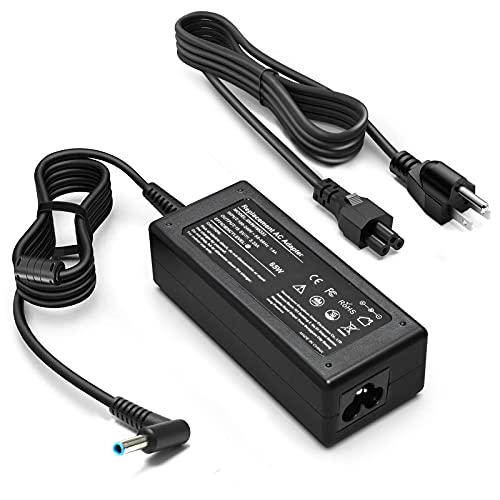
KAQIAR Adapter Compatible with HP Laptop Charger Output Max: DC 19.5V 3.33A 65W; Input: 100~240V~1.7A 50/60Hz; Connector: 4.5 mm outer diameter / 3.0 mm inner diameter blue tip.

[POWER SPECS] Output Max - 65W, 19.5V 3.34A (also for 45W laptop as well), Input Range - 100 - 240V. /(DC Connecter Size: 4.5 x 3.0mm) Compatible with Dell Charger Laptop AC Adapter Power Cord
Tools Required for Battery Replacement
When it comes to replacing the built-in battery in your laptop, having the right tools at your disposal can make the process much smoother. Here are the essential tools you’ll need for a successful battery replacement:
- Phillips screwdriver: This will be necessary for opening the laptop casing and accessing the internal components.
- Anti-static wrist strap: To prevent any static discharge that could potentially damage sensitive electronics during the replacement process.
- Replacement battery: Make sure to have the new battery that is compatible with your laptop model ready for installation.
- Small containers: Useful for organizing and storing the screws you remove during the disassembly process.
- Cleaning cloth: Keep a soft, lint-free cloth handy to clean any dust or debris that may have accumulated inside your laptop.
By having these tools prepared and within reach, you can tackle the battery replacement with confidence and ease. Remember to work in a well-lit and static-free environment to ensure a successful outcome.
Recommended Products
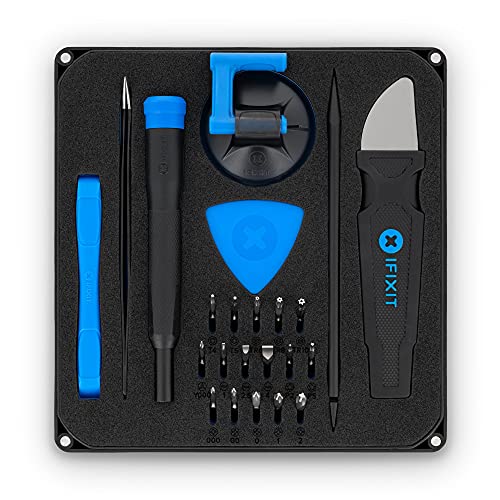
COMPLETE: This set contains a variety of tools - Besides various opening tools, it includes 16 precision bits (4 mm) and a precision screwdriver with a magnetic bit socket, knurled grip, and swivel top for easy operation.

【Specifications】 ①R73TC battery for Dell Latitude Replacement Battery, ②Type: Li-ion; ③Our R73TC Battery Replacement for Dell 54wh Standard R73TC Rechargeable li-ion battery.④Voltage: 11.4V; ⑤Capacity: 54Wh 4623mAh; ⑥Color: Black;⑦Condition: New;
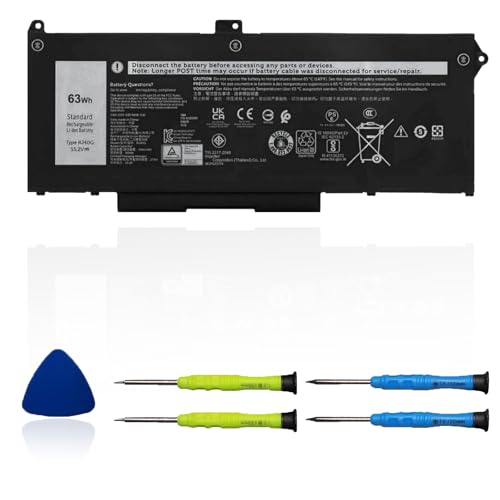
【Specifications】 ①RJ40G battery for Dell Latitude Replacement Battery, ②Type: Li-ion; ③Our RJ40G Battery Replacement for Dell 63wh Standard RJ40G Rechargeable li-ion battery.④Voltage: 15.2V; ⑤Capacity: 63Wh 3941mAh; ⑥Color: Black;⑦Condition: New;
Step-by-Step Guide to Replace the Battery
If you’re looking to swap out the built-in battery on your laptop, here’s a straightforward guide to help you through the process:
- Prepare Your Workspace:
- Find a clean, well-lit area to work in.
- Gather the necessary tools: replacement battery, Phillips screwdriver, anti-static wrist strap, small containers for screws, and a cleaning cloth.
- Power Down Your Laptop:
- Shut down your laptop and unplug it from any power source.
- Remove the Old Battery:
- Use the Phillips screwdriver to open the battery compartment.
- Disconnect the old battery from the laptop’s motherboard.
- Carefully take out the old battery from its slot.
- Install the New Battery:
- Slot the new battery into place securely.
- Reconnect it to the motherboard.
- Close the battery compartment and secure it with screws.
- Power Up Your Laptop:
- Turn on your laptop and ensure the new battery is functioning correctly.
By following these steps, you can easily and safely replace the built-in battery in your laptop with a new one.
Tips for Extending the Lifespan of Your New Battery
To make sure your new laptop battery lasts as long as possible, here are some easy-to-follow tips:
- Optimize your power settings: Adjust your laptop’s power settings to conserve energy.
- Avoid extreme temperatures: Keep your laptop and battery at a moderate temperature.
- Unplug when fully charged: Overcharging can decrease battery life, so unplug once it’s fully charged.
- Use battery-saving modes: Activate battery-saving or eco modes on your device.
- Regularly update software: Keep your laptop’s software up to date for optimal battery performance.
- Clean your battery contacts: Dirty contacts can affect battery life, so clean them gently if needed.
- Minimize background processes: Close unnecessary applications to save battery power.
- Avoid deep discharges: Try not to let your battery fully drain often.
Remember, taking care of your new laptop battery can help it last longer and perform better overall.
Conclusion
You now have all the tools and knowledge needed to successfully replace the built-in battery in your laptop. By following the step-by-step guide outlined in the article, you can ensure a smooth and efficient battery replacement process. Remember to create a clean workspace, power down your laptop, and securely install the new battery. Implementing the tips provided for extending battery lifespan will help you get the most out of your new battery. By taking these measures, you can optimize the performance and longevity of your laptop battery, ensuring that it serves you well for a long time to come.
Frequently Asked Questions
Q: Why is it important to replace a laptop battery?
A: Over time, laptop batteries lose their capacity to hold a charge, affecting device performance and portability.
Q: What tools are needed to replace a laptop battery?
A: Generally, replacing a laptop battery requires basic tools like a screwdriver and anti-static wrist strap for safety.
Q: How can I maximize the lifespan of a new laptop battery?
A: To extend battery life, adjust power settings, keep the battery at moderate temperatures, and clean the battery contacts regularly.
